Report App: Navigation and Use
Why Use This Function:
The Report App provides practices with a powerful tool to analyse financial and operational data. By navigating and using the available functions, such as selecting profiles, applying filters, and exporting reports, valuable insights can be gained into transactions, balances, and cash flow. This allows practices to monitor performance, identify trends, and ensure accurate record-keeping. Understanding how to navigate the Report App ensures that reports are customised to specific needs and that essential financial information is always accessible in a clear and organised way.
Report App provides practices with a powerful tool to analyse financial and operational data. Navigating and using available functions, such as selecting profiles, applying filters, and exporting reports, allows valuable insights to be gained into transactions, balances, and cash flow. Monitoring performance via your configuration helps identify trends and ensure accurate record-keeping across your business.
The Contents of This User Manual:
- Add Profiles and Filters
- Exporting
- Reports
- Report App Sidebar
- This user manual will start on the Report App screen.

- For navigation, see How to Access Advanced Reports.
Add Profiles and Filters
Adding profiles and filters allows you to customise how data is displayed and reported. By saving preferred settings, you can quickly apply consistent views, making it easier to analyse and compare information efficiently.
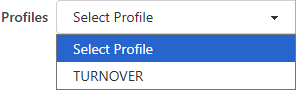
- Click on the Profiles drop-down field and select a profile.

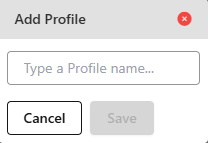
- Click on Add to create a new profile to filter on.
![]()
- The Add Profile pop-up will appear.

- For information, see How to Save and Load Custom Report Profiles on the Report App.
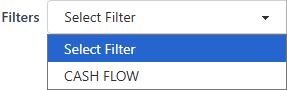
- Click on the Filters drop-down menu to select a filter.

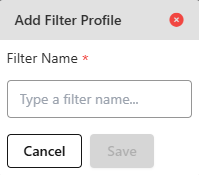
- Click on Add to create a new filter.
![]()
- The Add Filter Profile pop-up will appear.

- For information, see How to Save and Load Custom Report Profiles on the Report App.
Exporting
Exporting enables you to download reports in Excel or PDF format, making it easy to share, store, or analyse information outside of the system.
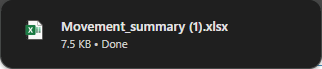
- Click on Export to Excel.
![]()
- The reports will be downloaded as an XLSX file.

- Click on Export to PDF.
![]()
- The reports will be downloaded as a PDF.

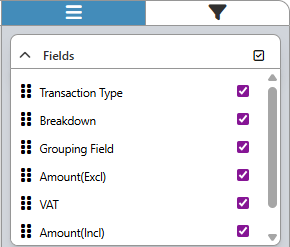
💡Please Note: The exported PDF or Excel file will reflect only the fields selected in the filters. To download all fields, ensure every option is ticked in the sidebar.
- Click on Settings to change the setup.
![]()
-
- For settings information, see: Report App Settings.
Reports
Reports provide a clear overview of financial and clinical information, helping the practice track performance and make informed decisions.
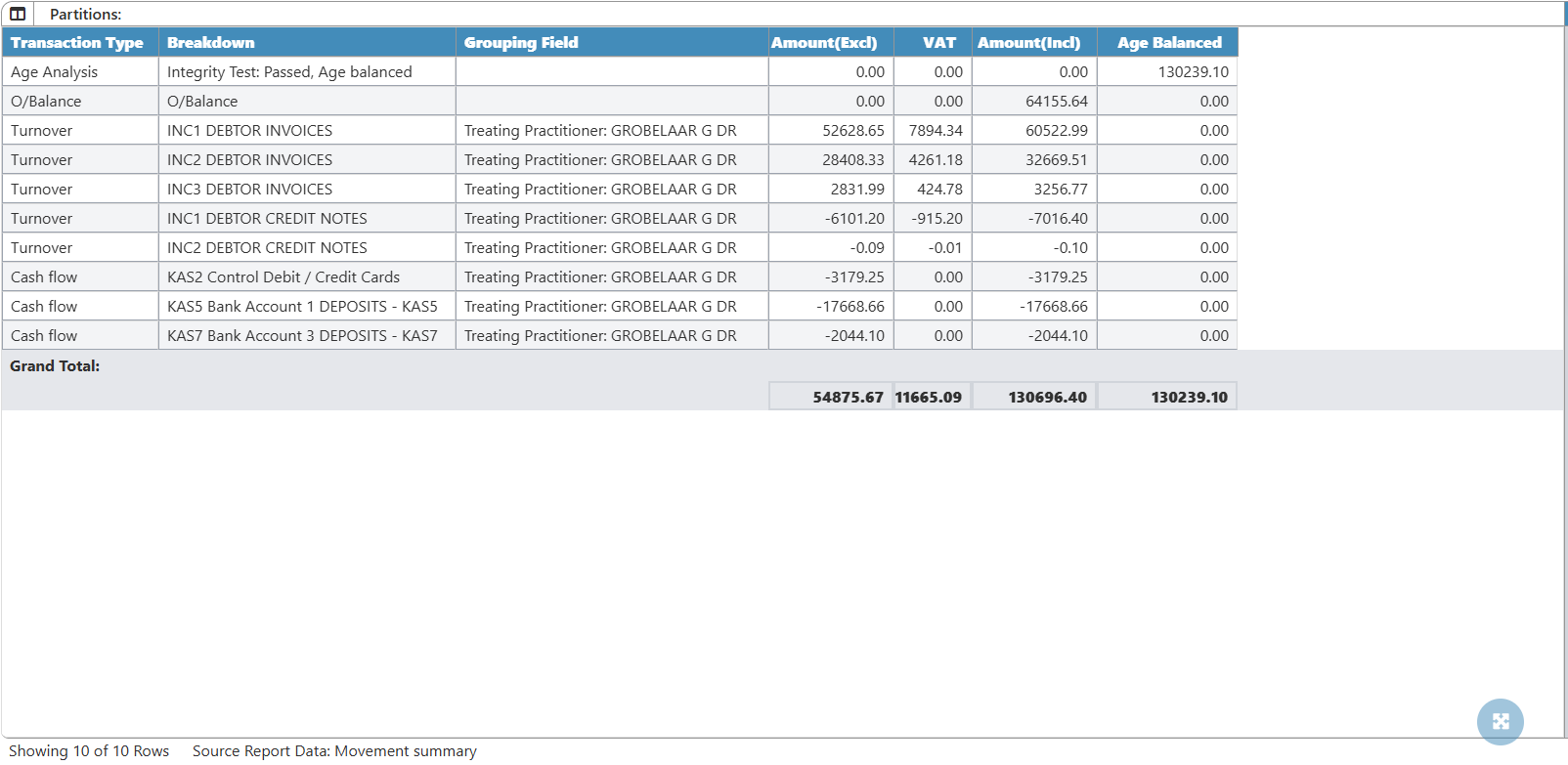
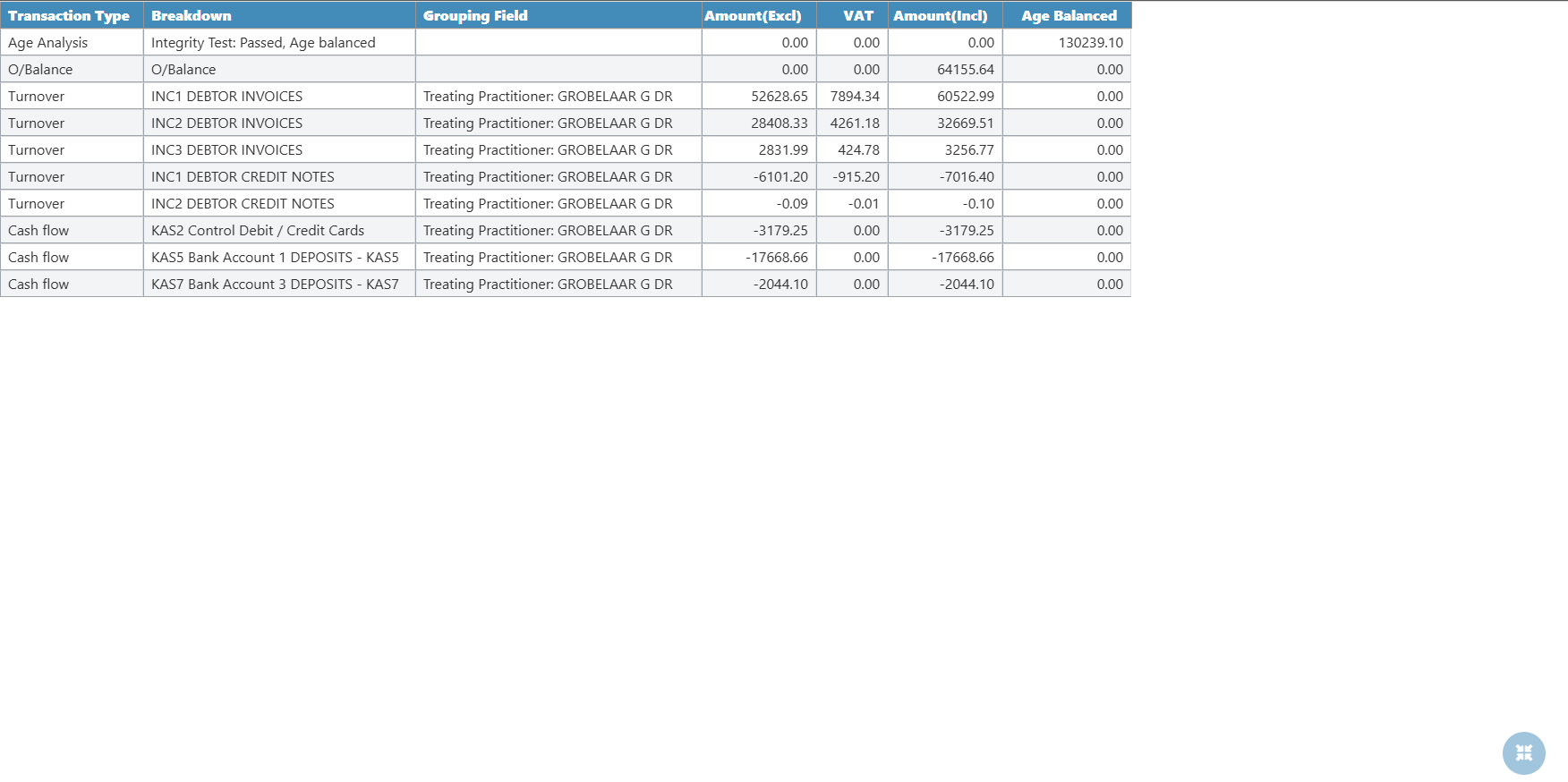
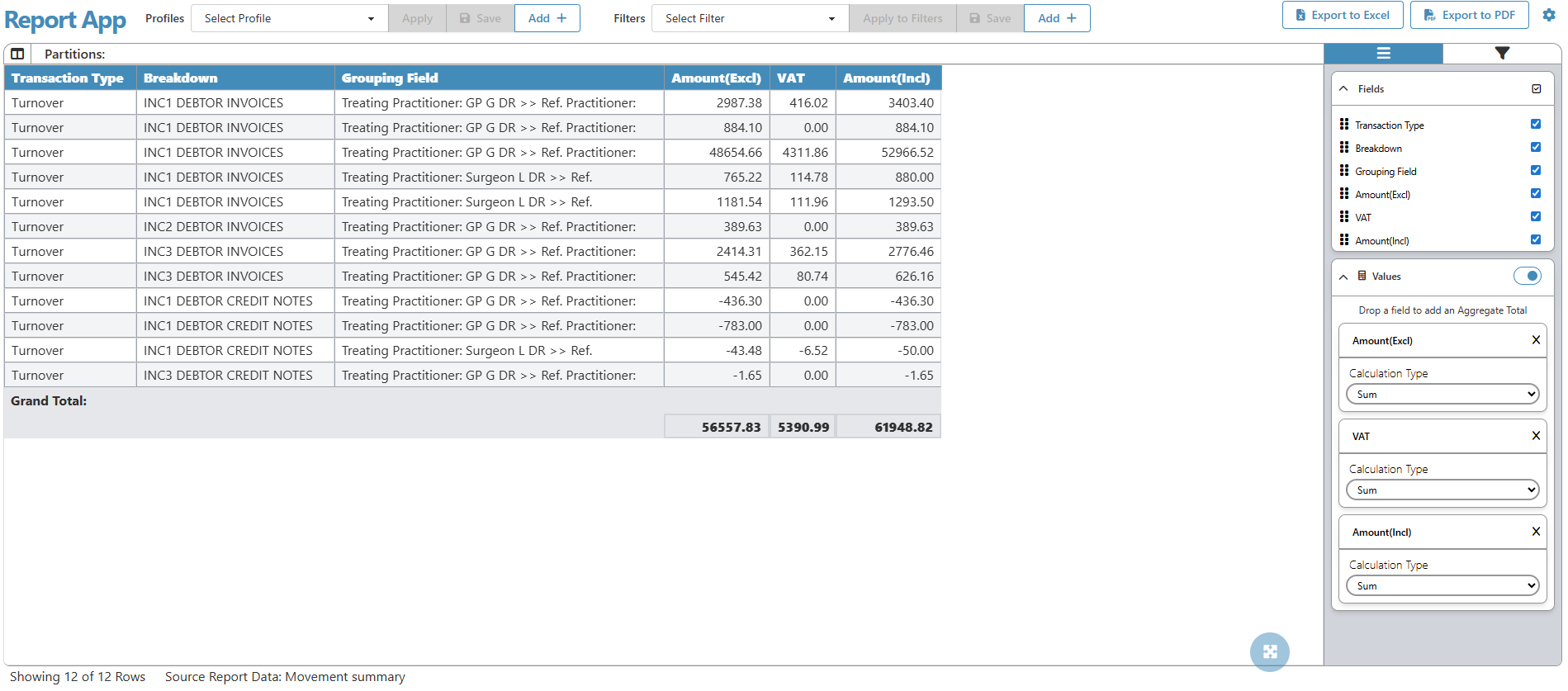
- Transaction Type: Indicates the category of the financial transaction, such as age analysis, turnover, or cash flow.
- Breakdown: Provides more detail on the specific transaction, such as invoices, credit notes, or deposits.
- Grouping Field: Shows the field by which transactions are grouped, such as the treating practitioner.
- Amount (Excl): The transaction amount excluding VAT.
- VAT: The Value-Added Tax applied to the transaction.
- Amount (Incl): The transaction amount including VAT.
- Age Balances: Displays outstanding amounts that have been aged for reporting and reconciliation purposes.
- Grand Total: Displays the combined total of all transaction amounts, including Amount (Excl), VAT, Amount (Incl), and Age Balanced, for the selected report data.
- Click on Maximise to expand the report section into full-screen mode.
![]()
- Only the Reports will open full screen.

- Click on Minimise to close the full-screen Reports.

Report App Sidebar
The Report App sidebar allows you to customise your reports by selecting filters and fields, ensuring the displayed data matches your specific needs.

- Click on the Fields tab.
![]()
- The Fields will open.

- For information, see How to Sort Columns in the Report App Sidebar.
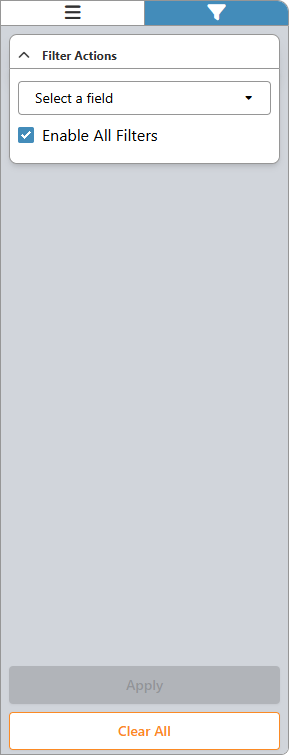
- Click on the Filter tab.
![]()
- The Filter Actions will display.

- For information, see How to Sort Columns in the Report App Sidebar.