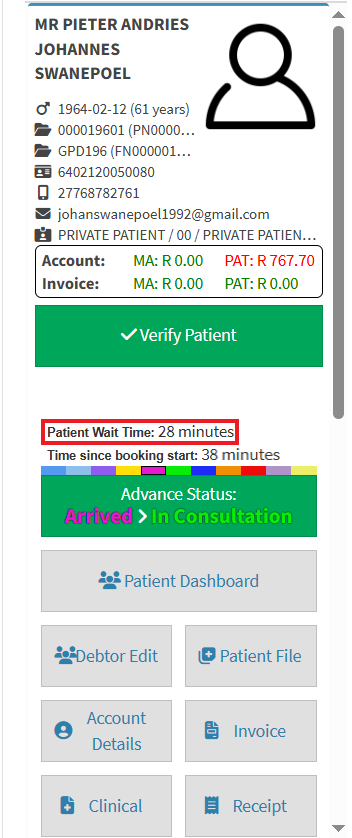
A Booking Wait Time allows you to track the length of time between when a Patient arrives at the Practice and when their Appointment begins. This provides valuable insight into the Practice’s efficiency, helping to identify delays, improve scheduling accuracy, and enhance the overall Patient experience. Monitoring wait times also assists in evaluating Practitioner workload and Diary management, ensuring that resources are used effectively and that Patients receive timely care.
?Please Note: In order to use this feature setup will first need to be done.
The Contents of This User Manual:
Booking Wait Time Settings
Setting Booking Status to Booking Type
How to View Booking Wait Time
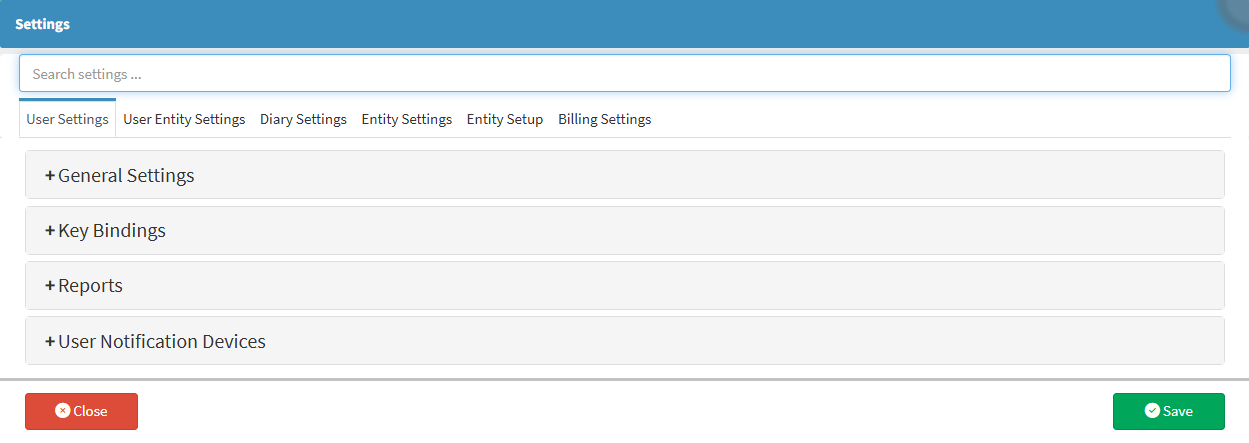
This user manual will start on the Settings screen, User Settings tab.
Booking Wait Time Settings
This section explains how to set up a booking wait time so that the Practice can manage delays effectively and ensure smoother appointment scheduling.
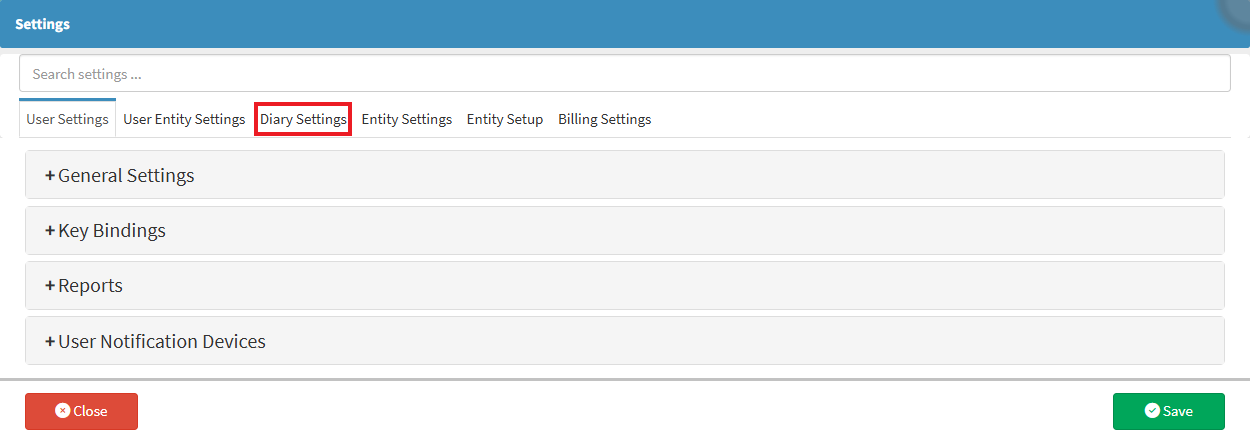
Click on the Diary Settings tab.
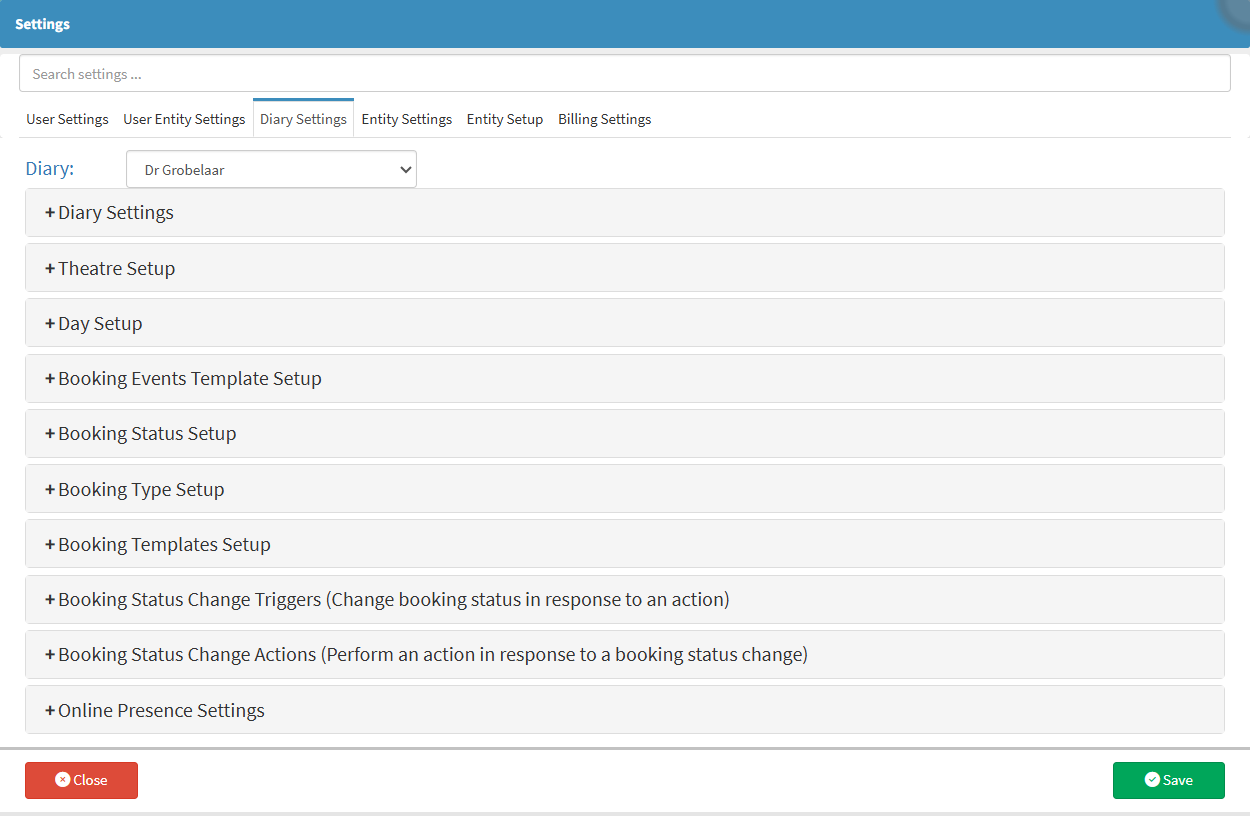
The Diary Settings tab will open.
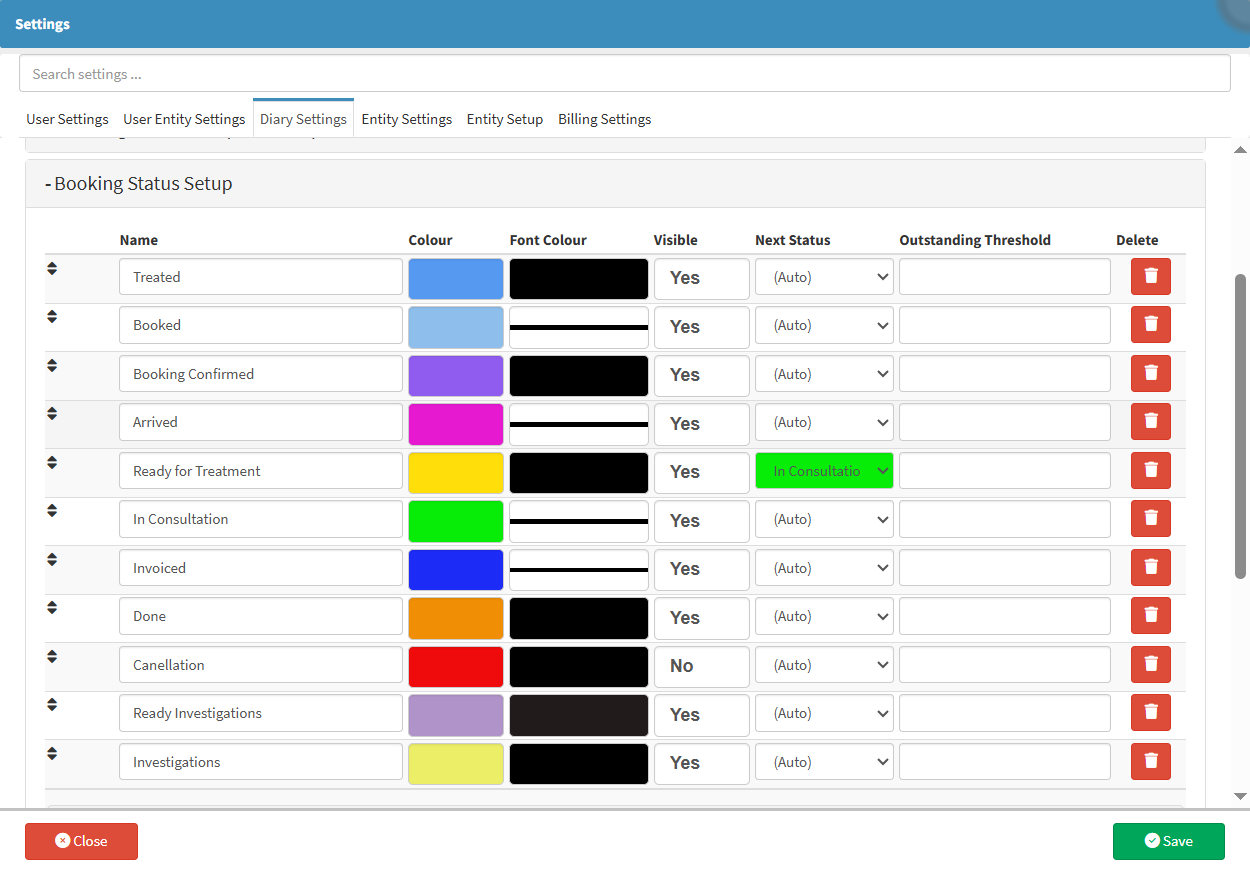
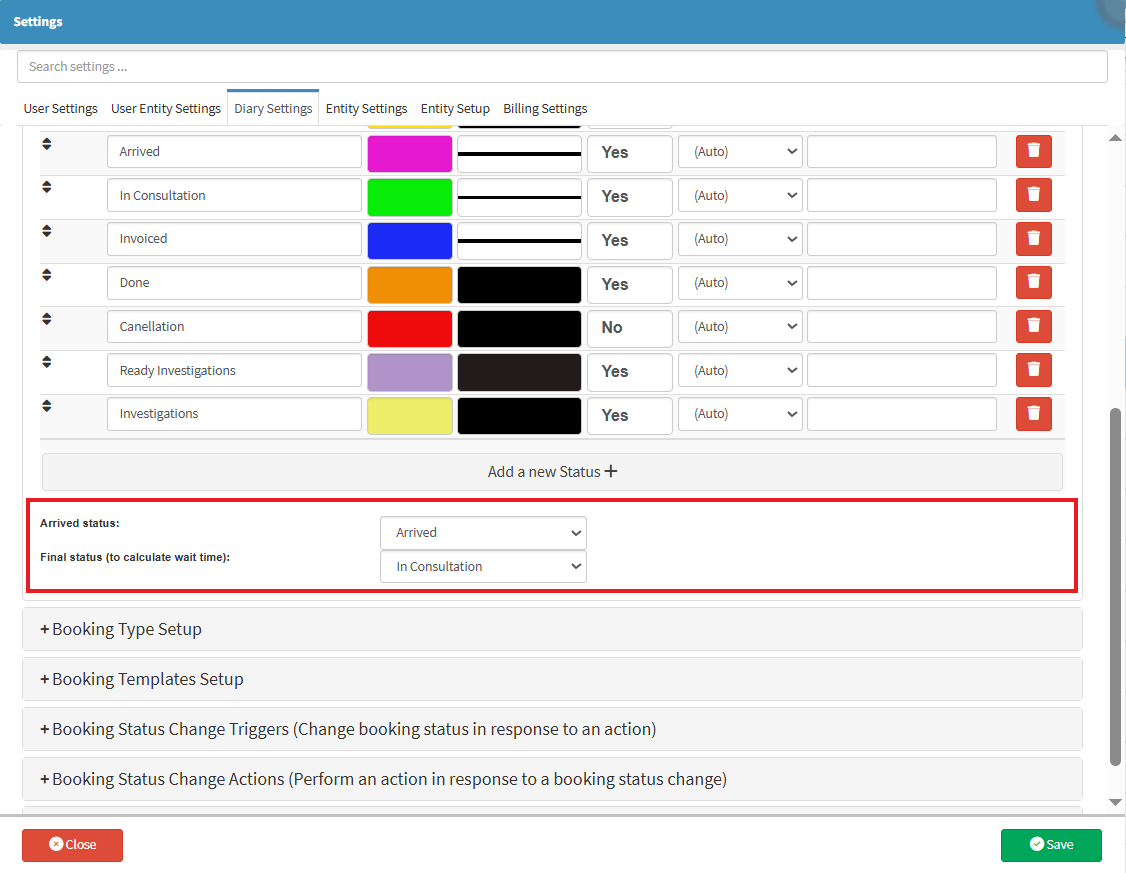
Click on the Booking Status Setup panel to expand.
Navigate to the Wait Time Settings section.
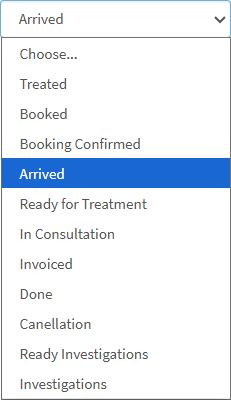
Click on the Arrive Status drop-down menu to expand.
Select the desired Booking Status to start with.
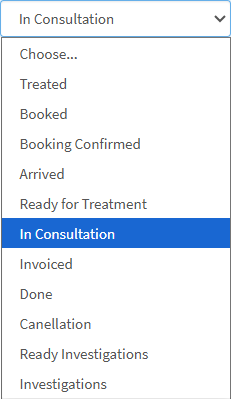
Click on the Final Status drop-down menu to expand.
Select the Booking Status that will indicate when the Wait Time calculation should stop.
Setting Booking Status to Booking Type
This setup lets you fine-tune each booking type’s rules and options, ensuring your Practice manages appointments with greater accuracy and consistency.
Click on the Booking Type Setup panel to expand
Navigate to your desired Booking Type to reflect the wait time.
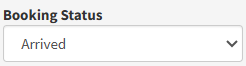
Set the Booking Status to your desired option.
Click on the Save button.
How to View Booking Wait Time
To quickly view the current wait time for each booking type, giving you clearer oversight to manage schedules and streamline your workflow with ease.