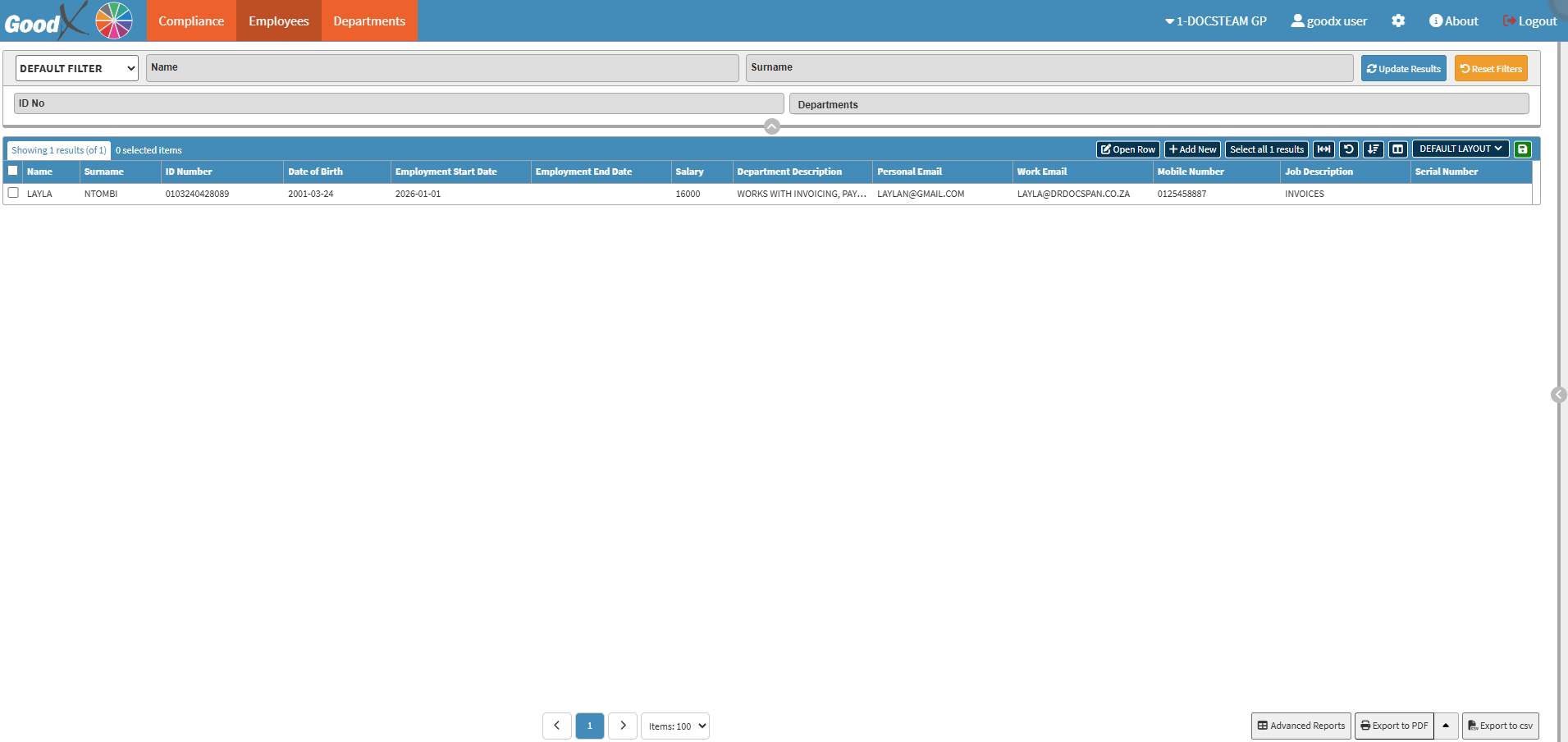
The Employees tab serves as the primary database for managing personnel records within the Practice. By utilising this function, the Practitioner can maintain accurate data regarding Employee identification, employment timelines, and contact details. This centralised screen allows for efficient filtering and reporting, ensuring that staff information is easily accessible for administrative, payroll, and communication purposes.
💡Please Note: This tab will only be available to users with given access, as it contains confidential employee information.
The Contents of This User Manual:
Filters
Screen Columns Action Buttons
Columns
Page Options
This user manual will start on the Employees tab screen.
For more information on how to navigate to the Employees tab screen, please refer to the user manual: Administration Segment.
Filters
Allows you to narrow down or refine the results displayed on the Employee tab.
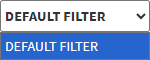
Click on the Default Filter drop-down menu to select how the screen will be filtered.
Click on the Name field to enter the name.
Click on the Surname field to enter the surname.
Click on the ID No field to enter the ID number.
Click on the Departments drop-down menu to select the desired Department.
Click on the Update Results button to refresh the results.
Click on the Reset Filters button to erase all the filters inserted.
Screen Columns Action Button
Several additional Options are available for the Columns. These additional Options are to help you adjust the List, refine the search, and give more specific results.
Click on the Open Row button to edit an added Employee.
Click on the Add New button to add a New Employee.
For a comprehensive explanation of How to Add/Edit an Employee, please refer to the user manual: How to Add/Edit an Employee.
Click on the Select All Results button to select all the Employees.
Click on the Expand Widths button to auto-fit the column width to the information within all columns.
Click on the Reset Widths button to restore the original Widths after any modifications are made.
Click on the Sort Columns button to sort the Columns in the order that you desire.
All the information on the Employees screen is divided into Columns to logically group related information together.
Name: The first name of the Employee.
Surname: The last name of the Employee.
ID Number: The unique national identity number of the Employee.
Date of Birth: The day, month, and year on which the Employee was born.
Employment Start Date: The official date on which the Employee started working at the Practice.
Employment End Date: The final date of the Employee's service, if applicable.
Salary: The monthly salary of the Employee.
Department Description: A brief summary of the specific unit or division the Employee is assigned to within the Practice.
Personal Email: The private email address used by the Employee for non-work-related correspondence.
Work Email: The official email address provided by the Practice for professional communication.
Mobile Number: The primary cellular contact number for the Employee.
Job Descriptions: A detailed outline of the roles, responsibilities, and tasks assigned to the Employee.
Serial Number: A unique internal identification number assigned to the Employee record for tracking purposes.
Page Options
All the additional options that are available for the page.
Click on the Previous button to navigate to the previous page.
Click on the Page Number button to navigate to the desired page.
Click on the Next button to navigate to the next page.
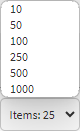
Click on the Items drop-down menu to select the number of items that will be displayed on the screen.
Click on the Export to PDF button to save a PDF file of all the data as a comprehensive report.
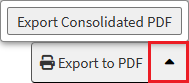
Click on the Export to PDF drop-up menu to access the Export Consolidated PDF option that allows you to generate a single document that combines all the data from multiple sources to provide an overview.
Click on the Export to CSV button to save the Report in a CSV format.
Last modified: Wednesday, 14 October 2026, 2:22 PM