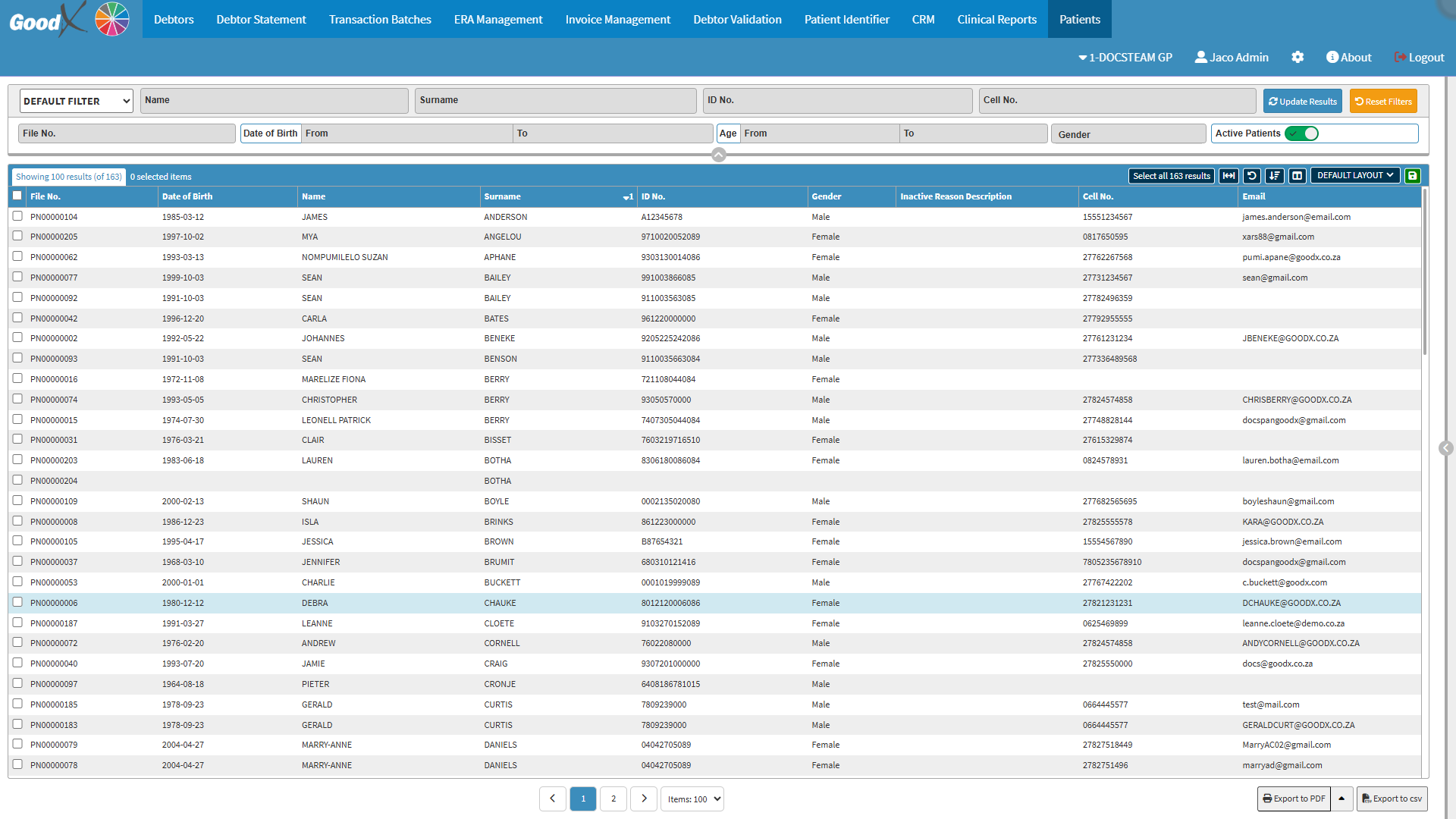
The Patients Sidebar is an extension of the Patients screen and provides access to key Patient communication tools and summary information.
You are able to communicate directly with the Patient via SMS, email, or call, as well as view a summary of the Patient’s demographic details.
This reduces the need to navigate between screens and supports efficient and accurate Patient interaction.
The Contents of This User Manual:
Actions
SMS
Email
Dial
WhatsApp
Patient Information
This user manual will start on the Patients screen.
For more information on how to navigate to the Patientsscreen, please refer to the user manual: Debtors Segment.
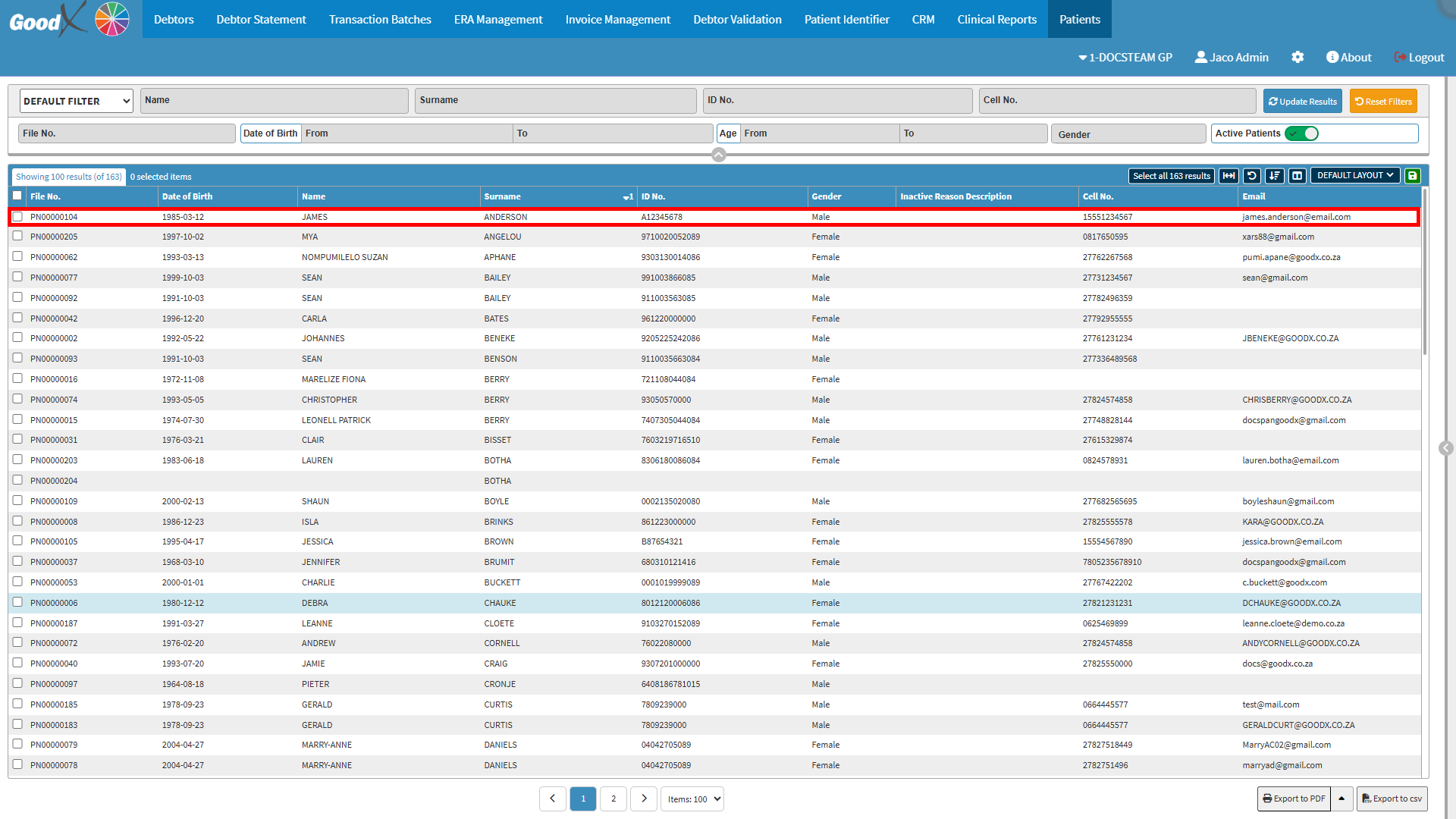
Click on the desired Patient.
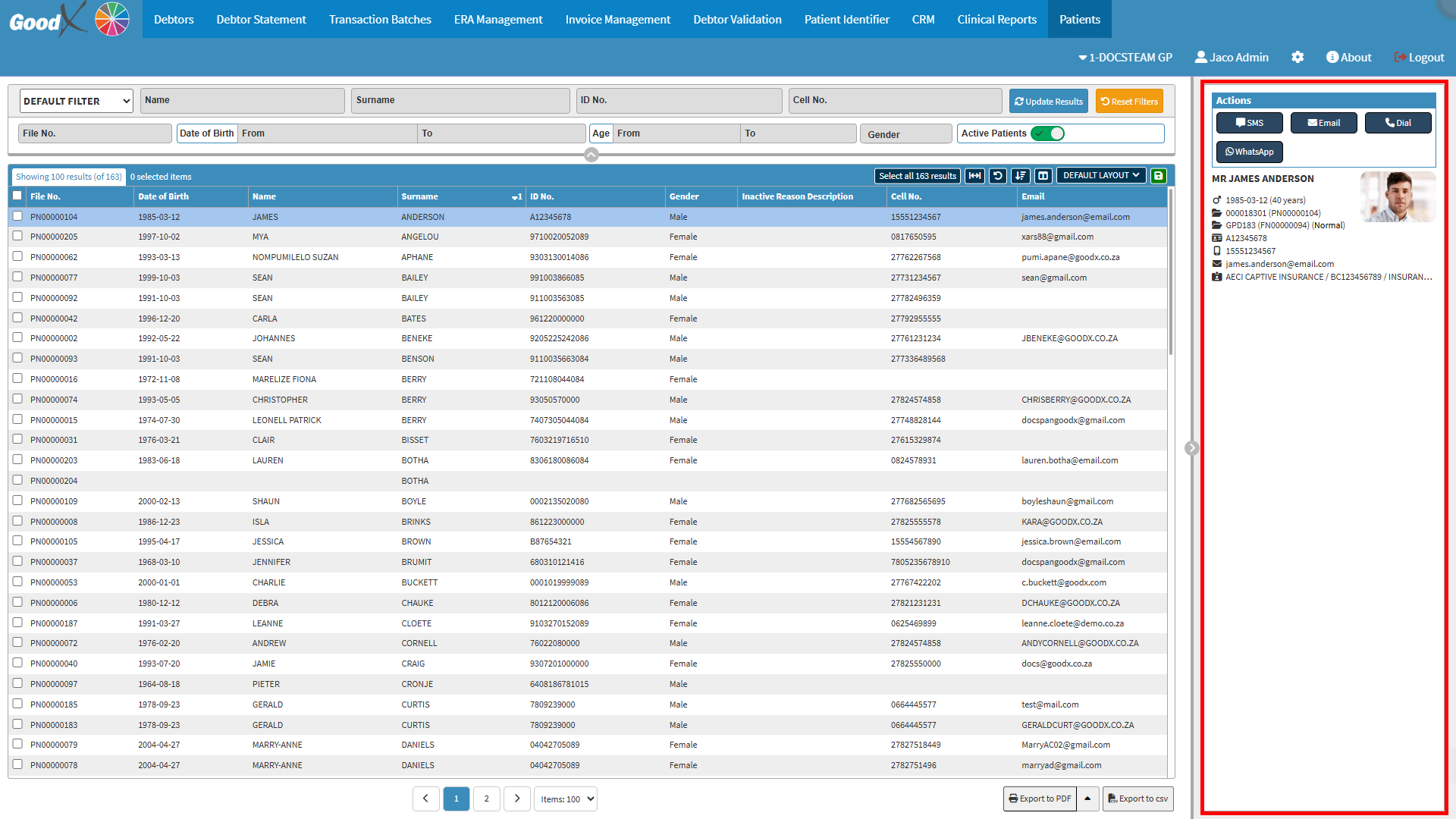
The Patient sidebar will open.
Actions
Options that are available for the selected Patient.
SMS
Allows you to draft and send an SMS to the Patient, providing a fast, convenient way to send booking confirmations, reminders, or quick updates directly from the sidebar.
Click on the SMS button.
The SMS - Add/Edit Workflow Event screen will open.
For more information regarding the SMS Add/Edit Workflow Event, please refer to the user manual: Send an SMS.
Email
Allows you to send an email directly to the Patient and is useful for sending reminders, Invoices, Statements, Account Queries, or general communication efficiently.
Click on the Email button.
The Email - Add/Edit Workflow Event screen will open.
For more information regarding the Email - Add/Edit Workflow Event screen, please refer to the user manual: Send an Email.
Dial
Enables voice calls over an internet connection instead of a traditional telephone line.
Click on the Dial button.
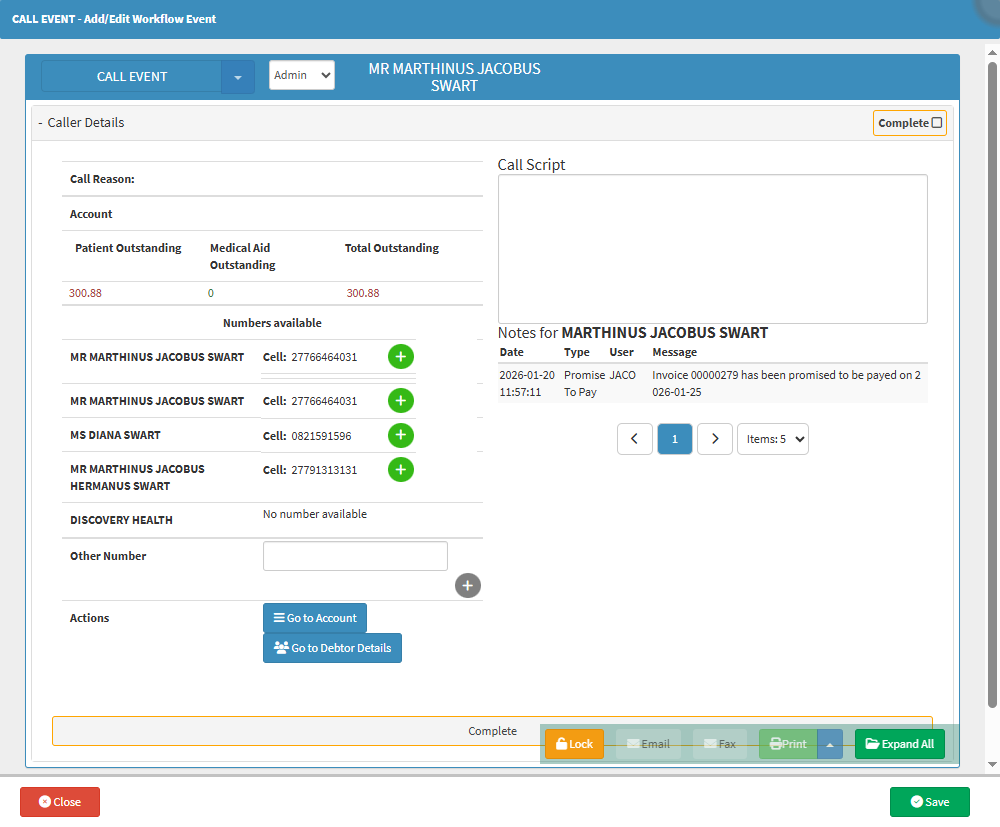
The Call Event - Add/Edit Workflow Event screen will open.
For more information regarding the Call Event - Add/Edit Workflow Event screen, please refer to the user manual: Making a VoIP Call.
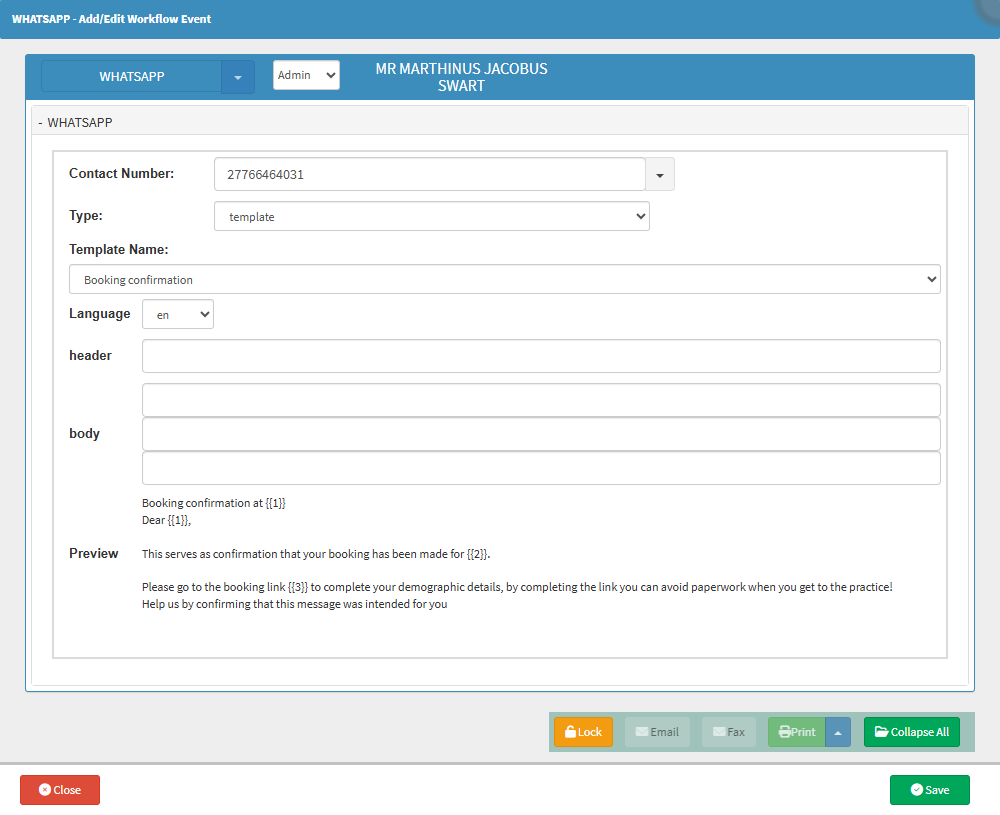
WhatsApp
Allows you to communicate with the Patient through WhatsApp.
⚠️Disclaimer: WhatsApp is an extra service that can be set up for the Practice, which needs to be enabled. To set up the function for your Practice, please contact your dedicated FCL. If WhatsApp hasn't been activated and setup you will not be able to use this feature, and the button will not be available.
Click on the WhatsApp button.
The WhatsApp - Add/Edit Workflow Event screen will open.
For more information regarding the WhatsApp -Add/Edit Workflow Event screen, please refer to the user manual: How to Send A WhatsApp.
Patient Information
This section provides a comprehensive overview of the Patient’s personal and administrative details, including their photo for easy identification, date of birth, current age, file number, Debtor number, and ID number. It also includes contact information such as phone number and email address, alongside relevant Medical Aid details to ensure that all necessary information is easily accessible for administrative and clinical purposes.
Patient's Details (MR MARTHINUS JACOBUS (BOK) SWART): The Title, Full Name and Surname of the Patient.
Gender, Date of Birth, Age ( 1986-12-31 (39 years)):The date of birth and the current age of the Patient.
Account Number and Patient's File Number (000018701) (Normal):The Main Debtor's Account Number and the Patient's individual File Number.
Debtor's Number(GPD187):A Debtor Number is autogenerated by the system and assigned per Patient.
File Number (FN00000098): The File Number that was automatically generated by the system when the file is created.
ID Number (8612315222087): The Identification Numberof the Patient.
Cellphone Number (27766464031):Cellphone Number of the Patient.
Medical Aid Provider, Option and Number (DISCOVERY HEALTH / 17258649 / INSURANCE MEDICAL): The Name, Membership Number and the Plan Name of the Patient's Medical Aid.