The Blank Canvas Drawing feature transforms your digital workspace into an unrestricted creative whiteboard, empowering you to express ideas visually directly within the platform. Designed for ultimate flexibility, this tool allows you to sketch quick mockups, annotate thoughts, or create custom illustrations from scratch using a variety of shapes, colour palettes and other drawing tools. By starting with a completely blank slate, you bypass the rigid constraints of templates and text, giving you total creative freedom over your layouts and designs.
💡Please Note: The Video Capture screen can be accessed from several places within the software. For more information regarding the Video Capture screen, please refer to the user manual: Video Capture Screen: Navigation and Use.
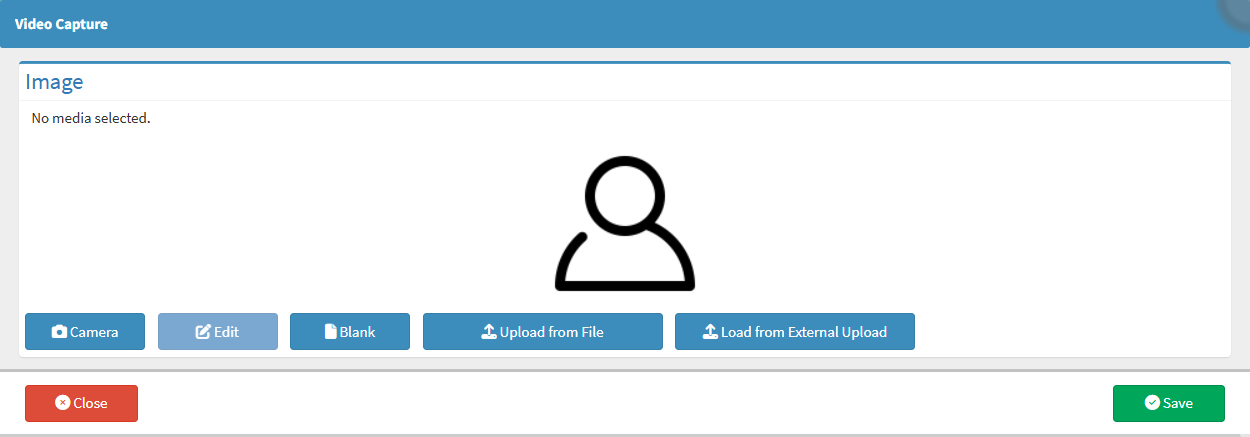
This user manual will start on the Video Capture screen.
Click onBlank button.
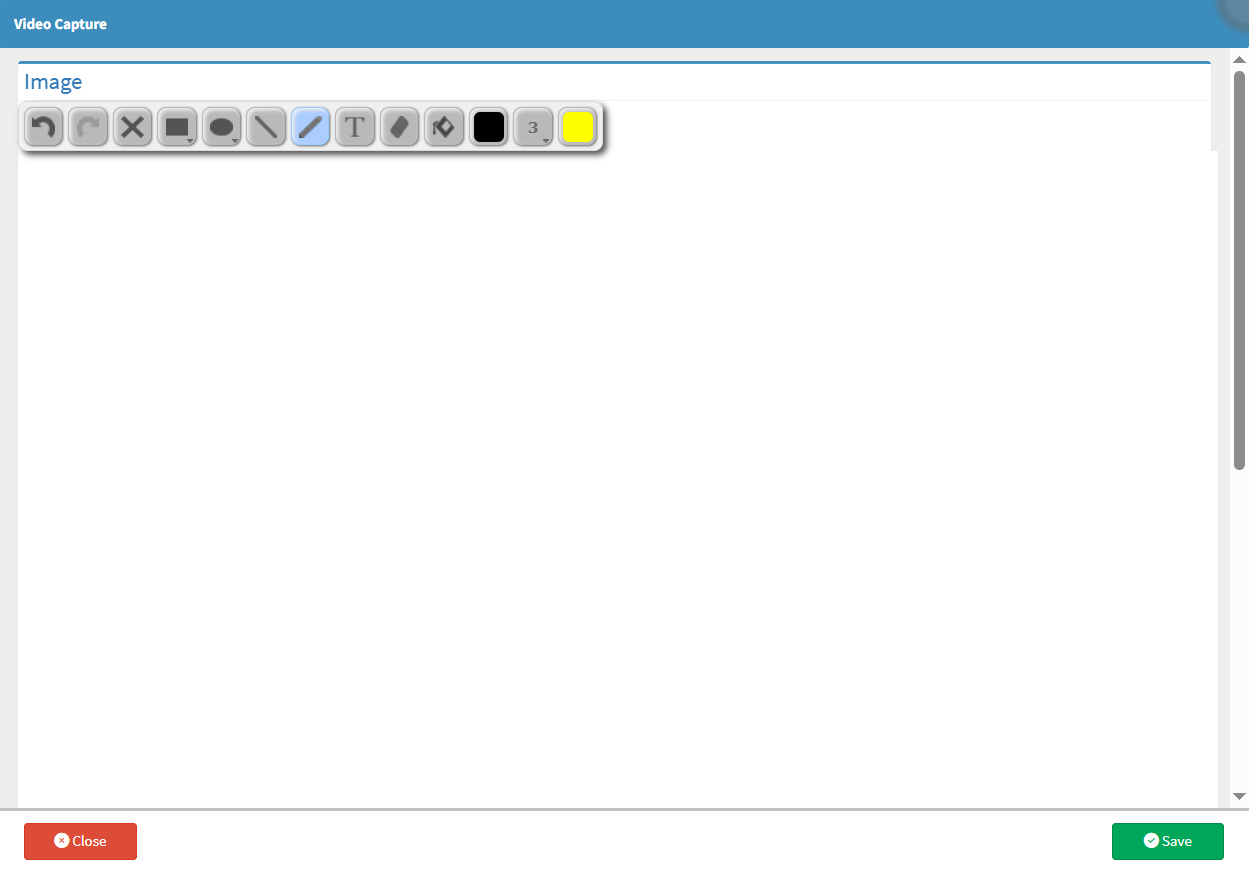
The Video Capture screen will appear with a blank area where images can be drawn using the toolbar provided.
Toolbar
A range of tools that can be used to perform a certain action on the page.
Click on the Undo button to undo the action that has been performed.
Click on the Redo button to redo the action that has been undone.
Click on the Clear button to clear the entire screen and erase all the actions that were performed.
Click on the Rectangle button to draw a rectangular/square shape on the image.
Click on the Ellipse button to draw a circle/oval/ellipse shape on the image.
Click on the Line button to draw a line on the image.
Click on the Pencil button to create freehand drawings.
Click on the Text button to add text to the canvas.
Click on the Eraser button to erase a certain area.
Click on the Bucket button to fill a shape or the background.
Click on the Fill Colour button to select a colour that you want to use to fill objects with.
Click on the Stroke Width button to select the width that lines, circles, rectangles and freehand drawings are drawn with.
Click on the Stroke Colour button to select the colour used to draw the lines, circles, rectangles, freehand drawings, and to add text.
Click on the Save button to save the captured content.