Allows a user to copy Debtor Information from one Entity to another without having to recreate the Debtor, in order to save time and prevent the loss of information.
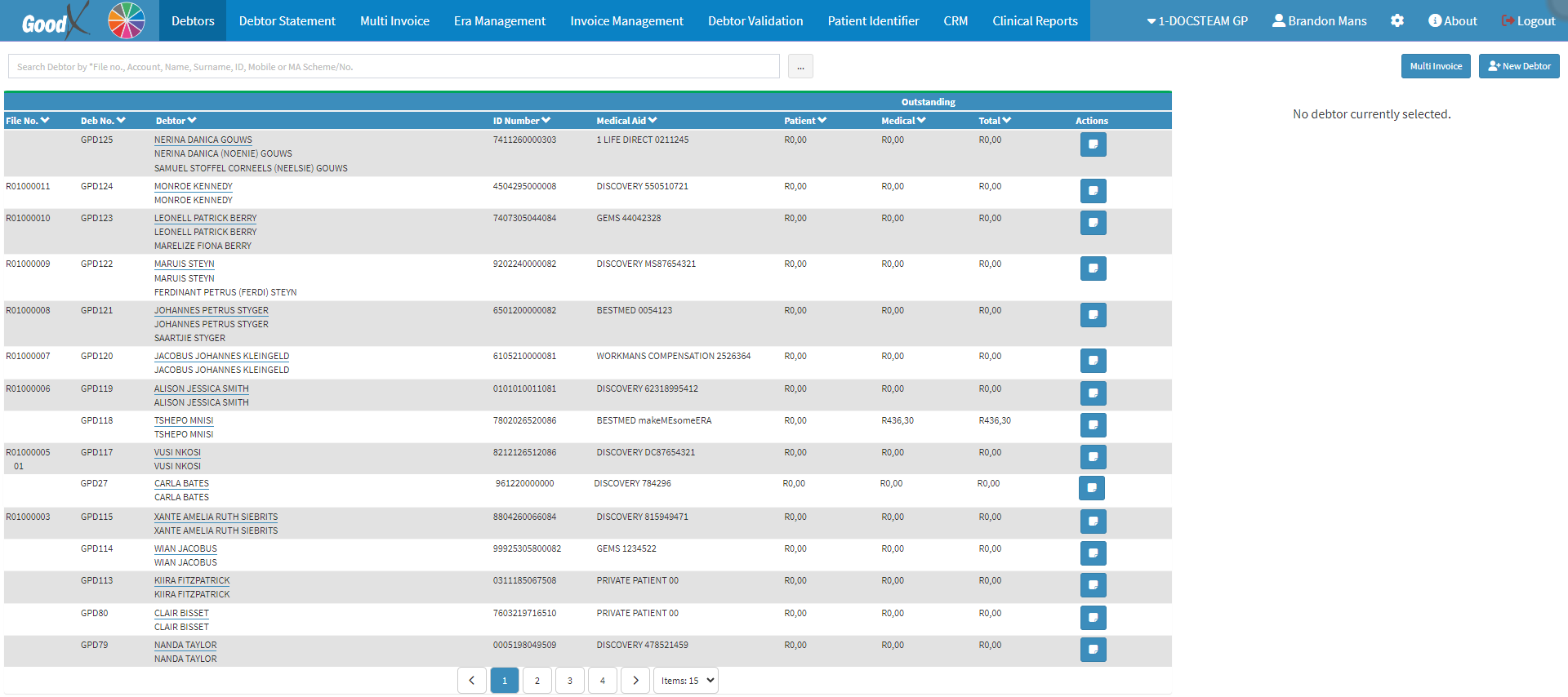
This user manual will start on the Debtors screen.
Click on the desired Debtor.
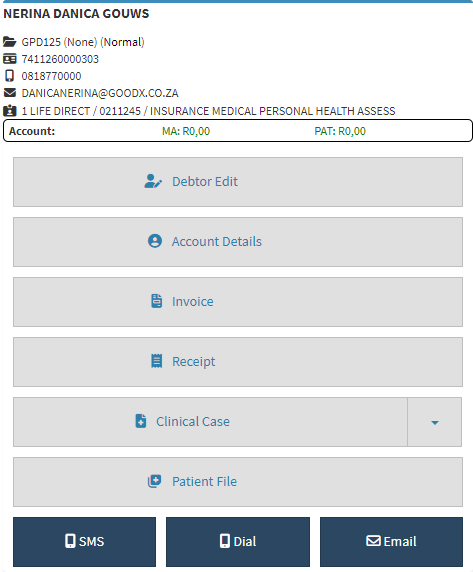
The Debtor Sidebarwill open.
Click on the Debtor Edit button.
The Debtor Details screen will open.
For more information regarding the Debtor Details screen, please refer to the user manual link: How to Create a New Debtor
Click on the Copy to Entity button.
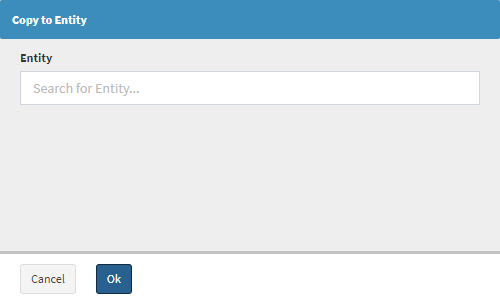
The Copy to Entity screen will open.
Type in the Entity Name or Number in the Search for Entity... field.
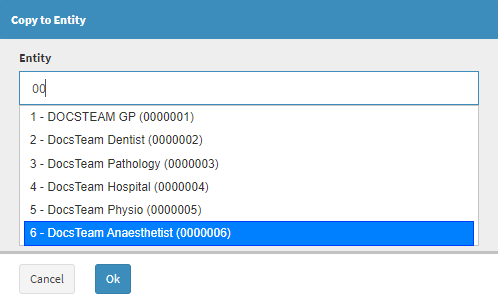
Whilst typing for the desired Entity, a drop-down menu will appear.
Please Note: Only 1 character is required before the list becomes available.
Select the correct Entity from the list that becomes available.
Click on the Ok button after selecting the desired Entity.
The Debtor Details screen will open.
For more information regarding the Debtor Details screen, please refer to the user manual link: Create a New Debtor.
Click on the Save button to copy the Debtor to a new Entity.
The Debtor Details screen will close and return to the first Debtor Details screen.
Click on the Close button to return to the Debtors screen.