Why Use This Function:

Marking a Patient as Inactive on a file means they are no longer linked to that file. This could be due to reasons such as death, switching to independent medical aid, or a change in marital status (e.g., divorce). Setting this status helps ensure the Patient isn’t billed incorrectly and no longer has access to information they’re not authorised to receive.

  • This user manual will start on the Debtors screen.
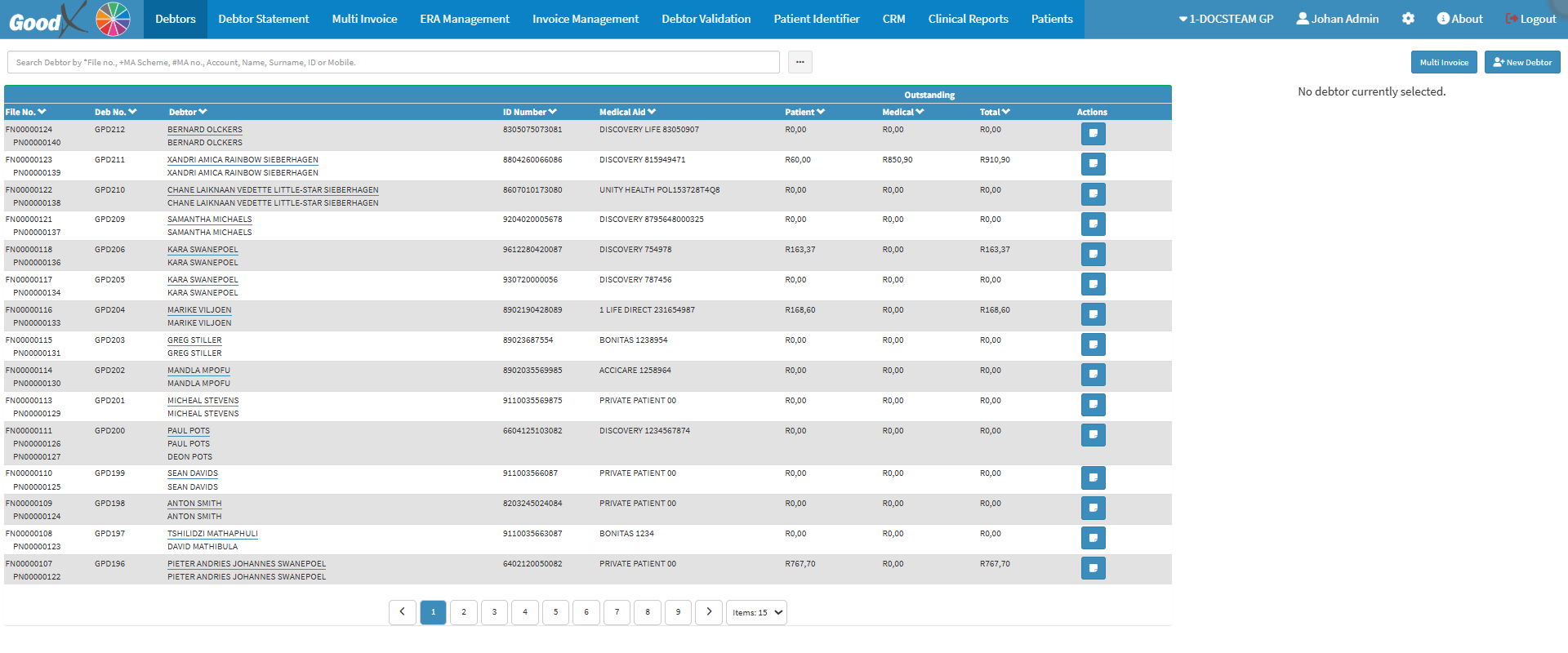
  • Click on the Search Bar.

  • Enter the name of the relevant Debtor you wish to mark as Inactive into the search bar.

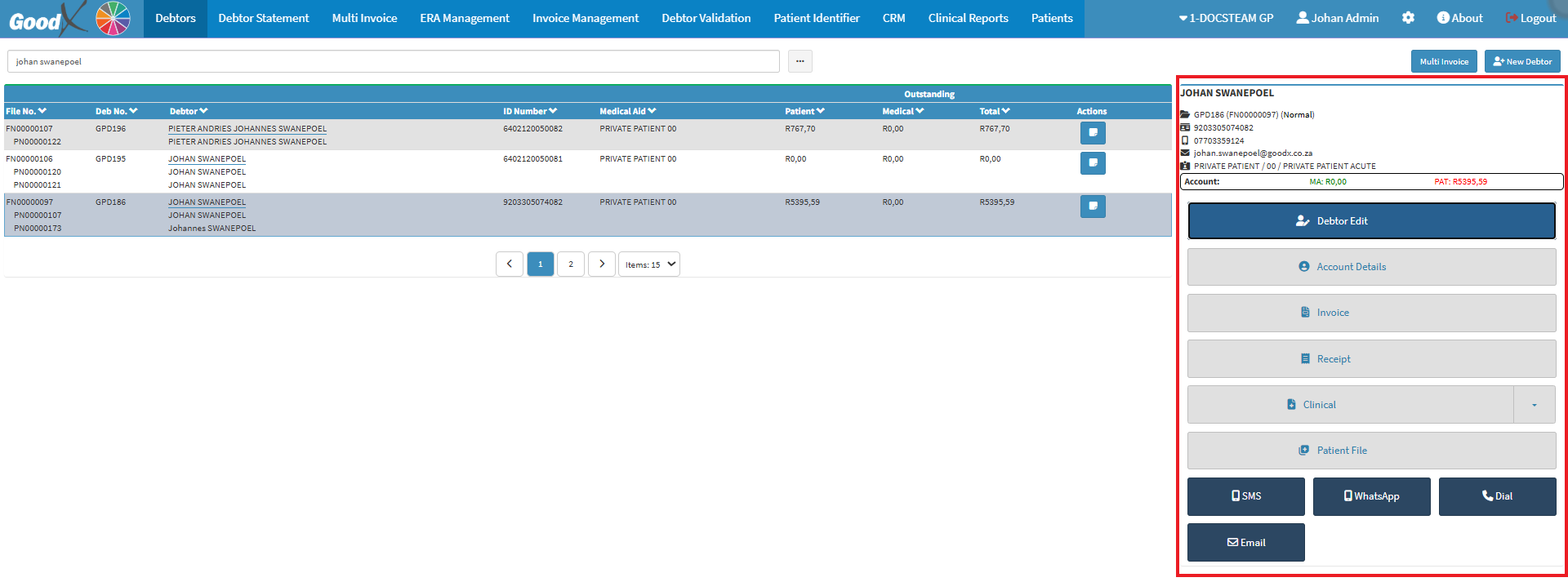
  • Click on the correct Debtor from the list of Debtors that appear.

    • The Debtor sidebar will open.

  • Click on the Debtor Edit button.

    • The Debtor Details screen will open.

  • Select the correct Patient to make Inactive.

  • Click on the Delete button.

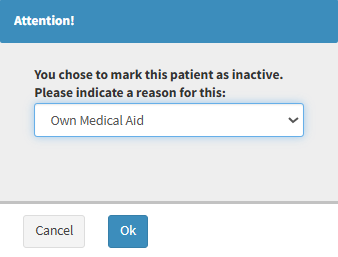
    • An Attention! pop-up will appear.

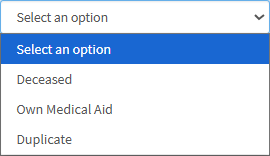
  • Click on the Select an Option drop-down menu.

  • Select the reason why you would like to make the Patient Inactive.

  • Click the OK button to save the changes made.

    • The Patient will now show as Inactive on the Debtor's file.

Last modified: Sunday, 29 March 2026, 3:42 PM