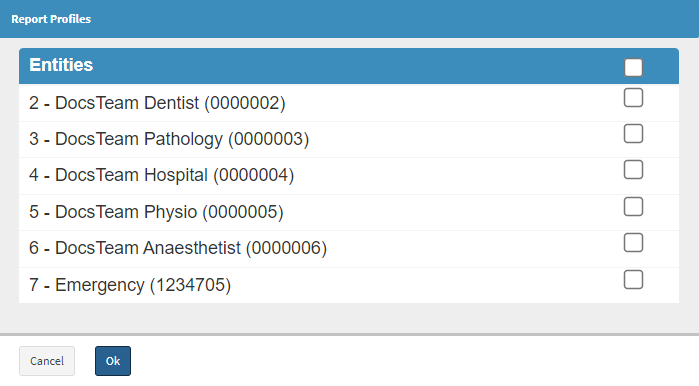
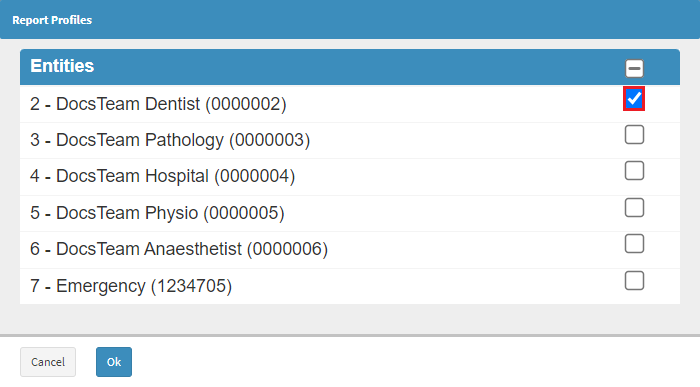
A User is able to create Report Profiles and Copy the Profile to other Entities. By copying a Report Profile to another Entity, the User has no need to create the same Profile on another Entity and can just use the copied Report Profile.
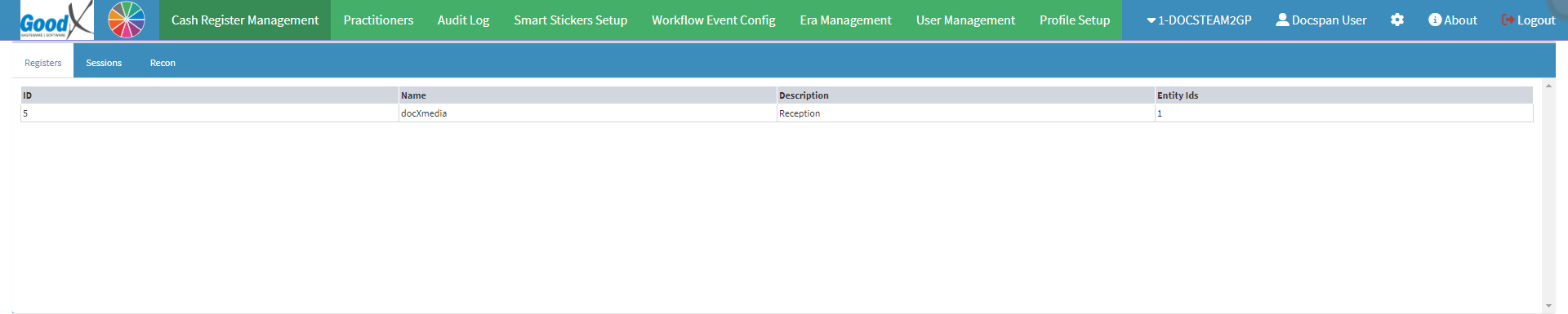

  • This user manual will start on the Cash Register Management screen.

  • Click on the Profile Setup tab.

  • The Debtor Status Profiles screen will open.

  • Click on the Report Profiles subtab.

  • The Report Profiles screen will open.

Please Note: For the purpose of this user manual, the Debtor Drilldown Report will be used as an example.
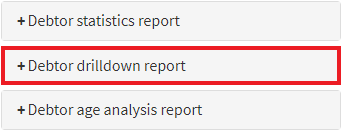

  • Click on the Debtor Drilldown Report panel.

  • The Debtor Drilldown Report panel will expand.

Please Note: The list that appears, is a list that has been created previously.

  • Tick the Checkbox of the desired Profile.


Please Note: Multiple Profiles can be selected.

  • Click on the Copy Profiles to Entity button.

  • The Report Profiles screen will open.

  • Tick the Checkbox of the desired Entity.


Please Note: Multiple Entities can be selected.

  • Click on the Ok button to Copy the Report Profile to the desired Entity.

  • The Report Profile will be copied to the selected Entity.

Please Note: No Notification will be shown to indicate that the Report Profile has been copied successfully.


Last modified: Monday, 17 August 2026, 12:33 PM