Text size
Line height
Text spacing
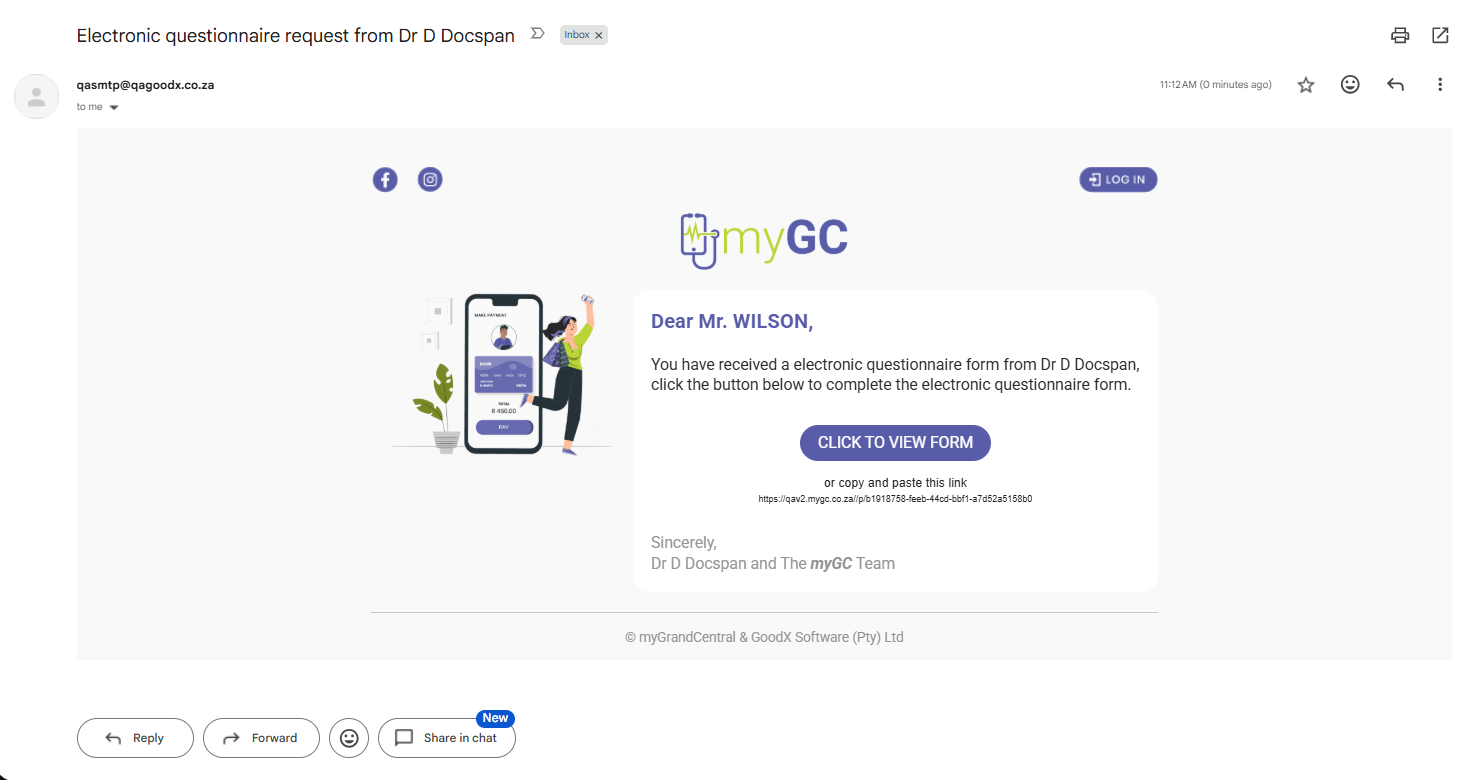
Sending a Custom Form to the Patient from a booking on the Diary allows the Practice to send a pre-configured form tailored to the needs of the Practice.
The form can be completed electronically via the myGC Patient Portal and submitted back to the Practice, where the Practitioner can review the Patient’s responses. This improves efficiency, reduces administrative workload, and ensures that accurate information is available prior to the consultation.
💡Please Note: A Custom form will need to be created in order for you to be able to send the form. For more information, please refer to the user manual: How to Set Up Custom Forms.
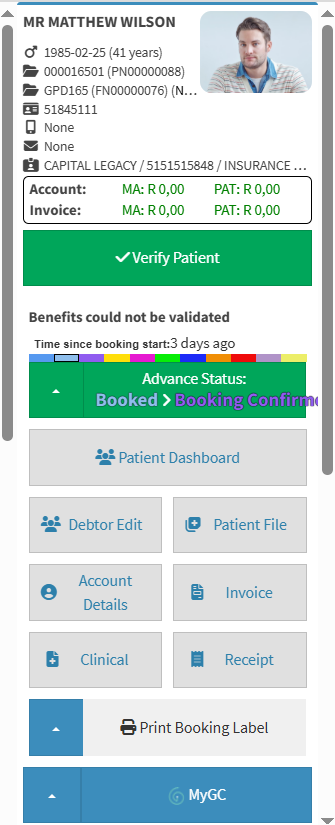

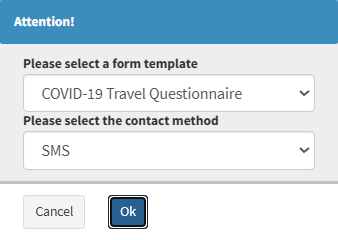
💡Please Note: The forms listed will be all the Custom forms that have been set up for the Practice. For details and navigation, see How to Set Up Custom Forms.
💡Please Note: You can only send the form to the Kiosk if one has been set up for the practice. For details and navigation, see Kiosk: Settings.