Generates a Totals report of all the outstanding amounts per age: Total, Medical Aid and Patient in table and graph form
- Sign in to the GoodX Desktop using your GoodX username and password.
- From the Navigator Double Click on the MedDebs Module

Generate the Report
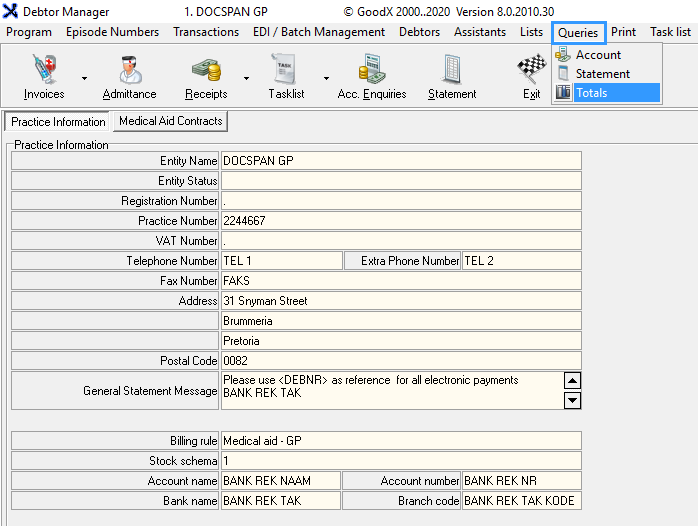
- From the main Menubar, Click on Queries
- Click on Totals
- You will be directed to the Totals screen where you will see a summary of the practices' Totals in Graph and Table form
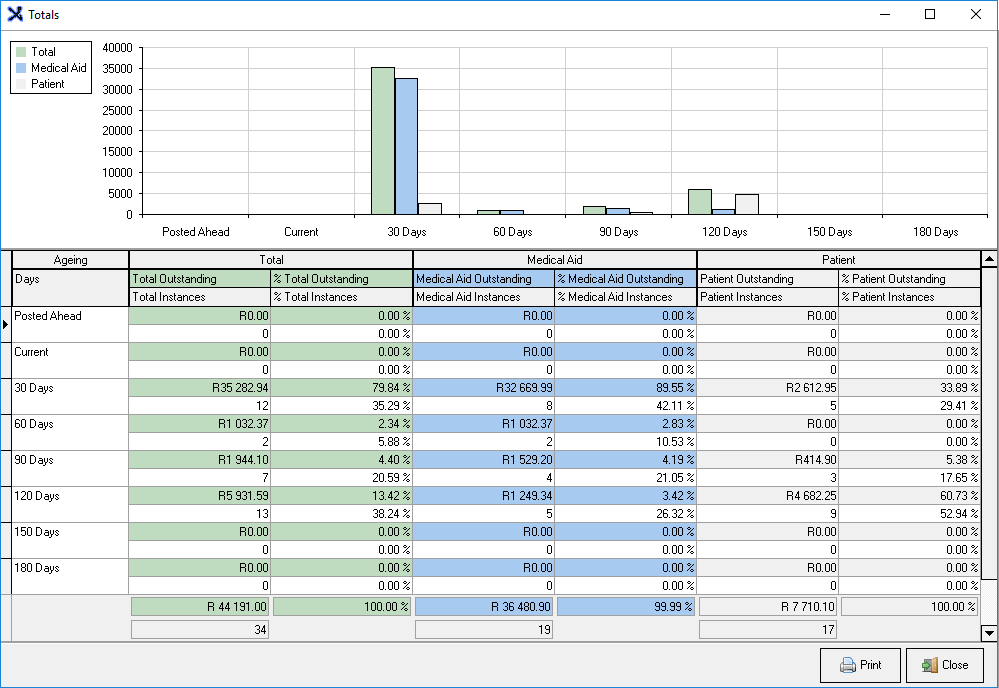
- Ageing: There are 3 sections into which the ages are divided: Total, Medical Aid and Patient
- Days: Are divided into the following sections:
- Posted Ahead: Total balances ahead
- Current: Total currently outstanding
- 30 Days: Totals in arrears by 30 days or more
- 60 Days: Totals in arrears by 60 days or more
- 90 Days: Totals in arrears by 90 days or more
- 120 Days: Totals in arrears by 120 days or more
- 150 Days: Totals in arrears by 150 days or more
- 180 Days: Totals in arrears by 180 days or more
- Percentages are worked out as follows:
- Outstanding: Outstanding Line total, divided by the grand total, multiplied by 100 = Line percentage
- Instances: Instance Line total, divided by the instance total, multiplied by 100 = Line percentage
- Total
- Total Outstanding: The total amount outstanding in the specific age
- Total Instances: Total invoices that are outstanding per age
- % Total Outstanding: Percentage total amount outstanding per age
- % Total Instances: Percentage of outstanding invoices per age
- Medical Aid
- Medical Aid Outstanding: The total amount outstanding in the specific age for the Medical Aid
- Medical Aid Instances: Total Medical Aid invoices that are outstanding per age
- % Medical Aid Outstanding: Percentage of what the medical aid owes
- % Medical Aid Instances: Percentage of outstanding invoices per age that need to be paid by the Medical Aid
- Patient
- Patient Outstanding: The total amount outstanding in the specific age owed by the patient
- Patient Instances: Total patient invoices that are outstanding per age
- % Patient Outstanding: Percentage of what the patient owes
- % Patient Instances: Percentage of outstanding invoices per age that need to be paid by the patient
Print the Report
- Click on Print to print your Total Query Report
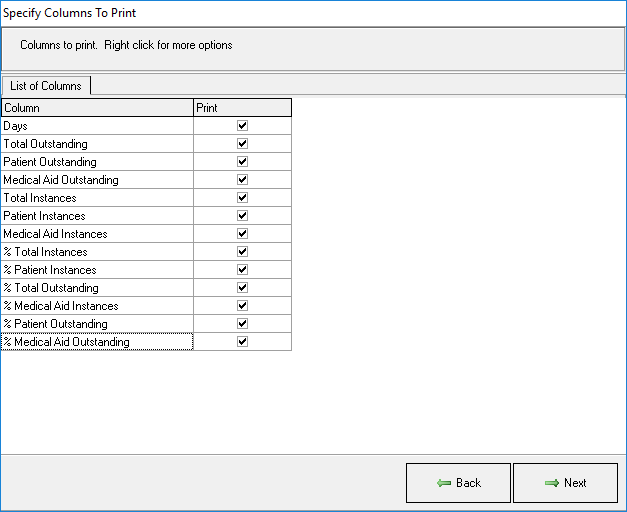
- You will have the option to Specify Columns to Print
- Make your selection and click on Next
- Your report will display on your screen

- You will have the following options, click on an option to action:
- Email: Send the report via electronic mail

- Print Preview: View what the report will look like if you print a hard copy

- Save: Saves your report where you want to save it on your computer for later use and reference

- Page Setup: Allows you to open your printer page set-up

- Print: Sends the report to your set-up printer and allows you to print a hard copy

- Close: Closes the report and returns to the main MedDebs page

Last modified: Wednesday, 15 April 2026, 12:35 PM