Add to Receipt is a function that can be used when a receipt was done on the patient's account but the incorrect amount was used and the amount allocated was less than the actual money that was received.
The amount can be adjusted by using the Add to Receipt function and only use the amount that still must be added to make up the correct amount. The difference between the money received and the money that was allocated.
Sign in to the GoodX Desktop App with your username and password
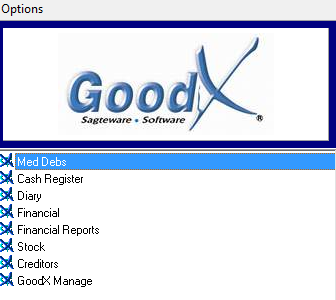
Double click on the MedDebs module
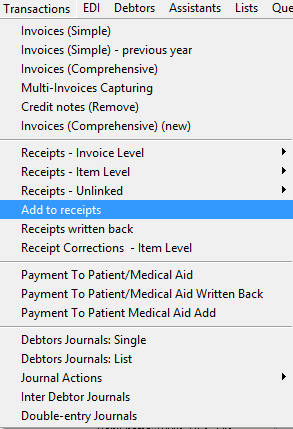
From the menu bar, click on Transactions
From the sup menu, click Add to receipts
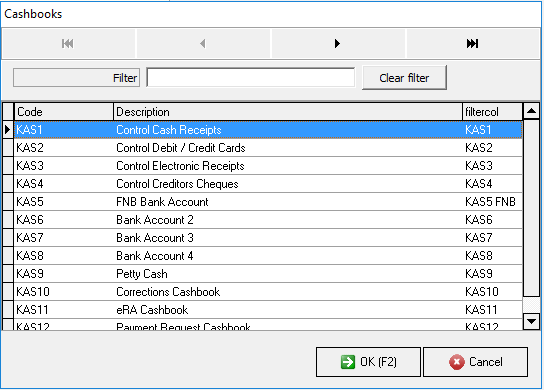
The Cashbook screen will appear, click on the applicable Cashbook
Click on the OK button or F2 on your keyboard to proceed
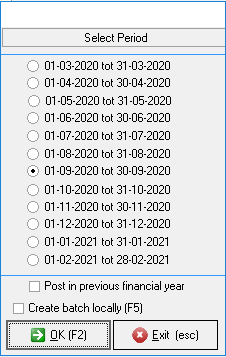
Click on the correct Period in which the transaction should be posted
Click on the OK button or F2 on your keyboard to proceed to Level 1
Click on the Exit button or Esc on your keyboard to exit without proceeding
Level 1
Complete the following information:
Date: Complete the correct date of the receipt that you want to add
Debtor: Click on the Tab button on your keyboard to search for the correct debtor
Reason/Note/Description: Complete the correct reason/note/description that will appear on the receipt
Click the Tab button on your keyboard to proceed
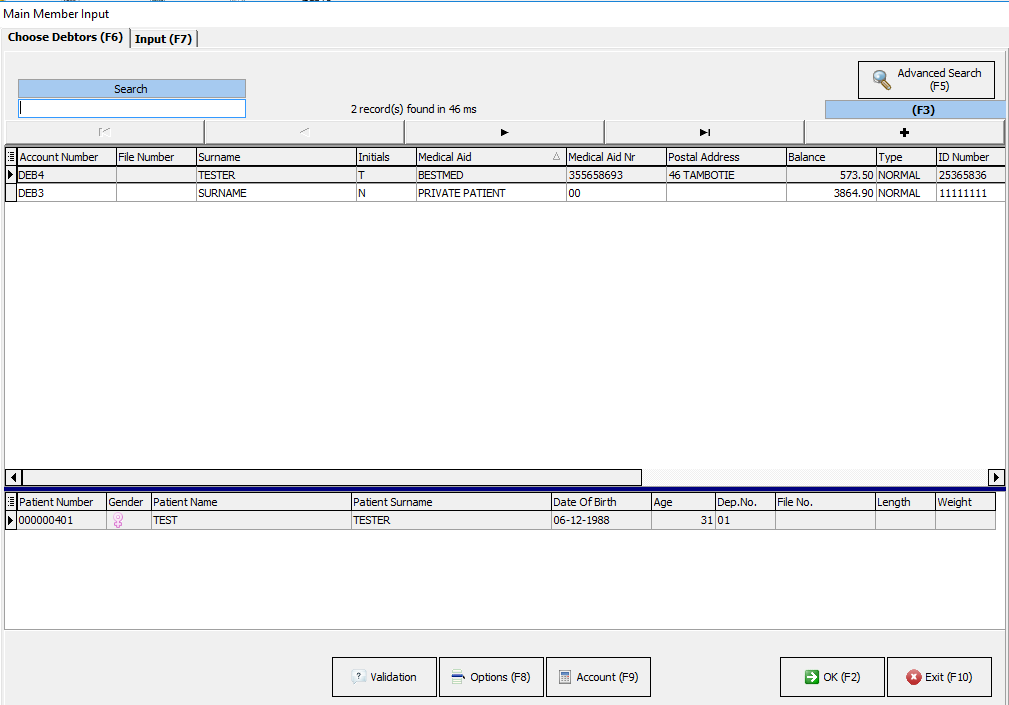
The Main Member Input screen will appear, search for the correct debtor and ensure that all the information is correct
Enter the Original Bank Description
Tab: Click on the Tab button on your keyboard to proceed to Level 2
Level 2
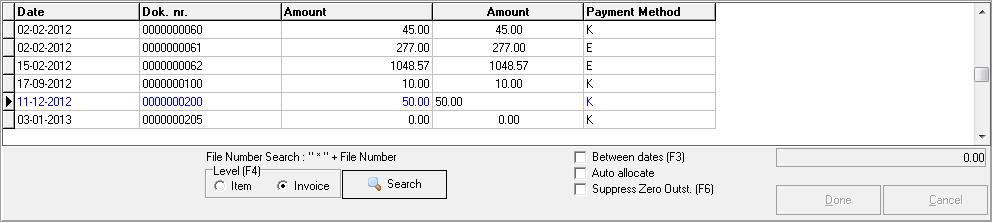
Select the Receipt where the amount should be added
Enter the amount to be added in the second Amount column
Tab
Date: This is the date that the receipt was posted
Dok. nr: This is document number of the receipt
Amount: This is the original amount that was posted
Amount: This is the amount that needs to be written back
Payment Method: How did the patient pay
Level (F4): From here you can select whether it must be from Item level or invoice level
Level 3
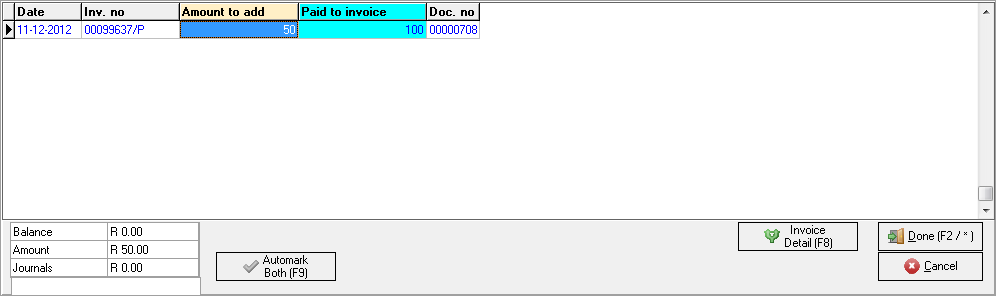
Invoice Level:
Enter the amount to be added in the Amount to add a field
Click on Done or press F2
Click on the Continue button
Click on the Post button or F2
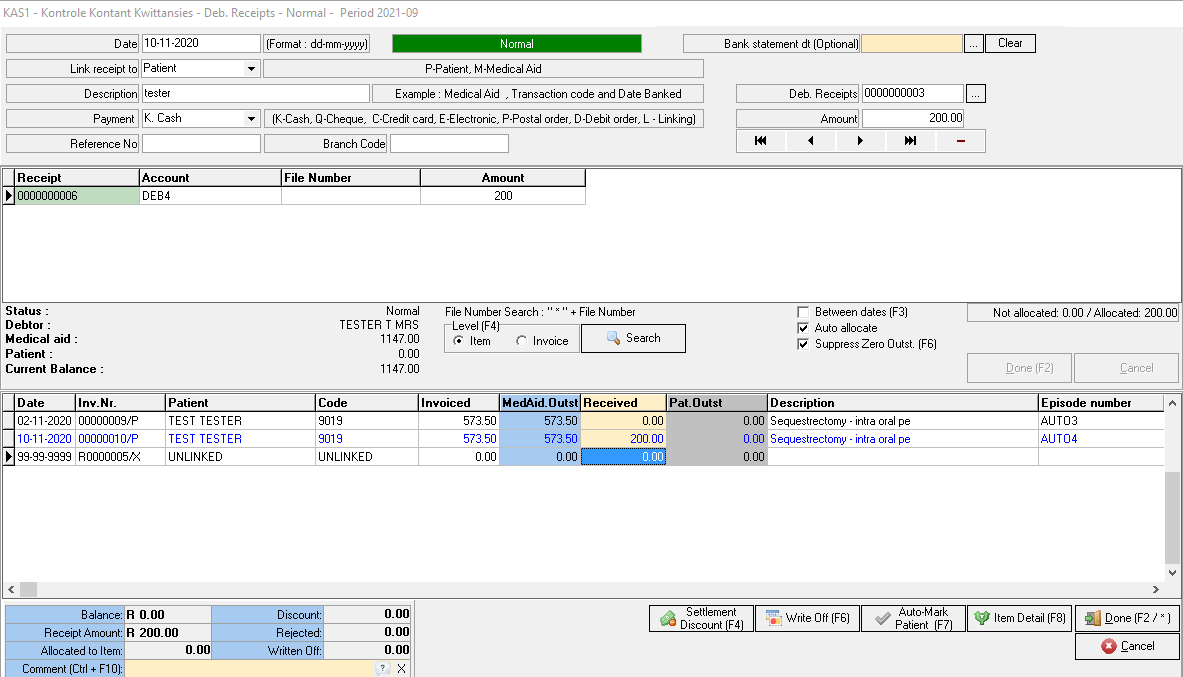
Item Level:
Enter the amount received in the Received column
Click on the Tab button on your keyboard, the line must be blue for the receipt to be posted
Balance: The total amount that is currently on the account
Receipt Amount: The amount that was receipt for
Allocated to item: The amount that was allocated to a specific item
Click on the Done button or F2 to post the receipt
Click on the Cancel button to exit without posting
Click on the Continue button
Click on the Exit button
Click on the Post button or F2 to post the receipt
Last modified: Wednesday, 9 December 2020, 2:28 PM