Managed Care Medical aid list is the list of certain medical aids that are responsible for the medical aids contact information. Each medical aid will be linked to a Managed Care Medical Aid that will manage all this information on their behalf.
Sign in to the GoodX Desktop using your GoodX username and password.
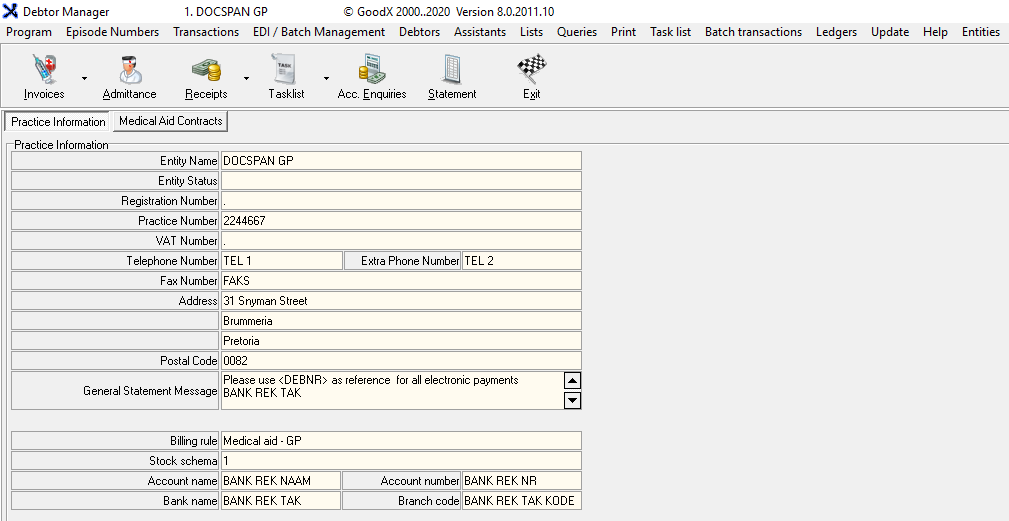
From the Navigator Double Clickon the MedDebs Module
The Main MedDebs screen will open
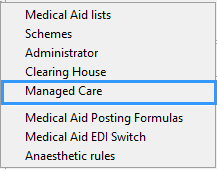
From the Menu bar, Click on Lists
From the drop-down, Click on Medical Aids
From the submenu, Click onManaged Care
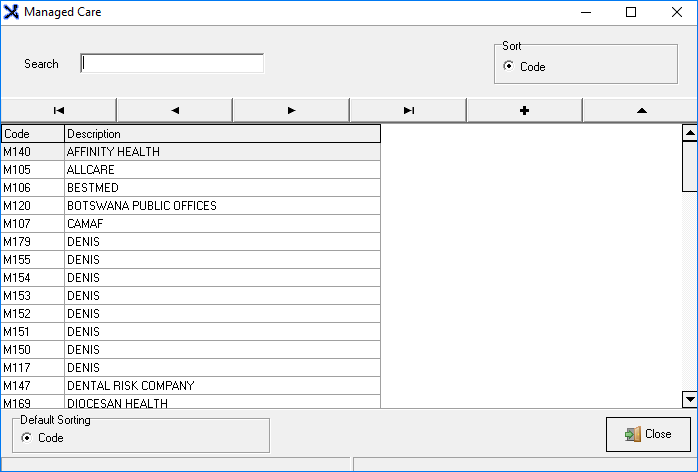
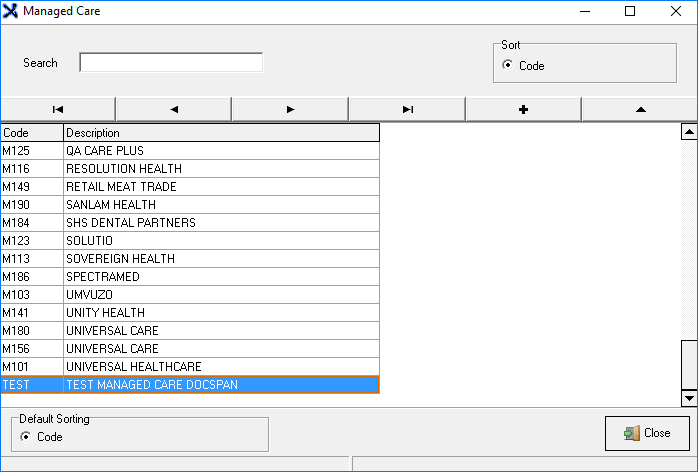
The Managed Care screen will open
You are able to do to the following from the Clearing House screen :
You are able to Search for an existing Clearing House by typing in the search field
Add a new provider to the list
Edit an existing provider
Default Sorting: Default Sorting method
Code: Uses the code to sort the contents
Adding a New Managed Care Provider
Disclaimer: It is not recommended or advised to add your own Managed Care provider, it is suggested that the service provider requests be added by contacting either GoodX or Medprax directly as Medprax manages the information
Add a new Managed Care Provider by clicking on the + button
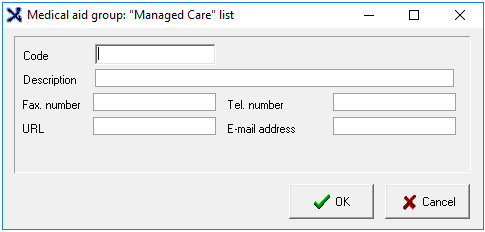
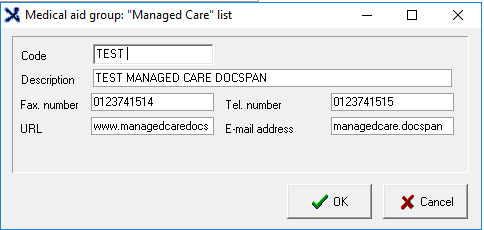
The Medical aid group: ''Managed Care'' list pop-up will open
Add the following details :
Code: The code you would like to associate the specific managed care provider to
Description: The name of the Company
Fax Number: The number where they receive faxes
Tel Number: The number where they can be reached telephonically
URL: The website address
Email Address: The address where electronic mail can be sent
When you are done and satisfied with the information entered click on OK
To cancel click on Cancel to return to the Managed Care screen
The new Managed Care provider will be added to the list
From the managed care screen you can exit to the Main MedDebs screen by clicking Close
Editing a Managed Care Provider
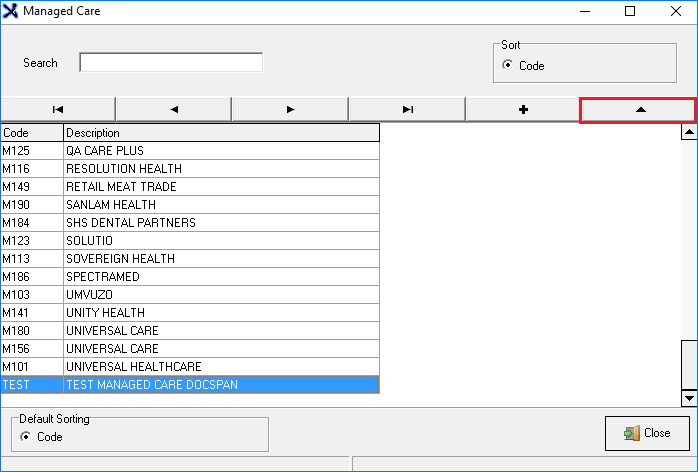
Select the Managed Care provider you would like to edit from the list
Click on the button with the triangle to edit the Managed Care Provider
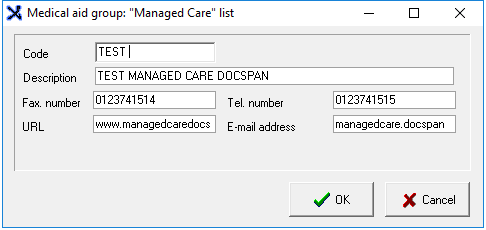
You will be directed to the Medical aid group: ''Managed Care'' list pop-up
Edit the information that has changed
When you are done and satisfied with the information entered click on OK
Once you have Clicked OK your changes will save and you will return to the Managed Care screen
To cancel click on Cancel to return to the Managed Care screen your changes will not save
From the Managed Care screen, you can exit to the main MedDebs screen by clicking Close
Last modified: Wednesday, 25 November 2020, 9:31 AM