When the Patient arrives at the Practice and their condition seems serious, the Patient Status can be changed to Emergency. An Emergency Appointment can also be changed to Normal
How to change an appointment status to Emergency
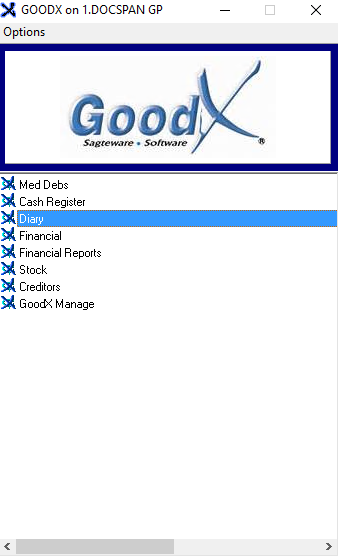
Sign in to the GoodX Desktop using your GoodX user name and password.
From the Navigator Double click on the Diary Module
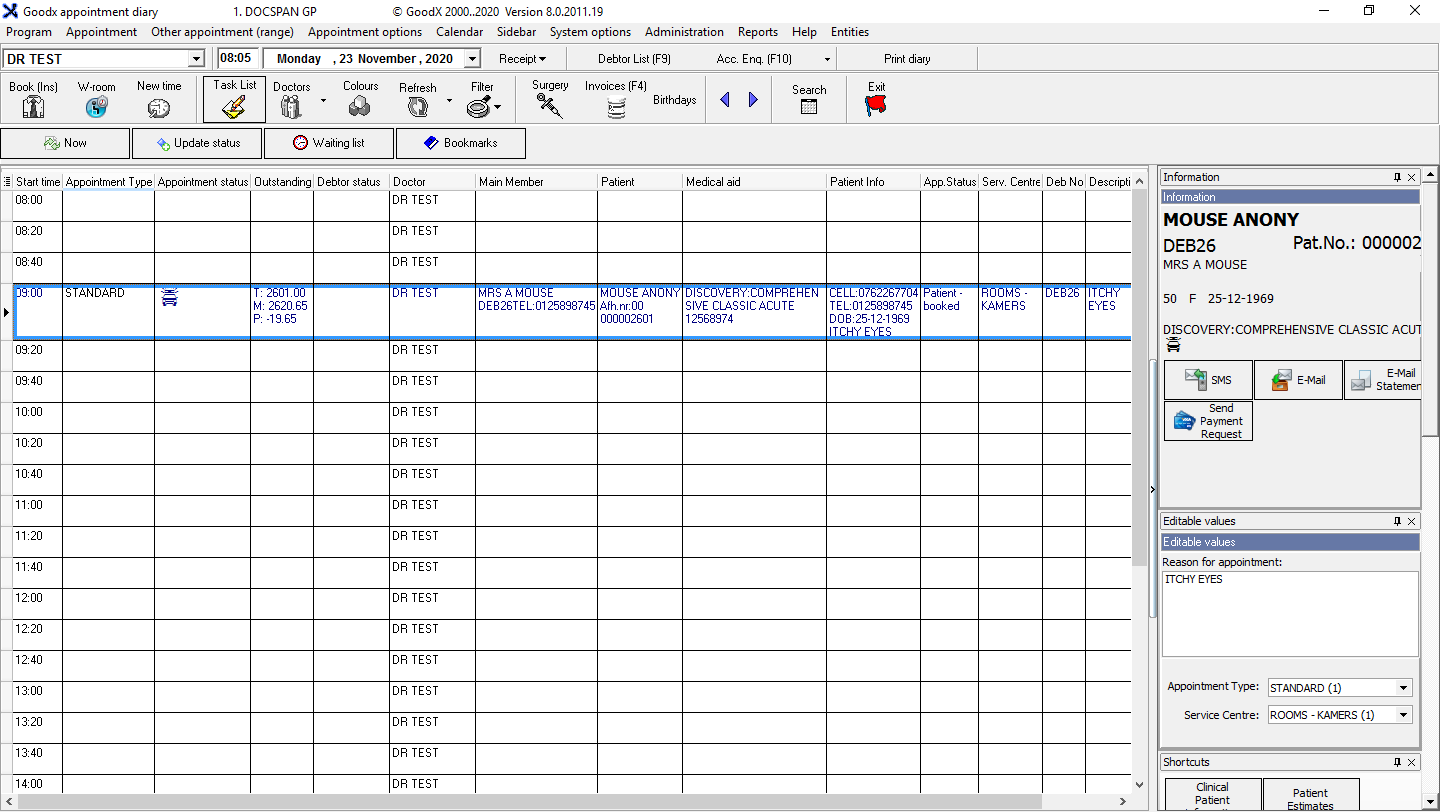
The Diary screen will open
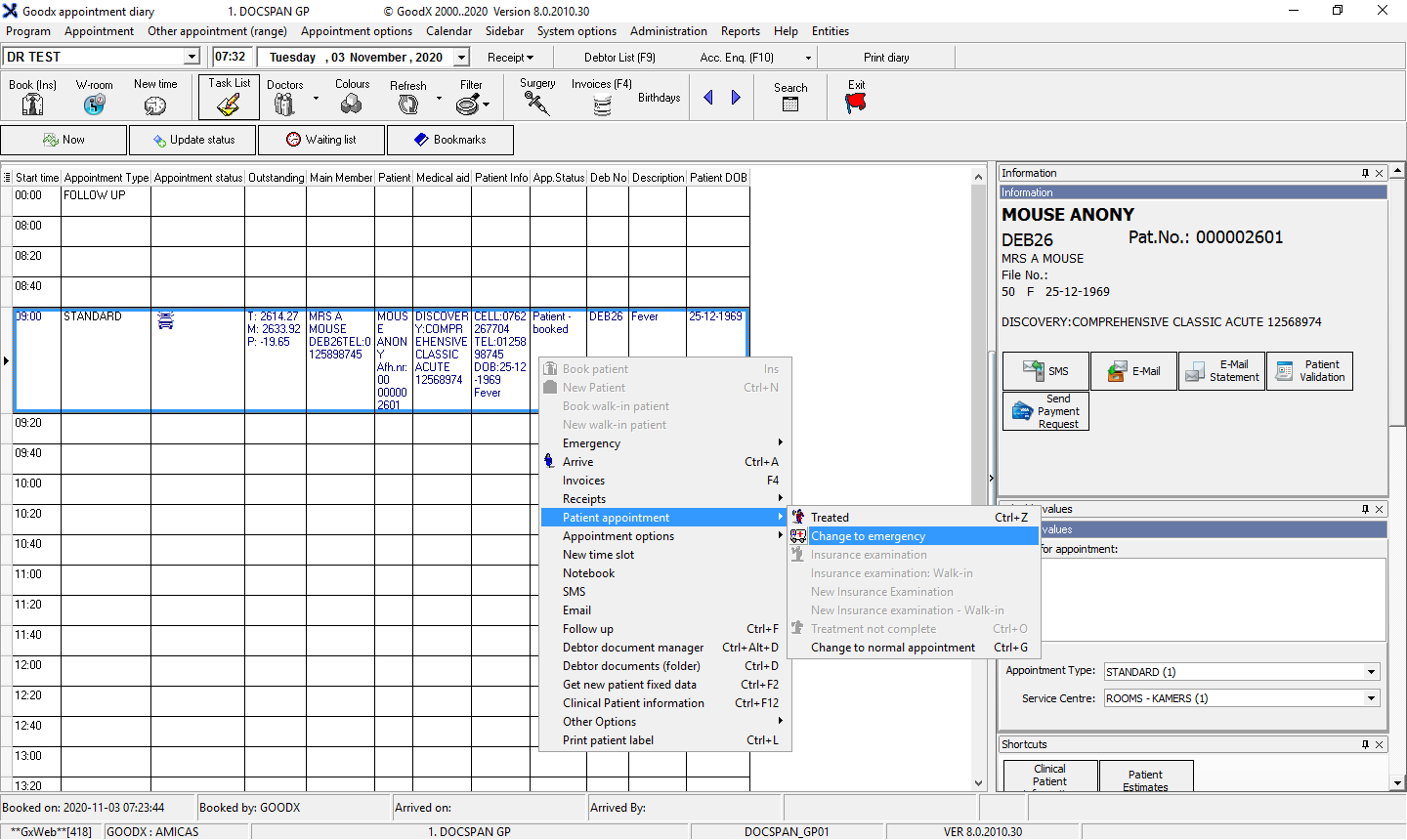
From the Diary Screen Right Click on the relevant booking to access appointment options
Click on Patient Appointment
Click onChange to emergency
Once you click on Change to Emergency you will be asked to confirm if you would like the status to be changed to Emergency
Click Yes.
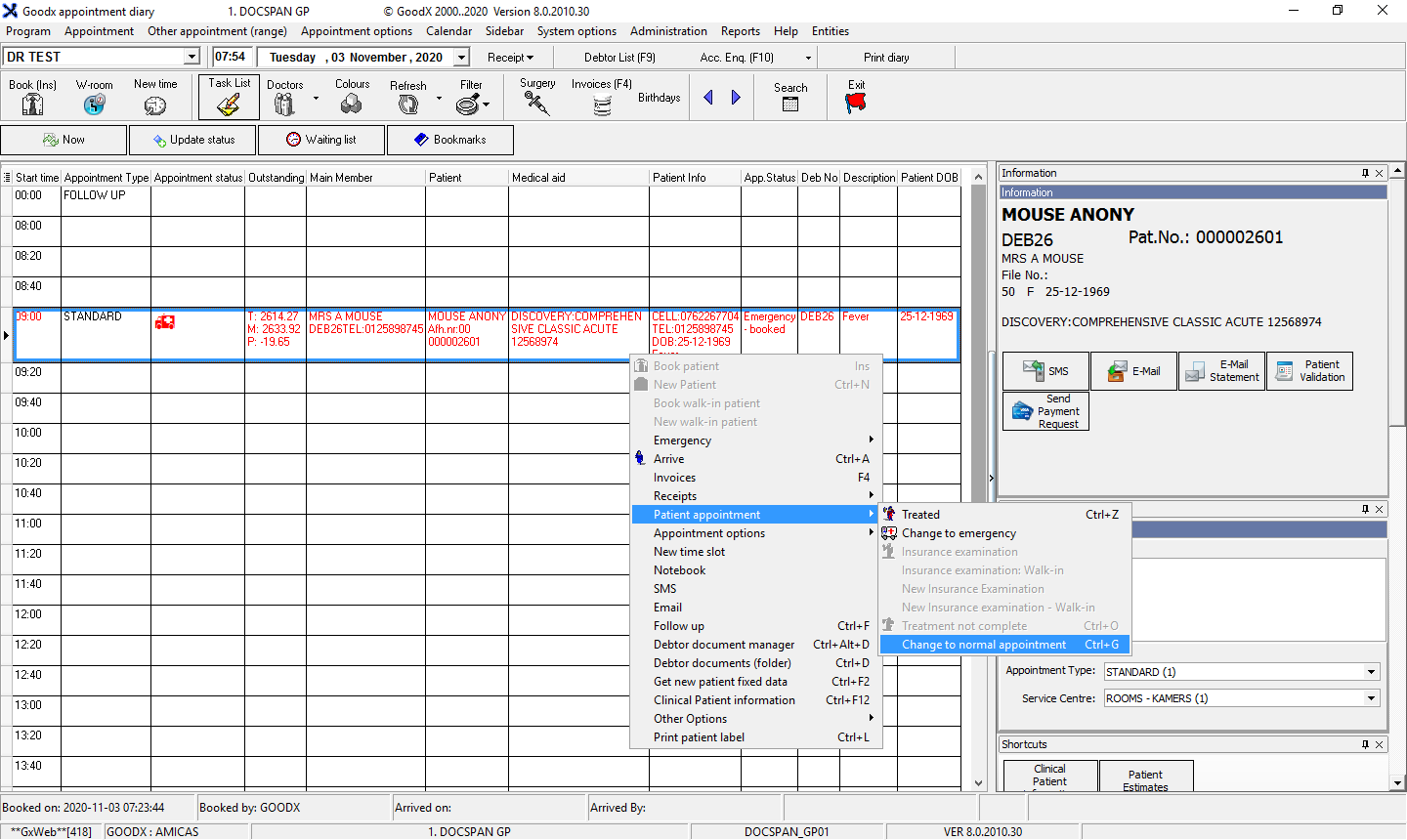
The Appointment will be changed from Normal to Emergency on the Diary. You will see that the Status changed to Emergency - Arrived
There will be an Emergency icon in the appointment status column that is indicated by an ambulance to show the appointment is an emergency
The text colour will change to Red (depending on your settings)
How to change an appointment status from Emergency to Normal
From the Diary, select the Patient's booking that you want to change by clicking on it:
Right Click on the booking to access appointment options
Click on Patient Appointment
Click on Change to Normal appointment
Once you click on Change to Emergency the appointment will automatically revert back to a Normal Appointment
The Appointment will be changed from Emergency to Normal on the Diary. You will see that the Status changed toPatient - booked
The ambulance icon in the appointment status will disappear
The text colour will change back to blue(depending on your settings)