Glossary: Hospital Rounds Filter Options
Why This Matters? Hospital Rounds Filter Options provide additional filters for narrowing down the Cases displayed in the Hospital Round results list. The available filters are based on the columns in the Results list, allowing the Practitioner to apply more specific criteria when searching for Cases.
Using the Filter Options makes it easier to find the relevant Cases without having to work through the entire list. This is particularly useful when managing multiple Hospital Round visits, as it helps the Practitioner quickly focus on the Patients or Cases that require attention.
💡 Please Note: The Results list displays the Practitioner's current Hospital Round visits.
Start on the Filter Options section.
Sections
Location
Practitioner
Patient Status
Admission Date
Discharge Date
Type of Case
Subtype of Case
Last Visited
Clear All Subfilters
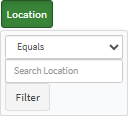
Location
Equals: The results match the filter value exactly.Not Equals: The results do not match the filter value.Contains: The results contain the information entered in the filter.Does Not Contain: The results do not contain the information entered in the filter.Empty: The filtered field has no value and is blank.Not Empty: The filtered field contains a value.Search Location: The location within the results where the filter will be applied.Filter: Applies the selected filter criteria to the Results list.
💡Please Note: The Location button's colour will change to orange with a funnel icon to indicate that the filter has been applied.
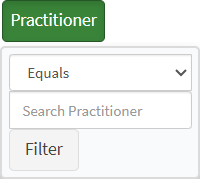
Practitioner
Search Practitioner: The desired practitioner that will be considered whilst filtering.
💡Please Note: Refer to the Location section for an explanation of the available options.
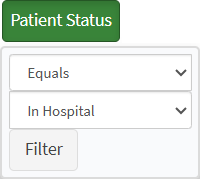
Patient Status
In Hospital: Indicates that the patient is currently admitted to the hospital.Discharged: Indicates that the patient has been discharged from the hospital.Deceased: Indicates that the patient has passed away.
💡Please Note: Refer to the Location section for an explanation of the available options.
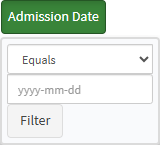
Greater Than: When the filter value is later than the results.Greater Than or Equal: When the filter value is later than the results, or the filter value is the exact same as the results.Less Than: When the filter value is smaller than the results.Less Than or Equal: When the filter value is smaller than the results, or the filter value is the exact same as the results.Between: When the results are between the filter values.Not Between: When the results are not between the filter values.YYYY-MM-DD: The date used to filter the results displayed in the list.
💡Please Note: Refer to the Location section for an explanation of the available options.
Discharge Date
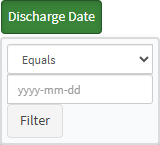
💡Please Note: Refer to the Location and Admission Date sections for an explanation of the available options.
Type of Case
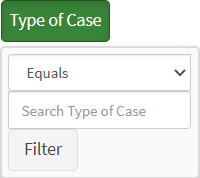
Search Type of Case: The type of case used to filter the results displayed in the list.
💡Please Note: Refer to the Location section for an explanation of the available options.
Subtype of Case
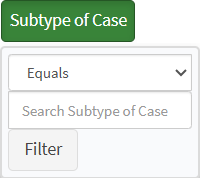
Search Subtype of Case: The subtype of case used to filter the results displayed in the list.
💡Please Note: Refer to the Location section for an explanation of the available options.
Last Visited
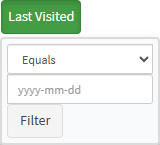
💡Please Note: Refer to the Location and Admission Date sections for an explanation of the available options.
Clear All Subfilters
Clear All Subfilters: Clears all active subfilters from the results list and is only available when one or more subfilters are active.