Quick Notes consist of text and images that relates and contribute to a Patient's condition. The Quick Note is useful when a Patient returns for a follow-up or future reference.
The Contents of This User Manual:
Quick Note
Media and Documents
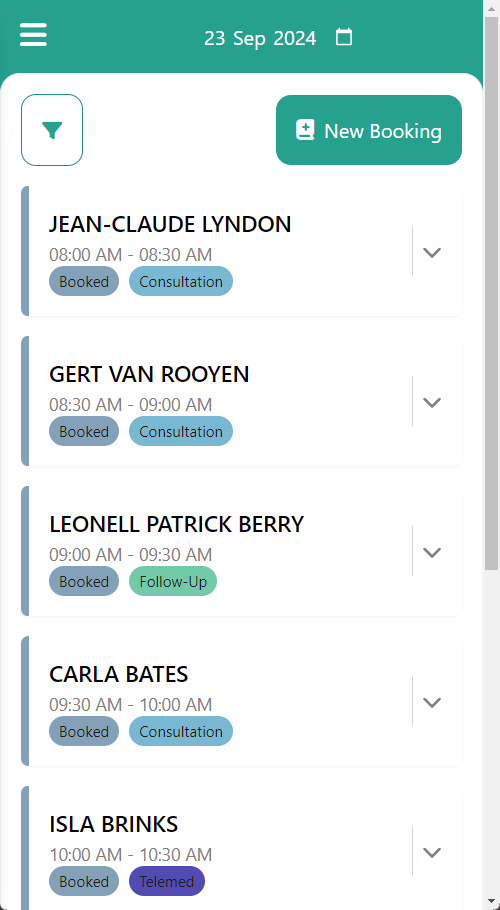
This user manual will start on the Diary screen.
For more information regarding the Diary screen, please refer to the user manual: GoodX Mobile: Diary Screen.
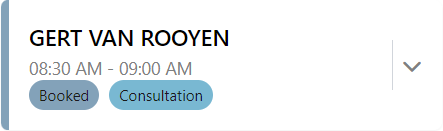
Click/Tap on the desired PatientBooking.
The PatientBooking panel will expand.
Click/Tap on the Open File button.
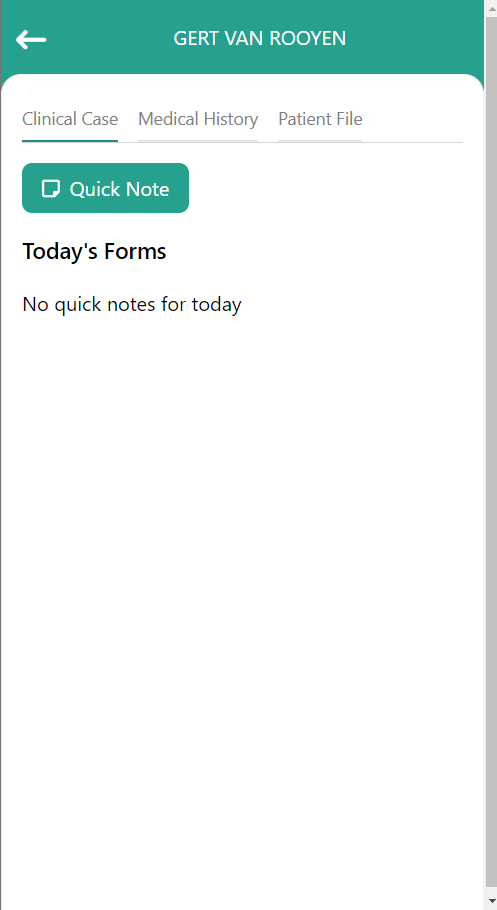
The Clinical Case screen will open.
Click/Tap on the Quick Note button.
Quick Note
Quick Notes consist of text and images that relate and contribute to a Patient's condition.
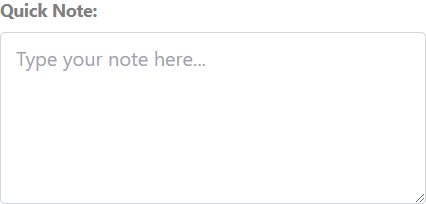
Click/Tap on the Text field to enter the relevant information.
Media and Documents
These documents are essential for the Practice's records and can include: a Medical Aid card, Identification Document, signed Terms and Conditions and Consent forms.
Click/Tap on the Image button.
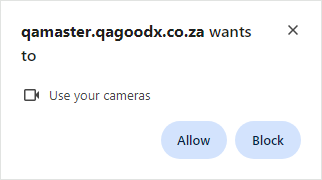
A pop-up notification will appear in the browser to ask your permission to use the Camera.
Click/Tap on the Allow button to grant the browser access to the Camera so you can capture images using the Camera.
Click/Tap on the Block button to deny the browser permission to use the Camera this is not advisable as you won't be able to capture images.
It will now be possible to take an Image.
Click/Tap on the Capture Photo button.
The Captured Image will be displayed in the Media section.
?Please Note: More than one Image can be captured.
Click/Tap on the Delete button if you wish to remove the image.
Click/Tap on the Audio button.
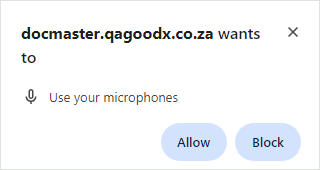
A pop-up notification will appear in the browser to ask your permission to use the Microphone.
Click/Tap on the Allow button to grant the browser access to the Microphone.
Click/Tap on the Block button to deny the browser permission to use the Microphone.
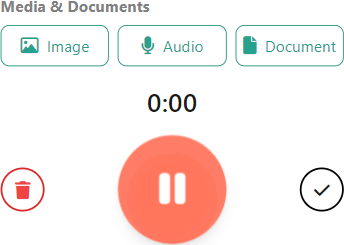
It will now be possible to take a Recording.
Click/Tap on the Delete button to cancel the Recording.
Click/Tap on the Pause button to Stop the Recording.
Click/Tap on the Pause button a second time to Resume the Recording.
Click/Tap on the Complete button to Save the Recording for Upload.
?Please Note: More than one Recording can be Recorded and saved for Upload.
The Captured Audio will be displayed in the Media section.
Click/Tap on the Delete button if you wish to remove the image.
Click/Tap on the Documentbutton to upload External files from your device.
Click/Tap on the Save the changes made.
Click/Tap on the Discard button to Close the Quick Note screen without saving any changes.