A User is able to create Report Profiles and Copy the Profile to other Entities. By copying a Report Profile to another Entity, the User has no need to create the same Profile on another Entity and can just use the copied Report Profile.
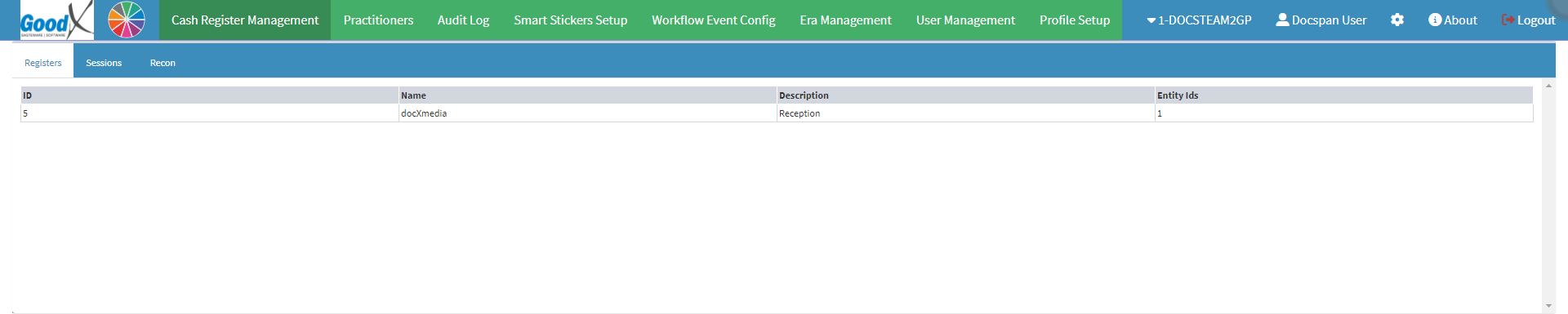
This user manual will start on the Cash Register Management screen.
Click on the Profile Setup tab.
The Debtor Status Profiles screen will open.
Click on the Report Profiles subtab.
The Report Profiles screen will open.
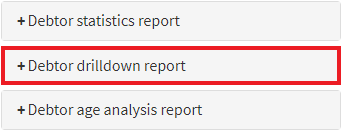
Please Note: For the purpose of this user manual, the Debtor Drilldown Report will be used as an example.
Click on the Debtor Drilldown Report panel.
The Debtor Drilldown Report panel will expand.
Please Note: The list that appears, is a list that has been created previously.
Tick the Checkbox of the desired Profile.
Please Note: Multiple Profiles can beselected.
Click on the Copy Profiles to Entity button.
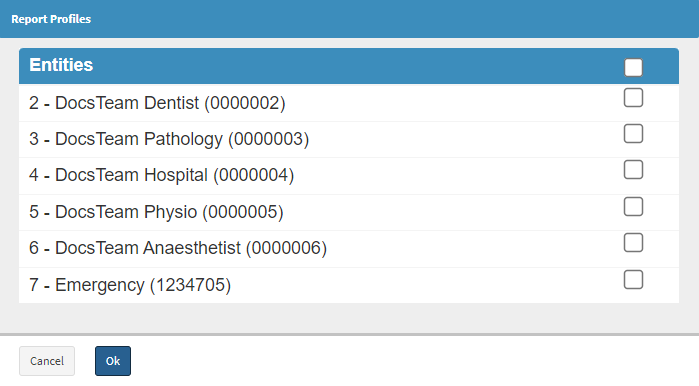
The Report Profiles screen will open.
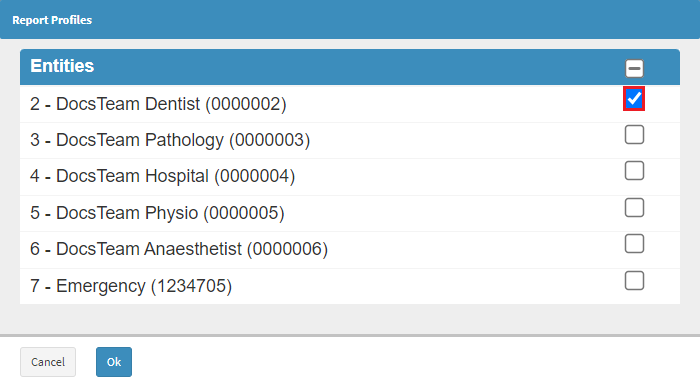
Tick the Checkbox of the desired Entity.
Please Note: Multiple Entities can be selected.
Click on the Ok button to Copy the Report Profile to the desired Entity.
The Report Profile will be copied to the selected Entity.
Please Note: No Notification will be shown to indicate that the Report Profile has been copied successfully.