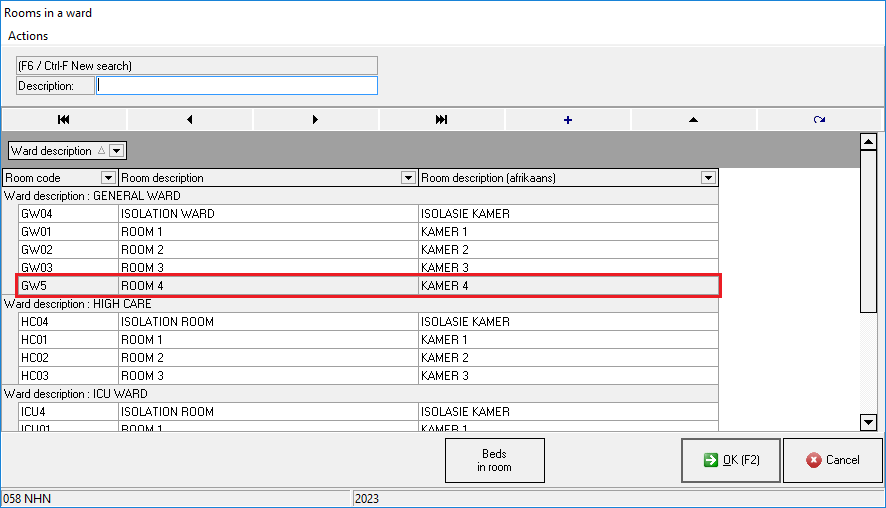
A user can set up different types of Rooms for different types of medical care a Patient needs. Certain Rooms can only be used for certain Wards for, example, in a Ward, there are different Rooms, some Rooms can contain 5 Beds other rooms may only contain 3 or can be used as an isolation Room which only contains 1 Bed. Every Room must be set up to link Beds to the Rooms so the user can see exactly which rooms are full in the Ward.
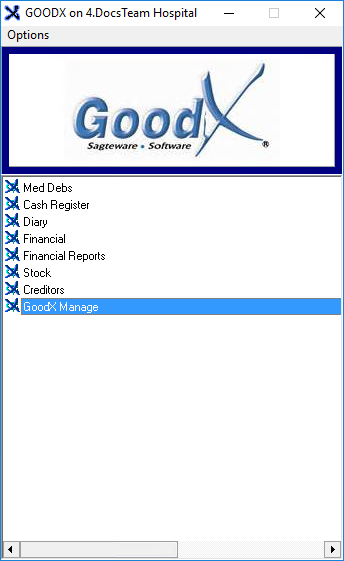
Log in to the GoodX Desktop using your GoodXusername and password.
From the Navigator, Double Click on the GoodX Manage Module.
The GoodX Manager screen will open.
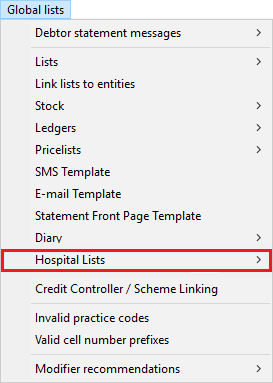
Click on the Global Lists menu located on the Menubar.
Click on Hospital Lists from the sub-menu.
Click on Rooms Setup from the sub-menu.
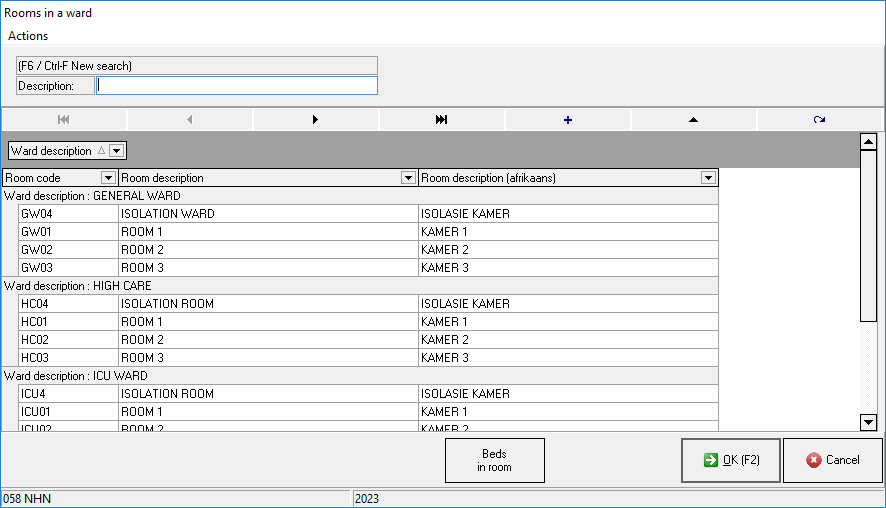
The Rooms in a Ward screen will open.
Click on the + (Add) button to set up a new Room.
The Rooms in a Ward screen will open.
An explanation of the fields on the Rooms in a Ward screen will be given:
Code: A custom-made Code that the user creates to identify the Room on the system, for example, a code for a Room could be GW05.
Type the Code of the Room into the Code field, the user must type in their own code into the Code field.
Afrikaans Name: The title of the Room in Afrikaans. For Example, Kamer 4.
Type in the Afrikaans name of the Room into the Afrikaans Name field.
English Name: The title of the Room In English. For Example, Room 4.
Type in the English name of the Room into the English Name field.
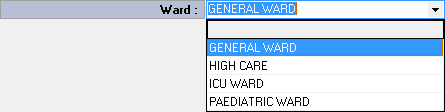
Ward: The Ward in which the Room will be located.
Click on the Ward drop-down menu next to the Ward field where the user is able to select the correct Ward where the Room will be located.
The Ward drop-down menu will open.
Select one of the options that become available.
For more information regarding how to create Wards on the system, please refer to the following user manual: Create a Service Centre.
Click on the Cancel button to exit the Rooms in a Ward screen without creating a new Room.
Click on the OK button to create a new Room and exit the Rooms in a Ward screen.
The Rooms in a Ward screen will open with the newly created Room.