The Stock Item Data Changes Log can be used by the Practice to see if any changes were made and also see if it was a manual change or a Medprax update change.
- Log in to the GoodX Desktop using your GoodX username and password.
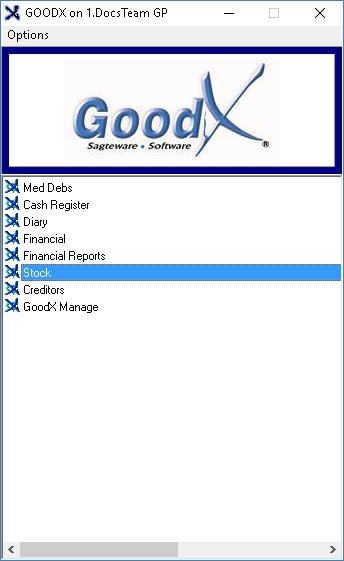
- From the Navigator, Double Click on the Stock Module.
- The Stock Manager screen will open.
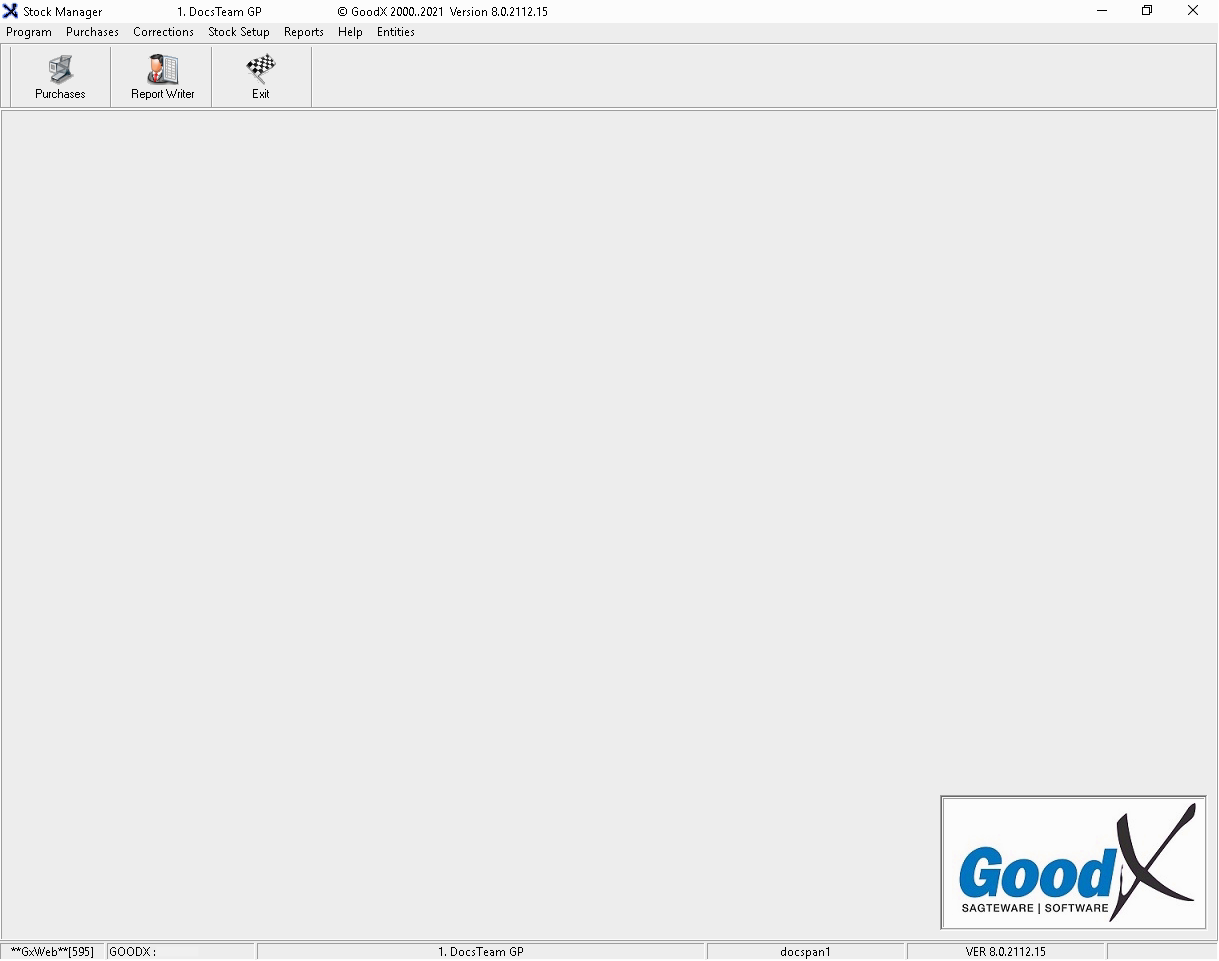
- Click on Stock Setup from the menu bar.

- Click on Stock from the sub-menu.

- The Category screen will open.
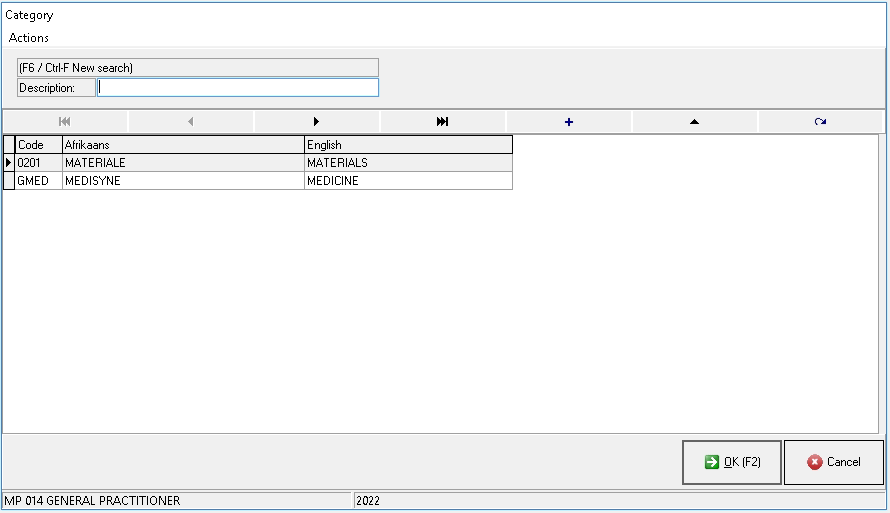
- Medicine (GMED): Scheduled Medicine merely means a medicine declared to be such by the Minister of Health in the Schedules to the Medicines Act. Items are classifiable from schedule 0 to 10.
- Materials (0201): Stock that can be used on patients to provide treatment or administered medicine also, known as Consumables or Surgicals.
- Double click on the desired Category to open the specific Category stock list.
- The desired Category stock list will open. For the purpose of this manual, the Materials stock list will be used.
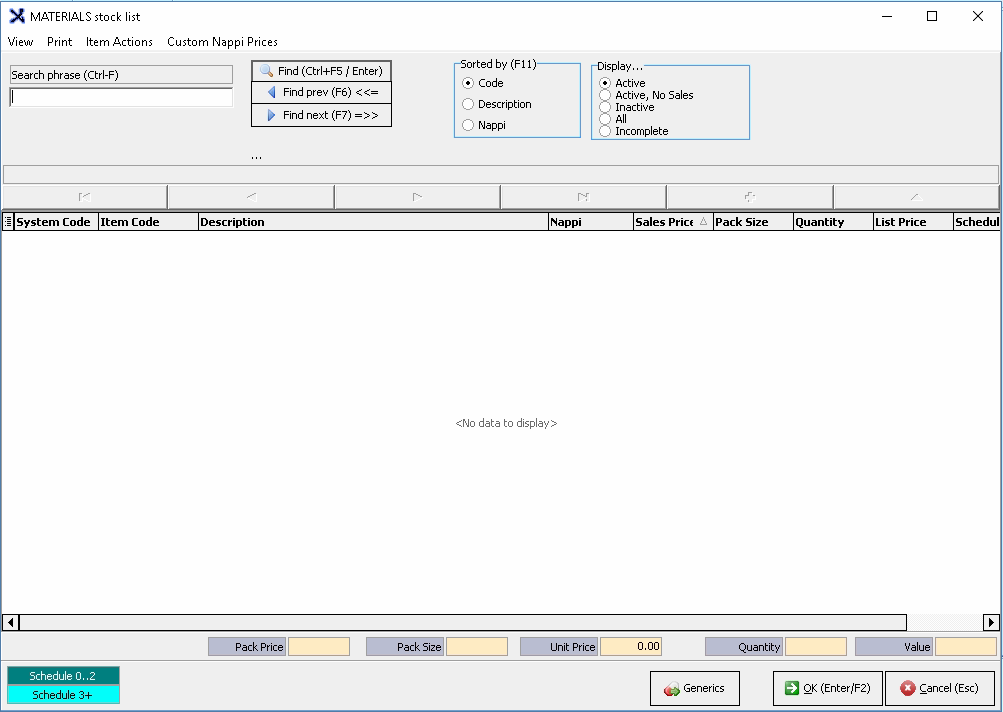
- Click on the Search phrase field and type in the stock item description or Nappi code.

- Click on the Find (Ctrl+F5/Enter) button to search for stock item.

- Click on Item Actions from the menu bar.
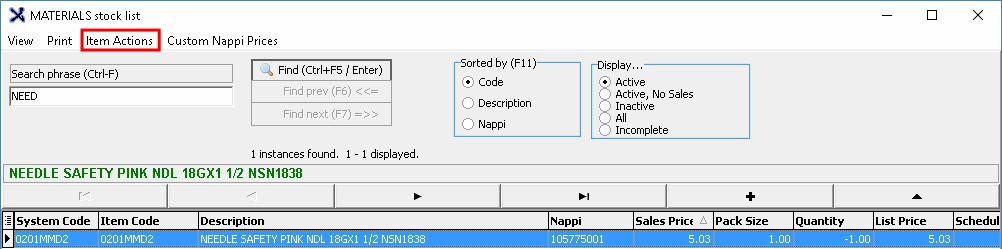
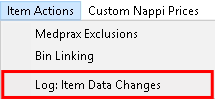
- Click on Log; Item Data Changes from the sub-menu.
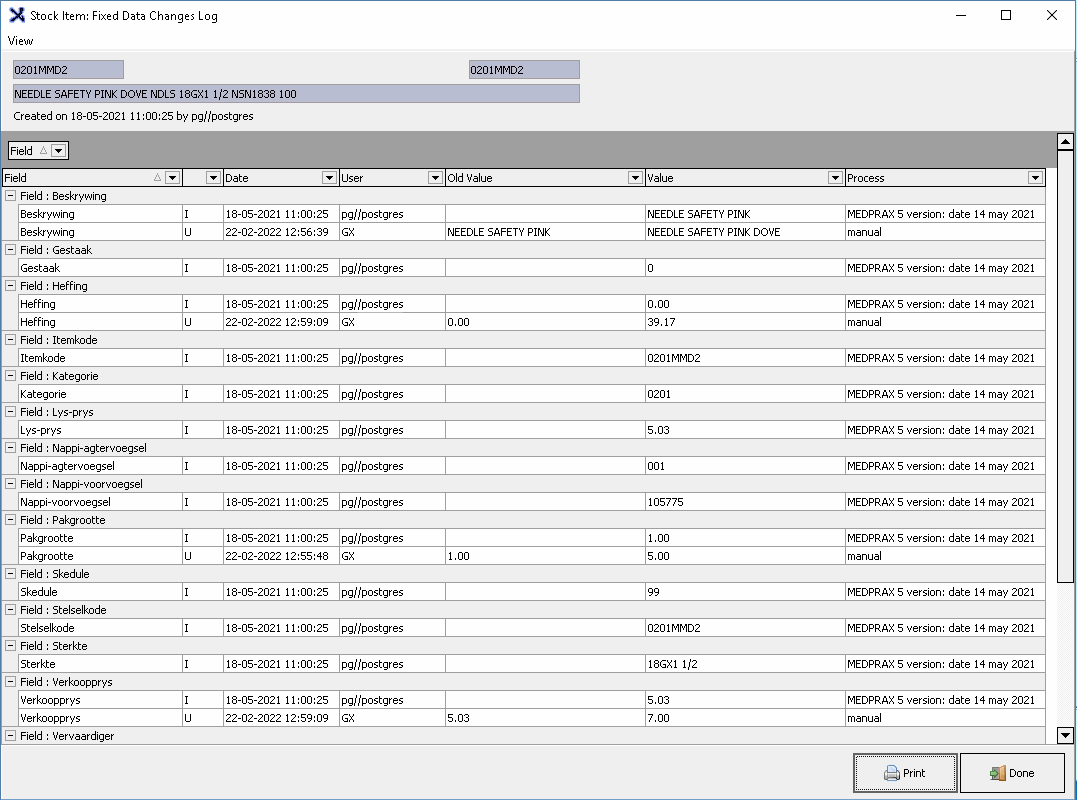
- The Stock Item: Fixed Data Changes Log screen will open.
Columns
The Stock Item: Fixed Data Changes Log will be divided into columns on the report.

- An explanation will be given for each column:
- Field: Different information loaded regarding a stock item.
- Blank column: The column is an Indicator column and will show if the information has been inserted or updated.
- U: Gives an indication that information has been changed or updated.
- I: Gives an indication that data was inserted. The data will be the original data that was entered when the Stock item was first created/uploaded.
- Date: Will show the day month year (dd-mm-year) with the time stamp hour minute seconds (hh:mm:ss)
- User: The person who created the Stock Item or updated or made a change.
- Old Value: The original data or previously captured data on the Creditor Input Screen.
- Value: The most recent data that was captured on the Creditor Input Screen.
- Process: Will show how a field was updated either with a Medprax update or manual update. The Medprax version and date will display.
- Click on the Print button, to print the report.
- Click on the Done button to return back to the Stock list.
Last modified: Thursday, 16 April 2026, 12:18 PM