When an item is made inactive for whatever reason and it is part of a combination, the item can be replaced with a new one within the same combination by just replacing the code of the old item with a new active one. It is not necessary to re-create new combinations after an item has been made inactive. This saves time and assists with billing efficiency.
The contents of this User Manual will consist of the following information:
Check Combinations for Inactive items.
Replace an Item in a Combination.
Print Options.
Log in to the GoodX Desktop using your GoodX username and password.
From the Navigator Double Click on the MedDebs Module.
The Main MedDebs screen will open.
Check Combinations for Inactive items.
From the Menu bar, click on Lists.
Click on Combinations from the drop-down list.
Click on Combination codes from the submenu.
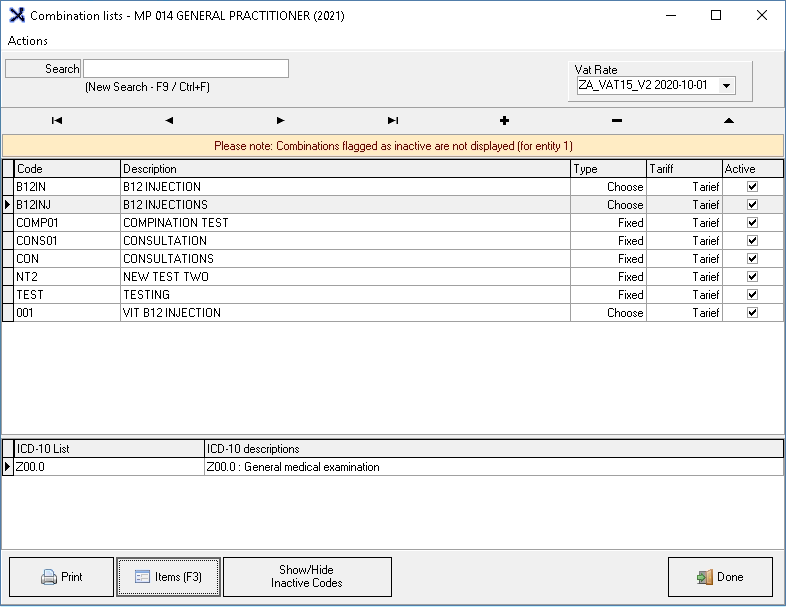
The Combination Lists screen will open, all the combinations that have been set up will be listed here.
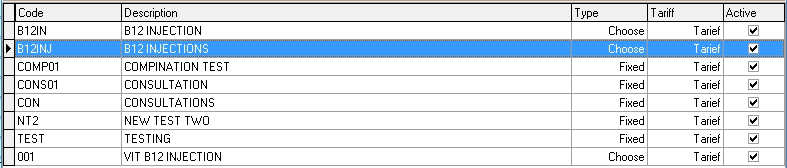
Select the relevant combination by clicking on it.
Click on the Items button to view the items in the combination.
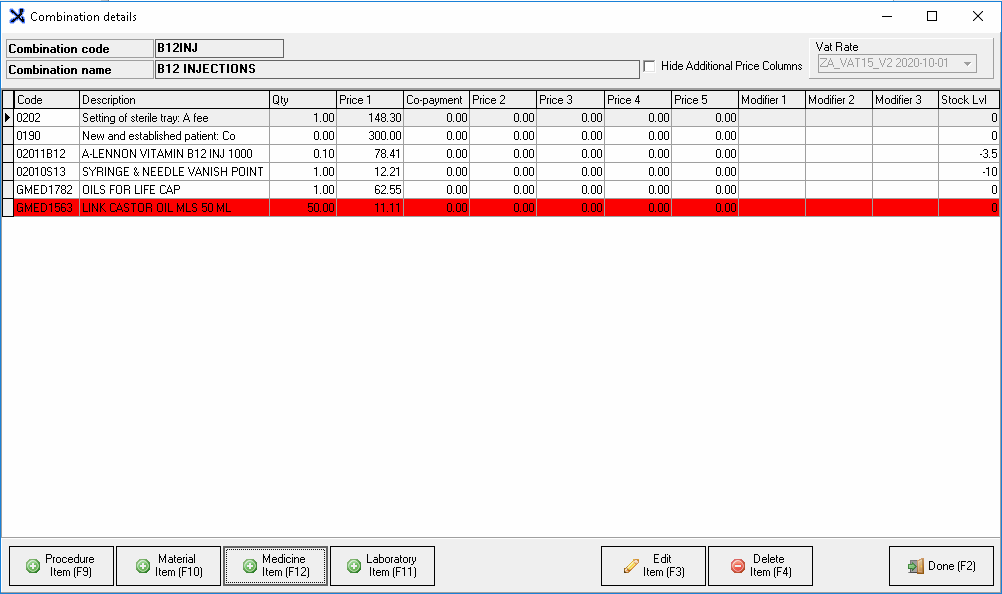
The Combination Details screen will open.
Items that are highlighted red are Inactive.
Click on Done after viewing the combination details to return to the Combination List screen.
Click on Done on the Combination List screen to return to the main MedDebs screen.
This will depend on what type of item the user wishes to replace.
For this explanation, Medicine will be used.
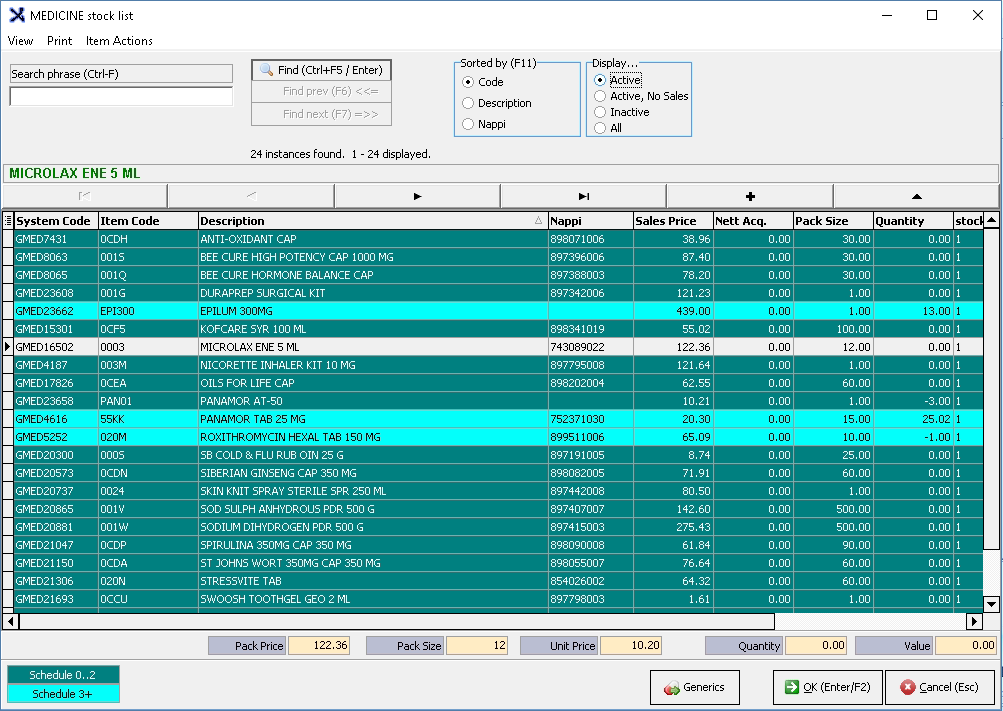
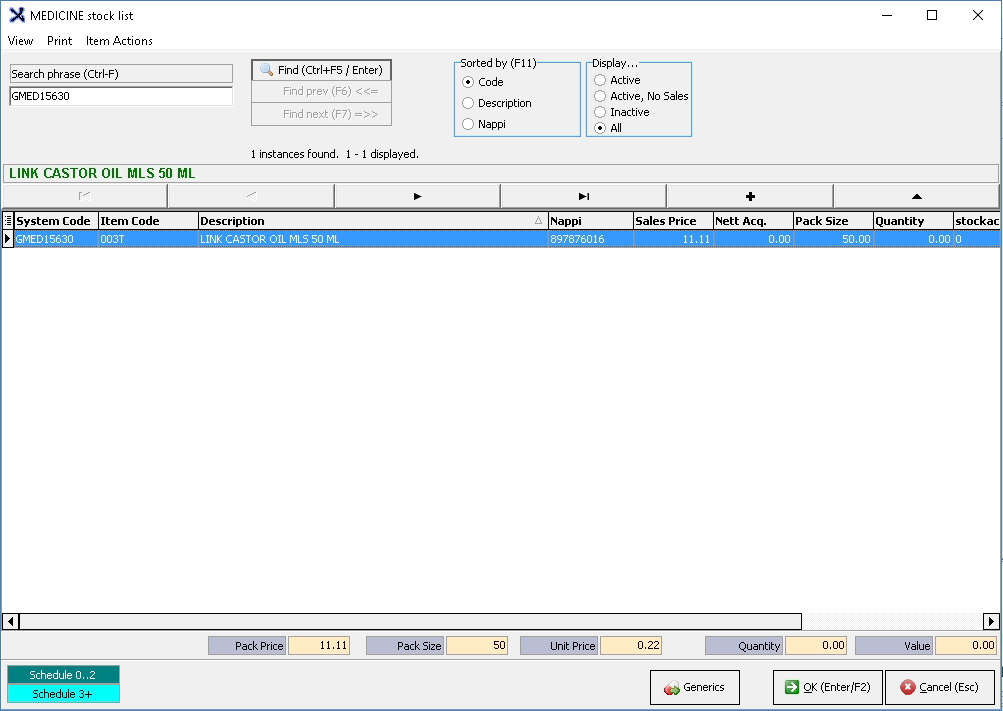
The Stocklist screen of the chosen item type will open.
For a full explanation of how the stock list screen works please refer to the user manual: Stock List Overview.
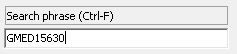
Use the search phrase section to search for the item that will be replaced in the combination, by typing the name or code in the search field.
Make sure that All is selected in the Display field.
This will display all the items on the list.
The item will display on the screen.
Select the item by clicking on it.
Click on the triangle button to Edit the item.
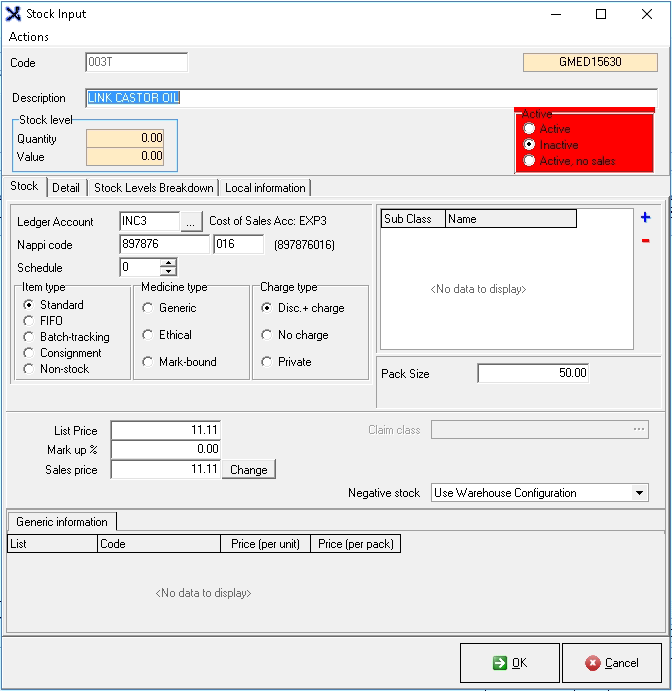
The Stock Input screen will open.
For a full explanation on the Stock Input screen please refer to the user manual: Stock Item Overview.
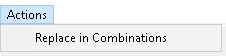
Click on Actions on the menubar.
Click on Replace Combinations on the submenu.
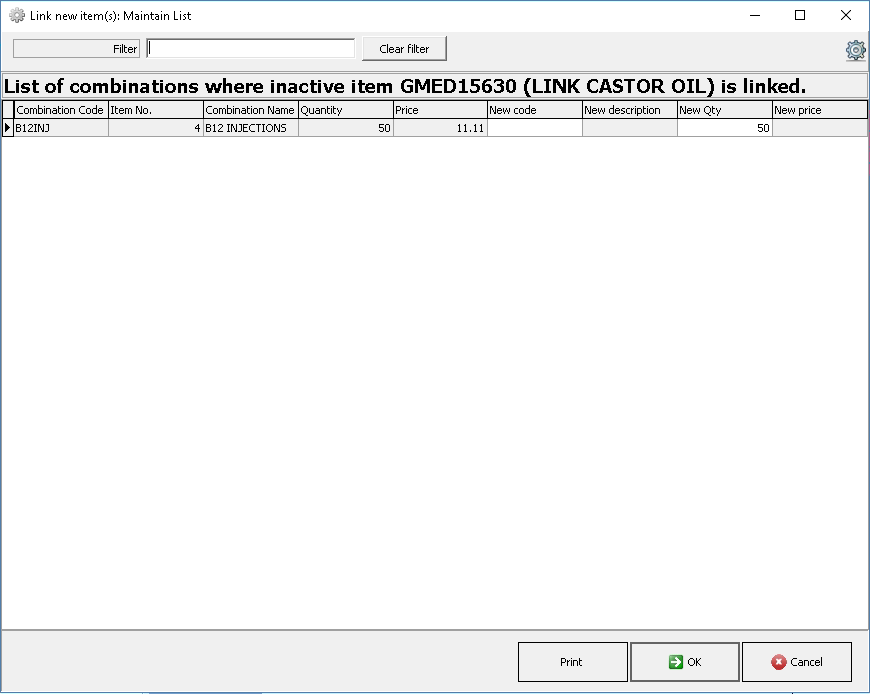
If the item is part of a combination the Link new item(s): Maintain List screen will open.
All combinations where this item has been linked will appear on the list.
If an item is selected that has not been linked to a combination an Information pop up will appear to advise the user thereof.
The pop up will disappear on its own, no action is required.
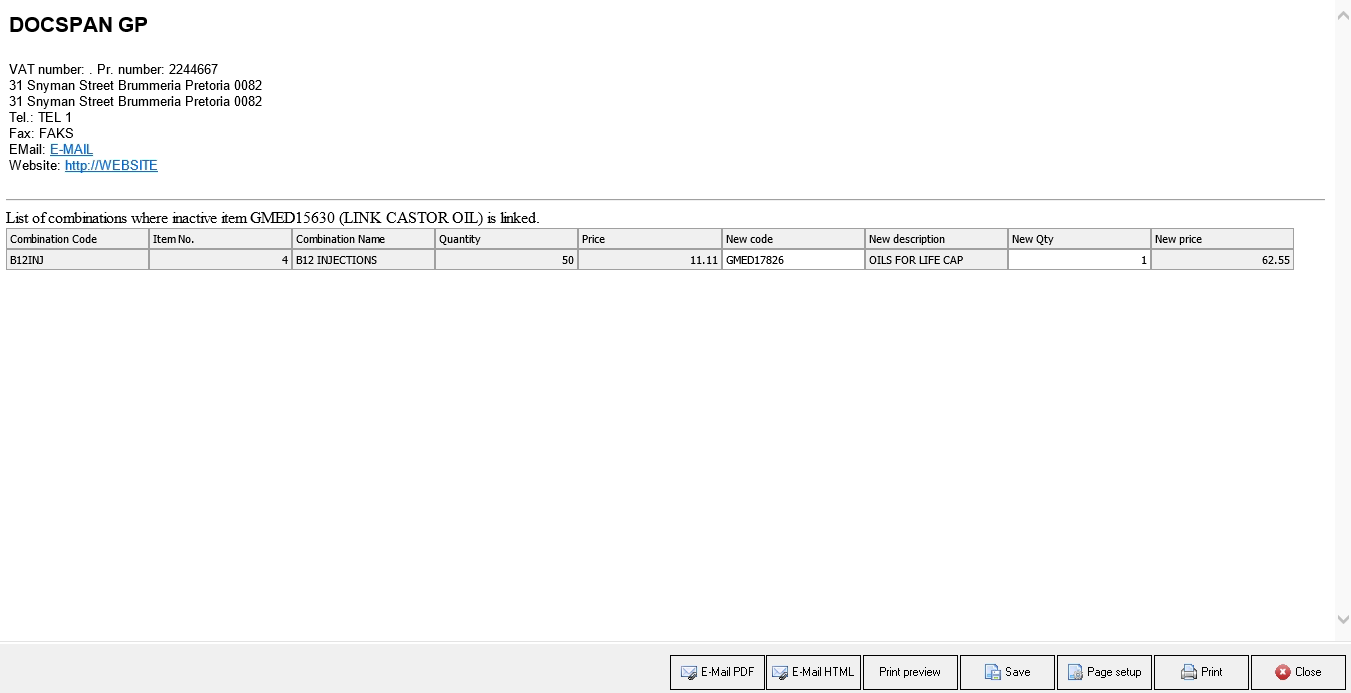
The information of the item will be divided into columns:
Combination Code: The code that was allocated to the combination.
Item Number: The number of the item on the combination.
Combination Name: The name of the combination to which the item is linked.
Quantity: How many of this item is in the combination.
Price: The price of the item.
New Code: The code of the item to replace the current item in the combination.
This is an editable field where the new code can be added that will replace the current code. This field can also be used as a search field when pressing Tab on the keyboard, which will then open the stock list screen where code can be searched for and selected.
New Description: The details of the new item that will replace the current item. This will come from the stock list after the stock code has been entered.
New Qty: How many of the new item will be billed when the combination is selected.
This is an editable field where the new quantity of the new item can be added.
New Price: The price of the new item that will replace the current item.
Add the code of the item to replace the Inactive item in the New Code column.
Add the Quantity of the new Item in the New Qty column.
Click on Ok to save the changes that have been made.
Click on Cancel to exit the page without saving the changes that were made.
Print Options
Click on Print to print out the changes that were made to the combination.
Specify the columns to print by ticking the corresponding check box.
Click on Next to proceed to print.
The combinations' changes will print to the screen.
The following options will be available on each printed list :
Email PDF: Attaches the report in a .pdf format to the email.
Email HTML: Send the email with an HTML link.
Print Preview: Preview how the list will look when a hard copy is printed.
Save: Saves a digital copy to the computer.
Page Setup: Opens the page setup screen.
Print: Prints a hard copy to the Set-up printer.
Close: Closes the screen and returns to the Link new item(s): Maintain List screen.
Click on Cancel to exit the Link new item(s): Maintain List screen without saving the changes that have been made.
Click on OK to save the changes and to exit the Link new item(s): Maintain List screen and return to the Stock Input screen.
Click onOK to close theStock Inputscreen to return to the Stock List screen.
Click onOK (Enter/F2) to close the Stock List screen and return to the main MedDebs screen.