Display Options Navigation
Why This Matters?
The Display Options feature enables you to tailor the Diary’s appearance according to your preferences, optimising visibility and workflow efficiency. By adjusting these settings, you can choose to display only active bookings for a cleaner interface, manage the visibility of tasks, or review deleted or historical bookings as needed. This customisation ensures quicker navigation and a more focused view of relevant information, helping you work more effectively within the system.
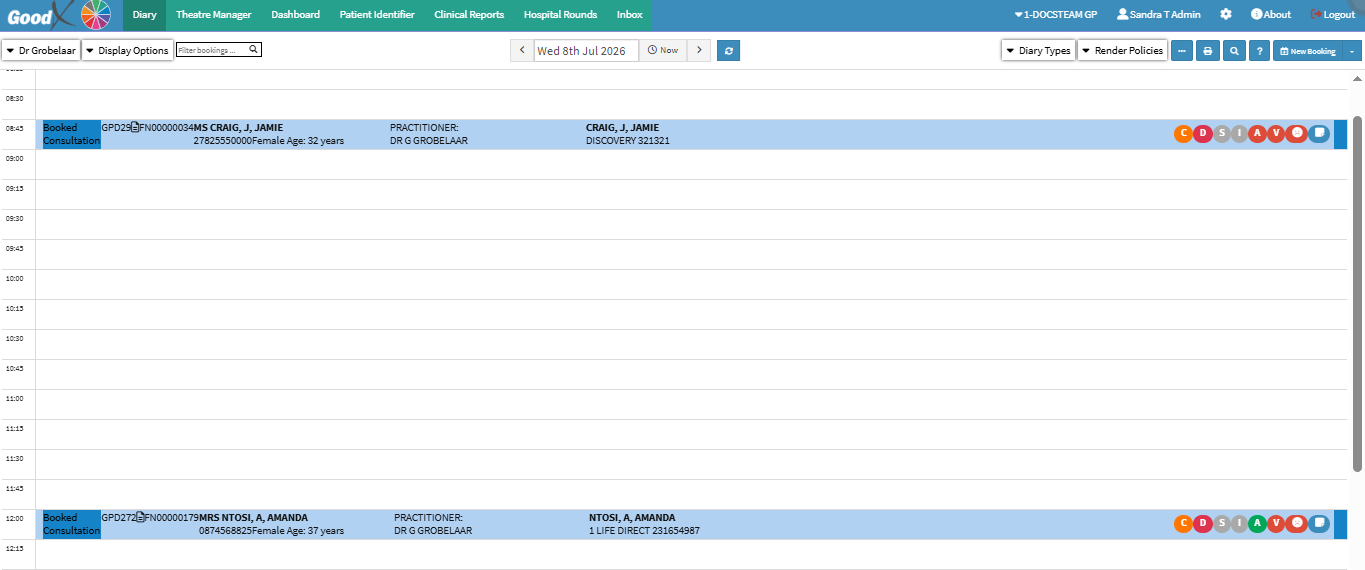
- Start on the Diary screen.

For details and navigation, see Diary Screen Navigation.
Sections
- Show All Bookings/Show Active Bookings
- Show Tasks/Hide Tasks
- Show Closed Tasks/Hide Closed Tasks
- Click on the Display Options button.
![]()
- Select your preferred option:
💡Please Note: Button names will change to reflect their active or opposite state once clicked.

Show All Bookings/Show Active Bookings
![]()
-
- Show All Bookings/Show Active Bookings:
- Show All Bookings: Displays every appointment in the system, including deleted or historical entries.
- Show Active Bookings: Reverts the view to display only current, active appointments.
- Show All Bookings/Show Active Bookings:
Show Tasks/Hide Tasks
![]()
-
- Show Tasks/Hide Tasks:
- Hide Tasks: Removes active task items from the diary.
- Show Tasks: Re-enables the visibility of tasks on the diary.
- Show Tasks/Hide Tasks:
Show Closed Tasks/Hide Closed Tasks
![]()
-
- Show Closed Tasks/Hide Closed Tasks:
- Show Closed Tasks: Displays completed or finalised tasks alongside active ones.
- Hide Closed Tasks: Removes completed tasks from the view.
- Show Closed Tasks/Hide Closed Tasks:
💡Please Note: The Show Closed Tasks/Hide Closed Tasks options will only appear if tasks are currently visible on the diary.