Why Use This Function:

Control Artefacts serves as your centralised digital vault for all regulatory, safety, and operational evidence. In a medical environment, controls are the vital policies put in place to ensure Patient safety and data privacy, while artefacts are the tangible proof (such as sanitisation logs, training certificates, and security checks) that these procedures were actually performed. By gathering all of this evidence into one secure location, the platform eliminates scattered paperwork and gives your Practice a single, reliable source of truth.

This feature dramatically simplifies daily administration and audit preparation. Rather than hunting through physical files or email threads, you can instantly filter compliance data by employee, artefact type, or specific control, and immediately export the results into PDF or CSV formats for reporting. Whether you are reviewing a detailed staff submission or presenting proof of compliance to an external inspector, the system ensures you can effortlessly demonstrate that required protocols are being effectively maintained.

Ultimately, managing Control Artefacts strengthens team accountability and shifts your Practice from reactive firefighting to proactive quality management. Practice managers can easily monitor which compliance tasks are completed and by whom, ensuring that no critical safety or administrative steps slip through the cracks. This centralised approach protects your Practice from operational risks and provides total peace of mind that you are always audit-ready.

💡Please Note: Control Artefacts will not be available until the work has been submitted from the Control sub-tab sidebar. 
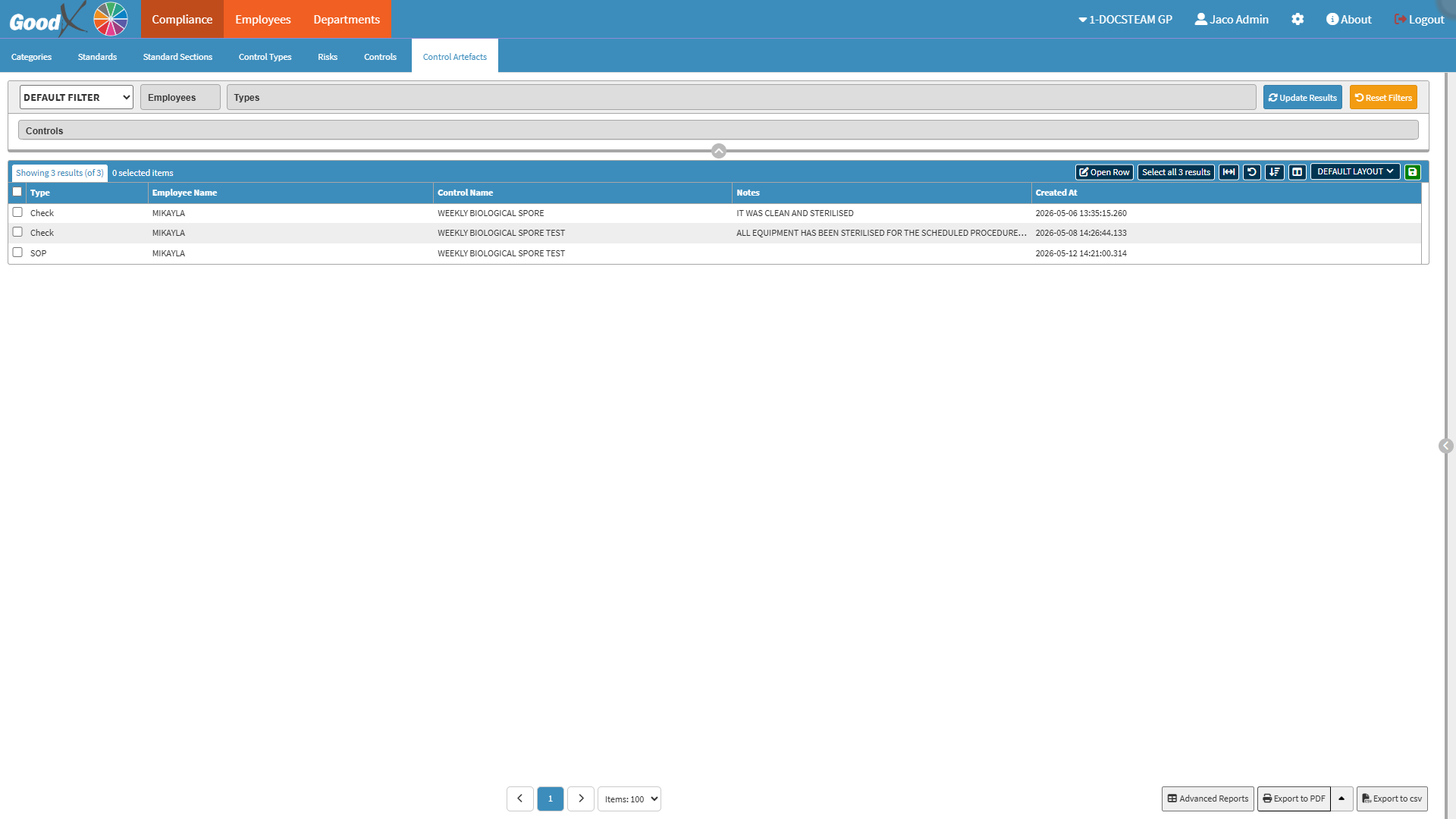
The Contents of This User Manual:

  • Filters
  • Screen Column Action Buttons
  • Columns
  • Page Options

  • This user manual will start on the Compliance tab, Controls Artefacts sub-tab screen.


💡Please Note: Control Artefacts must be created through the Submit Work button on the Controls sub-tab sidebar in order to appear in this view. 

Filters

Filters are tools or functionalities that allow you to narrow down or refine the results displayed on the Controls Artefacts screen.
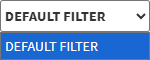
  • Click on the Default Filter drop-down menu to select the filter style you wish to use, and if additional options are available.


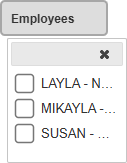
  • Click on the Employees drop-down menu to select the Employees you wish to filter on.


  • Click on the Types drop-down menu to select the types of Control Artefacts you wish to filter on.


  • Click on the Controls drop-down menu to select the Controls you wish to filter on.


  • Click the Update Results button to filter your results.


  • Click on the Reset Filters button to clear all the filters you selected.


Screen Column Action Buttons

Several additional options are available for the Columns. These additional options are to help you adjust the List, refine the Search and give more specific results.


  • Click on the Open Row button to open the selected list item so that you can view or edit its information.


  • Click on the Select All Results button to select every line in the column.


  • Click on the Expand Widths button to auto-fit the column width to the information within all columns.


  • Click on the Reset Widths button to restore the original widths after any modifications were made.


  • Click on the Sort Columns button to sort the Columns in the order that you desire.


  • Click on the Choose Columns button to select the columns that will be displayed on the list.


  • Click on the Default Layout drop-down menu to select the type of layout that will be used for the screen.


  • Click on the Save Layout button to save the current column layout.


Columns

All the information on the Controls screen is divided into Columns to logically group related information together.


  • Type: Displays the category or format of the submitted Artefact.
  • Employee Name: Identifies the employee who submitted the Control Artefact.
  • Control Name: Displays the name of the specific control to which the Artefact relates.
  • Notes: Provides the detailed notes, observations, or comments entered by the employee when submitting the Artefact.
  • Created At: Shows the date and time when the Control Artefact was submitted into the system.

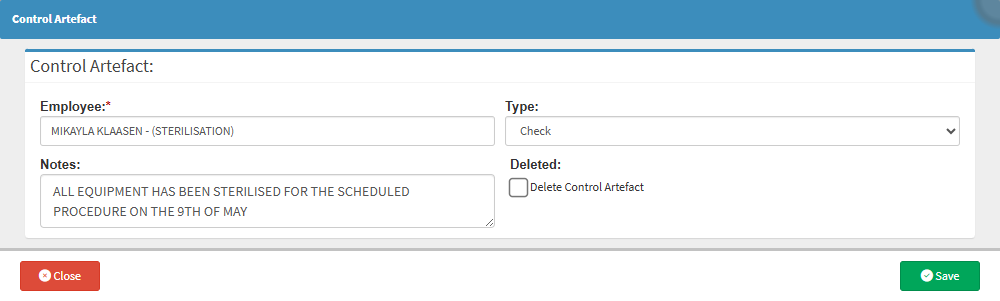
  • Double-Click on a desired list item.


  • The Control Artefact screen will open.


Page Options

All the additional options that are available for the page.



  • Click on the Previous button to navigate to the previous page.


  • Click on the Page Number button to navigate to the desired page.


  • Click on the Next button to navigate to the next page. 


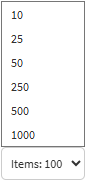
  • Click on the Items drop-down menu to select the number of items that will be displayed on the screen.


  • Click on the Advanced Reports button to generate an Advanced report. 


  • Click on the Export to PDF button to save a PDF file of all the data as a comprehensive report.


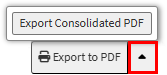
    • Click the Export to PDF drop-down menu to access the Export Consolidated PDF option, which generates a single document that combines data from multiple sources for an overview. 


  • Click on the Export to CSV button to save all the list items in a CSV format. 

Last modified: Wednesday, 14 October 2026, 2:30 PM