Text size
Line height
Text spacing
The Dental Clinical module provides a comprehensive suite of tools designed specifically for the dental environment. By utilising these functions, the Practitioner can manage the entire Patient lifecycle from reviewing vital Medical History and mapping clinical Observations to generating Invoices and submitting real-time claims via Switching. This integrated approach ensures that clinical data, financial records, and periodontal assessments are centralised, allowing for high-quality Patient care and efficient practice management.


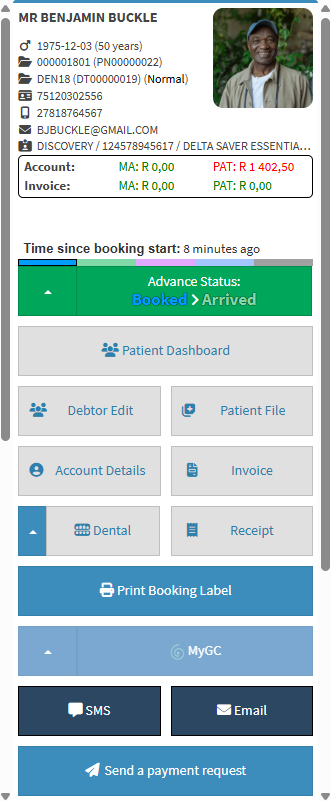

The Invoices function is used to create a formal record of services and materials provided to a Patient. By generating an invoice, the Practice establishes a legal obligation for the Patient or their Medical Aid to provide payment, ensuring accurate accounting and revenue management.


The Periodontal Chart provides a simplified, visual representation of a Patient’s gingival health, including pocket depths, mobility, and recession. This enables Dentists and Specialists to assess the condition of the mouth at a glance and develop precise treatment plans based on clinical data.


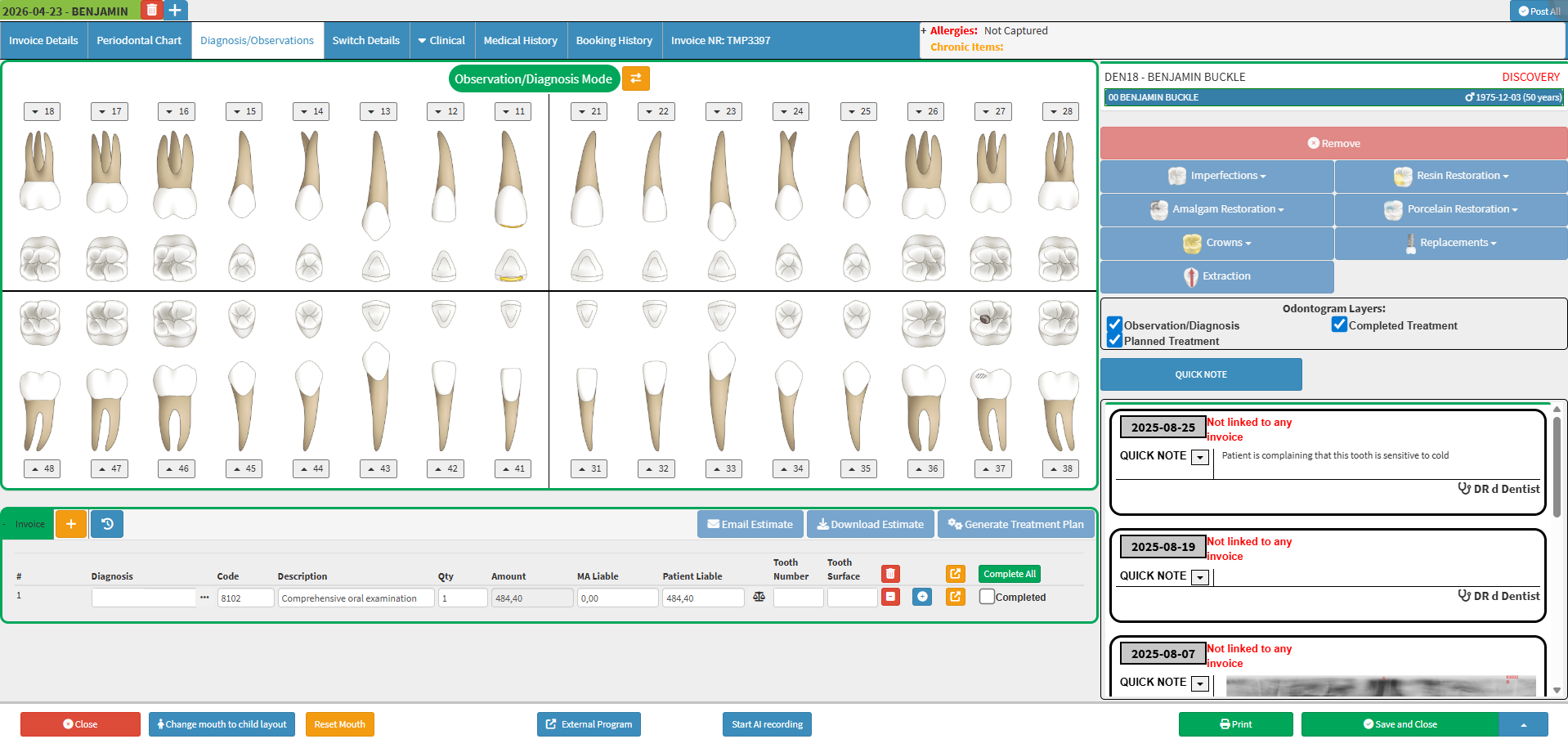
Observation/Diagnosis Mode is used to graphically map dental conditions like fillings, replacements, and imperfections. This tool assists the Practitioner in planning future clinical work and provides the Patient with an accurate cost estimate for the recommended procedures.


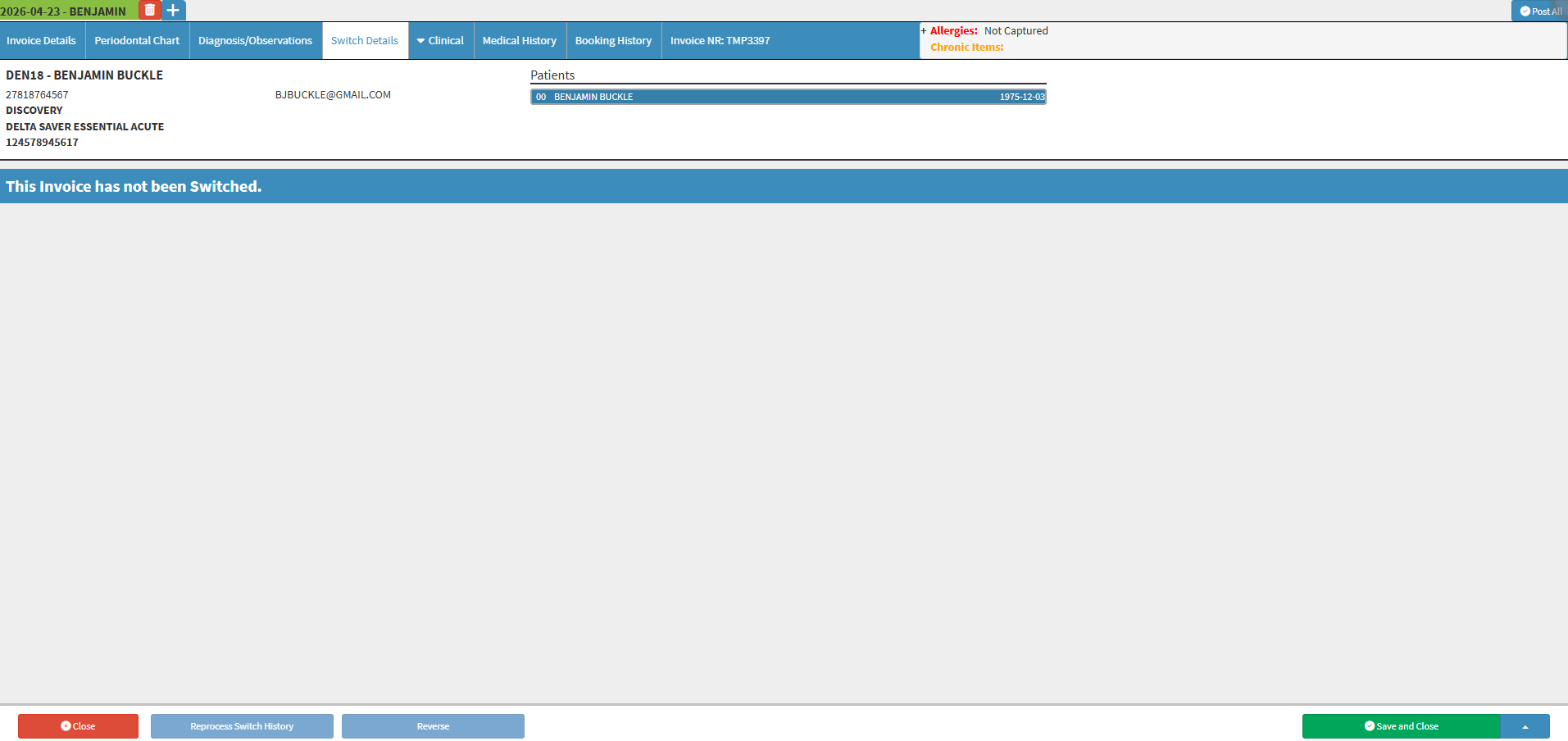
Switching allows the Practice to submit claims to Medical Aids in real-time, receiving an immediate approval or rejection response. This streamlines Claim Administration by identifying payment issues instantly, reducing the time spent on manual follow-ups.

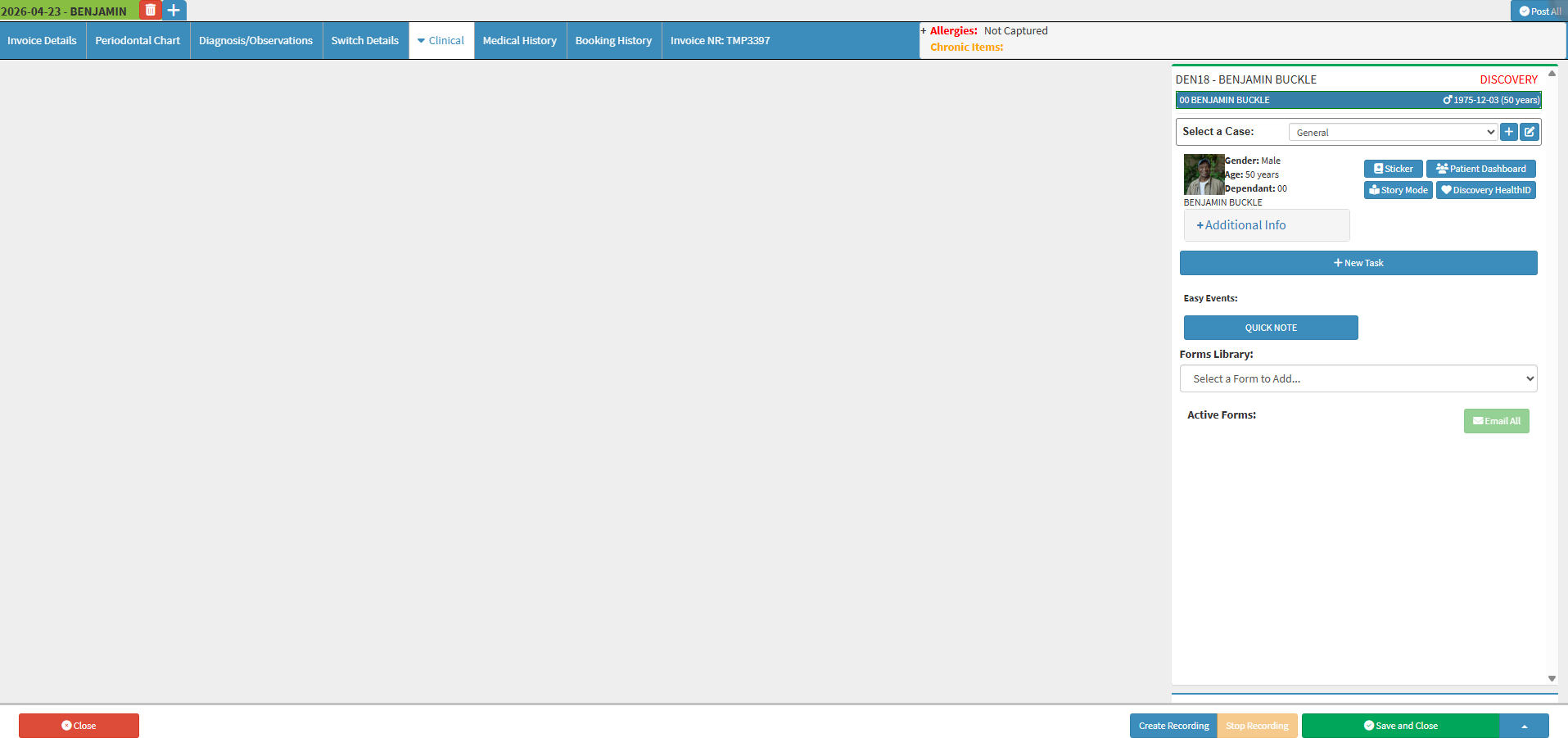
The Clinical screen serves as a centralised hub that consolidates all patient-related clinical data into a single view. By reducing the time spent searching for information, this screen enhances clinical decision-making and ensures a more efficient workflow for the Medical Staff.

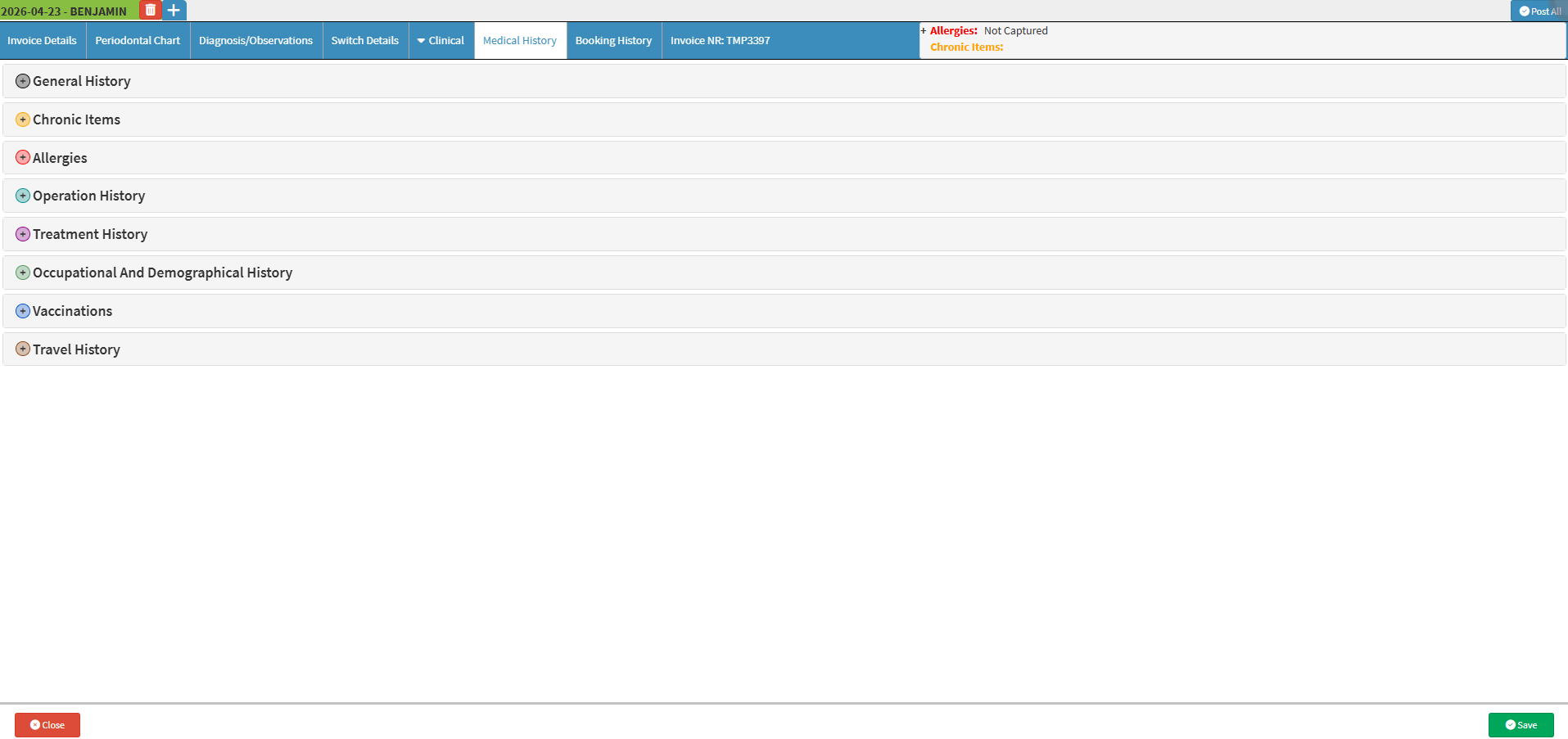
The Medical History tab is used to store and review vital health background information. This comprehensive overview ensures that the Practitioner can provide safe, personalised care and make informed diagnostic decisions based on the Patient's complete health profile.

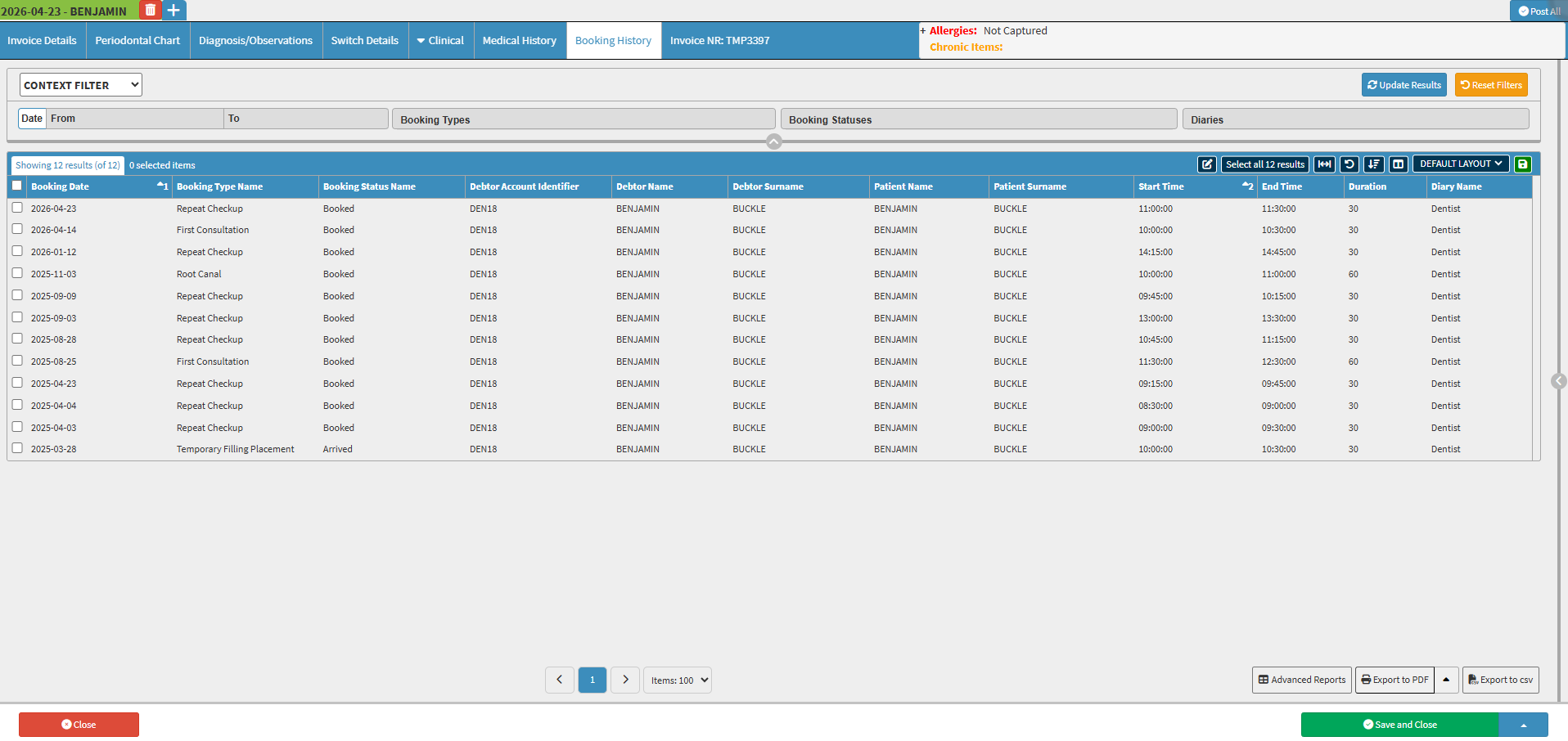
The Booking History screen is used to track a Patient’s full appointment timeline, including past visits and future scheduled slots. This helps the Practitioner monitor patient compliance and manage long-term care schedules effectively.