Text size
Line height
Text spacing
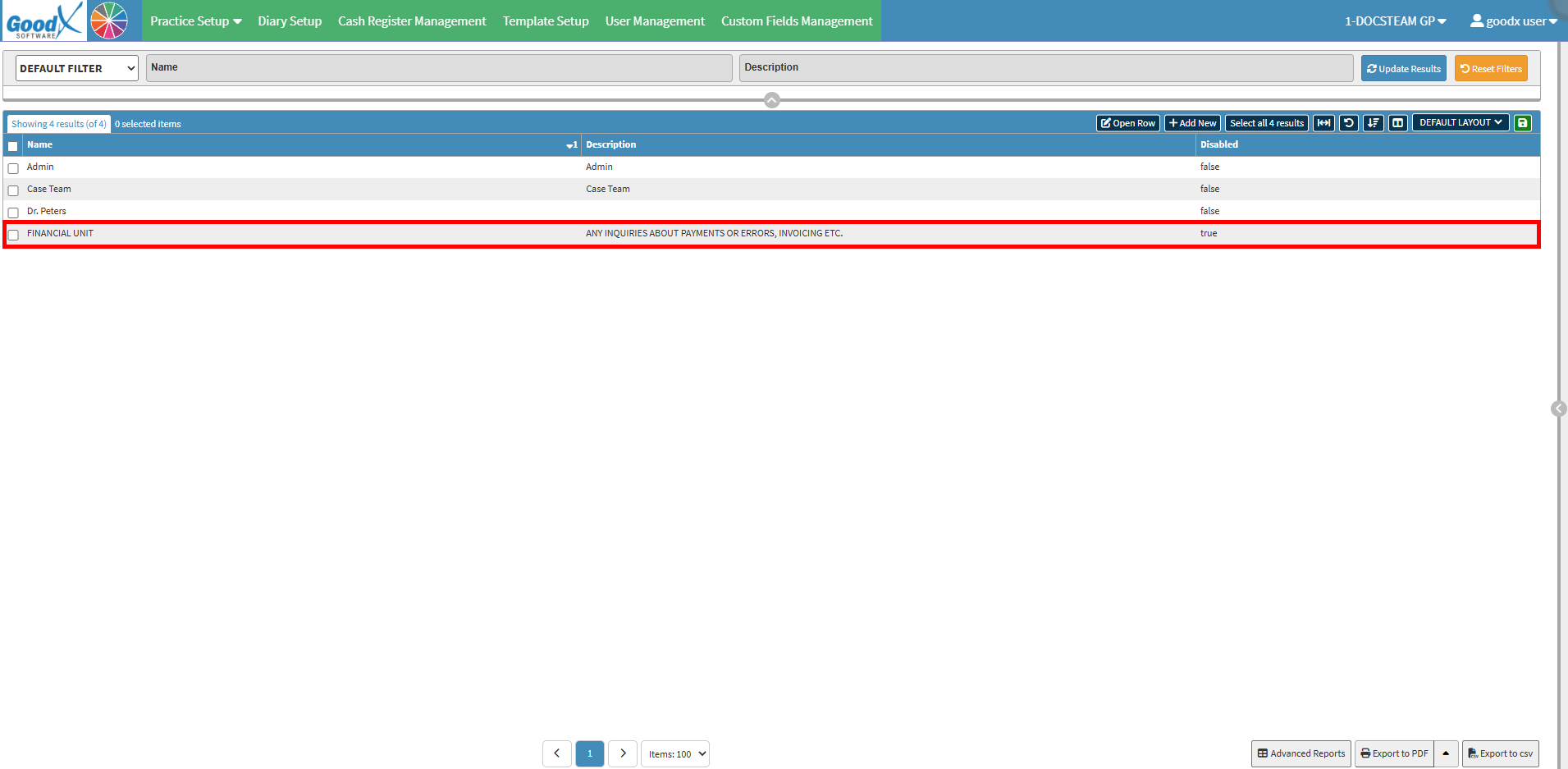
Creating Instant Message Groups allows your practice to organise internal communication by creating dedicated spaces for specific teams or tasks. For example, you can set up a Financial group for billing staff, or a Surgical group for surgeons, anesthesiologists, and operating nurses. Keeping discussions inside your software ensures sensitive client and patient data stays secure without needing third-party chat apps. Dedicated group channels reduce daily inbox noise so urgent operational updates reach the right people immediately. Ultimately, this targeted messaging keeps every department aligned, speeds up daily tasks, and improves patient care coordination.