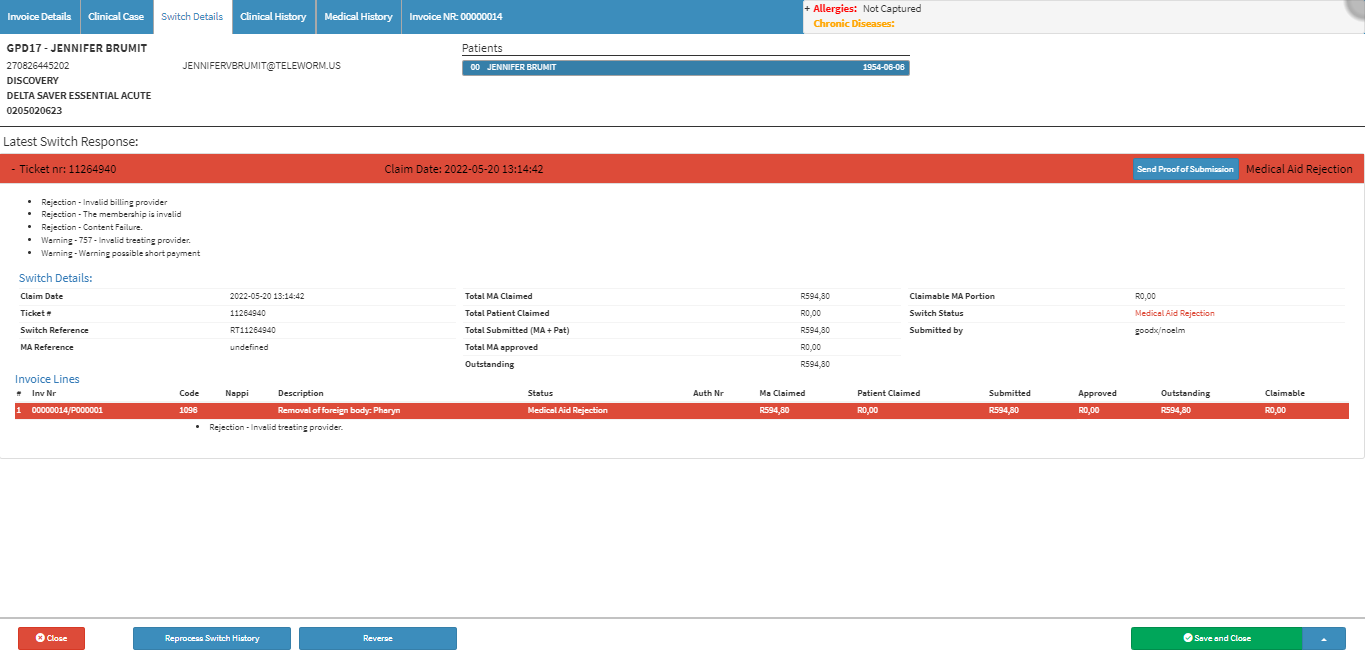
The reprocessing of a previously submitted claim is referred to as Reprocess Switch History. After making modifications to the claim, the user can utilise this function to see if the changes were successful.
Log in to the GoodX Web App using your GoodX username and password.
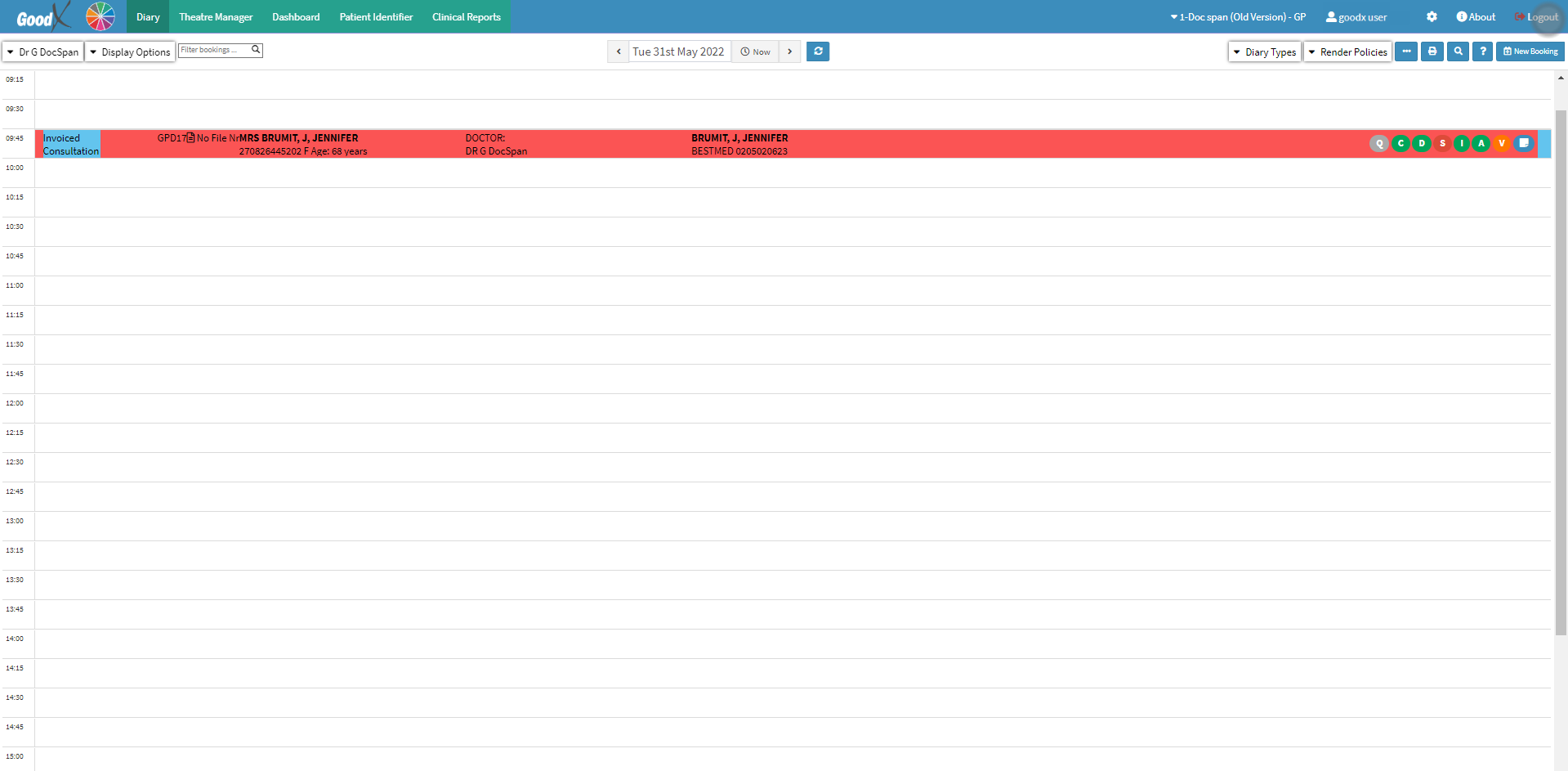
The Diary screen will open.
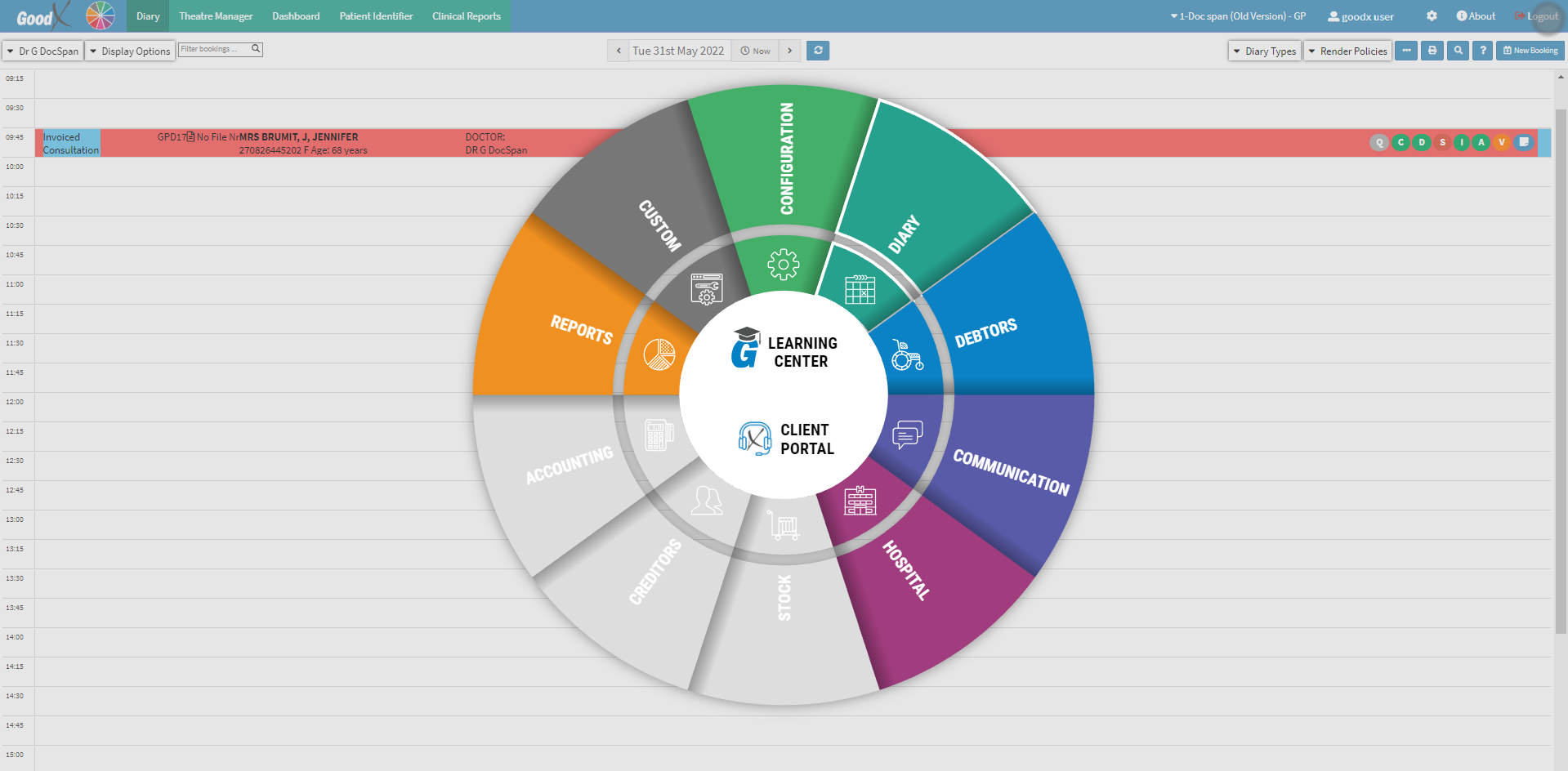
Click on the Navigation Wheel on the Navigation Bar.
The Navigation Wheel will open.
Click on the Communication segment.
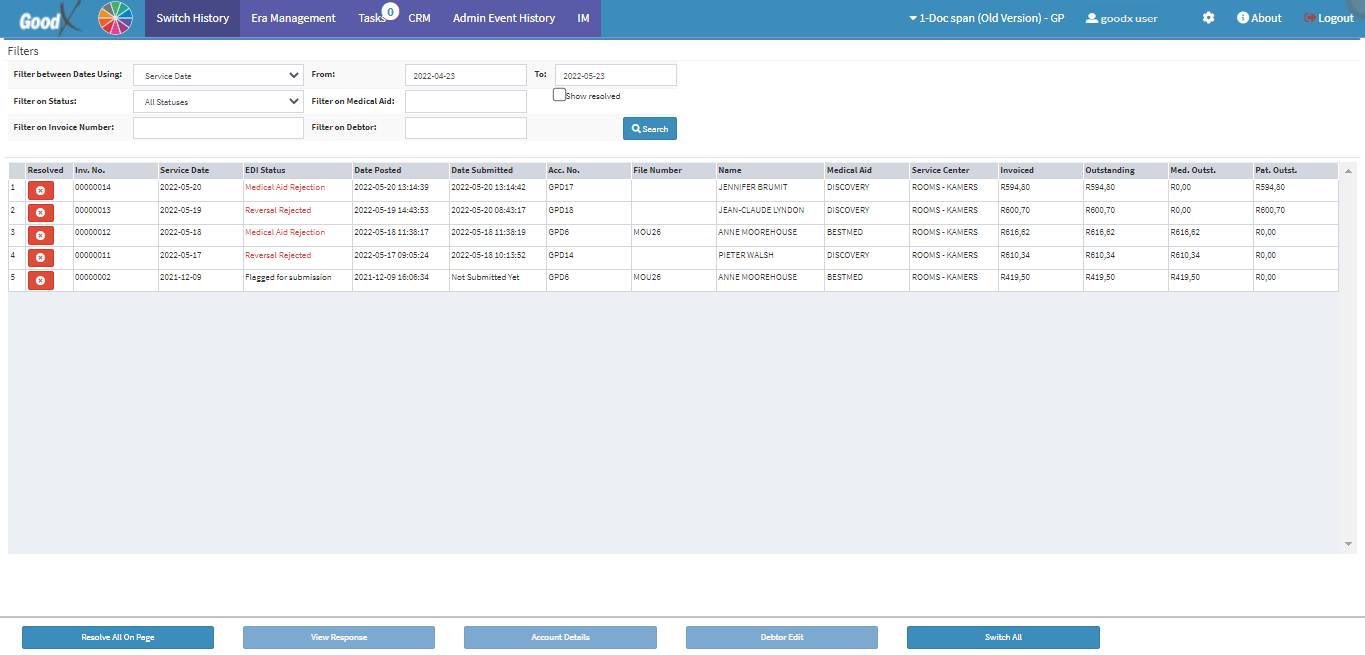
The Switch History screen will open.
For more information regarding the Switch History screen, please refer to the user manual: WA: EDI Switch History.
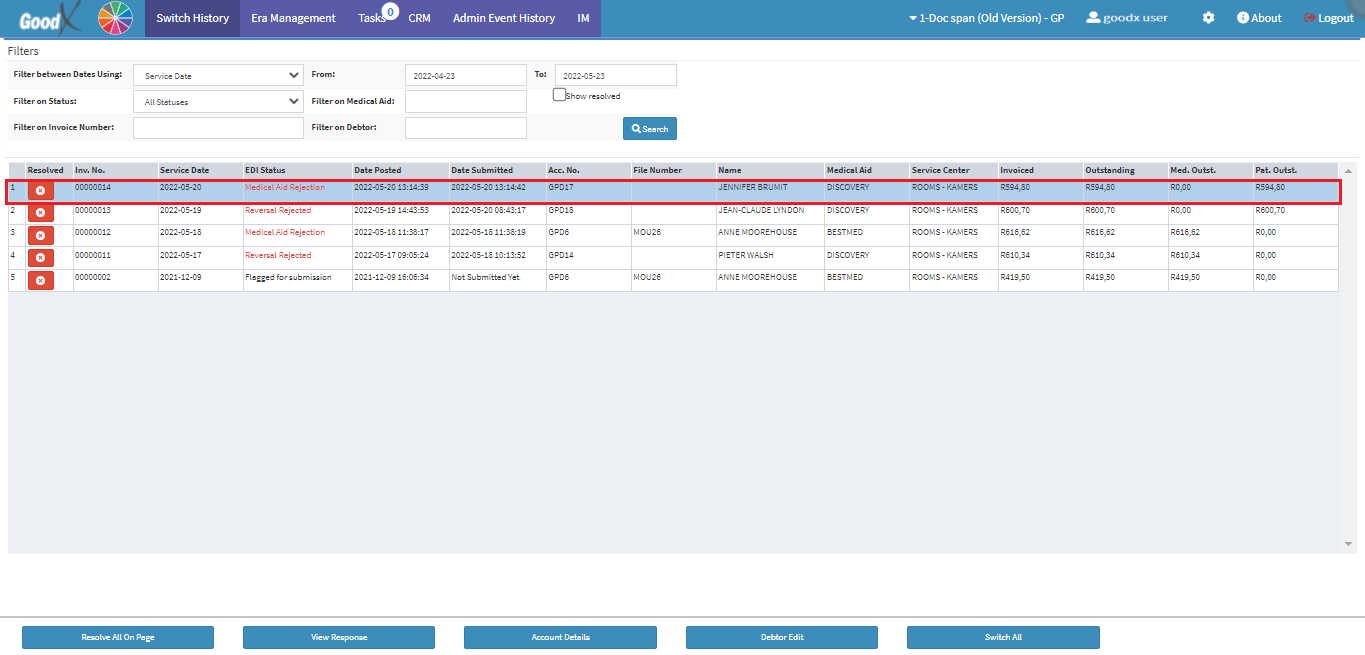
Select the desired invoice.
Click on the View Response button to view a detailed response with regards to the specific claim.
The Switch Details screen will open.
Click on the Reprocess Switch History button in the bottom left corner to reprocess the claim.
Please Note: When the user Clicks the Reprocess Switch Historybutton, the claim is immediately reprocessed.
Click on the Close button to exit without saving.
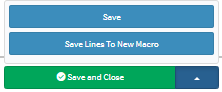
Click on the drop-up menu next to the Save and Close button for more saving options.
Save: The user is able to save the changes made to the form without closing the form.
Save Lines To New Macro: This allows the user to create a new macro.
For an extensive explanation of the New Macro feature, please refer to the user manual: Macros (Billing Combinations).
Click on the Save and Close button to save the Switch Details screen and close the screen to return to the Switch History screen.