The Operation form serves as the digital nerve centre for surgical case management, consolidating every critical variable of a procedure into a single, cohesive record. Designed specifically for the fast-paced operating theatre, it allows staff to instantly log and verify Patient demographics, scheduling logistics, anaesthesia protocols, and regulatory paperwork in real time.
By bringing this information onto a single centralised screen, the system eliminates the need to hunt through multiple platforms or physical files, minimising administrative friction and providing the entire surgical team with a consistent snapshot of the upcoming procedure.
Beyond streamlining coordination, this feature introduces ironclad compliance through built-in checkpoints for mandatory attachments, such as signed Patient consent forms and clinical authorisations. In a theatre environment, a missing signature is a massive legal and safety risk. Embedding these crucial verifications directly into the digital workflow guarantees that no Patient enters surgery without proper, legally binding authorisation.
💡Please Note: A Theatre list must first be set up to create an operation. For more information on how to create a Theatre List, please refer to the user manual: How to Create a Theatre List.
The Contents of This User Manual:
Operation Info
Theatre Details
Operation Team
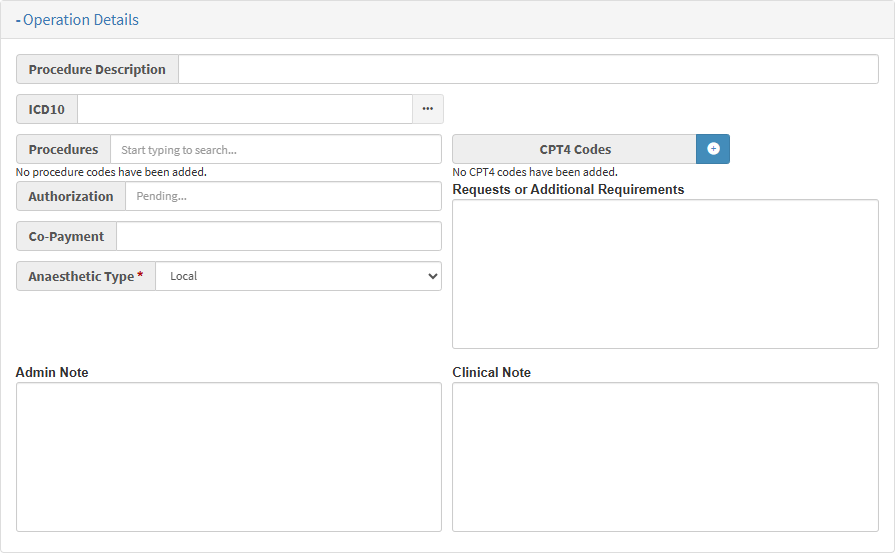
Operation Details
Patient Details
Progress
Billing
Workflow Event Options
This user manual will start on the Operation screen. You will first need to create Theatre Timeslots on the diary to be able to book an Operation using the Theatre Manager.
Operation Info
All the information that relates to when and where the Operation will take place, who the Patient is, which medical staff will be present during the surgery, and the procedures that will be performed.
Theatre Details
Click on the Theatre Details panel to access the information of where the Operation will take place.
💡Please Note: The information that will be completed by default is the same information that was entered when the Theatre List was created.
Click on the Diary drop-down menu to select the desired Practice where the theatre booking was made.
The Service Centre and Operation Date fields cannot be edited from this screen and will be greyed out.
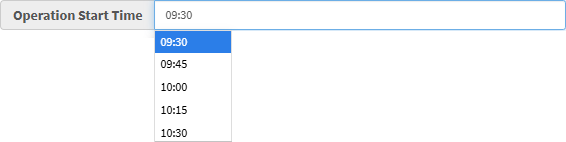
Click on the Operation Start Time field to select a start time when the operation has been scheduled to start from the drop-down menu that has become available.
💡Please Note: The times that will be available on the drop-down menu will correspond to the times on the Theatre List.
Click on the Operation Duration field to enter the desired number of minutes for the operation.
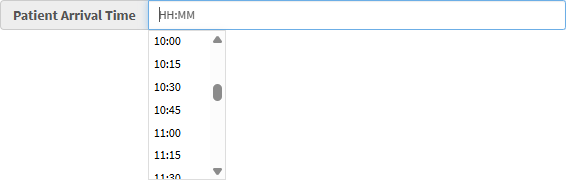
Click on the Patient Arrival Time field to select the time the Patient needs to arrive.
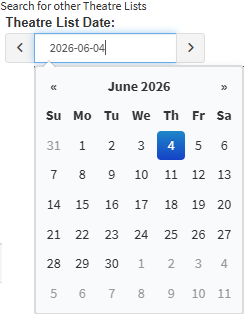
Click on the Theatre List Date field to search and select other available dates.
The Available Theatre Lists for this Diary will display the availability of Theatre Lists on the date you selected.
Hospital: The medical facility where the available Theatre Lists are.
Start: The hour and minutes when the Theatre Booking Timeslots will start on the diary.
End: The hour, minutes and seconds when the Theatre Booking Timeslots will end on the diary.
💡Please Note: If there are no Theatre Lists available for the date you selected, the box will be empty.
Operation Team
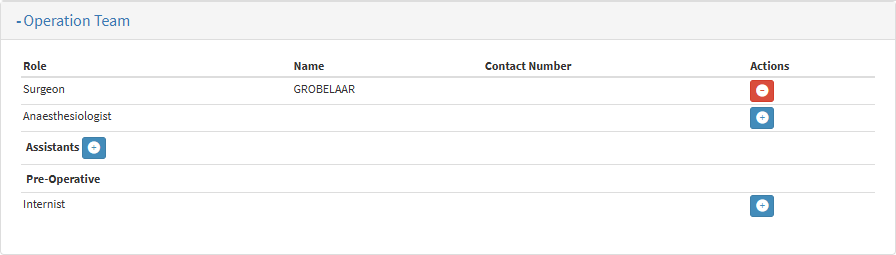
Role: The classification of the members' responsibilities within the operating team.
Name: The last name of the member of the operating team.
Contact Number: A telephone number where the member of the operating team can be reached.
Actions: Allows you to add and delete new members to and from the operating team.
Click on the Add button to add a new member to the operating team.
Click on the Remove button to remove the corresponding member from the operating team.
Indicates the status of the operation-related administration and assessments that the Patient, Hospital Reception or the Practitioner/Allieds completes pre- or post-operation.
Click on the Progress panel.
The Progress panel will expand.
Item: The name of the document/consent form, etc. that is required to be completed for the operation.
Status: Will show whether the task/item has been completed by the Patient or is Incomplete
Tick the corresponding checkbox to change the status from Incomplete to Completed.
Click the Delete button to remove the uploaded image or document.
Actions: You are able to upload certain required documents in specific formats, send required documents to the Patient via SMS and Email, send documents to the Kiosk, create new documents, upload PDF versions of previously completed documents as received from Patients, and view previously uploaded documents.
💡Please Note: The required documents/consent form/task, or items that are available on the list, will be dependent on the setup of what the Practice requires from the Patient.
Click the Complete button to save your changes.
Billing
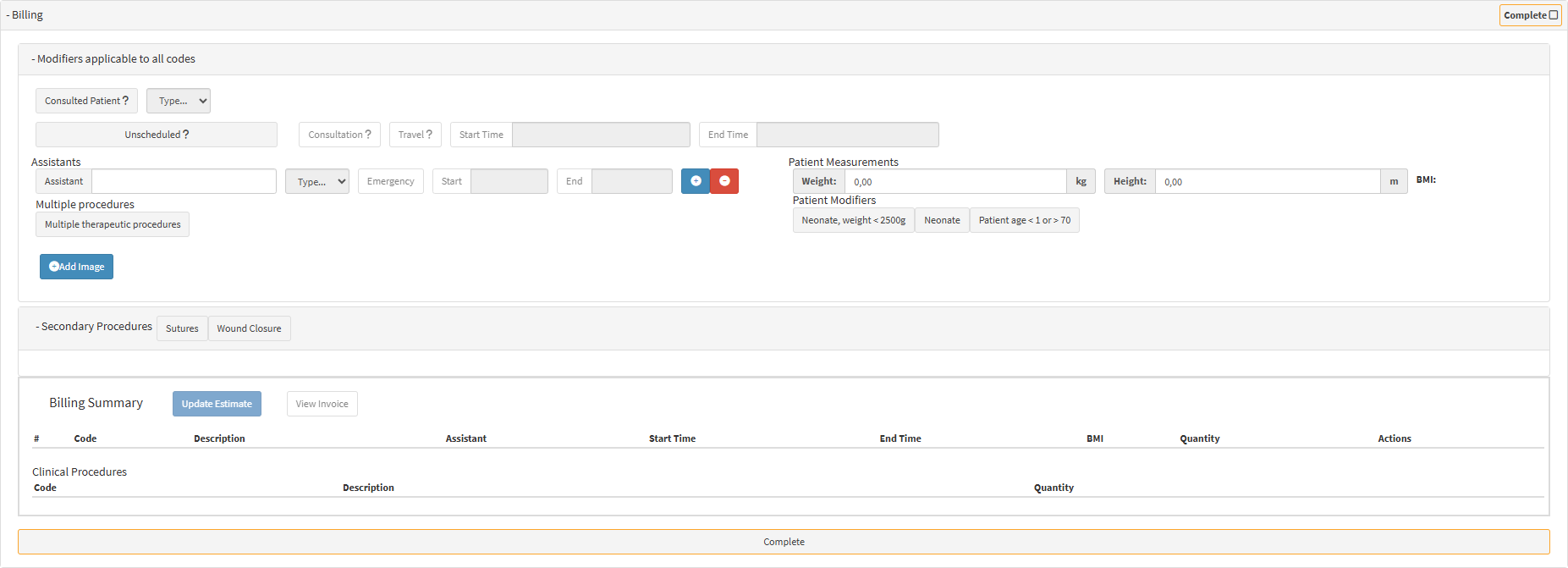
The Billing section allows all three participating parties (the main Practitioner, Assistant, and Anaesthesiologist) to bill the Patient directly from the Theatre Booking. However, the available layout and sections on the screen will dynamically change depending on the specific Practitioner Type selected within that diary's theatre settings.
Click on the Billing panel.
The Billing panel will expand.
For an extensive explanation of the Billing Panel, please refer to the user manual: Billing.
Workflow Event Options
Allows you to email and/or print all the details of the Operation.
For more information regarding these features, please refer to the user manual: Workflow Event Options.