Hospital Round List: Filter Options
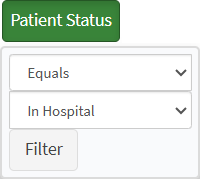
Filter Options enable the Practitioner to search for Cases with more advanced sub-filters. The Filter Options are based on the columns in which the Results list has been divided. Once a Filter Option is selected, the Results list will update according to the Filter Options that have been chosen.
Please Note: The Results list displays the Practitioner's current Hospital Round Visits.
- The contents of this user manual will consist of the following information:
- Location Filter
- Doctor Filter
- Admission Date Filter
- Discharge Date Filter
- Case Type Filter
- Case Subtype Filter
- Last Visited Filter
- Clear Subfilters
- This user manual will start on the Hospital Round Management screen.

- For more information on how to navigate to the Hospital Round Management screen, please refer to the following user manual: Hospital Round Management (Overview).
- An explanation will be given for each Filter Option:

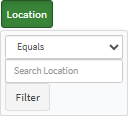
Location Filter
The Location Filter refines the Results list according to the location of the Patient within the Hospital.
- Click on the Location button to set a filter based on the place where the Patient's treatment is taking place.
![]()
- The Location Filter menu will open.

- Click on the Options drop-down menu to select the desired option on which the information will filter.
![]()
- Select an option from the list that becomes available.

- The available option includes:
- Equals: When the filter value has the exact same value as the result.
- Not Equals: The filter value and the results are not the same.
- Contains: The results contain some of the information as in the filter.
- Does Not Contain: The results do not contain any of the information as set in the filter.
- Empty: The results of the field that is being filtered have no value and the field is blank.
- Not Empty: The results of the field that is being filtered, contains information.
- Click on the Search Location field to type the desired location that will be considered whilst filtering.
![]()
- Click on the Filter button to apply the option to the Results list.
![]()
- The Location button's colour will change to orange with a funnel icon to indicate that the filter has been applied.
![]()
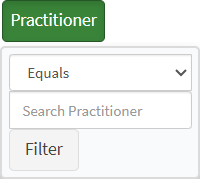
Doctor Filter
The Doctor Filter refines the Results list according to the Practitioner that treats the Patient.
- Click on the Doctor button to set a filter based on the treating Practitioner linked to the case.
![]()
- The Doctor Filter menu will open.

- Click on the Options drop-down menu to select the desired option on which the information will filter.
![]()
- Select an option from the list that becomes available.

Please Note: For an explanation of the available options, please refer to the Location section of this user manual.
- Click on the Search Dobtor field to type the desired Practitioner that will be considered whilst filtering.
![]()
- Click on the Filter button to apply the option to the Results list.
![]()
- The Doctor button's colour will change to orange with a funnel icon to indicate that the filter has been applied.
![]()
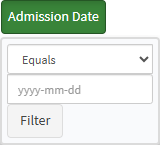
Admission Date Filter
The Admission Date Filter refines the Results list according to the date the Patient was admitted to the Hospital.
- Click on the Admission Date button to set a filter based on the date the Patient was admitted to the service centre.
![]()
- The Admission Date Filter menu will open.

- Click on the Options drop-down menu to select the desired option on which the information will filter.
![]()
- Select an option from the list that becomes available.

- The available option includes:
- Equals: When the filter value has the exact same value as the result.
- Not Equals: The filter value and the results are not the same.
- Greater Than: When the filter value is larger than the results.
- Greater Than or Equal: When the filter value is larger than the results or the filter value is the exact same as the results.
- Less Than: When the filter value is smaller than the results.
- Less Than or Equal: When the filter value is smaller than the results or the filter value is the exact same as the results.
- Between: When the results are between the filter values.
- Not Between: When the Results are not between the filter values.
- Empty: The results of the field that is being filtered have no value and the field is blank.
- Not Empty: The results of the field that is being filtered, contains information.
- Click on the Admission Date picker to select the desired admission date.

- Click on the Filter button to apply the option to the Results list.
![]()
- The Admission Date button's colour will change to orange with a funnel icon to indicate that the filter has been applied.
![]()
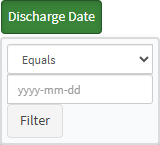
Discharge Date Filter
The Discharge Date Filter refines the Results list according to the date that the Patient was discharged from the Hospital.
- Click on the Discharge Date button to set a filter based on the date that a Patient stops receiving treatment from the service centre.
![]()
- The Discharge Filter menu will open.

- Click on the Options drop-down menu to select the desired option on which the information will filter.
![]()
- Select an option from the list that becomes available.

Please Note: For an explanation of the available options, please refer to the Admission Date section of this user manual.
- Click on the Discharge Date picker to select the desired discharge date.

- Click on the Filter button to apply the option to the Results list.
![]()
- The Discharge Date button's colour will change to orange with a funnel icon to indicate that the filter has been applied.
![]()
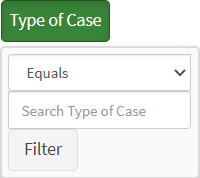
Case Type Filter
The Case Type Filter refines the Results list according to the case classification.
- Click on the Case Type button to set a filter based on the nature of the case.
![]()
- The Case Type Filter menu will open.
- Click on the Options drop-down menu to select the desired option on which the information will filter.
![]()
- Select an option from the list that becomes available.

Please Note: For an explanation of the available options, please refer to the Location section of this user manual.
- Click on the Search Case Type field to type the desired case type that will be considered whilst filtering.
![]()
- Click on the Filter button to apply the option to the Results list.
![]()
- The Case Type button's colour will change to orange with a funnel icon to indicate that the filter has been applied.
![]()
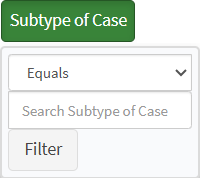
Case Subtype Filter
The Case Subtype Filter refines the Results list according to the case sub-classification.
- Click o the Case Subtype button to set a filter based on the sub-nature of the case.
![]()
- The Case Subtype menu will open.

- Click on the Options drop-down menu to select the desired option on which the information will filter.
![]()
- Select an option from the list that becomes available.

Please Note: For an explanation of the available options, please refer to the Location section of this user manual.
- Click on the Search Case Subtype field to type the desired case subtype that will be considered whilst filtering.
![]()
- Click on the Filter button to apply the option to the Results list.
![]()
- The Case Subtype button's colour will change to orange with a funnel icon to indicate that the filter has been applied.
![]()
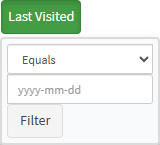
Last Visited Filter
The Last Visited Filter refines the Results list according to the latest recorded date the Practioner visited the Patient.
- Click on the Last visited button to set a filter based on the last date the Practitioner visited the Patient within the service centre.
![]()
- The Last Visited Filter menu will open.

- Click on the Options drop-down menu to select the desired option on which the information will filter.
![]()
- Select an option from the list that becomes available.

Please Note: For an explanation of the available options, please refer to the Admission Date section of this user manual.
- Click on the Last Visited date picker to select the desired last visited date.

- Click on the Filter button to apply the option to the Results list.
![]()
- The Case Subtype button's colour will change to orange with a funnel icon to indicate that the filter has been applied.
![]()
Please Note: More than one filter can be active at the same time. The user will find the case easier the more specific the filter is set.![]()
Clear Subfilters
The Clear subfilters button allows a user to clear all subfilters from the Results list.
- Click on the Clear All Subfilter button to remove all active subfilters from the Results list.
![]()