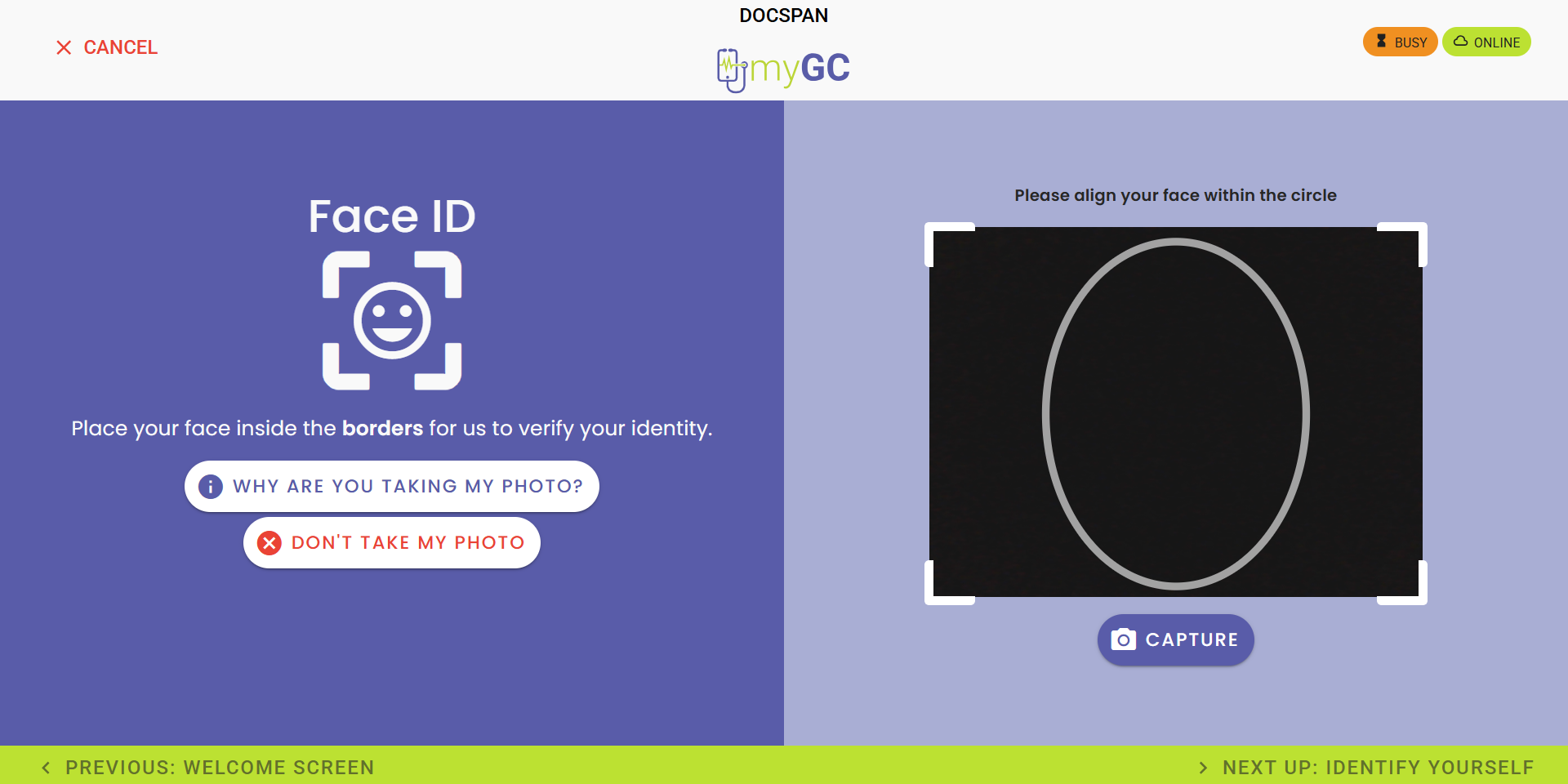
Why Use This Function:

Patients can use Face ID on the Kiosk in the Practice to search for and view their booking with the Practitioner. Face ID uses facial recognition technology to match a person’s face from an image or video to a database of stored faces, verifying the Patient’s identity. It works by detecting and measuring key facial features from the image provided.
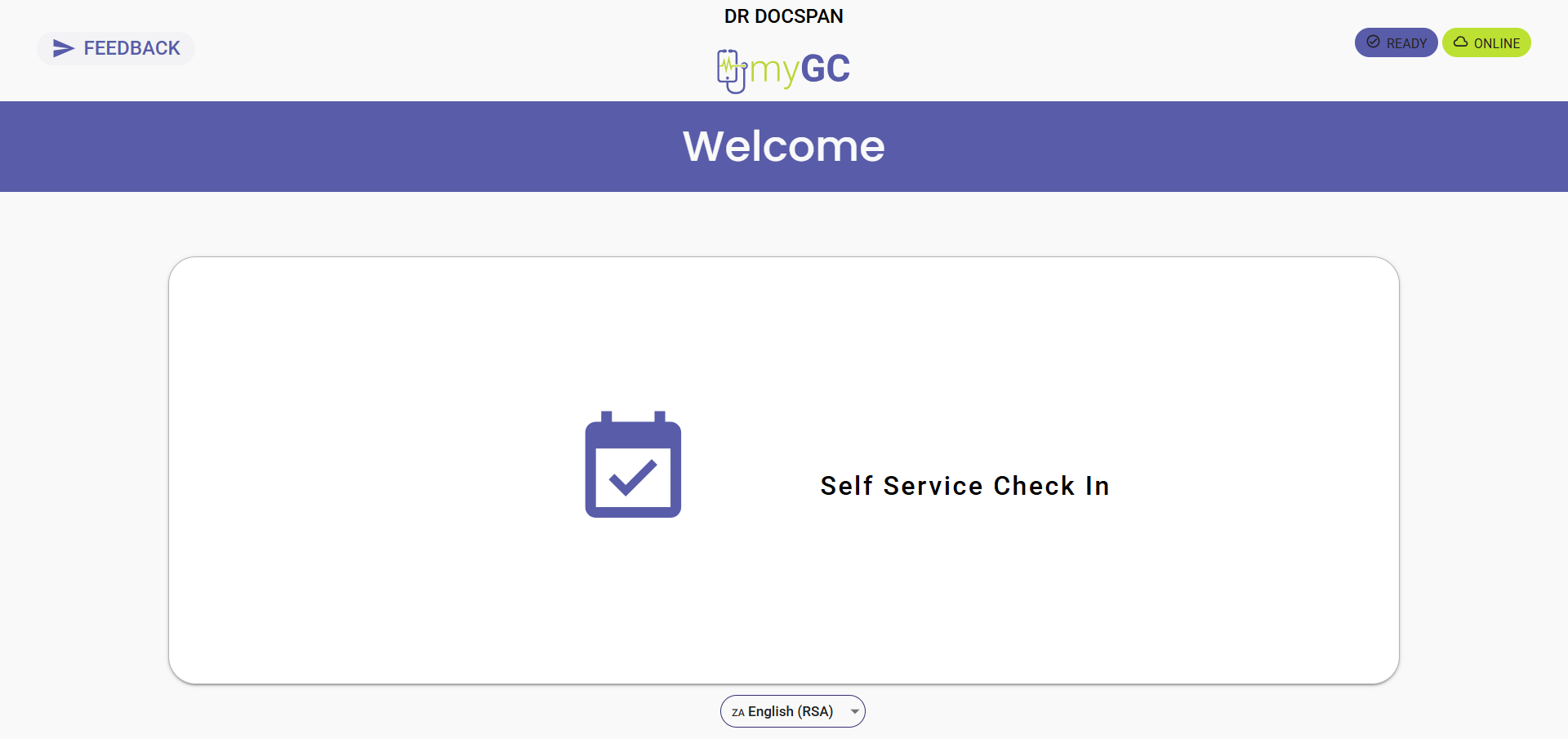

  • This user manual will start on the myGC Kiosk Welcome screen.

  • Click on the Self Service Check In button.

  • The Face ID screen will open.

💡Please Note: If you have an image uploaded to your Patient File, you can use Facial Recognition to quickly find your booking.

  • Click on the Don't Take My Photo button if you don't have an image loaded onto your Patient File.



  • The Please Enter Your Details screen will open.

  • Click on the Surname field and enter your last name.


  • Click on the Mobile number field and enter your cellphone number.

  • Tap on the Confirm button.

    • The Bookings Found screen will open, asking you to select your matching booking.

  • Click on the Yes, This Is My Booking button if your booking has been found.

  • If your booking has not been located, tap on the No, These Are Not My Bookings button.

💡Please Note: You will be redirected to ask Reception for assistance if your booking cannot be located.

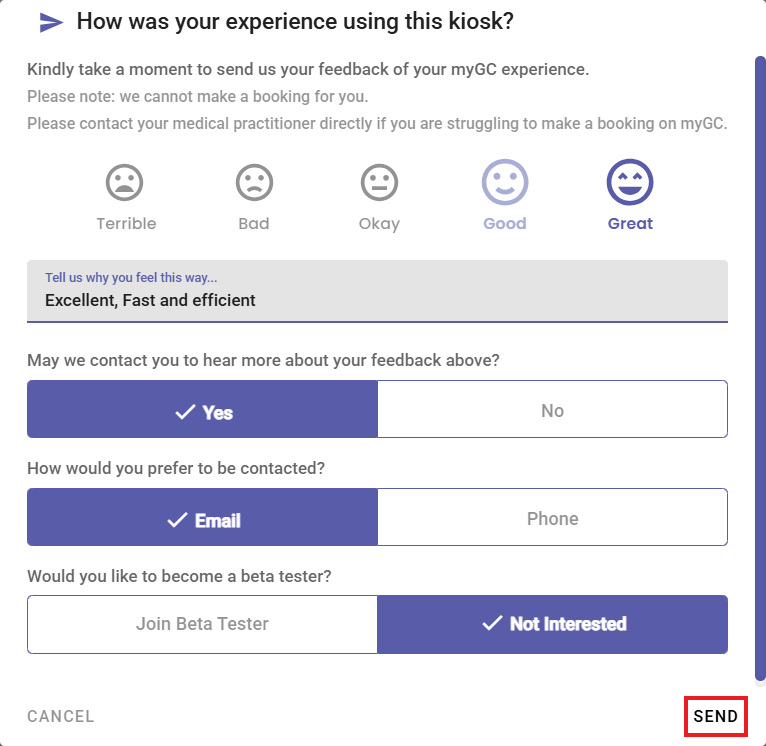
 

    • A Feedback screen will open, asking you to rate your experience using the kiosk.

Last modified: Tuesday, 7 April 2026, 3:11 PM