The Workflow Event Template History provides an audit trail of all changes made to a specific workflow event template. It records when modifications were made, what adjustments occurred, and by whom, ensuring full transparency and accountability. This feature allows the Practice to track updates, maintain accurate records, and strengthen compliance by offering a clear history of workflow configuration changes.
This user manual will start on the Workflow Event Template sidebar.
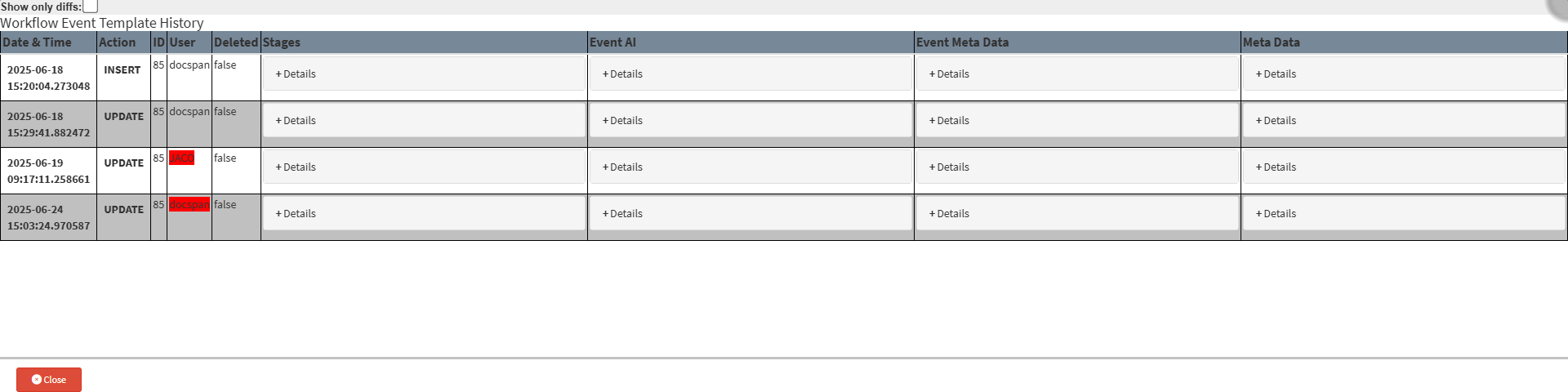
The Workflow Event Template History screen will open.
Tick the ShowOnly Diffs checkbox to show only the logs where changes occurred.
?Please Note: Entries where changes or updates were made will be highlighted in red.
Columns
All the information on the Workflow Event Template History screen is divided into Columns to logically group related information together.
An explanation will be given for each of the Columns:
Date & Time: Date and Time the changes were made.
Action: The Type of activity that has triggered.
ID: The automatically generated system Identification Number for the action.
User: The User who made the changes.
Deleted: Advises whether the template has been removed or not.
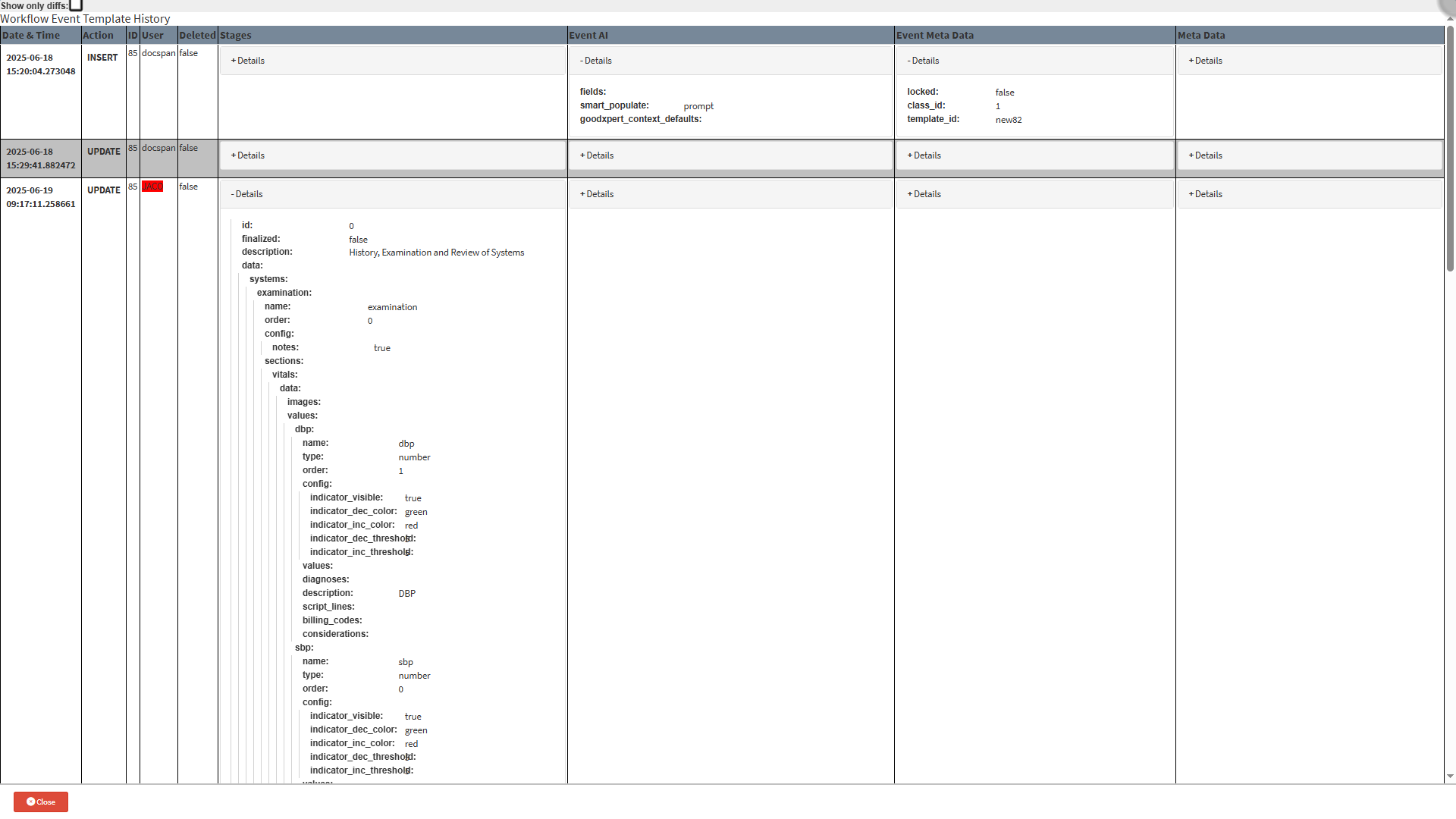
Stages: The Stages column provides a detailed view of the data recorded during the selected workflow event. It shows the structure of the template, including sections such as examinations, vitals, diagnoses, and billing codes. This column allows staff to review exactly what was captured at each stage, including field configurations and values.
Event AI: The Event AI column displays information about any AI-driven or automated population settings that were applied during the event. It shows if fields were automatically completed using Smart Populate or GoodXpert context defaults. This helps staff understand how data was populated and whether it was influenced by automated assistance.
Event Meta Data: The Event Meta Data column contains key system information about the event itself. It shows details such as whether the event is locked, which class ID it belongs to, and the template ID used. This metadata is useful for troubleshooting and for verifying which template version was active during data capture.
Meta Data: The Meta Data column stores additional system-level details that may not be displayed in other columns. In many cases, this column may be empty, but when populated, it provides further technical context for advanced auditing or system analysis.
?Please Note: To view the Workflow Event History in more detail, Click the Details panel of the desired column. This will expand the panel and display additional information.