This user manual will start on the Credit Control Management screen.
For more information on how to navigate to the Credit Control Management screen, please refer to the user manual: Reports Segment.
Click on the Add Group button.
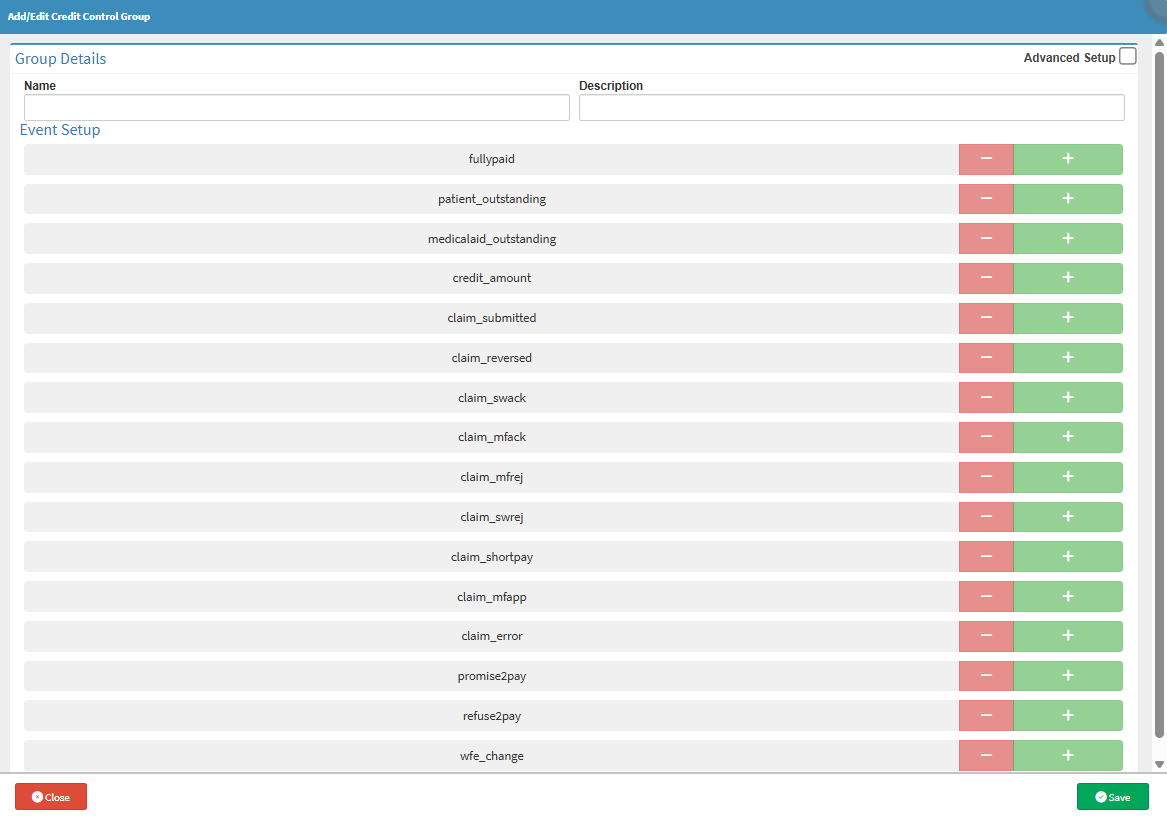
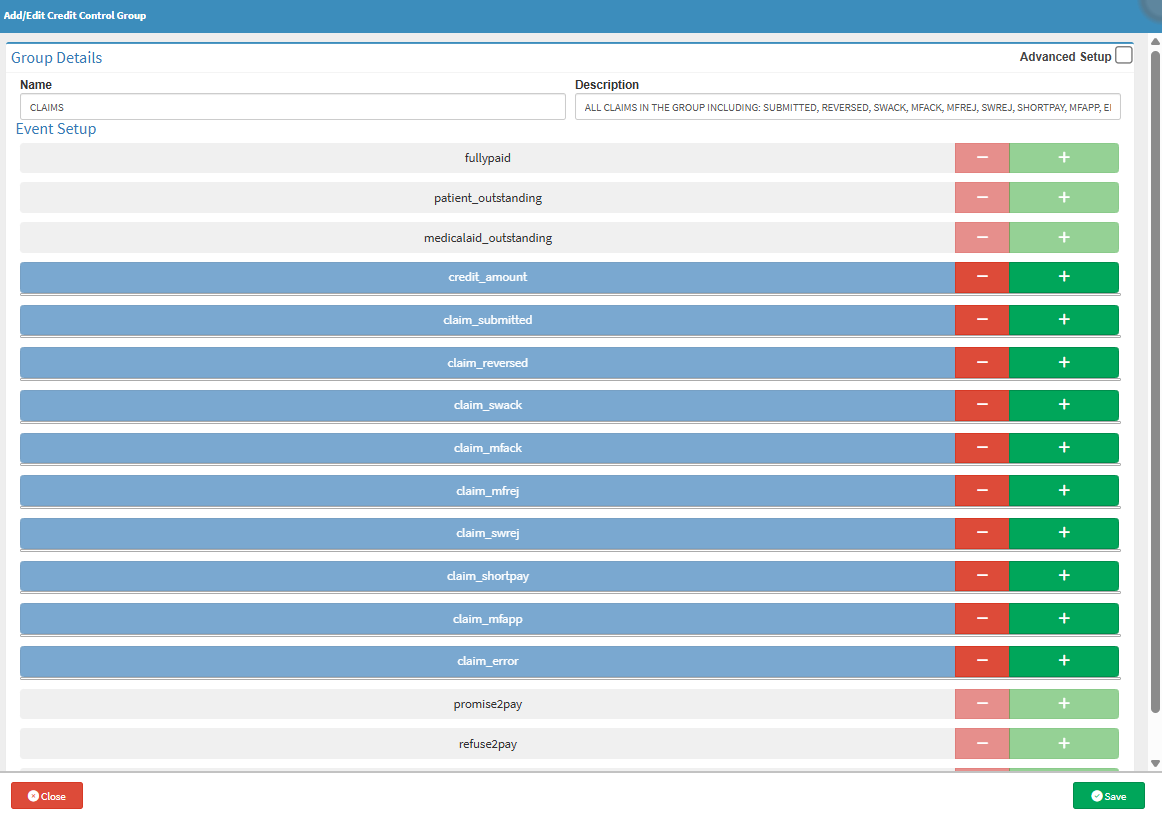
The Add/Edit Credit Control Group screen will open.
Tick the Advanced Setup checkbox for more events to become available.
Click on the Name field to give your Credit Control Group a name.
Click on the Description field to give a brief description of the group being created.
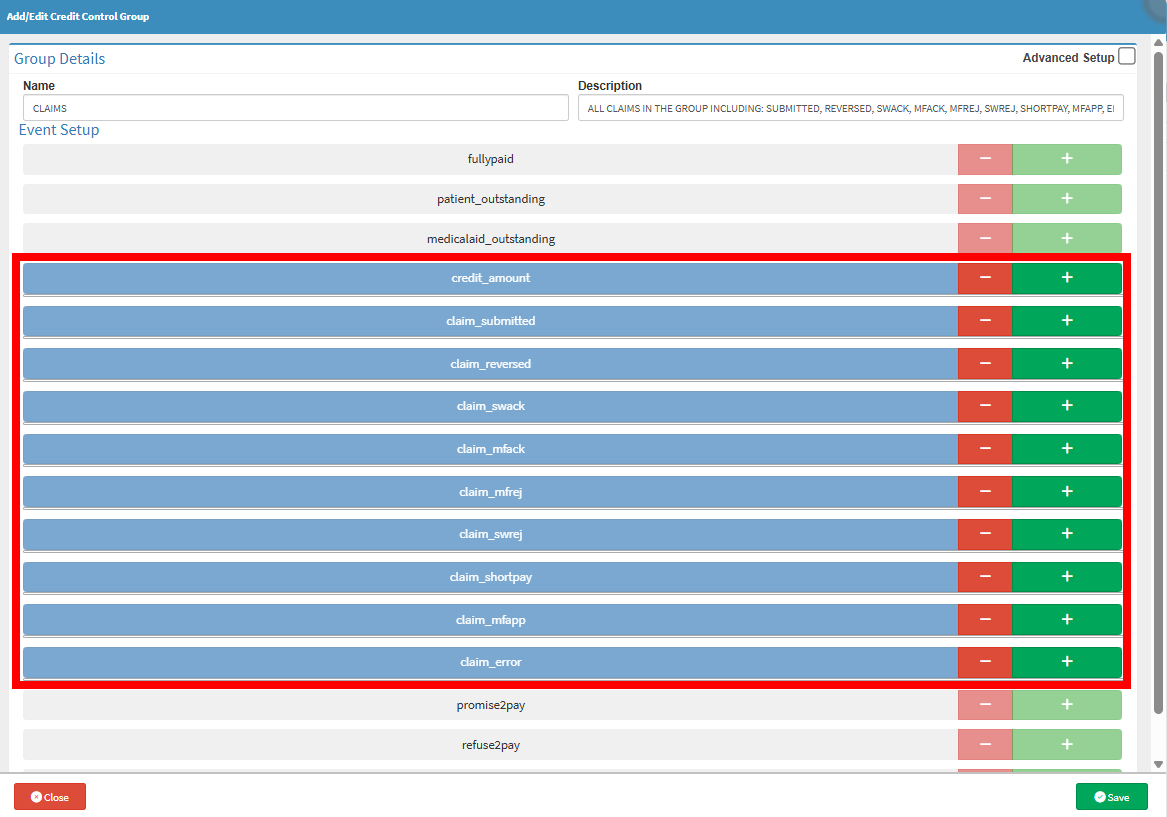
Click on all desired Events you wish to add to this group.
Click on the Remove button to remove the event.
Click on the Add an Action to This Event button.
The Event will expand with an added action.
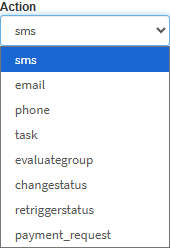
Click on the Action drop-down to select the desired action you wish to add.
Click on the Wf Template Id button.
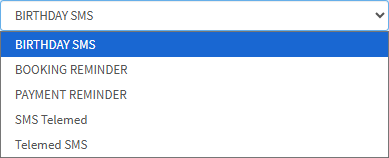
Click on the WfbTemplate Id drop-down action template.
Click the Save button to save the Credit Control Group.
The Group will be added.
Edit Groups
The Edit Groups screen allows configuration and management of claim groups within the Practice. It defines how claim types such as normal claims, injury on duty, or special submissions are categorized and linked to specific statuses for efficient claim tracking and workflow management.
Click on the desired Group.
The Edit Group and Delete Group buttons will become available.
Click on the Edit Group button to edit the group.
The Add/Edit Credit Control Group screen will open, and you will be able to edit the group.