To Log in to the Cloud Capture, you can either use one login method or use a Login Combination if it is set up. You can log in to Cloud Capture via your desktop, mobile phone, or tablet.
?Please Note: To run Cloud Capture, the device must be connected to the Internet.
The Contents of This User Manual:
Navigating to Cloud Capture
Username and Password Login
Navigating to Cloud Capture
To use Cloud Capture, you have to install either Google Chrome or Safarias their Internet browser.
Open the preferred Internet browser.
?Please Note: For the purpose of this user manual, Google Chrome will be used.
To navigate to GoodX Cloud Capture, add /app/cloud_capture/ to the end of the GoodX site URL.
Click/Tap the Enter key on the keyboard to Navigate to the Cloud Capture Login screen.
?Please Note: Make sure to use the URL that was provided for the Practice.
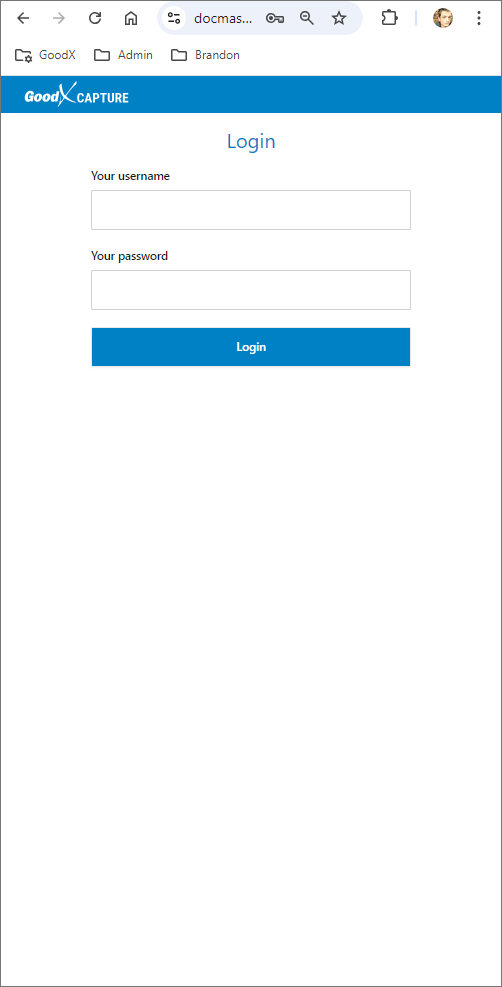
The Cloud Capture Login screen will open.
Username and Password Login
The Cloud Capture App shares the same Username and Password as your established GoodX Web Site.
Click/Tap on the YourUsername field and Type the Username associated with your GoodX account.
Click/Tap on the YourPassword field and Type the relevant Password to gain access to your GoodX account.
Click/Tap on the Login button once both fields have been completed.
?Please Note: If the Username or Password is incorrect, a Warning pop-up will open stating that the Username or Password is invalid.
If both the Username and Password are correct, the system will allow the you access to Cloud Capture.
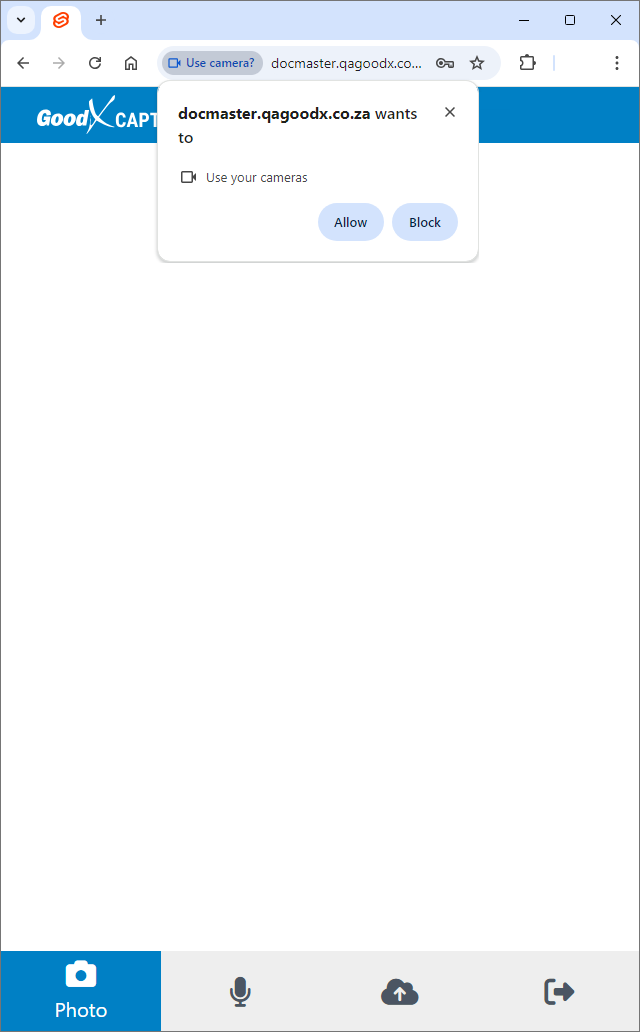
?Please Note: For Cloud Capture to work, all permissions should be allowed.
A Notificationpop-up will open stating that the login was successful.