Sending a Custom form to the Patient from a booking on the Diary enables you to send a pre-set form that has been tailored to suit the needs of your Practice. This form can be filled in electronically via the myGC Patient Portal and submitted back to the Practice, where the Practitioner is able to review the Patient's answers.
?Please Note: A Custom form will need to be created for you to be able to send the form. For more information, please refer to the user manual: How to Set Up Custom Forms.
This user manual will start on the Diary screen.
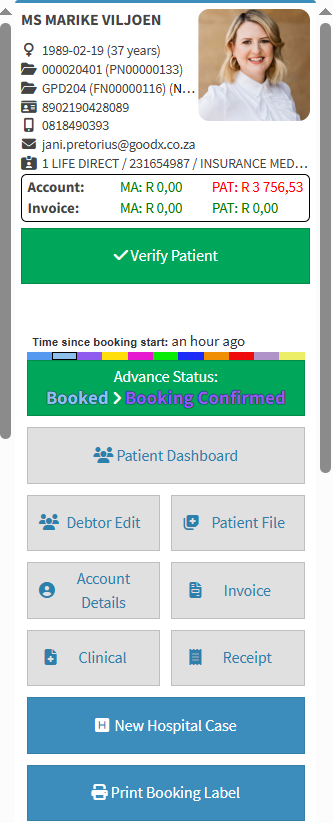
Click on the desired booking.
The Diary sidebar will open.
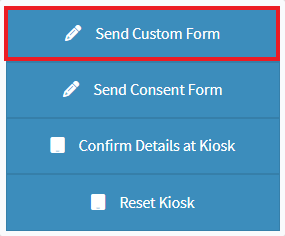
Click on the drop-up menu on the myGC button.
Click on the Send Custom Form button.
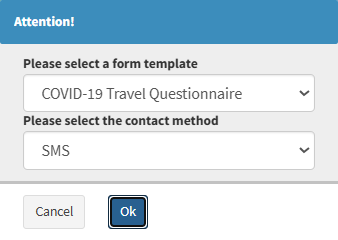
An Attention! pop-up will appear.
Click on the Please Select a Form Template drop-down menu to expand.
Click on the desired Custom form that you want to send to the Patient.
?Please Note: The forms listed will be all the Custom forms that have been set up for the Practice. For more information regarding how to set up a Customform, please refer to the user manual: How to Set Up Custom Forms.
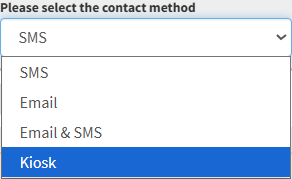
Click on the Please Select the Contact Method to expand.
Click on the desired Contact Method.
SMS: Sends a text message to the Patient's cell phone number with a link to fill in the form.
Email: Sends an Email to the Patient with a link to fill in the form.
Email & SMS: Sends both an Email and SMS to the Patient, containing a link to fill in the form.
Kiosk: The form is sent to the Kiosk in the Practice, on which the Patient can complete the form.
?Please Note: You can only send the form to the Kiosk if one has been set up for the Practice.
Click on the Ok button to send the form.
Last modified: Tuesday, 24 February 2026, 10:12 AM