A user is able to remove the Medical Aid Rejection Message from the invoice lines when necessary. For example, if the user added the Medical Aid Rejection Message to the wrong Invoice or Invoice line.
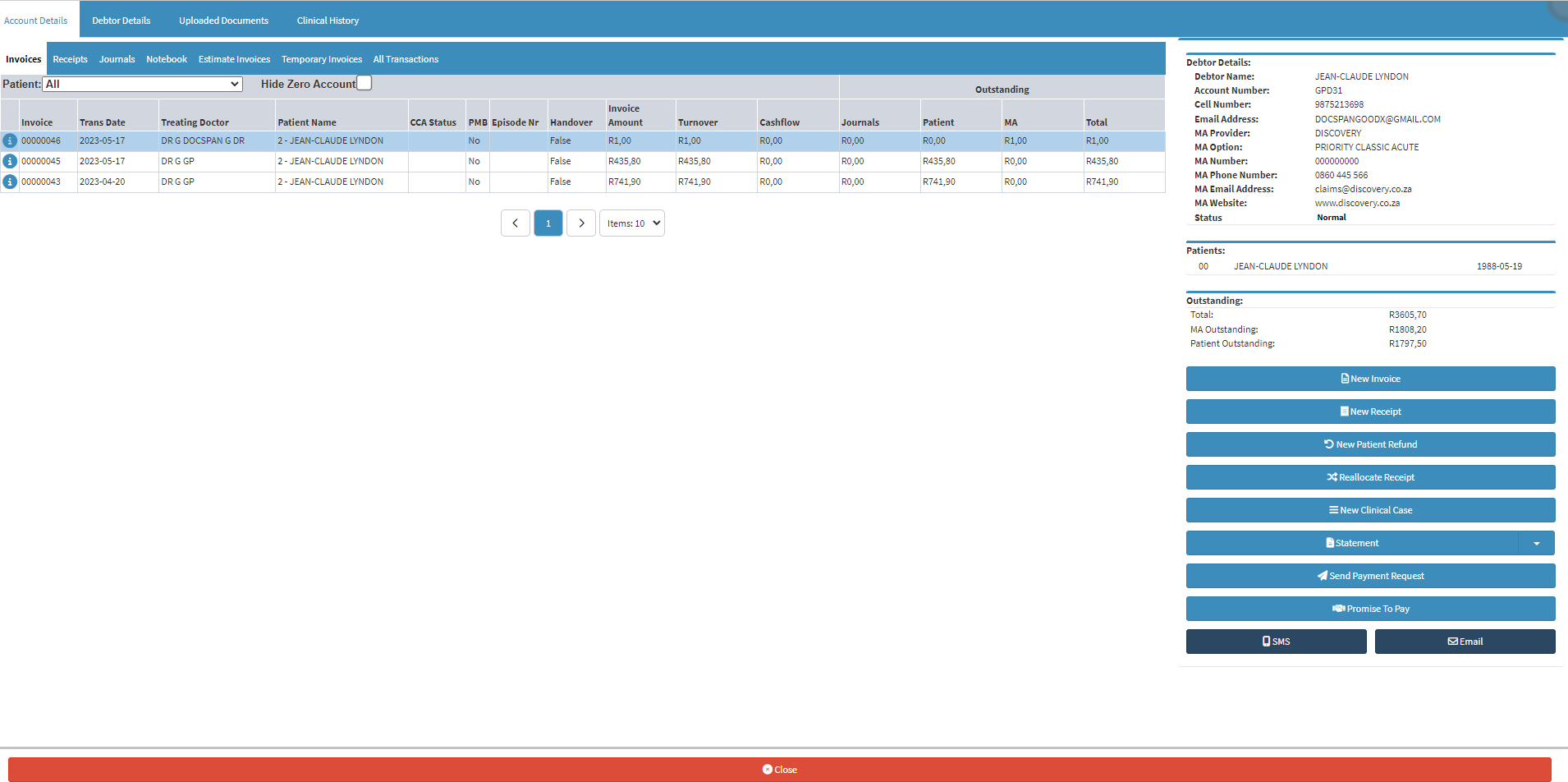
This user manual will start on the Account Details screen of the selected Debtor.
Double Click on the relevant Invoice.
For more information on whether an invoice was rejected please, refer to the user manual: WA: Switch Response.
The Actions tab will open.
Click on the Rejection Message button.
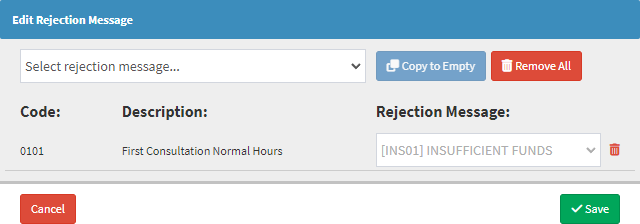
The Edit Rejection Message screen will open.
Click on the Remove button.
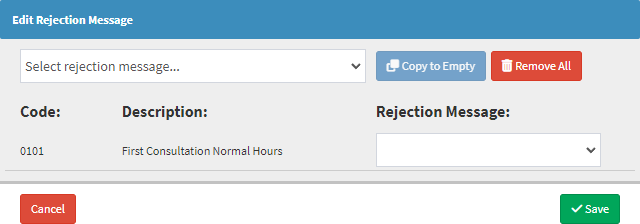
The Medical Aid Rejection Message will be removed from the Rejection Message: field.
Click on the Close button to exit the Edit Rejection Message screen without removing the Medical Aid Rejection Message.
Click on the Save button to remove the Medical Aid Rejection Message and exit the Edit Rejection Message screen.