How to Add Smart Stickers to a Patient Using the Script
Completion requirements
Why Use This Function:
When a Practitioner creates a Script for the Patient, the system will prompt the Practitioner to add the Patient to a Smart Sticker Protocol if the ICD10 code used on the Script matches the ICD10 code used to set up the Smart Sticker Protocols. Linking a Patient to a Smart Sticker Protocol from the Script saves time and efficiently adds Smart Sticker Protocols to Patients quickly.
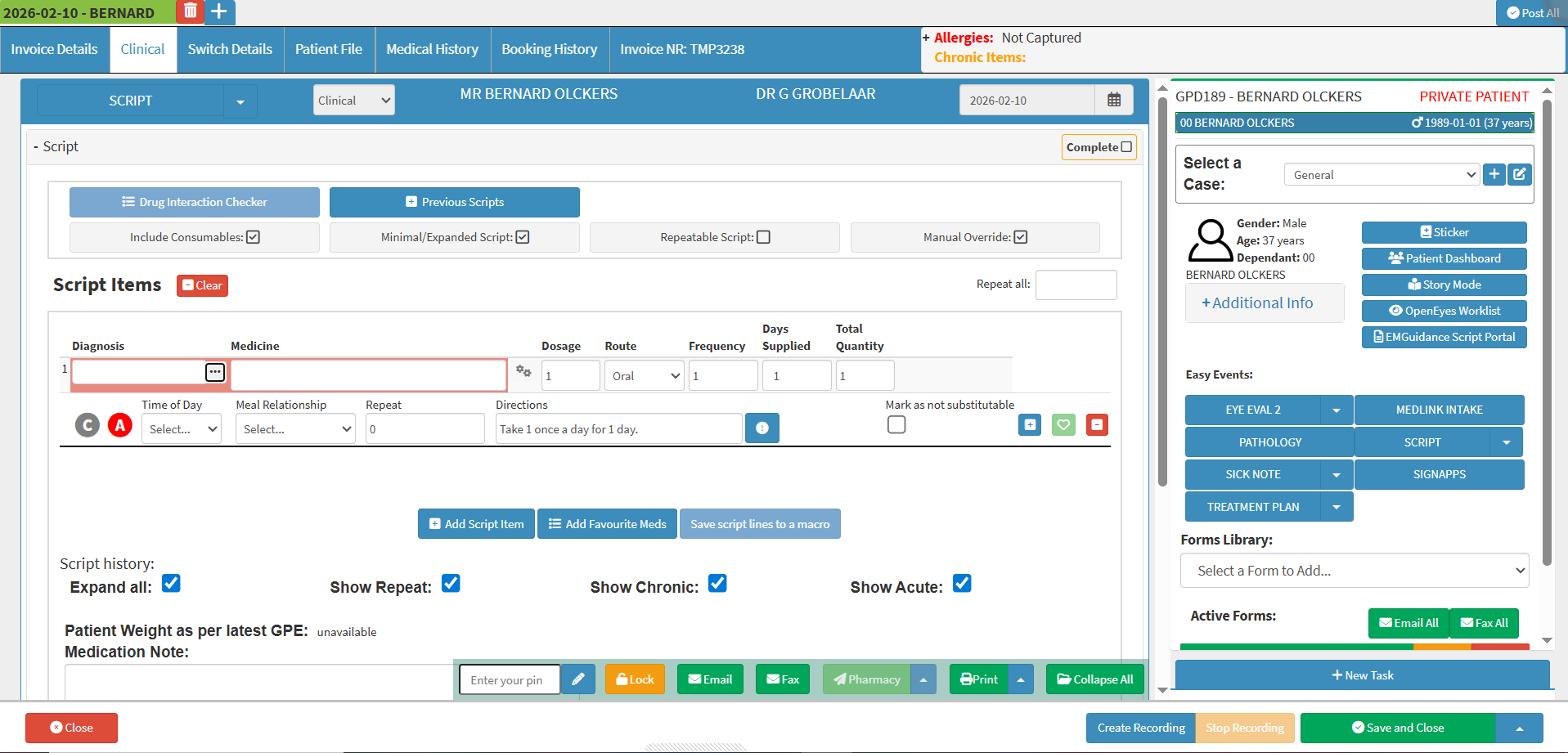
This user manual will start on the Script screen.
For more information regarding the Script feature, please refer to the user manual: Basic Script Features.
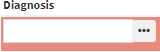
Click on the Diagnosis field.
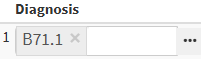
Enter in the ICD10 code which was set up with the Smart Stickers Protocol.
For more information on how to set up a Smart Sticker Protocol, please refer to the user manual: Adding a Smart Sticker Protocol.
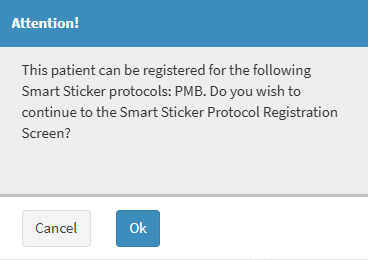
An Attention! pop-up will appear advising the user that the Patient can be registered for the Smart Sticker Protocol linked to the ICD10 code typed in the Diagnosis field.
Click on the OK button to link the Smart Sticker Protocol to the Patient and exit the Attention! pop-up.
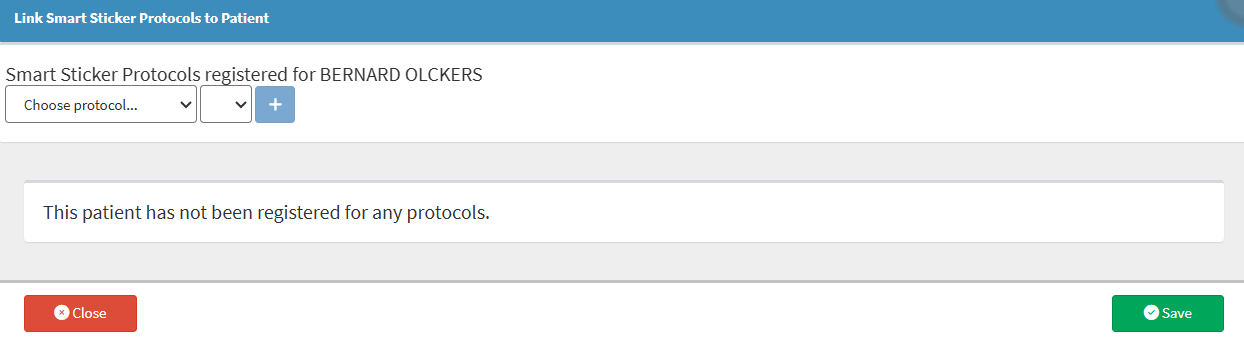
The Smart Sticker Protocol screen will open.
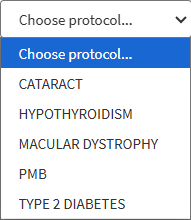
Click on the Choose Protocol... drop-down menu.
The Choose Protocol... drop-down menu will open.
Select the relevant Smart Sticker Protocol.
Click on the Choose State... drop-down menu.
The Choose State... drop-down menu will open.
Select the State in which the Smart Sticker Protocol will be added.
Click on the Add button.
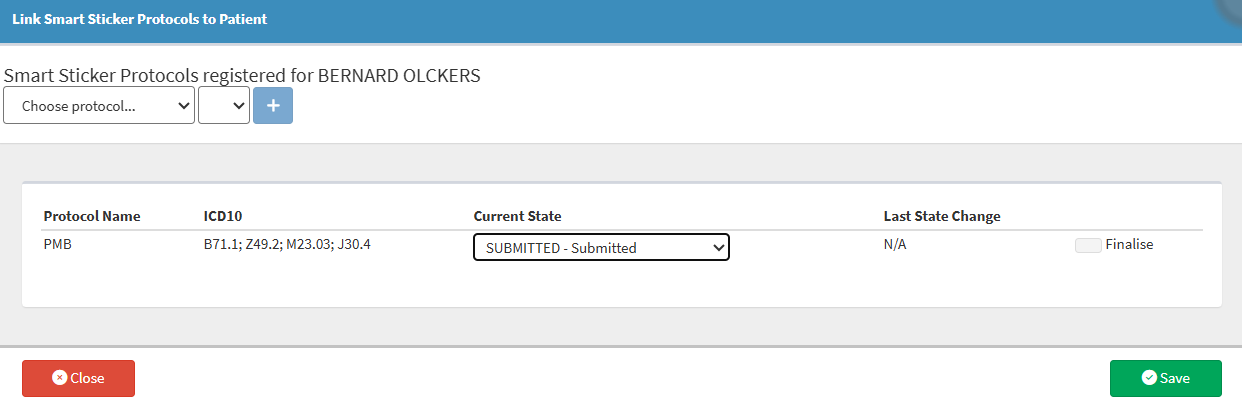
The Smart Sticker Protocol will be added to the Smart Sticker Protocol screen.