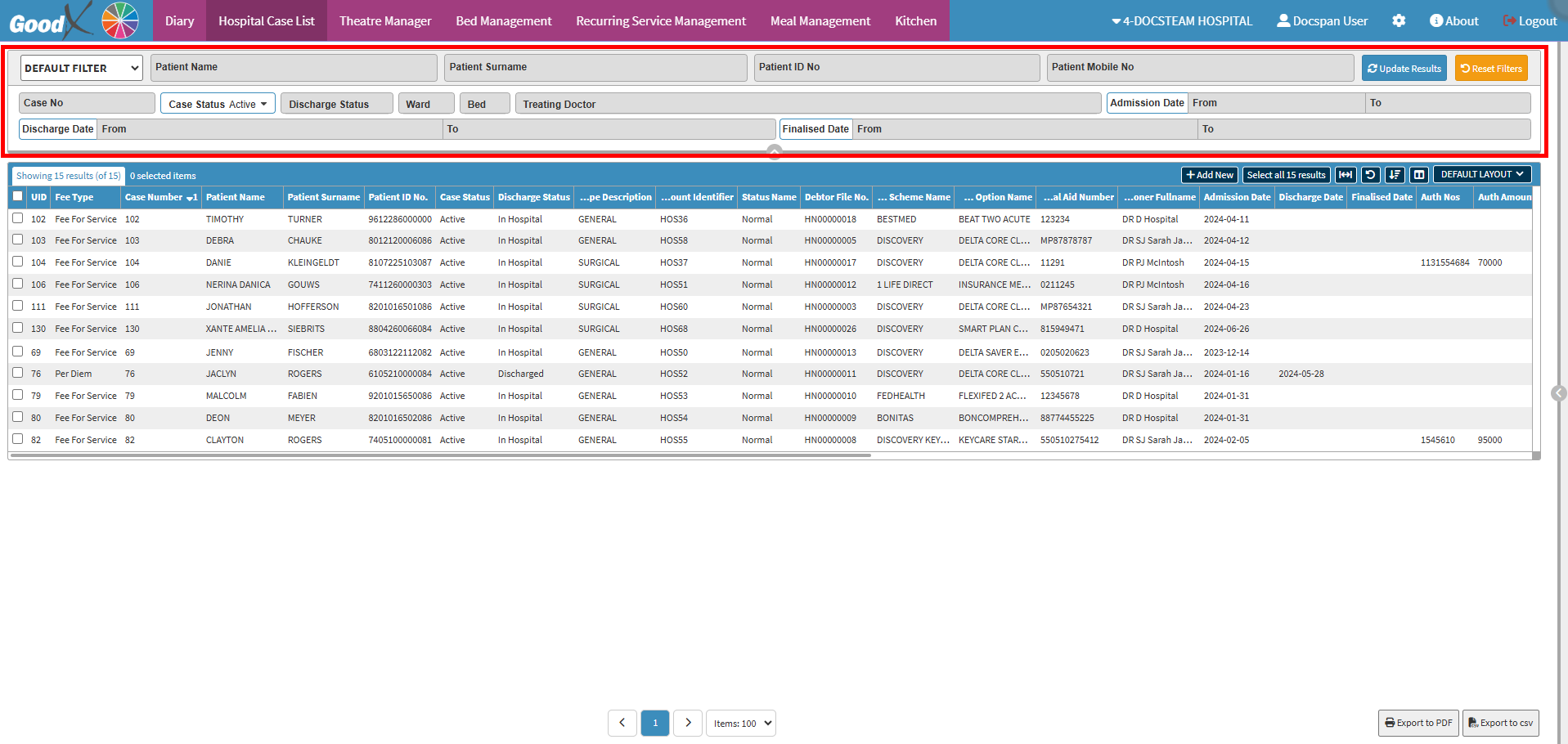
The Hospital Case List Filters enable you to sort and search on the Hospital Case List screen efficiently. This simplifies the process of searching and locating the case that you are looking for, saves you time and ensures an effective workflow.
The Contents of this User Manual:
Default Filter
Patient Filters
Case Filters
Discharge Status
Location Filters
Treating Doctor
Admission Date
Discharge Date
Finalised Date
Update Results/Reset Filters
This user manual will start on the Hospital Case List screen Filter section.
An explanation will be given for each field and option in the Hospital Case List Filter section:
Default Filter
Shows the type of Filter that is being used.
Patient Filters
Search for the case using the Patient's Demographic details.
Complete the Patient's Name, Surname, Patient ID No. or Patient Mobile No. to filter to that particular Patient.
?Please Note: Not all the fields are required to be filled in to search for a Patient. Three characters are needed in each field for the search to be valid. The more information that is entered into the fields the more refined the search will be.
Case Filters
All the Filters that relate to the case itself, for example, the different Statuses of the case and the Case Number will then only filter the information to what has been selected regarding the Case.
Click on the Case No field to enter thecase number allocated to the Hospital Case that you are looking for.
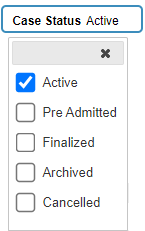
Click on the Case Status drop-down menu to select an option from the list that becomes available.
Tick the checkbox of the desired option to make a selection:
Active: The Patient is currently admitted and in the Hospital.
Pre-Admitted: The Patient is pre-admitted to the Hospital, but not yet admitted into the Hospital. The case file is electronically opened with all the Patient information. When the Patient arrives, all the paperwork will be ready for the Patient to be admitted.
Finalised: The Patient has been discharged and Invoiced for all the treatments, consumables and accommodations for the time the Patient has been admitted to the Hospital.
Archived: The Debtor has paid the issued Invoices in full, the Patient's Case has been finalised and has been stored long-term for future reference if needed. The information is secure and confidential, accessible only by authorised Hospital personnel for specific purposes.
Cancelled: The Case has been opened, but the Patient no longer needed treatment and wasn't admitted to the Hospital.
?Please Note: You are able to select more than one option.
Discharge Status
The status of the reason why the Patient was discharged.
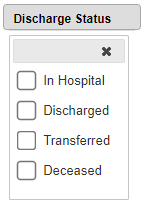
Click on the Discharge Status drop-down menu to select an option from the list that becomes available.
Tick the checkbox of the desired option to make a selection:
In Hospital: The Patient has not yet been discharged and is still admitted to the Hospital.
Discharged: The Patient is healthy enough to be sent home.
Transferred: The Patient will be moved to a different facility that will better suit their recovery needs.
Deceased: The Patient has passed away.
?Please Note: You are able to select more than one option.
Location Filters
Where the Patient is located in the Hospital.
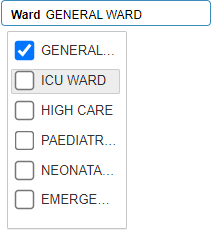
Click on the Ward drop-down menu to select the Ward from the list that becomes available. This list will depend on the setup of the Hospital.
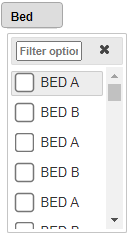
Click on the Bed drop-down menu to select the Bed from the list that becomes available. This list will depend on the setup of the Hospital.
Click on the Filter Options field and enter the name of the bed to filter the list to the specific bed you are looking for. You only need to enter one character to start the search.
Treating Doctor
The Practioner who is in charge of the treatment of the Patient whilst admitted to the Hospital.
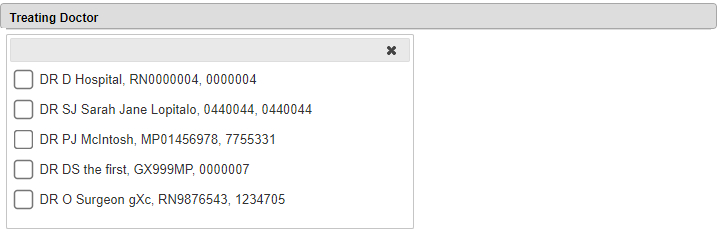
Click on the Treating Doctor drop-down menu to select the Practitioner from the list that becomes available. This list will depend on the Practitioners that have been set up by the Hospital.
Admission Date
The Date range within the Patients admittance to the Hospital.
Select the Date range from the Date Picker according to the Admission Date of the case you are looking for.
From: The Date From which the information on the list will start.
To: The Date To which the information on the list will end.
Discharge Date
The Date range within the Patient's Discharge from the Hospital.
Select the Date range from the Date Pickeraccording to the Discharge Date of the case you are looking for.
From: The Date From which the information on the list will start.
To: TheDate To which the information on the list will end.
Finalised Date
The Date range within the Case's Finalisation.
Select the Date range from the Date Pickeraccording to the Finalised Date of the case you are looking for.
From: The Date From which the information on the list will start.
To: The Date To which the information on the list will end.
Update Results/Reset Filters
Click on the Reset Filters button to Reset all the Filters that have been set.
Click on the Update Resultsbutton to refresh the results of the search once all the Filters have been set.