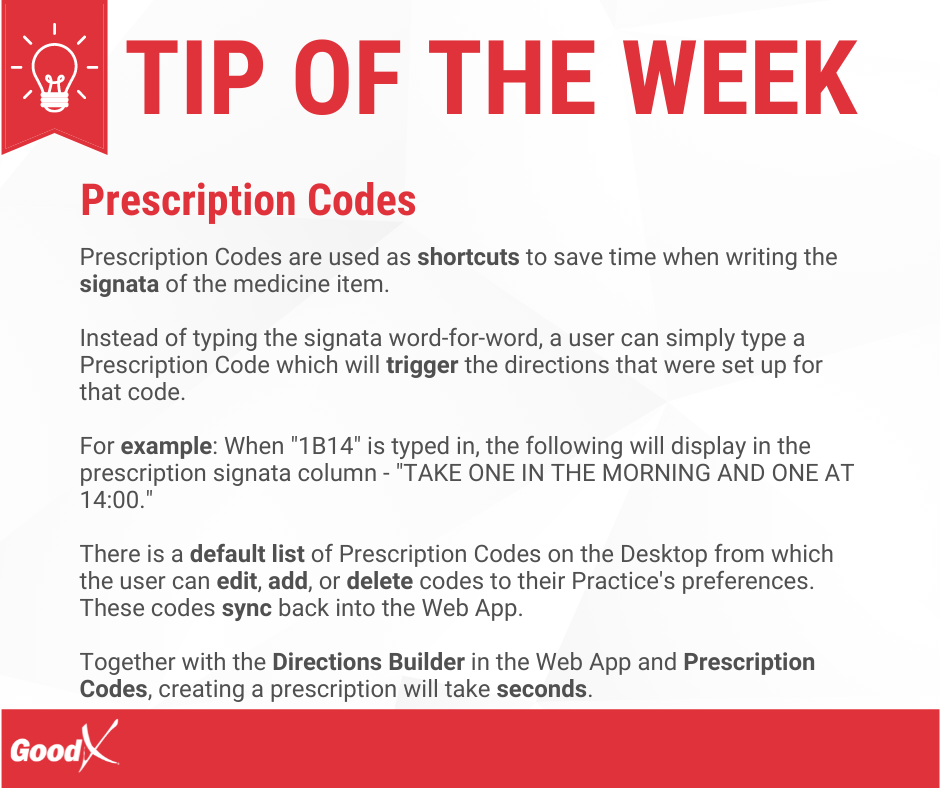
The Prescription Codes can be set up with a shortcut and a description. GoodX has a default list that can be used.
For example: When "1B14" is typed in, the following will display in the prescription signata column - TAKE ONE IN THE MORNING AND ONE AT 14:00. This is a default list of how the patient must use the medication.
The contents of this User Manual will consist of the following information:
Search
Actions
Adding a New Signata
Editing a Signata from the List
Log In to the GoodX Desktop using your GoodX username and password.
From the Navigator Double Click on the MedDebs Module.
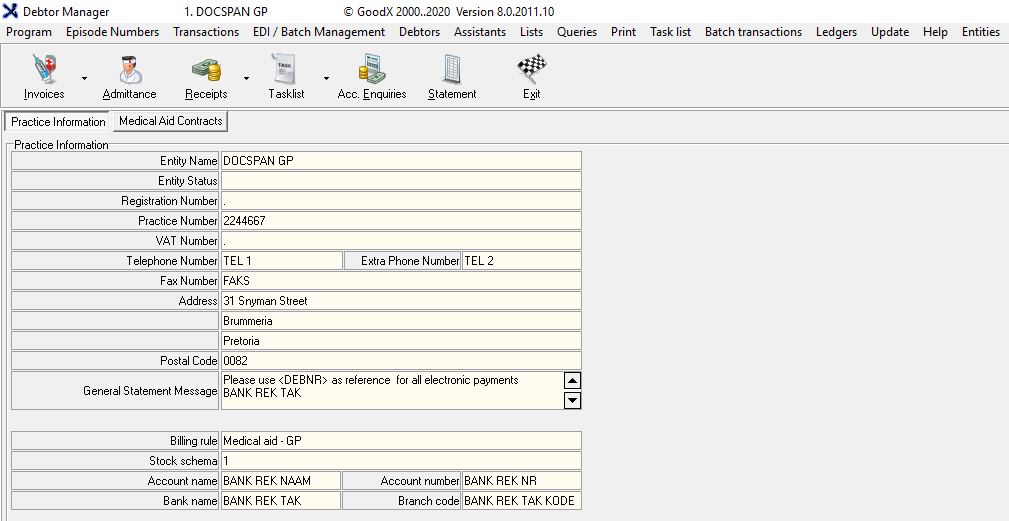
The Main MedDebs screen will open.
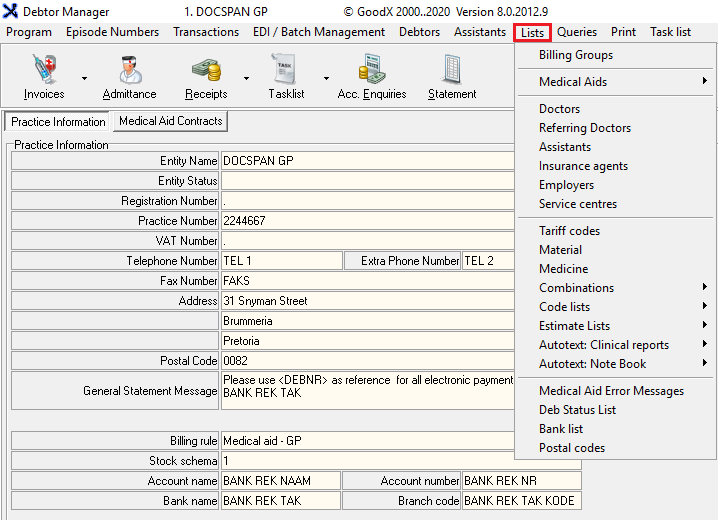
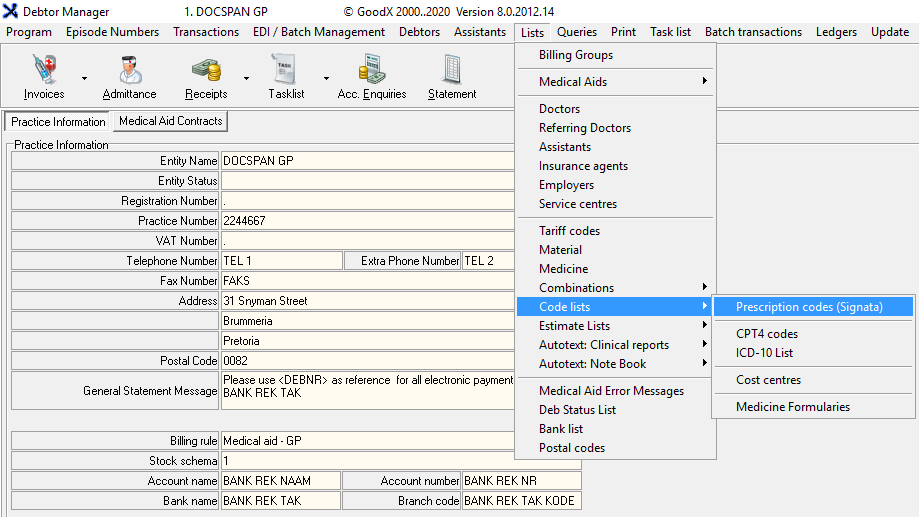
From the Menu bar, click on Lists.
Click on Code Lists from the sub-menu.
Click on Prescription Codes (Signata) from the second sub-menu.
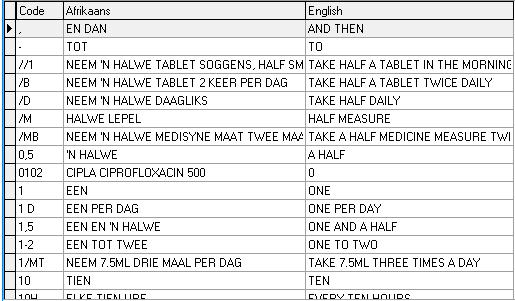
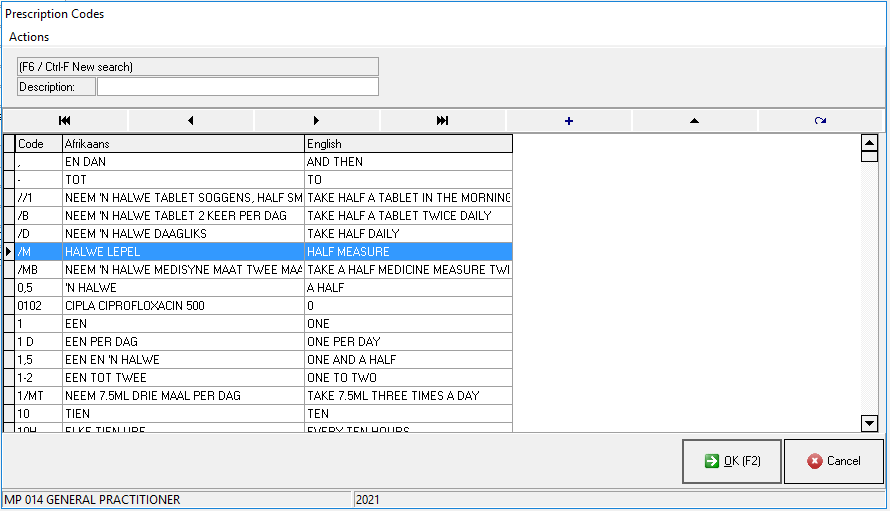
The Prescription Codes screen will open.
Search
It is possible to search for the specific Signata by typing in the search field.
The columns that will display are :
Code: The shortcode that you will use to enter the desired text.
Afrikaans: The Afrikaans Description for what the short code stands for.
English: The English Description for what the short code stands for.
Actions
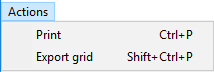
From the menu bar, Click on Actions.
From the drop-down menu, the following options will be available:
Print
Export Grid.
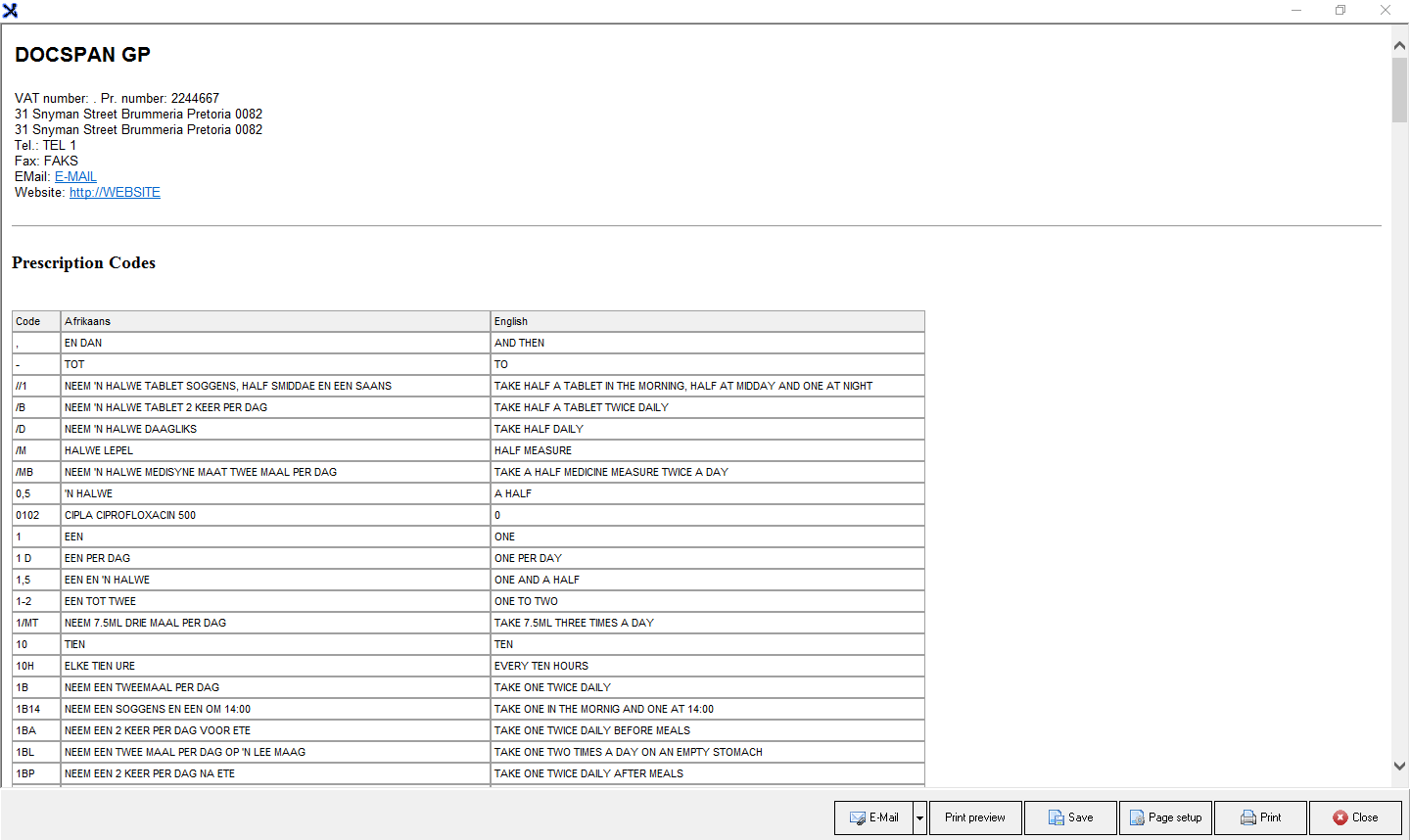
Print: Prints a list of all the codes that have been loaded on the list.
A preview of the list will appear on your screen.
The following options will be available for the list :
Email: Emails the list.
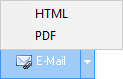
Email Options:This allows the user to choose how the report is attached.
HTML:Send the email with an HTML link.
PDF:Attaches the report in a .pdf format to the email.
Print Preview: Preview how your list will look when you print a hard copy.
Save: Save a digital copy to the user's computer.
Page Setup: Opens the page setup screen.
Print: Prints to the Set-up printer.
Close: Closes the screen and returns to the Prescription Codes screen.
Export Grid: Allows the user to export the list to an excel spreadsheet
Give the document a file name, by typing in the text box.
Click on Save to save the document to the computer.
Adding a New Signata
Add a new Signataby clicking on the + button
The prescription codes screen will appear.
Code: Add a unique shortcode for the Signata.
Afrikaans Name: An Afrikaans description for the content of the Signata.
English Name: An English description for the content of the Signata.
Click on Cancel to return to the previous screen without saving
Click on OK when satisfied with the content of the item.
The item that has been created will appear on the list.
Editing a Signata from the List
Edit a Signata by clicking on the button with a triangle on.
The Prescription Code screen will open where the content of the signata can be edited.
Click on Cancelto return to the previous screen without saving.
Click on OK when you are satisfied with the content of the signata.
Click on OK on the Prescription Codes screen when done looking up the specific code to return to the Main MedDebs screen.
 Prescription Codes are also known as, Signata.