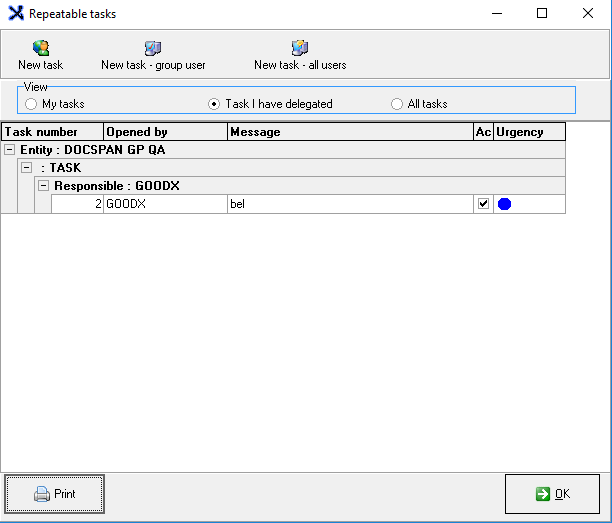
The Task List is an Internal Task Assignment Manager. Tasks can be set per user and delegated from one to the other. A Repeatable Task is a task that needs to be done on a daily, weekly, or monthly basis.
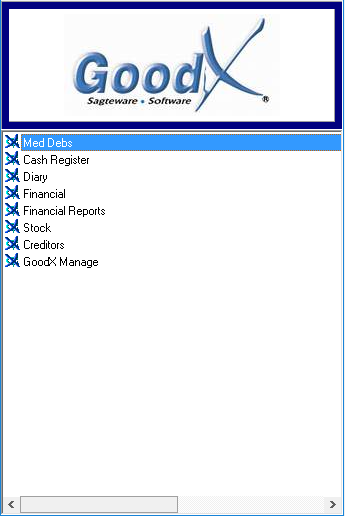
Log into the GoodX Desktop App with your username and password
Double click on the MedDebs module
From the menu bar, click on the Task list menu
Click on Repeatable tasks.
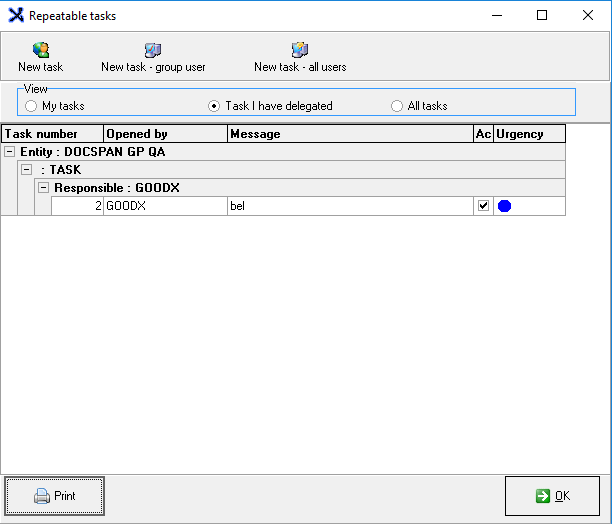
The Repeatable tasks screen will open
Sections to be discussed:
New task
New task- group user
New task- all users
New task:
Click once on the New task button
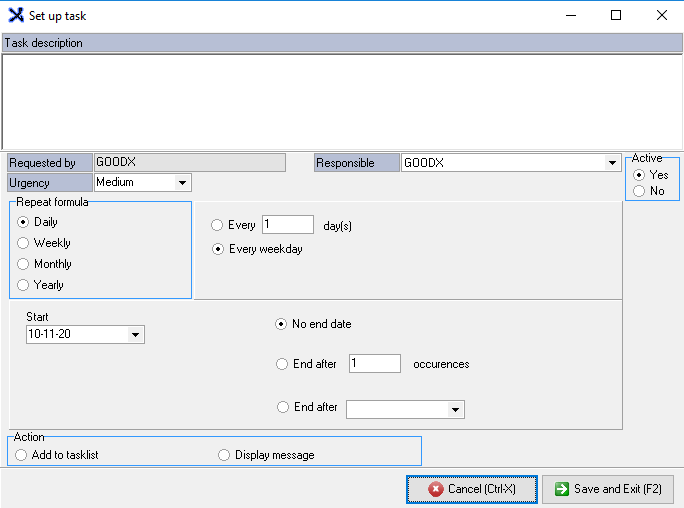
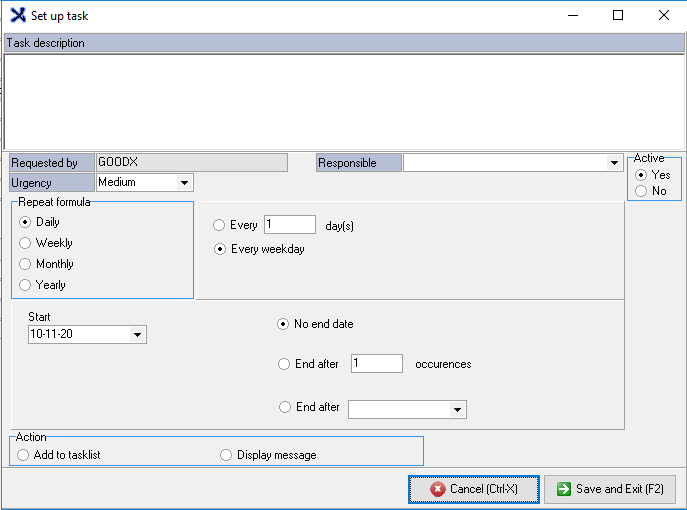
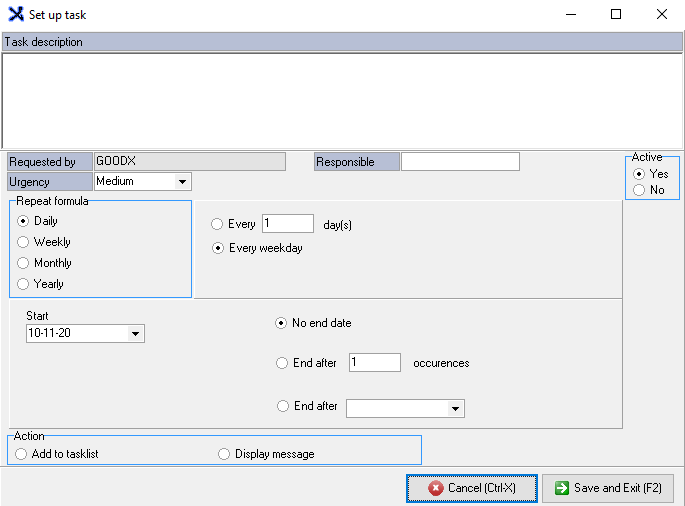
The Setup task screen will appear
Complete the following information:
Task Description: This is a free text field where you can type in the description of the task
Requested by: The username will be set as default in this specific field
Responsible: From the drop-down, you can select which user is responsible for the task
Urgency: From the drop-down, you can select whether the task is Low, Medium, or High
Low: The task isn't really important, it just has to be done eventually
Medium: There is a little urgency in the task and has to be completed as soon as possible
High: The task needs to be done immediately
Repeat formula: Select the correct repeat formula
Daily: The task needs to be done every day
Weekly: The task needs to be done every week
Monthly: The task needs to be done every month
Yearly: The task needs to be done every year
Start: The date when the task is supposed to start
No end date: The task will keep recurring because there is no date selected for it to stop
End after: Stipulate after how many occurrences the task should stop
End after: From the calendar choose the correct date for the task to stop
Action: You can select whether the task should be added to a tasklist or should just Display a message
Active: Choose whether the task is active or inactive
Click on the Cancel button to exit without saving
Click on the Save and Exit button to save the changes
Select new task user:
Click on the responsible drop-down to select a user
Click on Save and Exit or F2 on your keyboard
New task - Group User:
Click once on the New task - Group User button
The setup task screen will appear
Click on the Cancel button to exit without saving
Click on the Save and Exit button to save the changes
New task - all Users:
Click once on the New task - all users button
The Setup task screen will appear
Click on theCancel button to exit without saving
Click on theSave and Exit button to save the changes
PRINT button:
Click on the Print button to specify columns to print
Click on the Next button to show a preview of the task list to be printed
Click on the Back button to go back to the Repeatable tasks screen
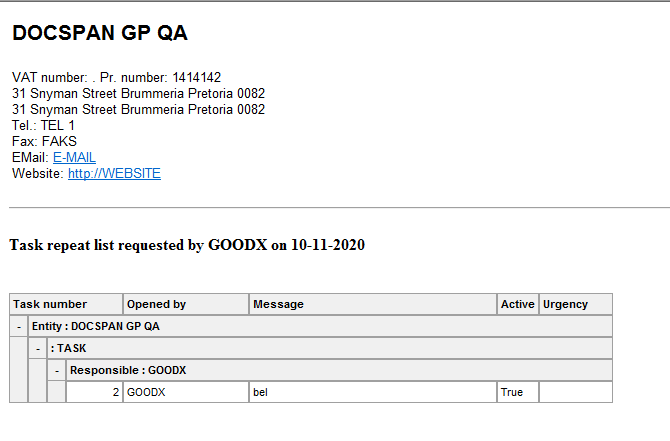
When you click on Next the task list preview will appear
Click onthe Print button to print
Click on the Save button to save the task list
Click on the Close button to close without printing