To add a new time slot when the diary is booked full or when a patient is seen between set up intervals.
Some treatments are less than the majority of treatments the practice is doing, but sometimes there can be a place to see a patient in between and a new time slot can be added.
An electronic diary is created with time slots, intervals. The beginning time until the end time of the working day will be divided equally into the time intervals that were indicated with the setup.
Insert a time slot in the diary if a time slot is not available for a specific time required.
Sign in to the GoodX Desktop using your GoodX user name and password.
From the NavigatorDouble Click on the Diary Module
After double-clicking on the Diary Module, you will be directed to the Goodx Appointment Diary screen
There are several different ways to access this function
From the New Time Button
From the Main Appointment Diary screen
From the Menu Bar
From the New time Button
Click on the New Time Button on the Tool Bar
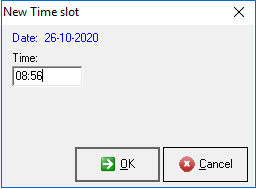
The New Time slot pop-up box will appear
The time that displays will by default be the same as the time on your computer
In the Time text box, addthe time you would like to add an appointment for
Click on OK to Save your New Time Slot and create it on the Diary
Click on Cancel to return to the previous screen (your new time slot will not change)
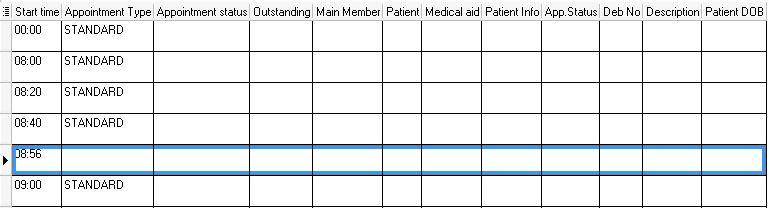
A new time slot will be added that you can use to make a New booking
From the Main Appointment Diary screen
Right Click on any time slot
Click on New Time Slot to create a time slot between the time slots as set up in the Diary Set up
The New Time slot pop-up box will appear
The time that displays will by default be the same as the time on your computer
In the Time text box, add the time you would like to add an appointment for
Click on OK to Save your New Time Slot and create it on the Diary
Click on Cancel to return to the previous screen (your new time slot will not change)
A new time slot will be added that you can use to make a New booking
From the Menu Bar
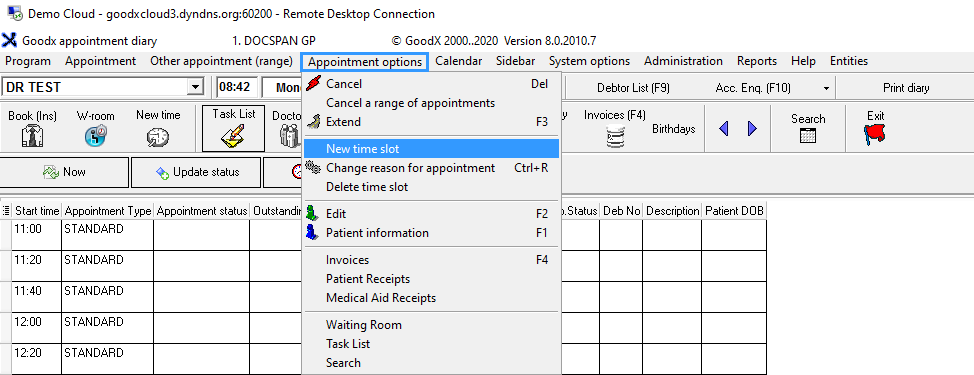
Click on Appointment options
Click on New Time slot
The New Time slot pop-up box will appear
The time that displays will by default be the same as the time on your computer
In the Time text box, add the time you would like to add an appointment for
Click on OK to Save your New Time Slot and create it on the Diary
Click on Cancel to return to the previous screen (your new time slot will not change)
A new time slot will be added that you can use to make a New booking