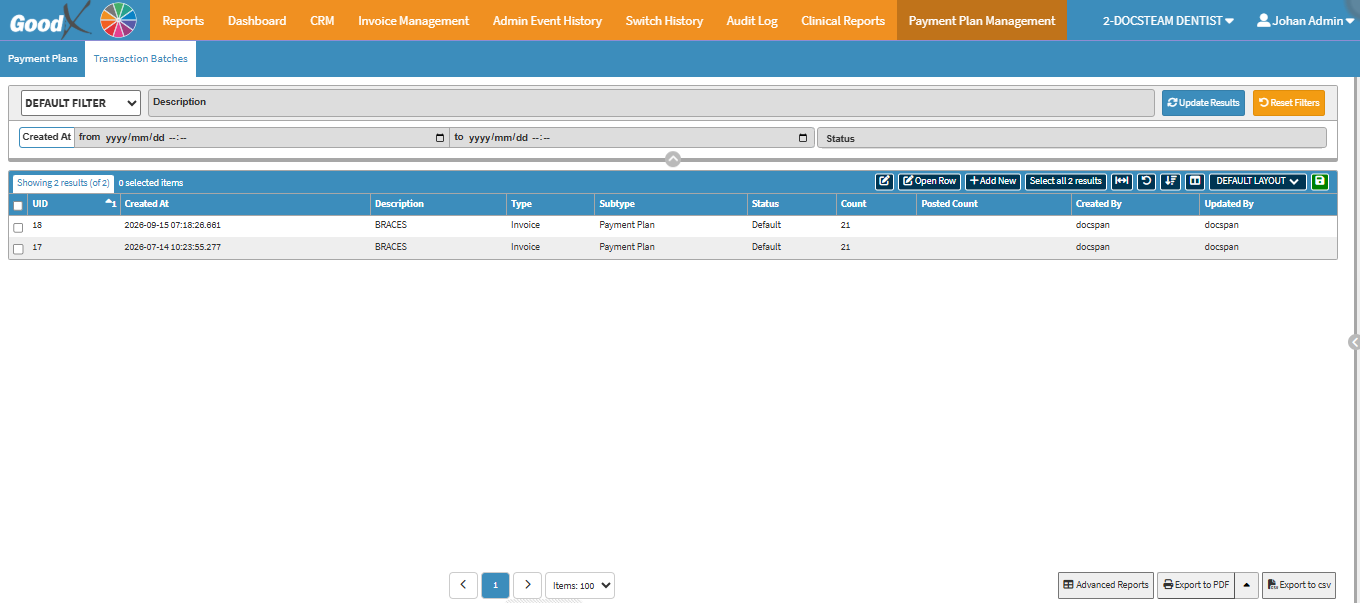
Default Filter: Select a pre-configured or standard filter layout from the drop-down menu.
Description: Enter a keyword, phrase, or reference description to search for specific transaction batches.
Created At (from): Set the start date and time to filter transaction batches from a specific creation point
Created At (to): Set the end date and time to filter transaction batches up to a specific creation point.
Status: Filter transaction batches based on their current processing state (e.g., active, completed, or pending).
Update Results: Applies the selected filter parameters and refreshes the list on screen.
Reset Filters: Clears all entered filter values and restores the view to default.
Screen Columns Actions
Screen Column Action Buttons: Provides tools to customise displayed columns and save preferred layouts for future use. For details, see Screen Column Action Buttons Navigation.
Columns
UID: The unique identification number assigned to the specific transaction batch.
Created At: The date and time when the transaction batch was created.
Description: The keyword, name, or reference text describing the transaction batch.
Type: The category or primary classification of the batch.
Subtype: A secondary, more specific classification layer within the batch type.
Status: The current processing state of the transaction batch (e.g., active or completed).
Count: The total number of individual items or transactions contained within the batch.
Posted Count: The number of items in the batch that have been successfully processed and posted.
Created By: The user or system account that originally created the batch.
Updated By: The user or system account that last modified or updated the batch details.
Page Options
Page Options: Provides tools to navigate between pages, adjust the number of Items displayed, and export or save data for further use. For details, see Page Options Navigation.