A user is able to electronically communicate with a Creditor/Supplier with the use of Email services. An Email is a letter/message that can be sent via an internet connection, a user does need an Email address to have the ability to send Emails.
Log in to the GoodX Web App using your GoodX username and password.
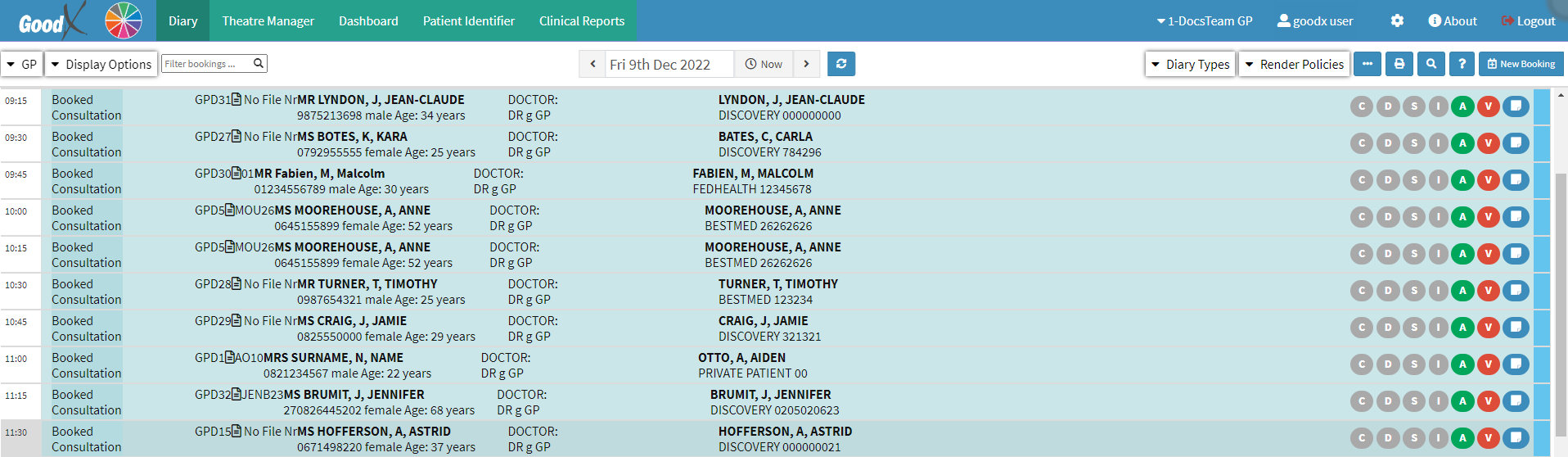
The Diary screen will open.
Click on the Navigation Wheel.
The Navigation Wheel will open.
Click on the Creditors Segment on the Navigation Wheel.
The Creditors screen will open.
Click the desired Creditor to whom the Email will be sent.
The Creditor Sidebar will open.
Click on the Email button located on the Creditor Sidebar.
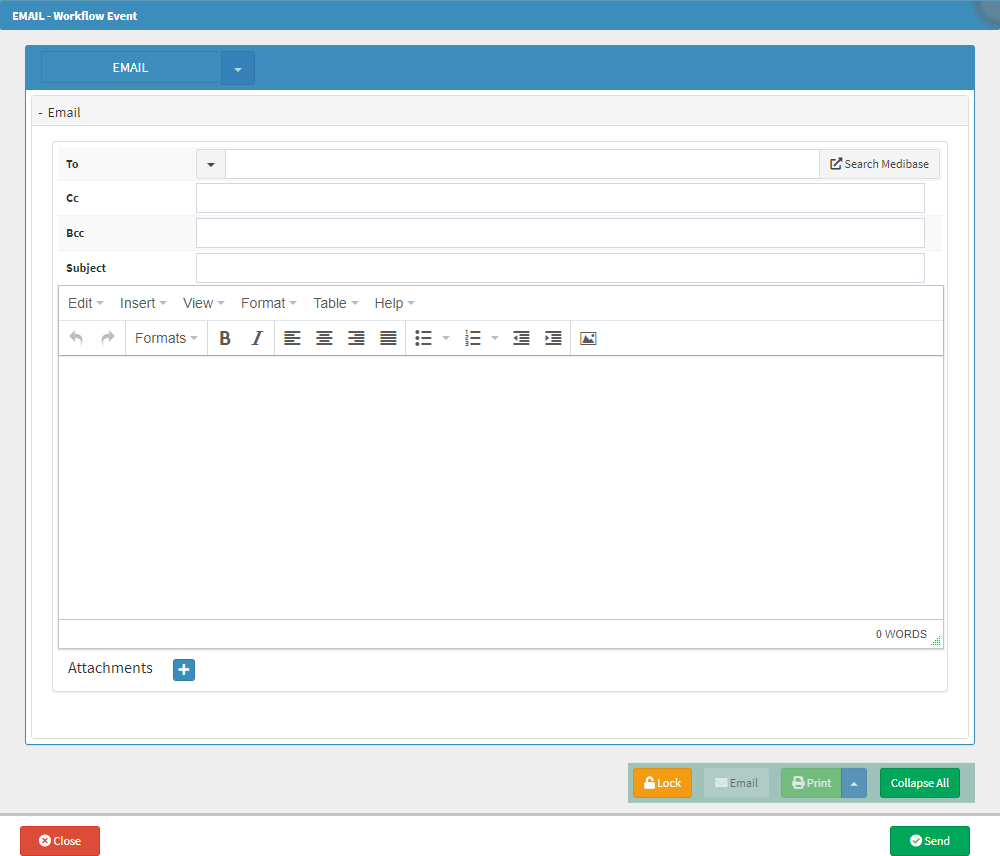
The Email - Workflow Event screen will open.
Complete the fields with the relevant information:
To:The Email address of the Creditor who will receive the Email.
Type in the Email address of the desired recipient or Click on the To drop-down next to the To field.
The To drop-down menu will open.
Select the desired Creditor who will receive the Email.
A user is also able to select a Practitioner from the Medibase as the recipient of the Email.
Click on the Search Medibase button next to the To field.
The Search Medibase screen will open.
For an explanation regarding how to search and select a Practitioner from the Medibase List, please refer to the user manual: Medibase List Search.
Once the user has selected the desired Practitioner from the Medibase List the Practitioner's Email address will automatically be filled into the To field.
Cc: Carbon Copy - Mailing addresses of other recipients who will also receive the Email as a reference to take note of the Email sent to the primary recipient.
Bcc: Blind Carbon Copy - A copy of the original Email will be sent to the added mailing addresses without the primary recipient's knowledge, which is used for privacy purposes.
Subject: A single line of text that informs the recipient what the Email is about.
Click on the Free Text Box, once the previous fields have been completed.
Type in the message that the user wants to convey to the recipients of the Email.
Please Note: The Free Text box does not contain a character limit.
Click on the Close button to exit the Email - Workflow Event screen without sending the Email.
Please Note: Once the Close button is Clicked all the information on the Email - Workflow Event screen will not be saved.
Click on the Send button to send the Email and exit the Email - Workflow Event screen.