Meal Management involves the set-up and administration of the available meal options for Patients during their Hospital stay. The facility can establish and customise menu options to cater to various dietary needs and preferences.
The contents of this user manual will consist of the following information:
Add New Meal Menu
Existing Meal Menus
Edit Meal
Delete Meal
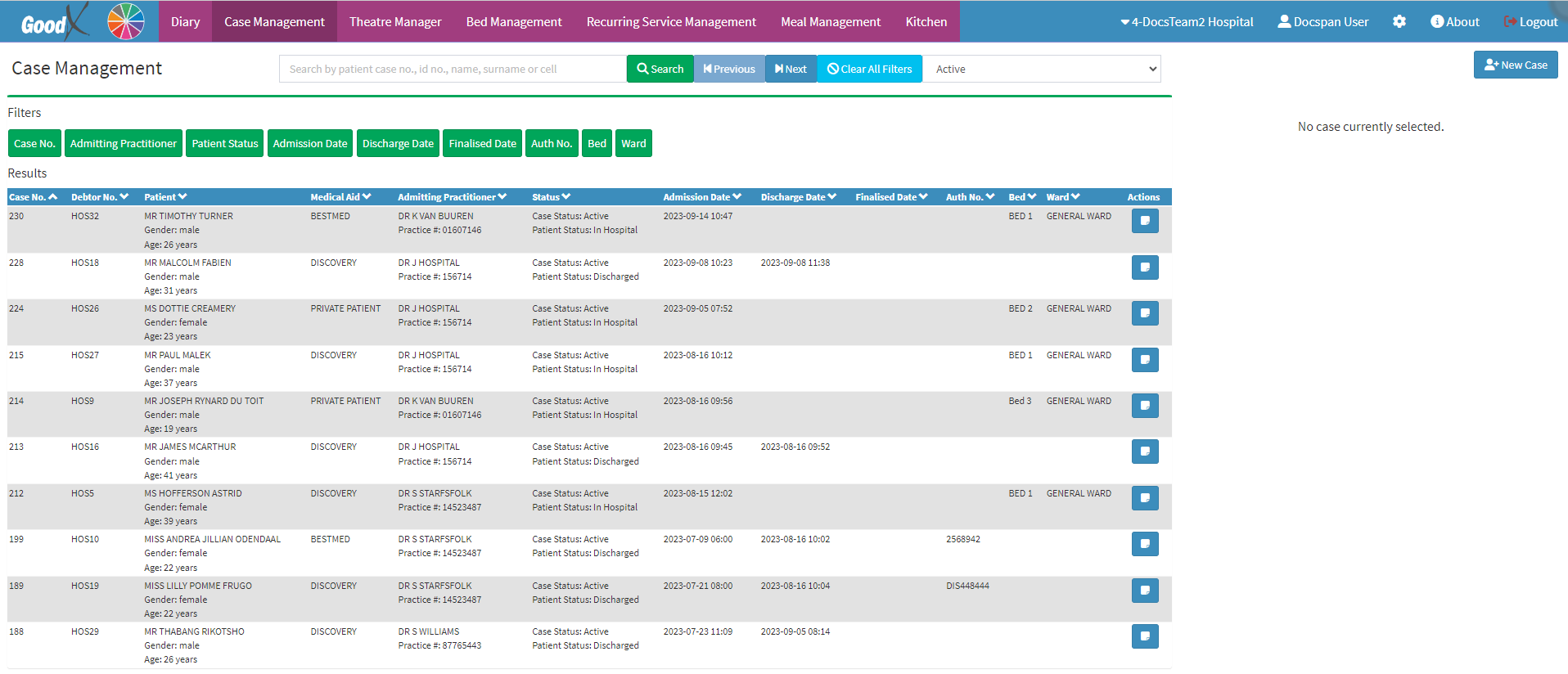
This user manual will start on the Case Managementscreen.
Click on the Meal Management tab on the Navigation Bar.
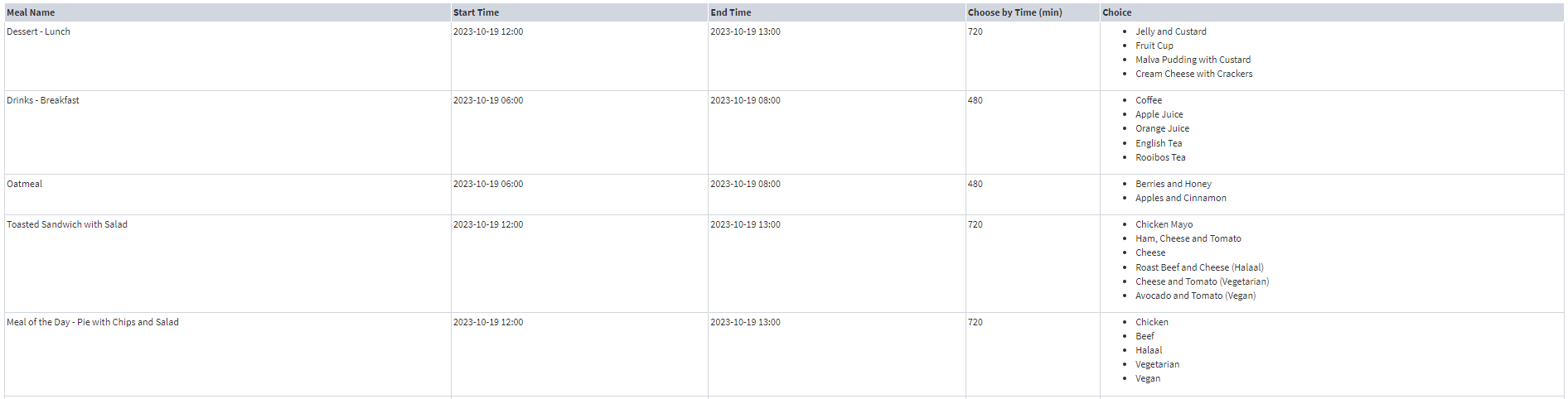
The Meal Managementscreen will open, with a list of all meal items that have been set up for the facility.
An explanation will be given for each field and option on the Meal Managementscreen:
Add a New Meal Menu
Click on the New Meal button to add more Meal Menu items to the Meal Managementscreen.
For more information regarding how to add new Meal Menus to the Meal Management screen, please refer to the user manual: WA: Add a New Meal
Existing Meal Menus
All Meal Menus that have been created for the Facility.
Meal Name: The name that identifies the meal.
Start Time: The date and time when the meal service is set to start.
End Time: The date and time when the meal service is set to end.
Choose by Time (min): The cutoff time for placing meal orders, indicating the number of minutes before the meal is served and ordering is no longer possible.
Choice: The meal options that are available within the specific meal time.
Please Note: Each day will need to have its own menu for each meal/tea time, as the cutoff for each menu option is determined by the Start Time and Choose by Time (min).
Edit Meal
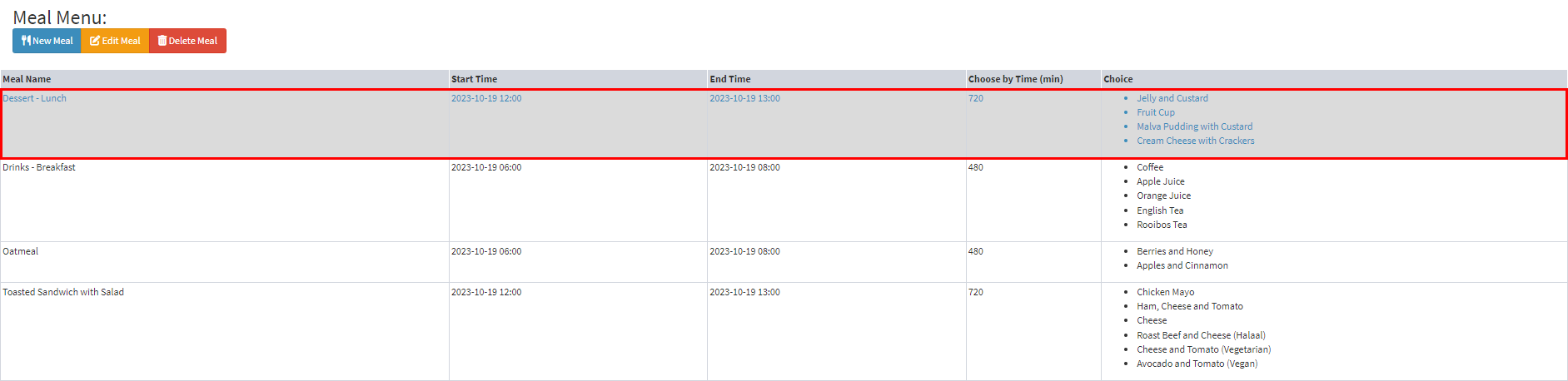
Click on the desired Meal Menu itemto make changes.
Click on the Edit Meal button to make changes to the services.
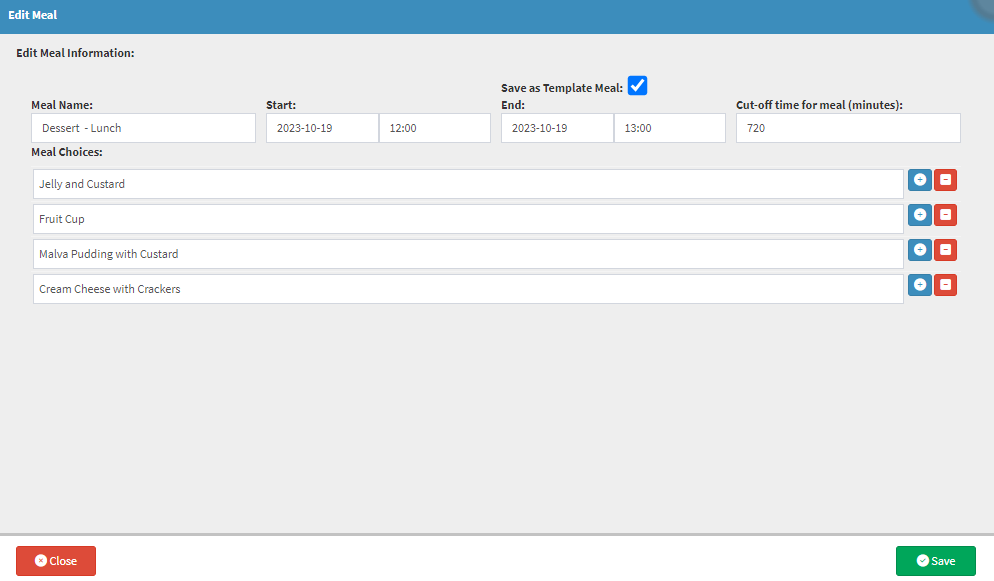
The Edit Meal screen will open.
Make the desired changes.
Click on the Save button to save made changes.
Delete Meal
Click on the Delete button to remove the Meal Menu item that is no longer in use.
Please Note: Please proceed with caution, the Meal Menu item will be deleted without warning and cannot be retrieved once deleted and will be removed from the list.