How to Upload From an External Program to GoodX Web
Why Use This Function:
Images captured on the GoodX Cloud Capture App can be uploaded directly to the system. This is particularly useful as it allows images to be stored securely on the cloud, reducing the need for physical storage space on local devices like phones or computers. Storing images on the cloud enhances security since sensitive data isn't kept directly on personal devices, minimising the risk of loss or unauthorised access.
Additionally, cloud storage ensures easy access and sharing of images within the system, promoting better collaboration and streamlined workflows.
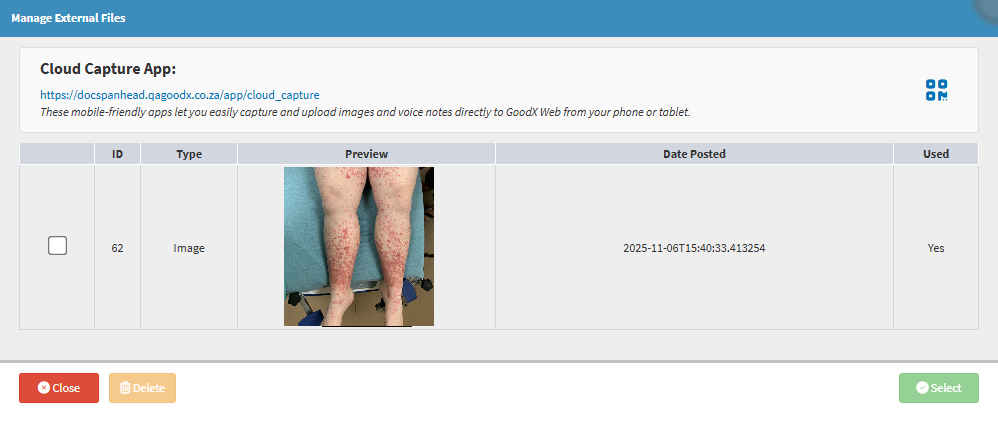
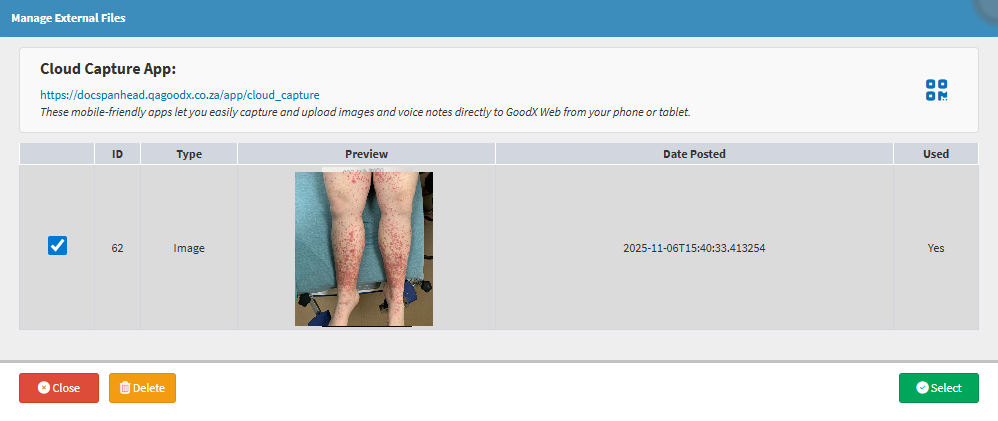
In order to upload images from the Cloud Capture you will first need to capture the images. For more information, please refer to the user manual: How to Capture Images on Cloud Capture.
💡Please Note: Uploading from External Files can be accessed from several places within the software.
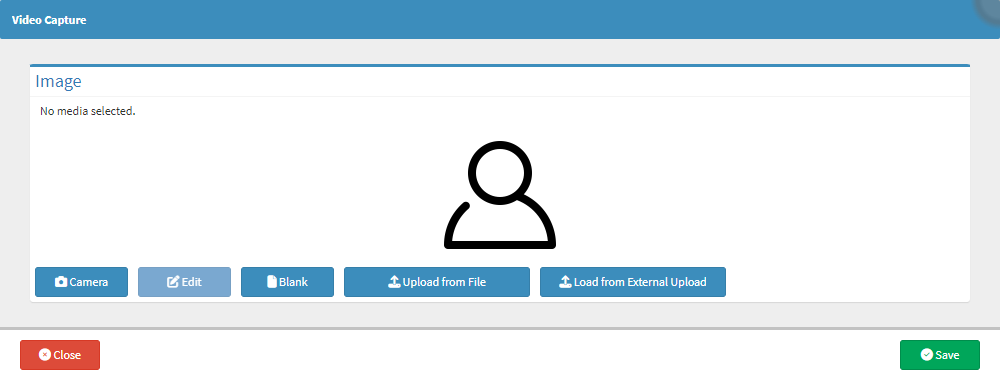
This user manual will start on the Video Capture screen.
Click on the Cloud CaptureApp link to open the Cloud Capture app from your current device.
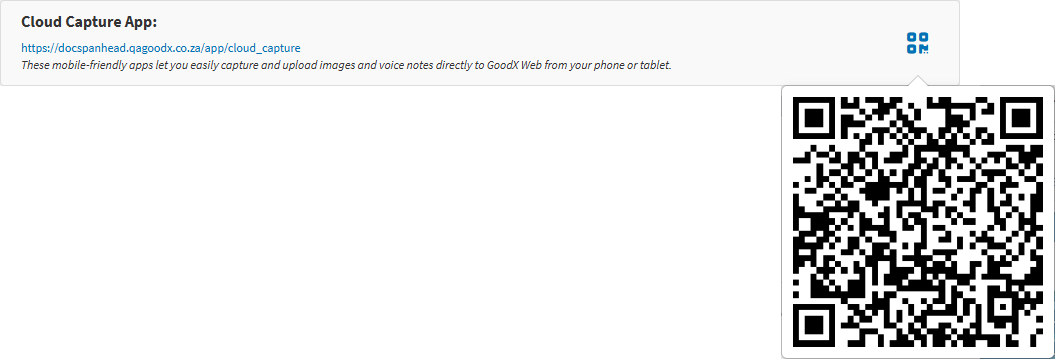
Hover over the QR code icon instead to scan and open the Cloud Capture app from a different device with camera capabilities, such as a phone or tablet.