How to Capture Images
Why Use This Function:
Capturing Images allows images to be taken in real time using a webcam or the device’s built-in camera directly within the system.
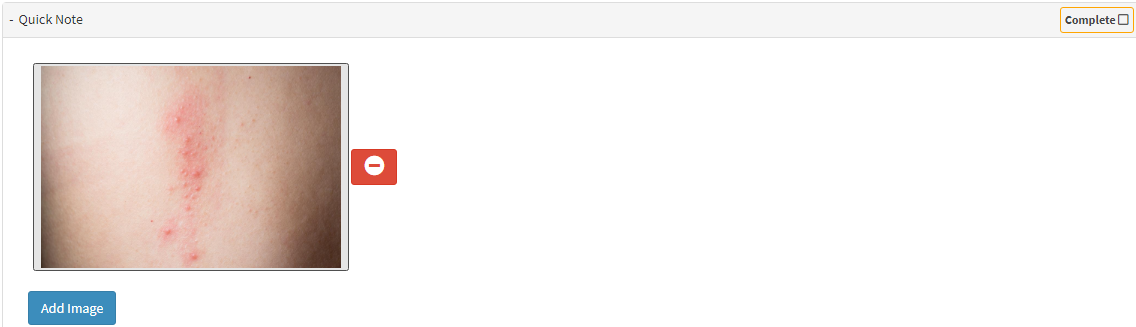
The captured image can then be uploaded to the Patient's file. This ensures that visual information is accurately recorded, supports clinical assessment and documentation, and that the correct image is uploaded to the correct Patient file.
💡Please Note: Capturing images is done from the Video Capture screen, which can be accessed from several places within the software.
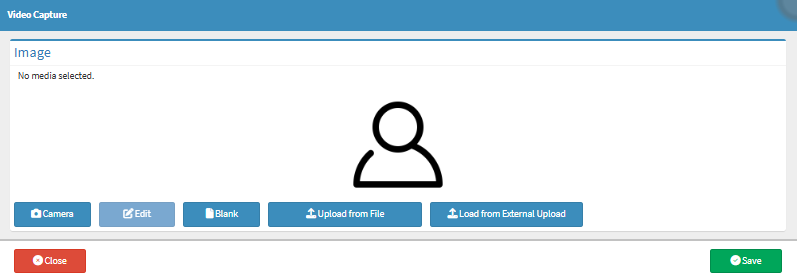
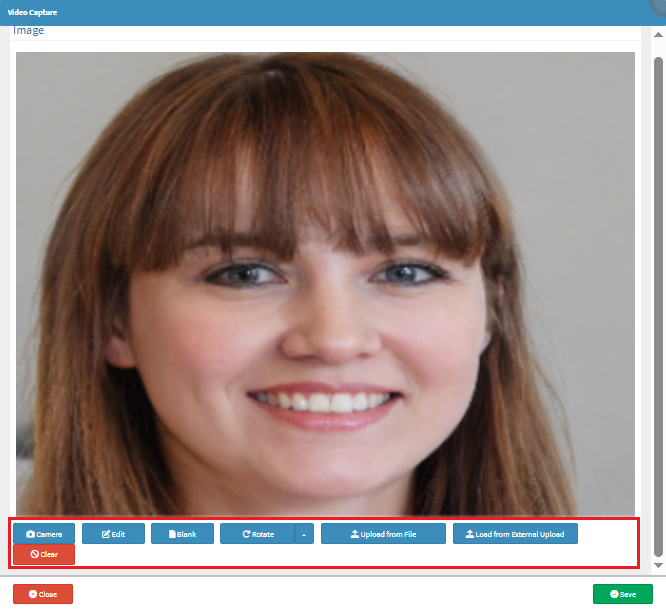
- This user manual will start on the Video Capture screen.

-
- For more information on the Video Capture screen, please refer to the user manual: Video Capture Screen: Navigation and Use.
- Click on the Camera button to take a picture.
![]()
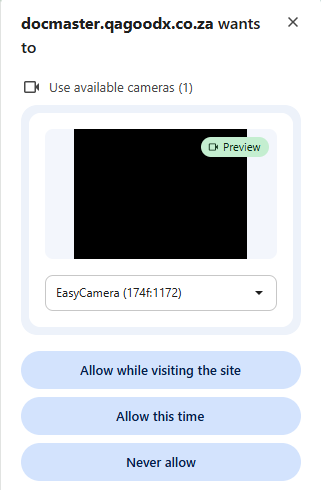
- A pop-up notification will appear in the browser to ask your permission to use the Camera.

💡Please Note: If permission has not been granted, you will not be able to use this feature. Once you have granted permission, the system will not prompt you again.
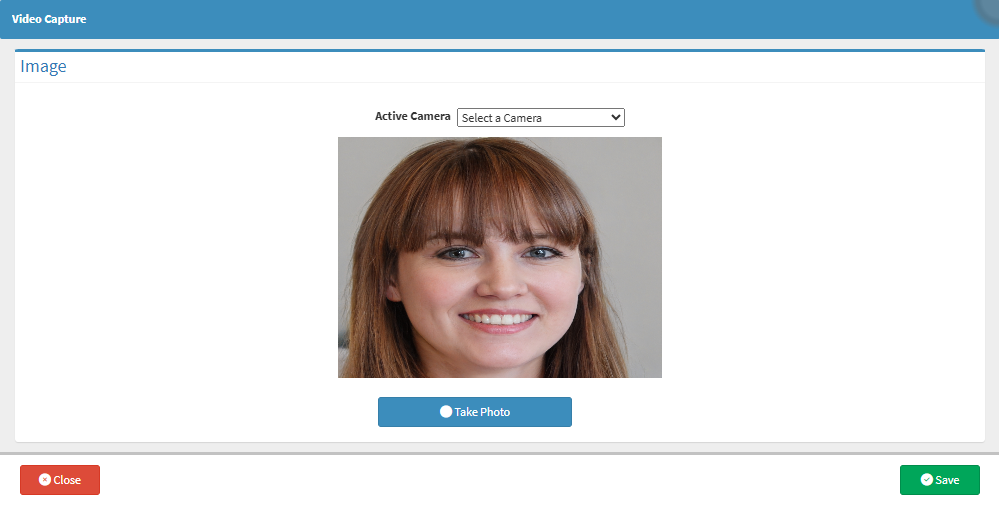
-
Click on the Allow while visiting the site button to grant the browser permission to access the camera, allowing you to capture images using the camera.
![]()
-
Click on the Allow this time button to grant the browser temporary access to the camera, allowing you to capture an image.
![]()
- Click on the Never allow button to deny the browser permission to use the camera. This is not advisable as you won't be able to capture images.
![]()
- You can now capture an Image using the computer’s built-in camera or a configured webcam.

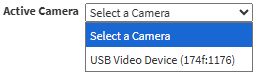
- Click on the Active Camera drop-down menu to select the camera that will be used to capture the image.


💡Please Note: All cameras currently installed and connected to the system will be displayed in the list.
- Click on the Take Photo button to capture the image.
![]()
- Click on the Save button to finalise any changes made.
![]()