Debtor/Patient Data can be copied to a Notepad file. Users can copy any fields' information they desire and paste into the Notepad file, which is saved as plain text. Notepad files are saved as .txt files. A .txt file is a plain text file that contains unformatted text characters without any formatting or other special instructions.
The Contents of This User Manual:
Copy Debtor/Patient's Information
Paste Debtor/Patient's Information
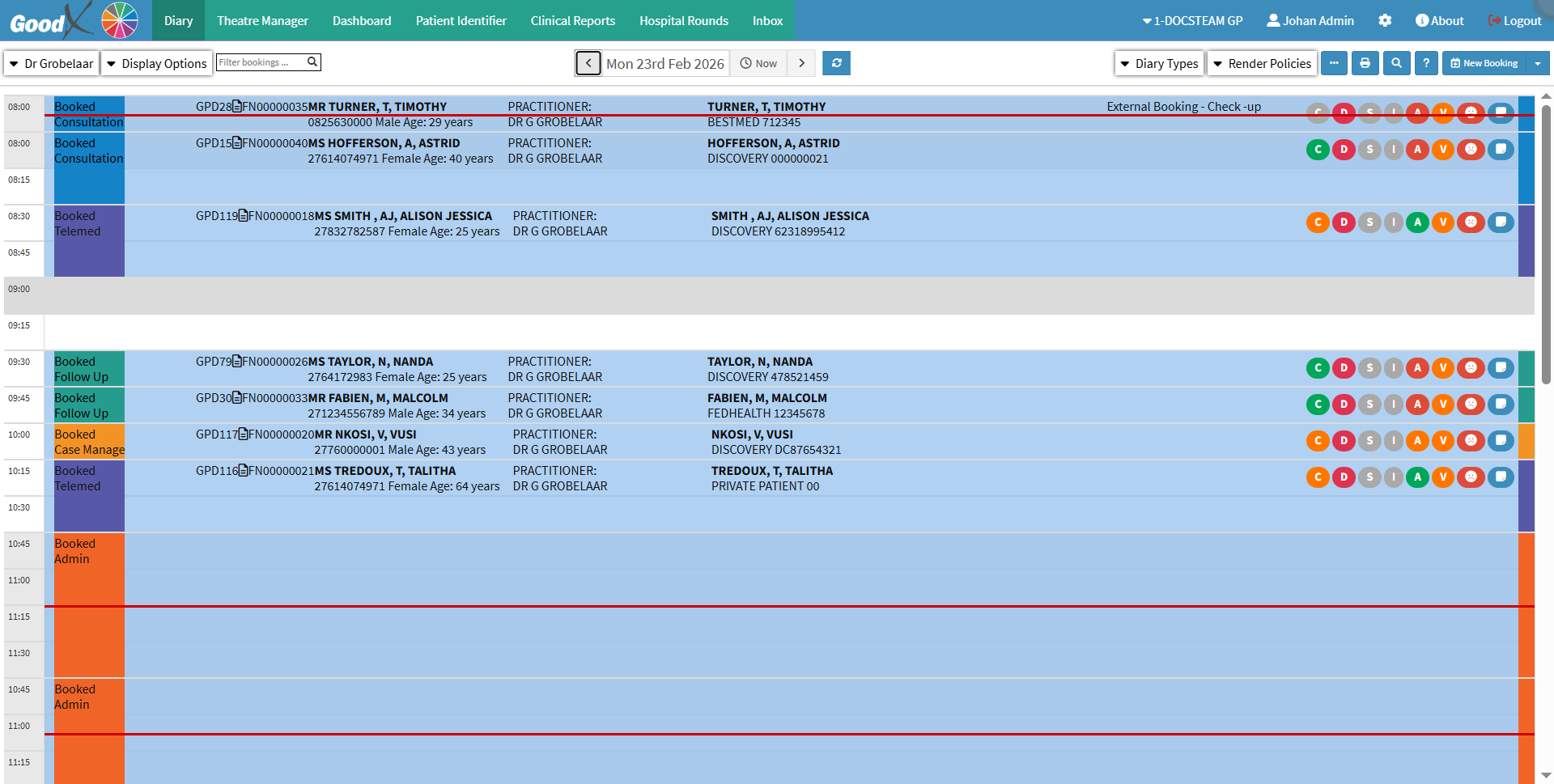
This user manual will start on the Diary screen.
Click on the Booking of the desired patient.
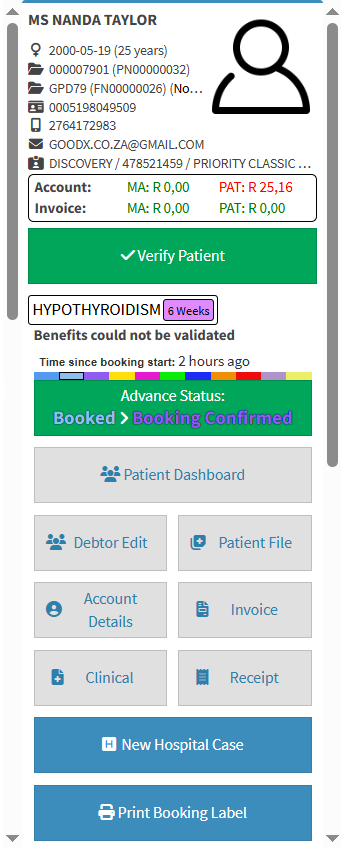
The Diary sidebarwill open.
Click on the Debtor Edit button.
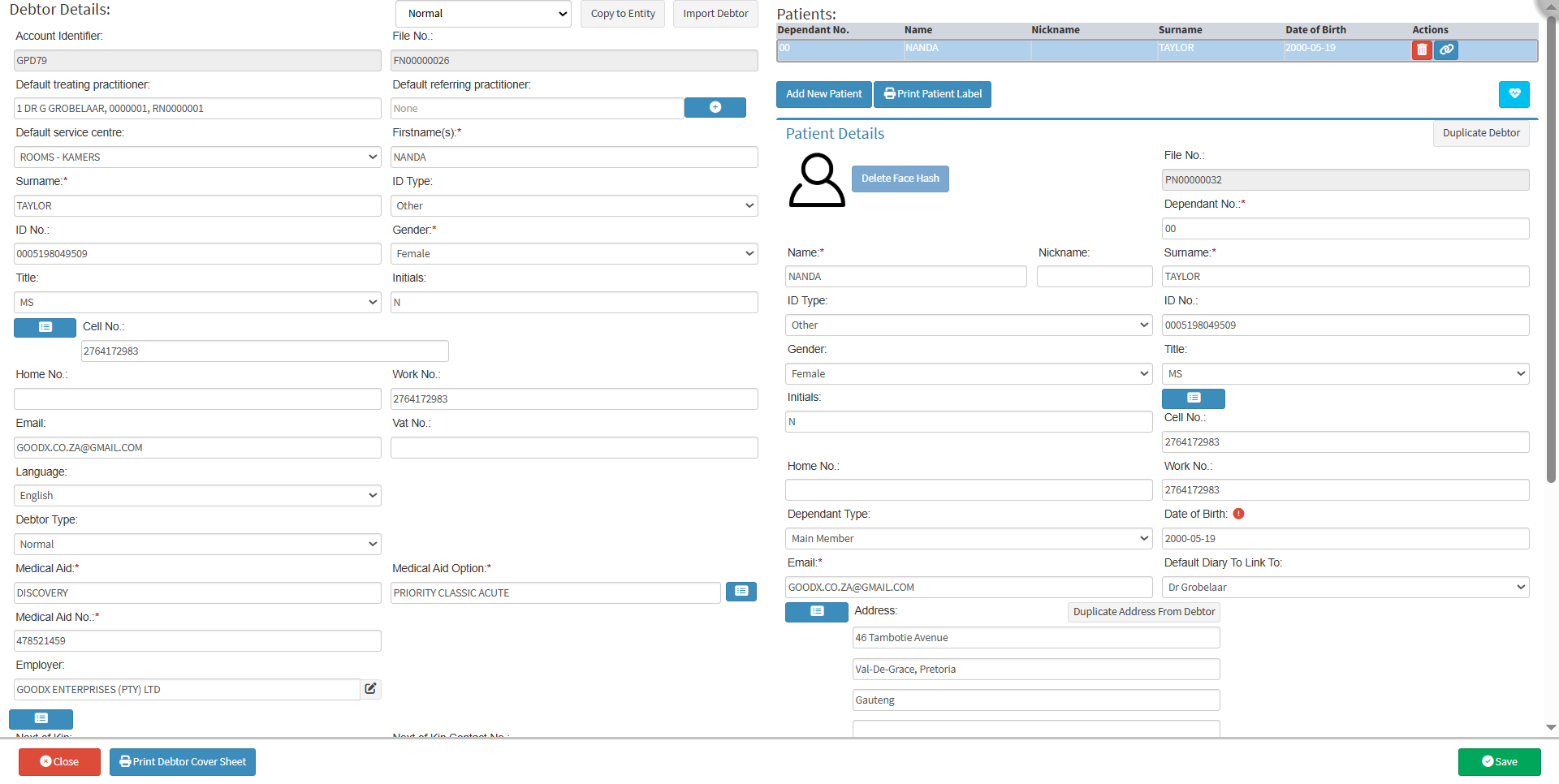
The Debtor Details screen will open.
For more information on how to create a Debtor, please refer to the user manual: How to Create a New Debtor.
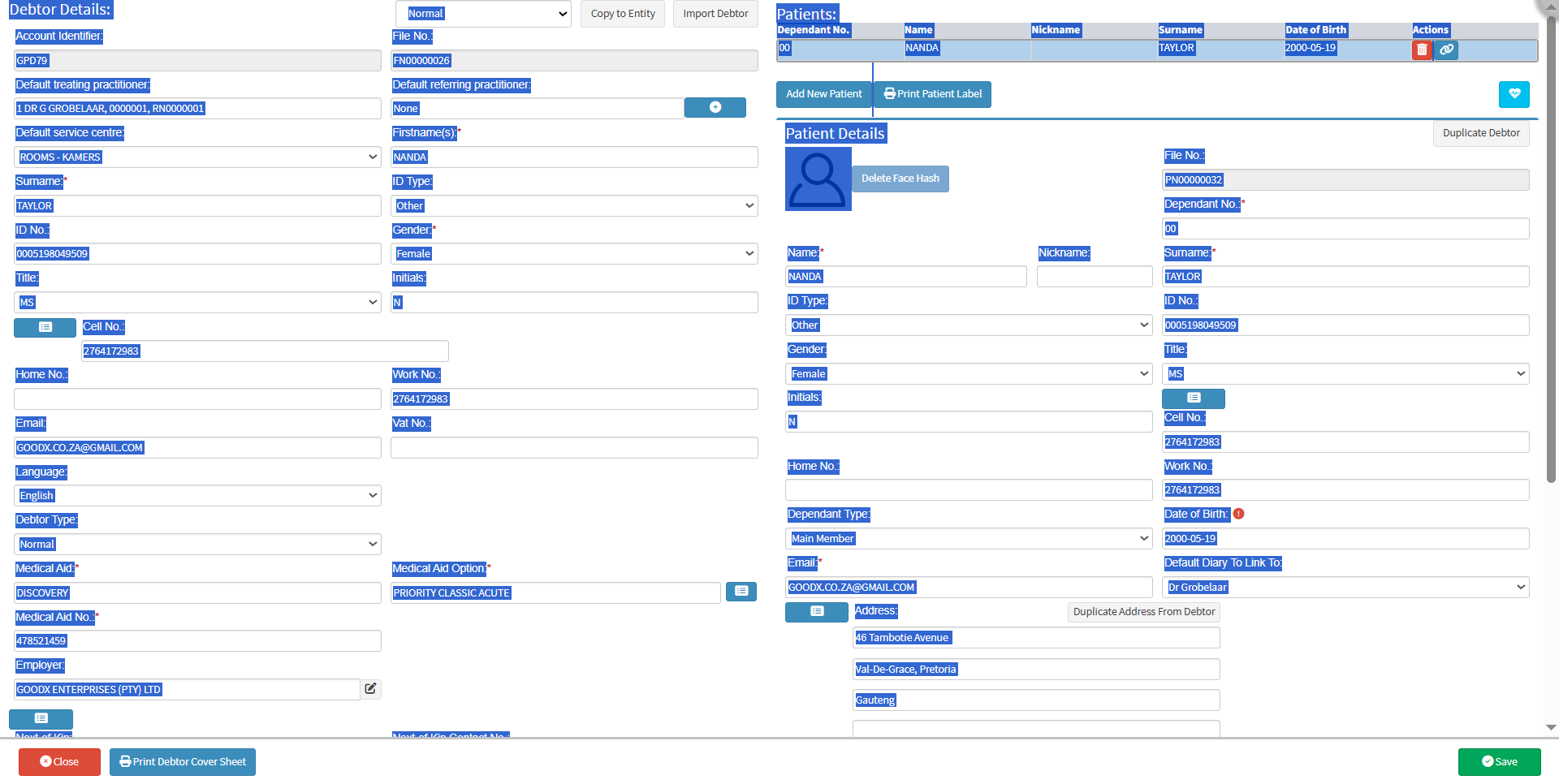
Highlight all information that you would like to copy to an external source, for example, Notepad.
Copy Debtor/Patient's Information
Allows you to duplicate the Debtor/Patient information so that it can be used elsewhere.
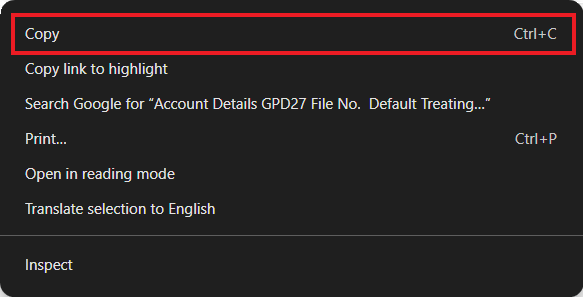
Right-click anywhere on the screen to access the Options menu and select Copy.
Alternatively, Press the Ctrl + C keys simultaneously on the keyboard to copy the relevant information.
Paste Debtor/Patient's Information
Allows you to insert previously copied Debtor/Patient information into the current section.
Open a new Notepad page to paste the Debtor/Patient's information.
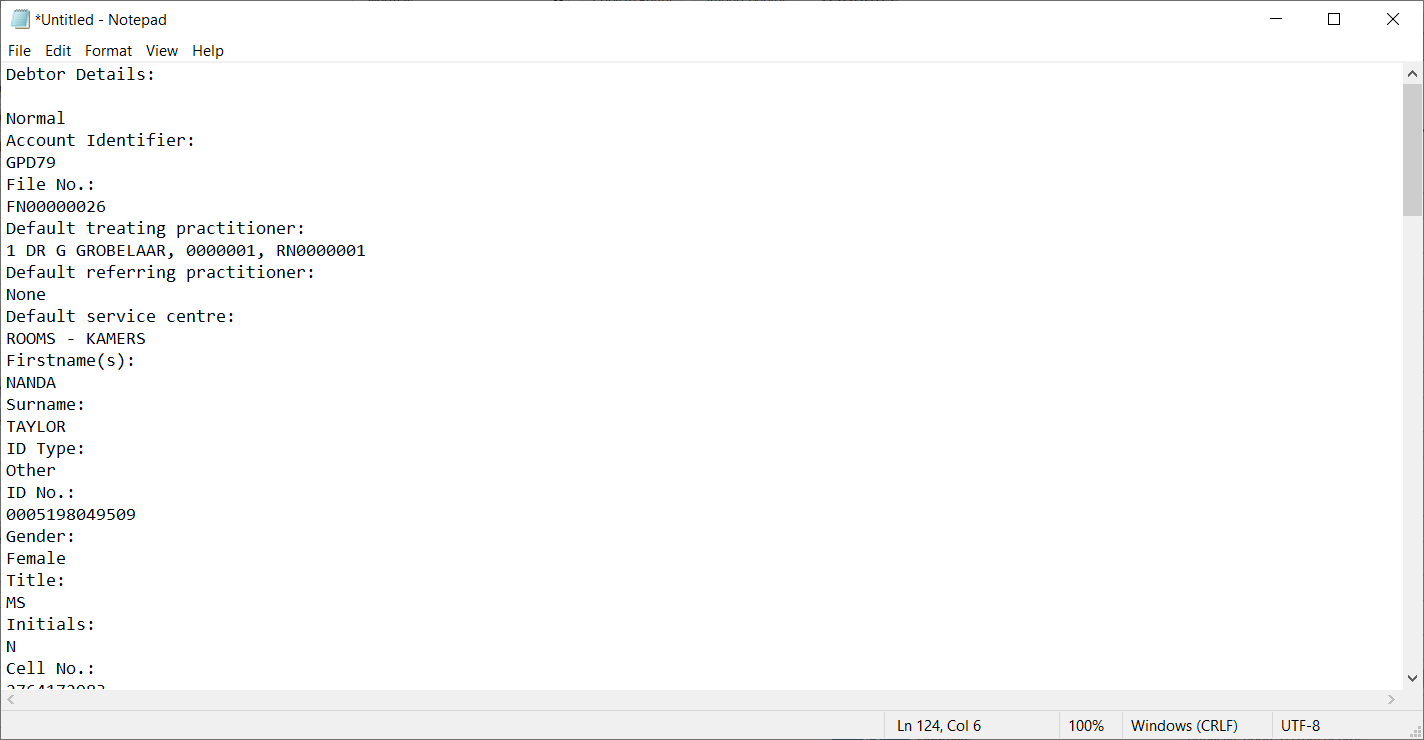
💡Please Note: All copied information will be pasted into Notepad as plain text.
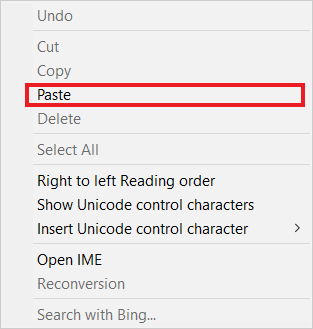
Right-Click to access the options and select Paste.
Alternatively, Press the Ctrl + V keys simultaneously on the keyboard to paste the information the user has copied.
The Debtor/Patient information that you copied will now be pasted as plain text into Notepad.