Text size
Line height
Text spacing
Sending a WhatsApp directly from the system allows your Practice to communicate with a Patient or Debtor in a modern and efficient manner. Digital messaging ensures that important clinical or financial information reaches the recipient instantly on a platform they use daily. Effective use of automated templates helps maintain a professional standard while saving time for your staff and improving the overall experience for every Dependant or person responsible for the account.
💡Please Note: The WhatsApp button and functionality should be enabled and set up for your Practice, to set up the function for your Practice, please contact your dedicated FCL.
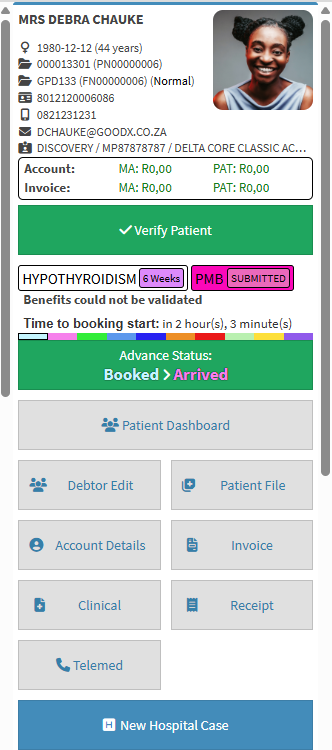

💡Please Note: The WhatsApp button and functionality should be enabled and set up for your Practice, to set up the function for your Practice, please contact your dedicated FCL.
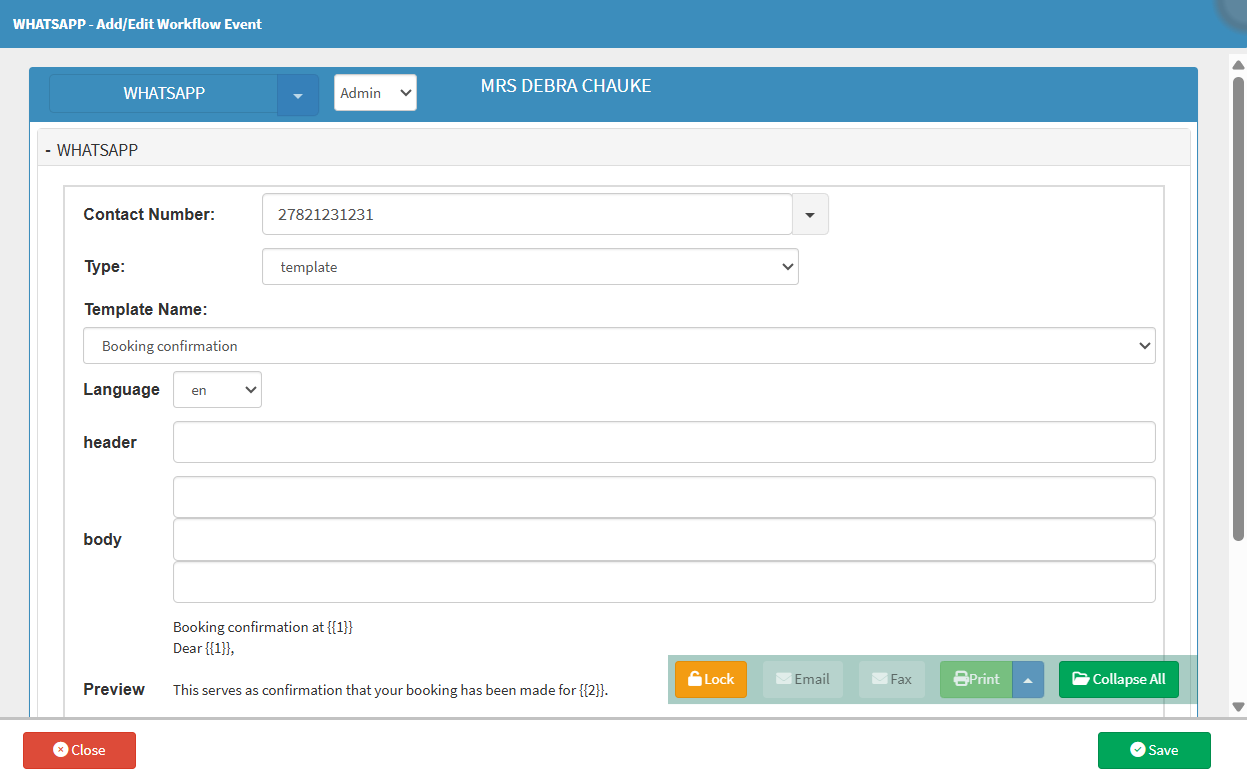


Selecting a template allows you to send pre-defined messages that maintain consistent communication standards for your Practice. Such templates automatically populate specific details to ensure accuracy and professionalism.

💡Please Note: The Templates for a message are set up based on your Practice. For more information on how to create a Template, please refer to the user manual: Navigating the Build SMS/Email Tab.



Manual text entry provides your Practice with the flexibility to send personalised, once-off messages to a Patient. Entering custom text ensures that unique situations or specific clinical instructions are communicated clearly.


Attaching an image enables your Practice to share visual clinical data or identification documents directly with a Patient. Visual aids improve the clarity of the information being shared and assist in accurate record-keeping.



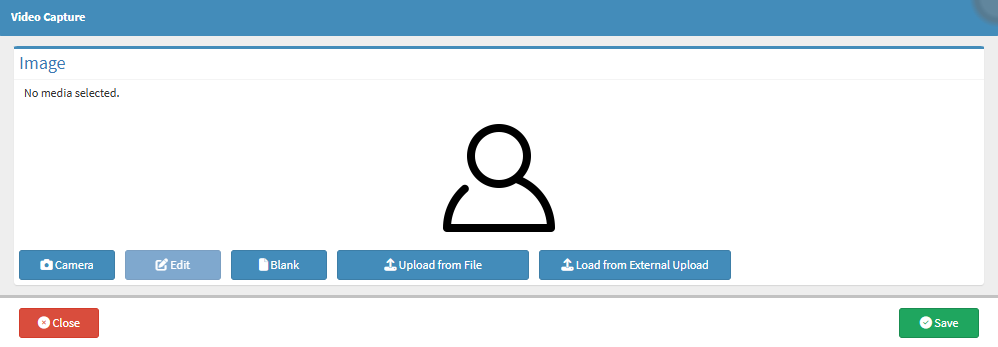
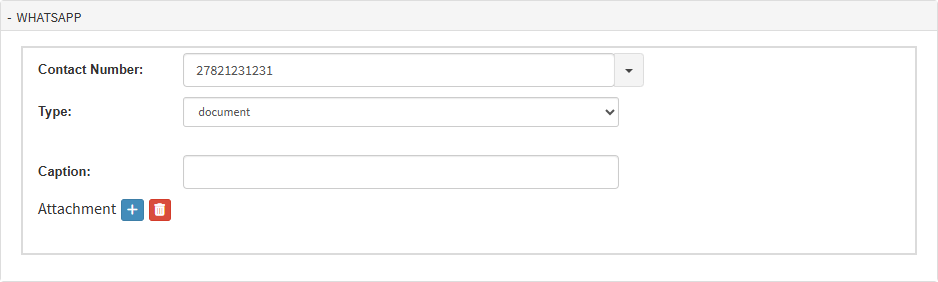
Sending documents via WhatsApp allows your Practice to provide a Debtor or Patient with essential paperwork like invoices or reports instantly. Digital document sharing reduces the need for physical copies and speeds up administrative processes.