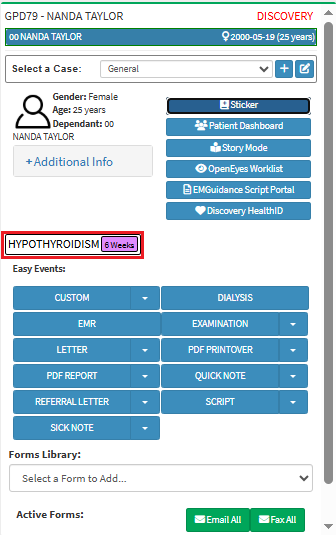
Re-enabling a previously finalised Smart Sticker Protocol allows the Practitioner to reactivate the Patient’s treatment plan and relink the associated Smart Stickers.
This enables the Practitioner to continue managing and guiding the Patient’s care according to the defined protocol without needing to recreate it.
💡Please Note: The Smart Stickerscan be accessed via various places within the system.
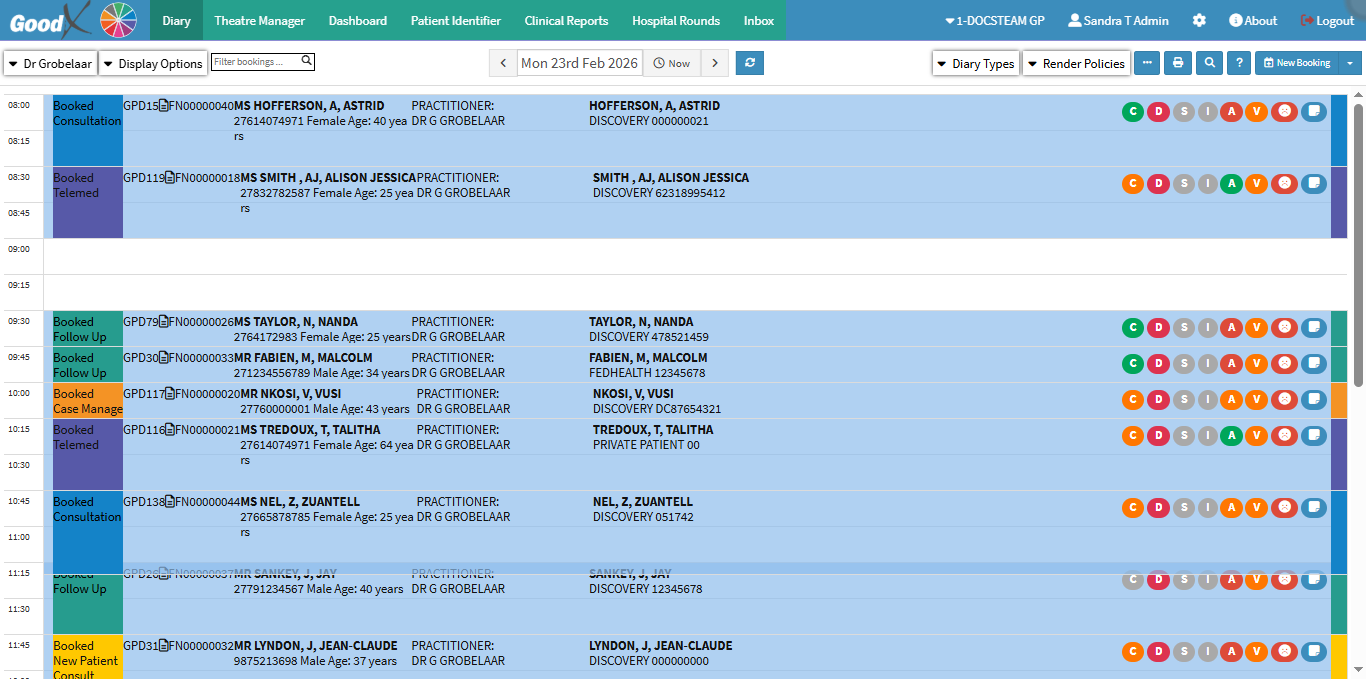
This user manual will start on the Diary screen.
Click on the desired Booking.
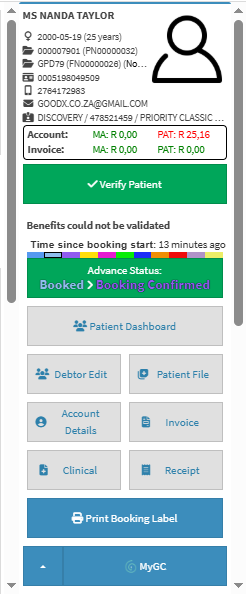
The Diary sidebar will open.
Click on the Clinical button.
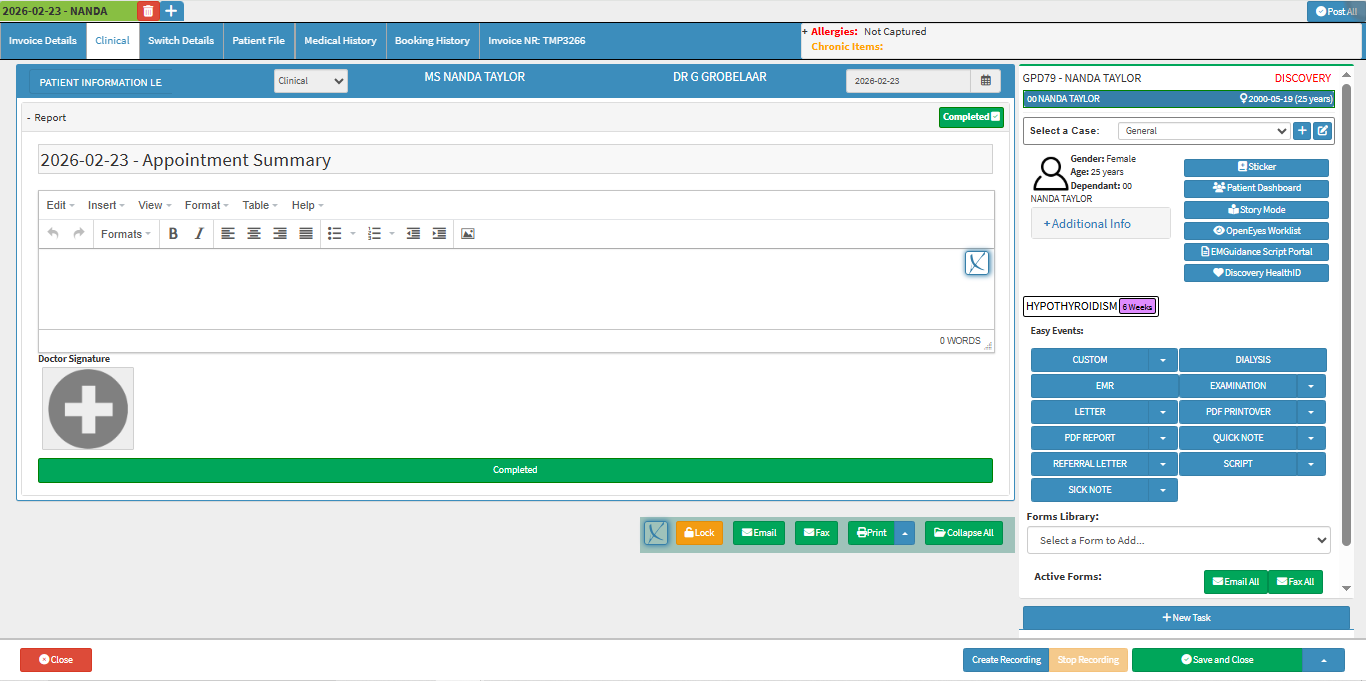
The Clinical screen will open.
Click on the Sticker button.
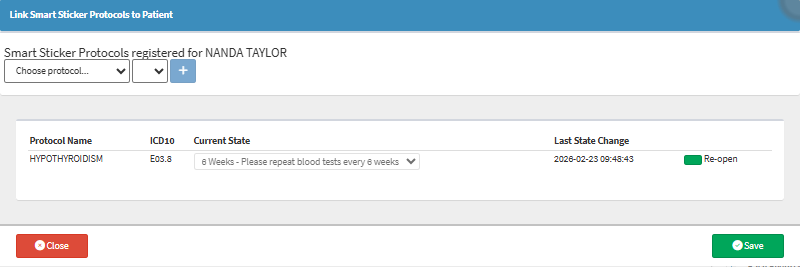
The Link Smart Sticker Protocols to Patient screenwill open.
💡Please Note: All of the Smart Stickers, both currently and previously linked to a Patient will be listed on this screen.
Click on the Re-open button next to the sticker you would like to re-open.
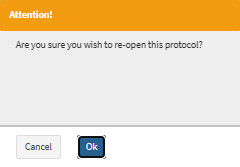
An Attention pop-up will appear to ask you whether you want to re-open this protocol.
Click on the OK button to acknowledge the fact that you are re-opening the Smart Sticker Protocol.
The Re-open button will change to the Finalised button, indicating that the Smart StickerProtocol has been re-enabled.