List of Insurance agents loaded onto the system.
- Sign in to the GoodX Desktop using your GoodX username and password.
- From the Navigator Double Click on the MedDebs Module

- The Main MedDebs screen will open
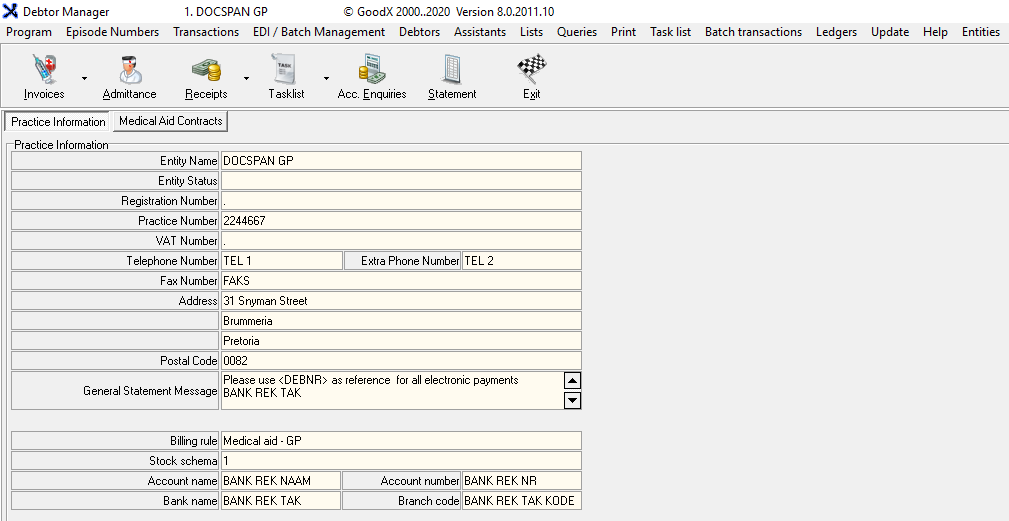
- From the Menu bar, click on Lists

- From the drop-down, Click on Insurance Agents

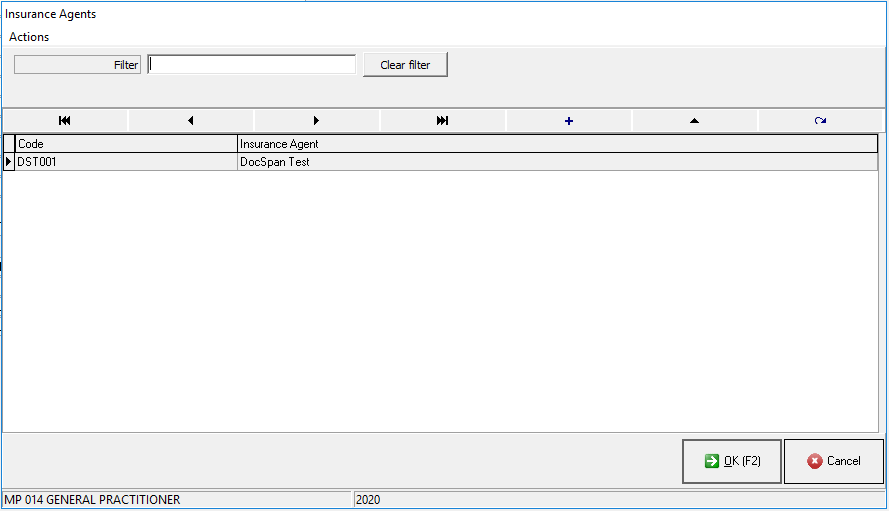
- You will be directed to the Insurance Agent screen
Filter
- You are able to filter by typing your search in the Filter text box field
- By clicking the Clear filter button you can clear the textbox to start searching again

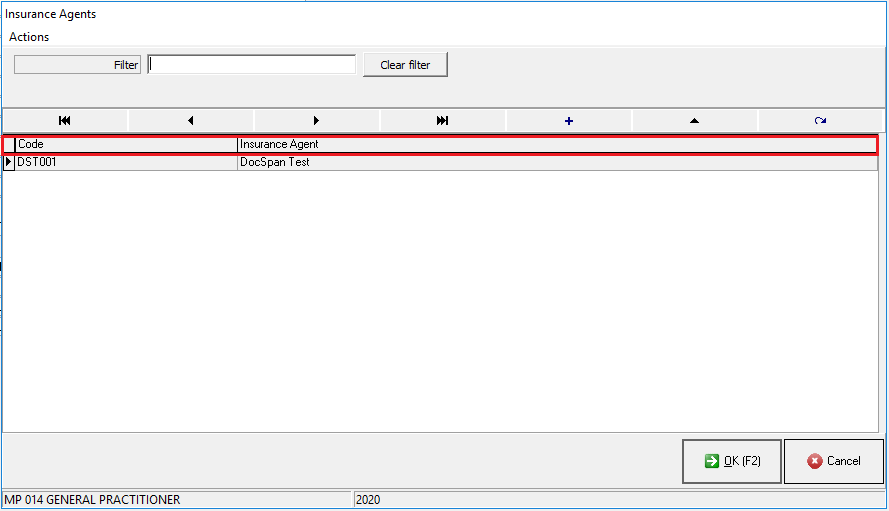
Columns
- Code: The unique code associated with the insurance agent
- Insurance Agent: The name of the insurance agent
Add a New Insurance agent
- Add a new Insurance Agent by clicking on the + button

- The Insurance Agent screen will open
- Fill iN all the relevant information

- Code: The unique code associated with the insurance agent
- Name: The name of the Insurance Agent
- Address: Postal Address where mail and parcels can be delivered by the post office
- Postal Code: The area code associated with the postal address
- Physical Address: The address where the Insurance Agent operated from - street address
- Postal code: The area code associated with the physical address
- VAT Number: Tax registration number if the agent is registered for tax
- Agent Number: Insurance agent registration number
- Telephone: A telephone number where the scheme can be reached
- Cellphone Number: Mobile contact number where the insurance agent can be reached
- Fax Number: The number where they receive faxes
- Contact: Contact Person Name
- Click on OK to Save, when you are satisfied with the information you have entered
- Click on Cancel to close without saving

Editing an Insurance Agent
- Select the Insurance Agent you would like to edit from the list
- Click on the button with the triangle to edit the Insurance Agent

- You will be directed to the Insurance Agent screen where you are able to Edit/Update the information previously entered

- Click on OK to Save, when you are satisfied with the information you have entered
- Click on Cancel to close without saving
- You will be directed back to the Insurance Agents List screen
- To return to the Main MedDebs screen click on Ok
Last modified: Wednesday, 15 April 2026, 12:34 PM