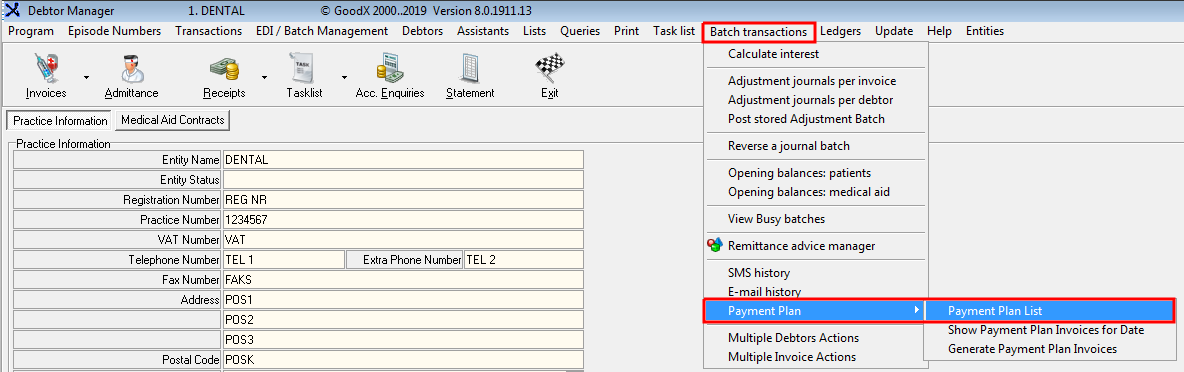
Go to Meddebs >> Batch Transactions >> Payment Plan >> Payment Plan List
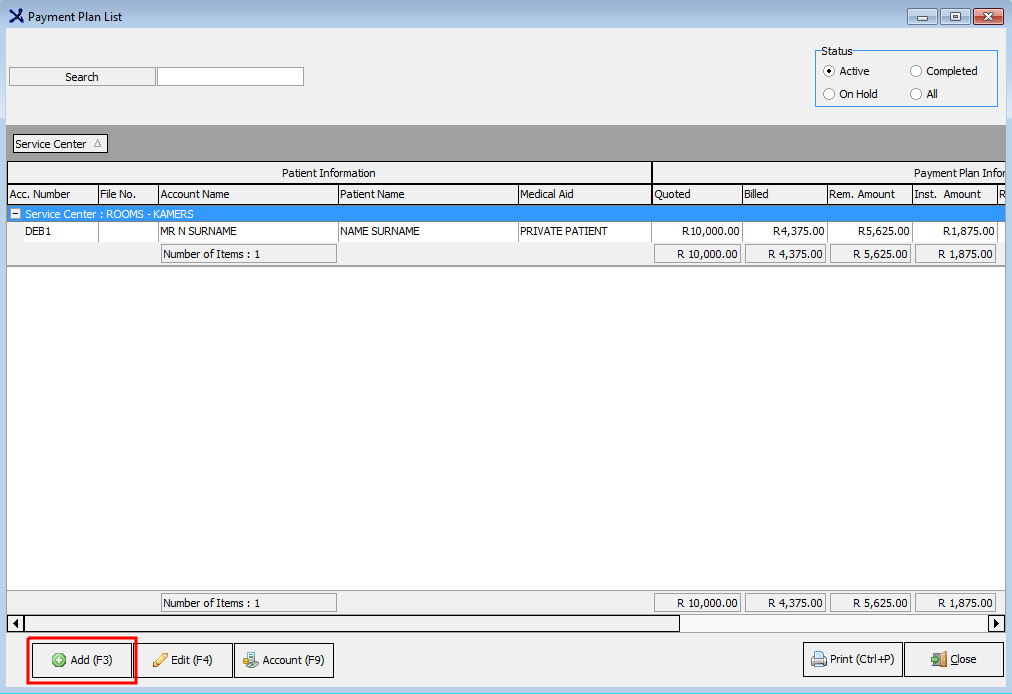
STEP 1 - The Payment Plan List:
Click on Add
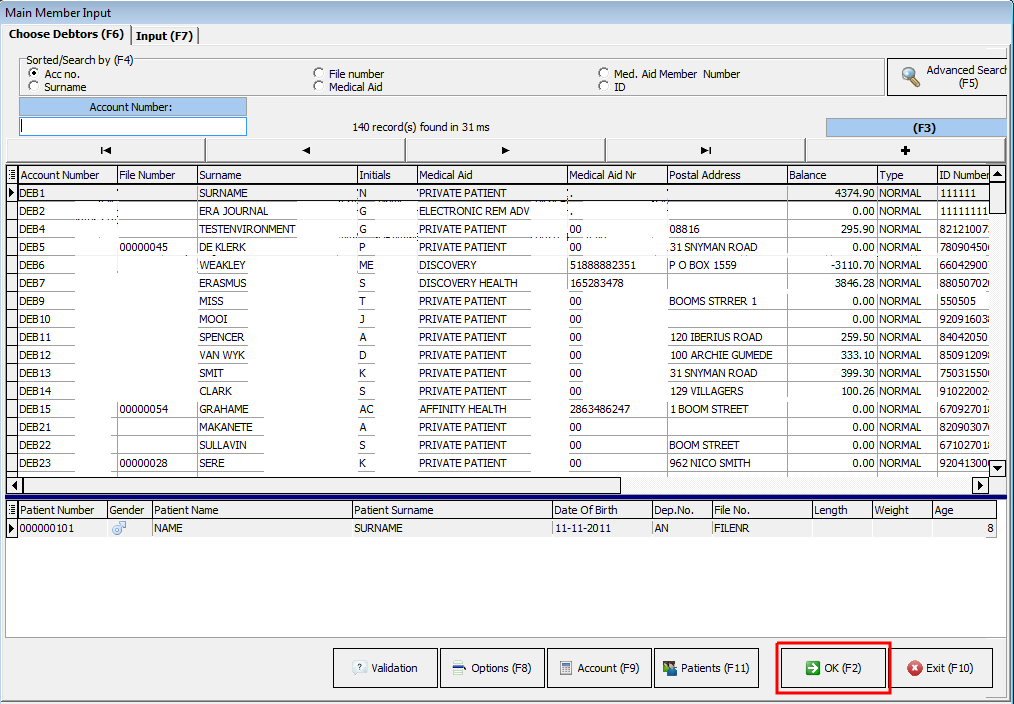
The Admittance screen will open. Choose the patient that you want to do a payment plan on and click on OK
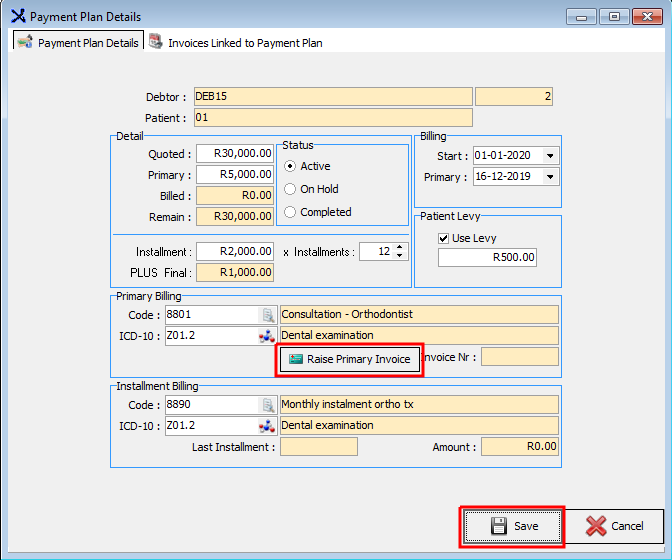
Enter the quoted (quotation amount), primary (once-off deposit) amount and the number of installments that the patient must pay, for example, 12 months.
Select the Billing (on what day of the month the Invoices need to be generated for) and Primary (the Once off deposit invoice) Start date.
Select if there's an extra Levy amount that the patient needs to pay for example an admin fee
Primary Billing: Enter the Procedure and ICD-10 codes for the Primary Invoice (once-off deposit)
Installment Billing: Enter the Procedure and ICD-10 codes for the Installment Invoices that will be generated monthly on the Payment Plan
TAKE NOTE: Click on Save when the Primary Invoice was created and posted.
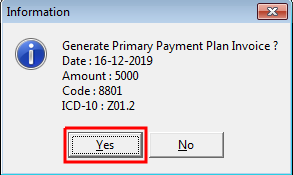
Click on Raise Primary Invoice to immediately generate the Invoice for the once-off deposit. This Invoices will be posted to the Patients account immediately.
Select YES
If you want to Print the Primary Invoice Batch, click on Print, or else Exit
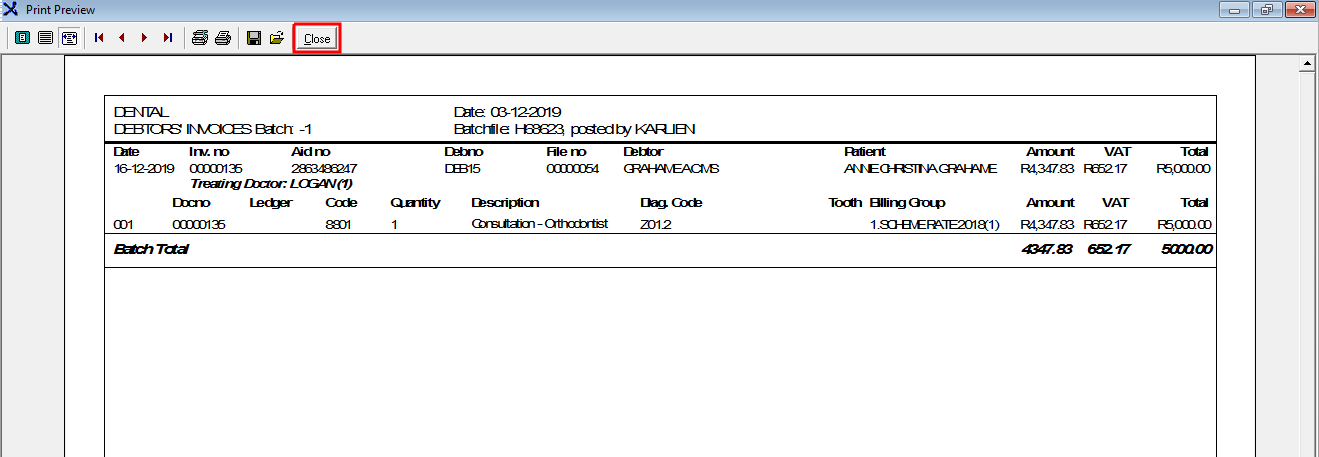
Example of how the Batch will Print. Click on Close when done
Example of the Debtor Invoices that were posted from the Batch. Click on Close when done
The Payment will now be created with all the Payment Plan Information. The amounts will automatically be calculated and adjusted each month after the next Invoice was generated and posted.
You can also click on the EDIT button to edit the Payment Plan afterward.
Last modified: Wednesday, 28 October 2020, 11:27 AM