Each medical aid has its own schemes which patients can choose from, this is also referred to as a plan.
Sign in to the GoodX Desktop using your GoodX username and password.
From the Navigator Double Click on theMedDebs Module
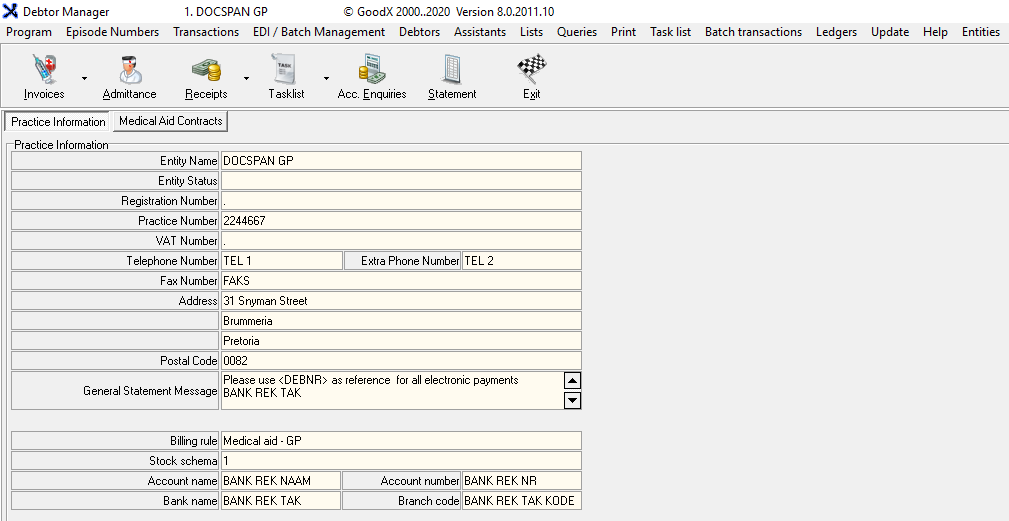
The Main MedDebs screen will open
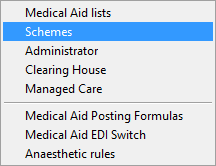
From the Menu bar, click on Lists
From the drop-down, Click on Medical Aids
From the submenu, Click on Medical Aid Schemes
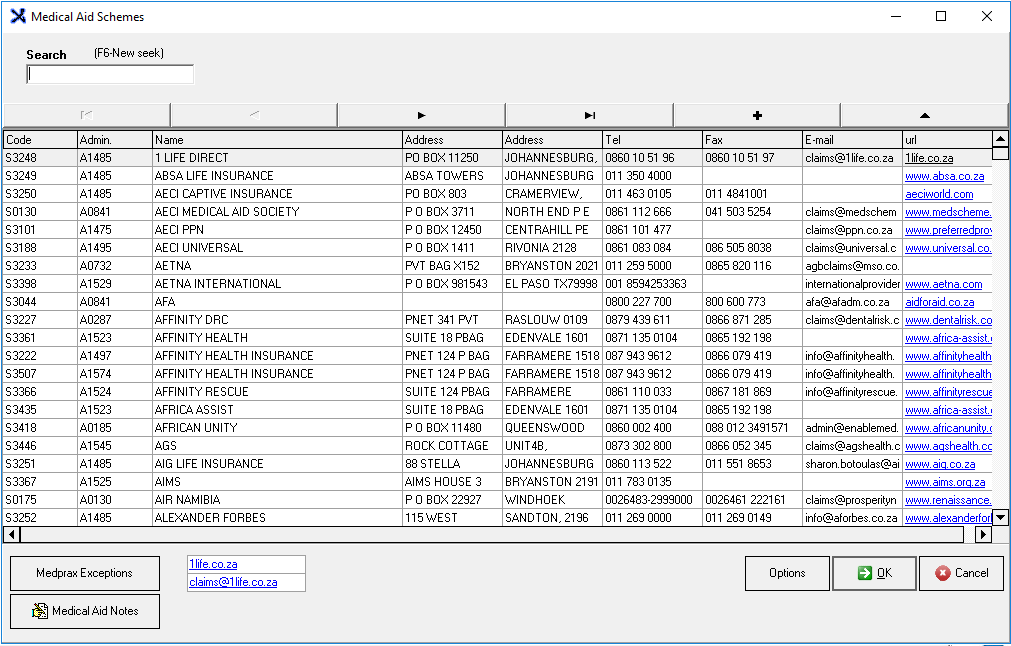
You will be directed to the Medical Aid Schemes Screen
You are able to search on the list by typing in Search (F6 New Seek) text box field
Columns
Code: Scheme Number
Admin: Administration code related to the medical aid
Name: Name of the scheme
Address: Physical /Postal Address
Tel: A telephone number where the scheme can be reached
Fax: The number where they receive faxes
Email: The address where electronic mail can be sent
URL: The website address-Uniform Resource Locator
Please Note: All options that are highlighted red have been discontinued and should not be used
Adding a New Medical Aid Scheme
Disclaimer: It is not recommended or advised to add your own Medical Aid Scheme, it is suggested that the service provider requests be added by contacting either GoodX or Medprax directly as Medprax manages the information
Add a new Medical Aid: Scheme by clicking on the + button
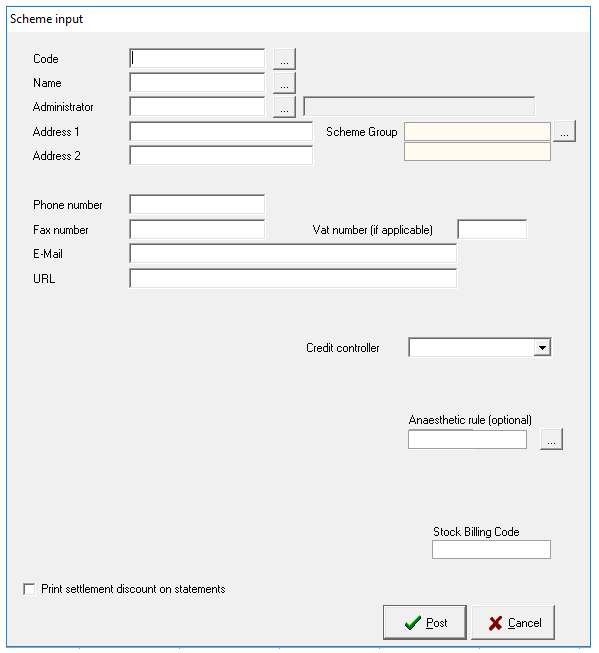
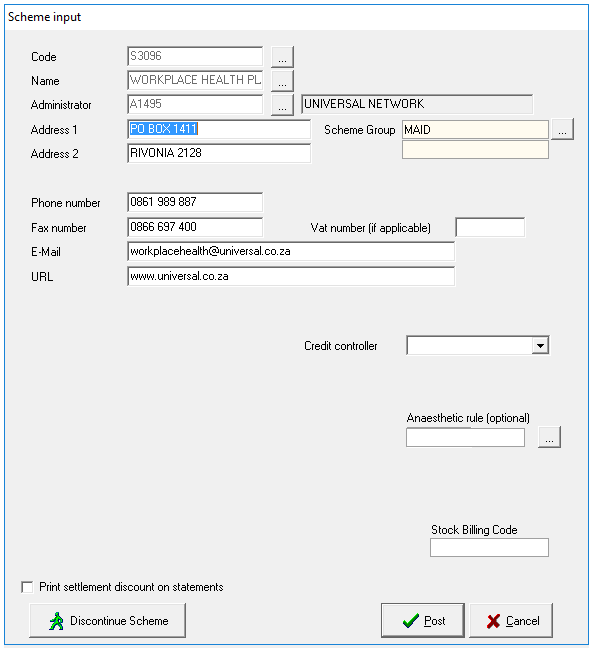
The Scheme Input screen will open
Fill inall the relevant information
Code: Scheme Number
Name: Name of the scheme
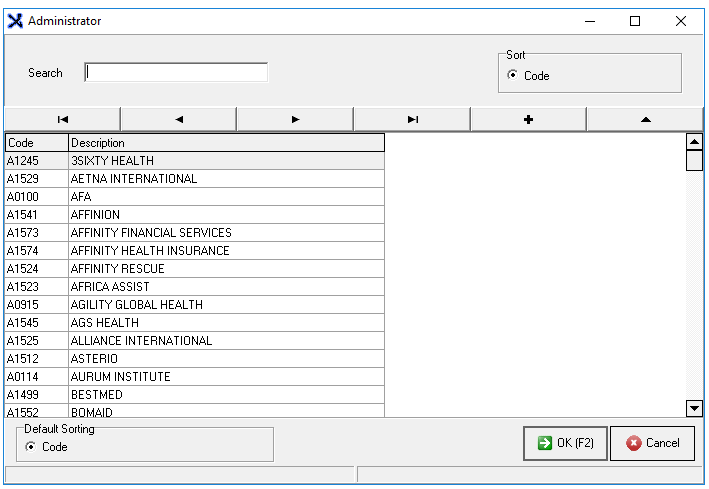
Admin: Administration code- Use the ellipse ... to link an administrator to the scheme from the Administrator screen
Address 1: First Line of address-Physical /Postal
Address 2: Second Line of address-Physical /Postal
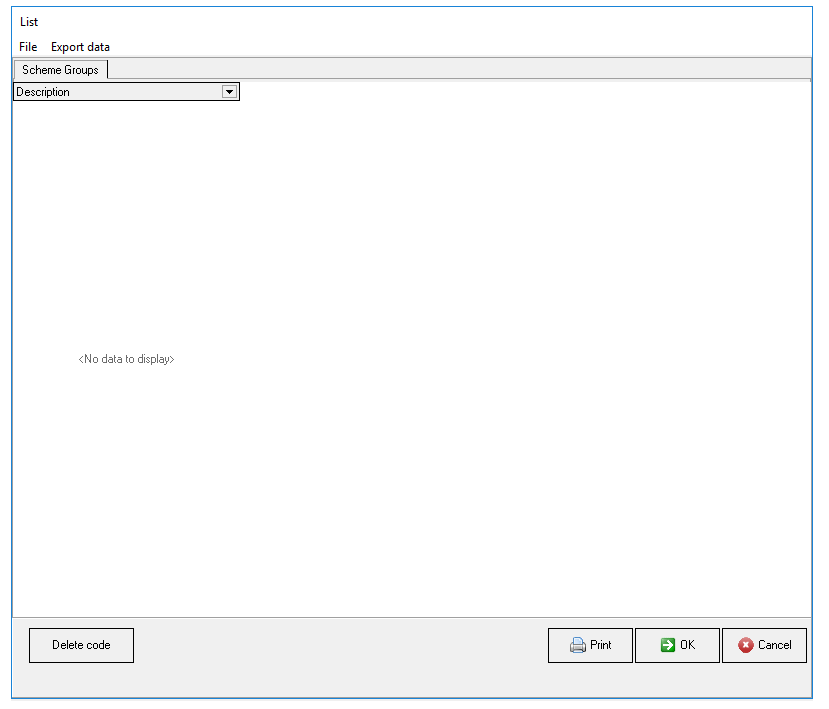
Scheme Group: The group that the scheme is linked to if set up using the ellipse... to link the scheme to a Scheme group from the list screen
Phone: A telephone number where the scheme can be reached
Fax: The number where they receive faxes
VAT number (if applicable): VAT registration number, if applicable
Email: The address where electronic mail can be sent
URL: The website address-Uniform Resource Locator
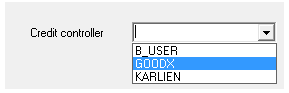
Credit Control:Select the user from the drop-down list who is responsible for the credit control
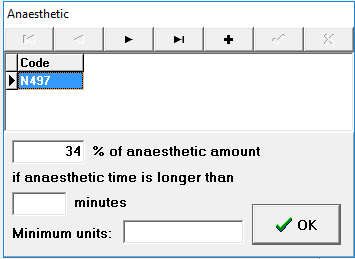
Anaesthetic Rule: Use the ellipse to link an anaesthetic rule to the scheme, the Anaststhetic screen will open
Stock Billing Code: Stock code associated with the scheme
Print Settlement discount on statement (Checkbox):Allows you to print a settlement discount on statements
Editing a Medical Aid: Scheme
Edit a Medical Aid Schemeby clicking on the button with a triangle on
The Scheme Inputscreen will open, where you can make adjustments to the scheme information
Please note:It is not advised to edit a scheme as Medprax manages these lists
Discontinue Scheme:
By clicking the Discontinue Scheme button you are able to discontinue a scheme that is no longer being used
Please note:It is not advised to edit a scheme as Medprax manages these lists
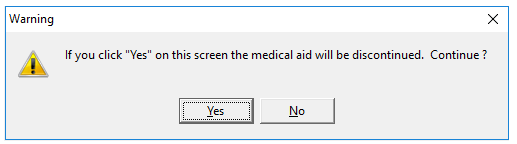
A Warning will pop-up to tell you should you click yes the Medical Aid will be discontinued.
Click Yes to continue
Click No to cancel
Medical Aid Schemes that have been discontinued will be marked red and a suffix will be added to the Scheme name -(disc)
Medprax Exceptions
Click on the Medprax exceptions button to access the Medprax Exception selection screen
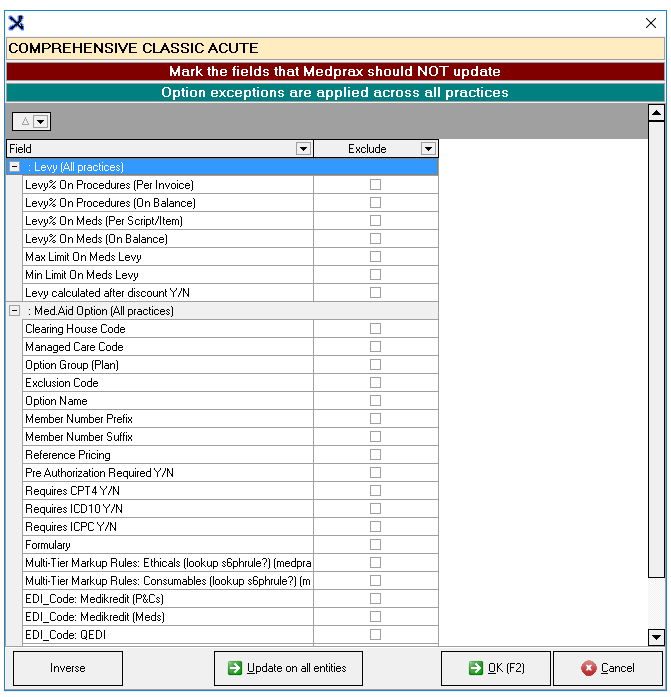
The Medprax Exception selection screen will open
Here you are able to select the Medprax exceptions by ticking the checkboxes
Medical Aid Notes
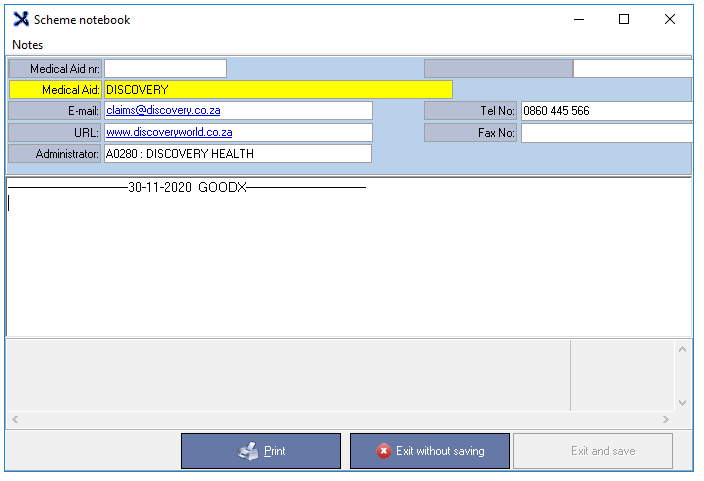
Click on the Medical Aid Notes button to access the Scheme Notebook screen
The Scheme Notebook screen will open
Options
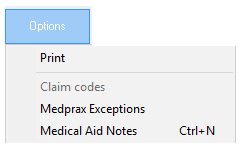
For more options click on the Options button
Print: Allows you to print the list
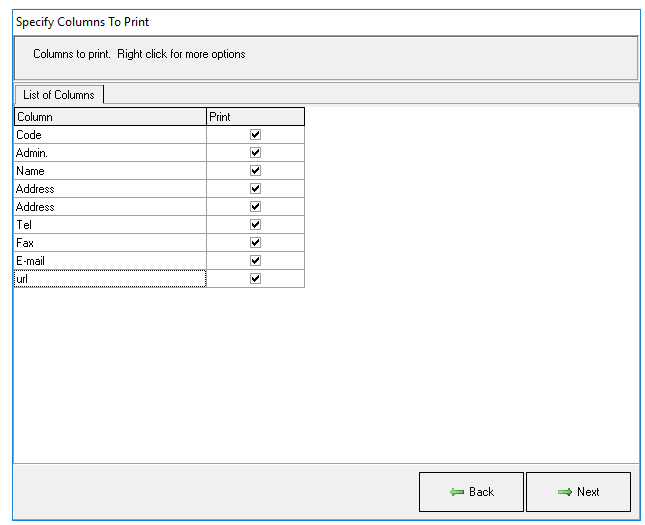
Specify the columns you would like to print, by ticking the checkboxes
Click on Next to continue to print
To continue, click Next
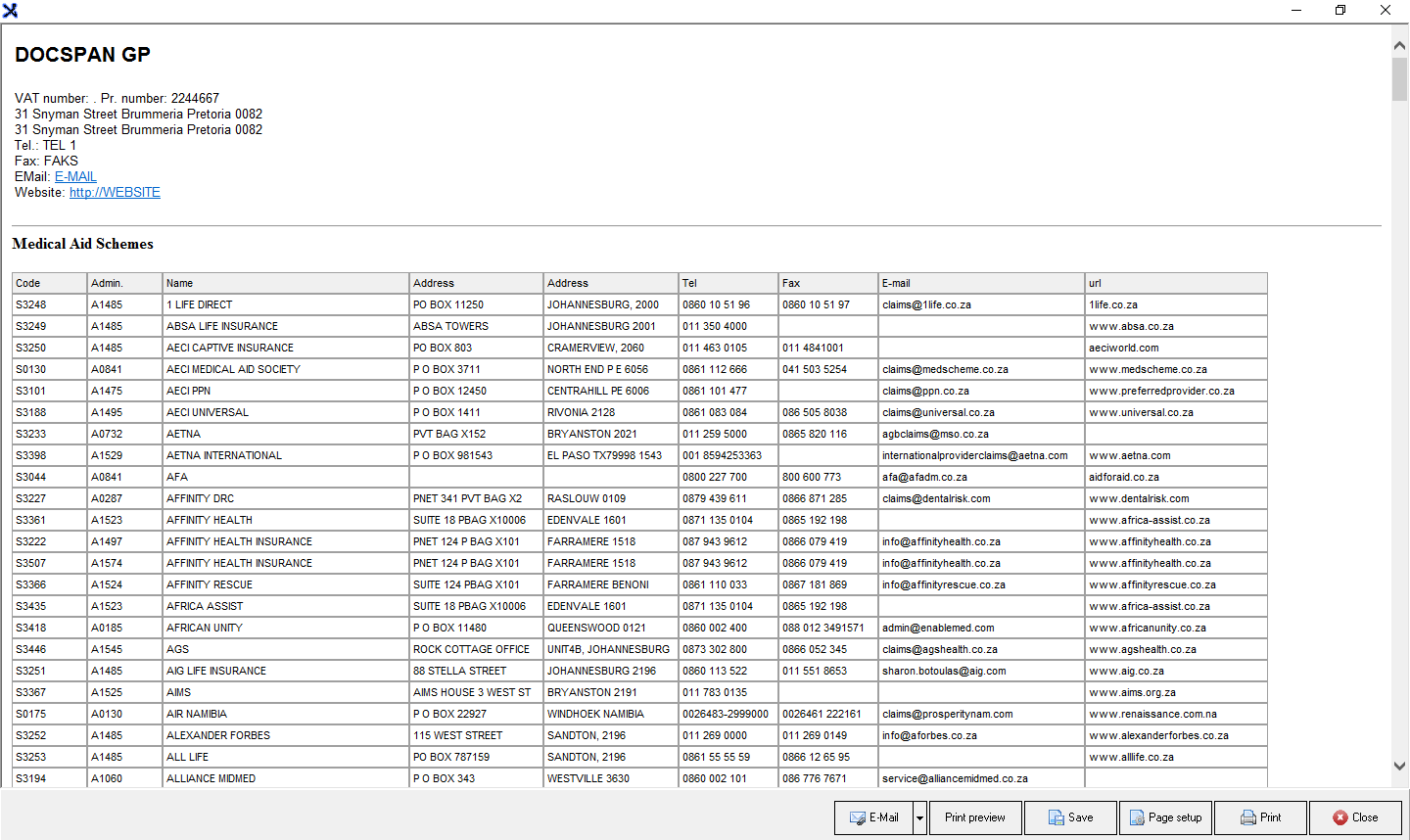
A preview of the list will appear
You will have the following options to do with this list :
Email: Email the list
Print Preview: Preview how your list will look when you print a hard copy
Save: Save a digital copy to
Page Setup: Opens the page setup screen
Print: Prints to the Set-up printer
Close: Closes the screen and returns to the Medical Aid Options screen
Medprax Exceptions: Opens the Medprax option selection screen as explained above in the Medprax Exceptions Section
Medical Aid Notes: Opens the scheme notebook screen where you can make notes as explained above in the Medical Aid Notes Section
When you are done and satisfied with what you have done, Click on OK to return to theMain MedDebs screen
Or you can just Click on Cancel to return to the Main MedDebs screen