All the appointments are linked to a Service centre and an Appointment type. If the Practice only has one Service centre or Appointment type, the Service centre and/or the Appointment type can default on all the bookings. This will save time because the Service centre and appointment type do not have to be chosen for each booking. When there are more than one, the default can be set to the one that is used the most and can be changed on the single bookings where necessary. This can always be changed after the default is set.
Sign in to the GoodX Desktop using your GoodX username and password.
From the NavigatorDouble click on the Diary Module.
You will be directed to the Main Diary screen
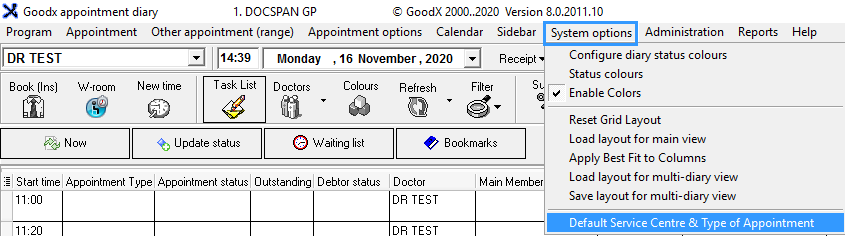
From the Menu Bar, clickon System
Click on Default Service Centre & Type of Appointment
The Make Appointments Screen will pop up
Dates: The default dates that you would like your Diary to be set up the From and To range (in this case from 16/10/2020-31/12/2020)
Times: The default times that you would like your Diary to be set up with the From and To range (in this case only between 09h00-14h00)
Existing Appointments:
This is where you tell the system on which timeslot the changes need to be made
You will choose one option
Only Empty timeslots: Will only apply changes to empty appointment timeslots with no appointments, on the diary screen
All time slots: Will apply changes to all timeslots
Choose 'From-to' on All Timeslots
Applies the changes from one Service Centre to another
Applies the changes from one Appointment Type to another
The Change tick box needs to be selected in order for the option to be changed
When selecting Choose From- To on all Timeslots the following options will be made available and the user will be able to choose the Service Centre & Appointment Type
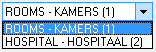
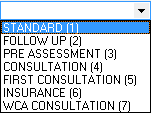
Options in the Dropdown boxes
PLEASE NOTE: This will differ from each practice dependant on the practice set-up
Service centre -This is where the patient is treated
Appointment Type- This will differ from each practice depending on the types of appointment available at the practice
Days of the week:
The user can choose on which days the practice would like the settings to be applied as a default ( in this case on Tuesdays & Wednesdays)