Why Use This Function:
Quick Notes give Practitioners a fast, centralised way to record key observations, findings, and images during or after a consultation. This streamlines documentation and improves care by making past clinical interactions easy to access and review. With a clear, chronological record, Practitioners can make better decisions, spot recurring issues, and ensure each visit builds on the last. This supports better treatment planning, stronger Patient outcomes, and smoother communication with colleagues or referring Practitioners.


The Contents of This User Manual:

  • Adding Images
  • Adding a Voice Recording
  • Integrated AI
  • Uploading a PDF
  • Finalising the Quick Note

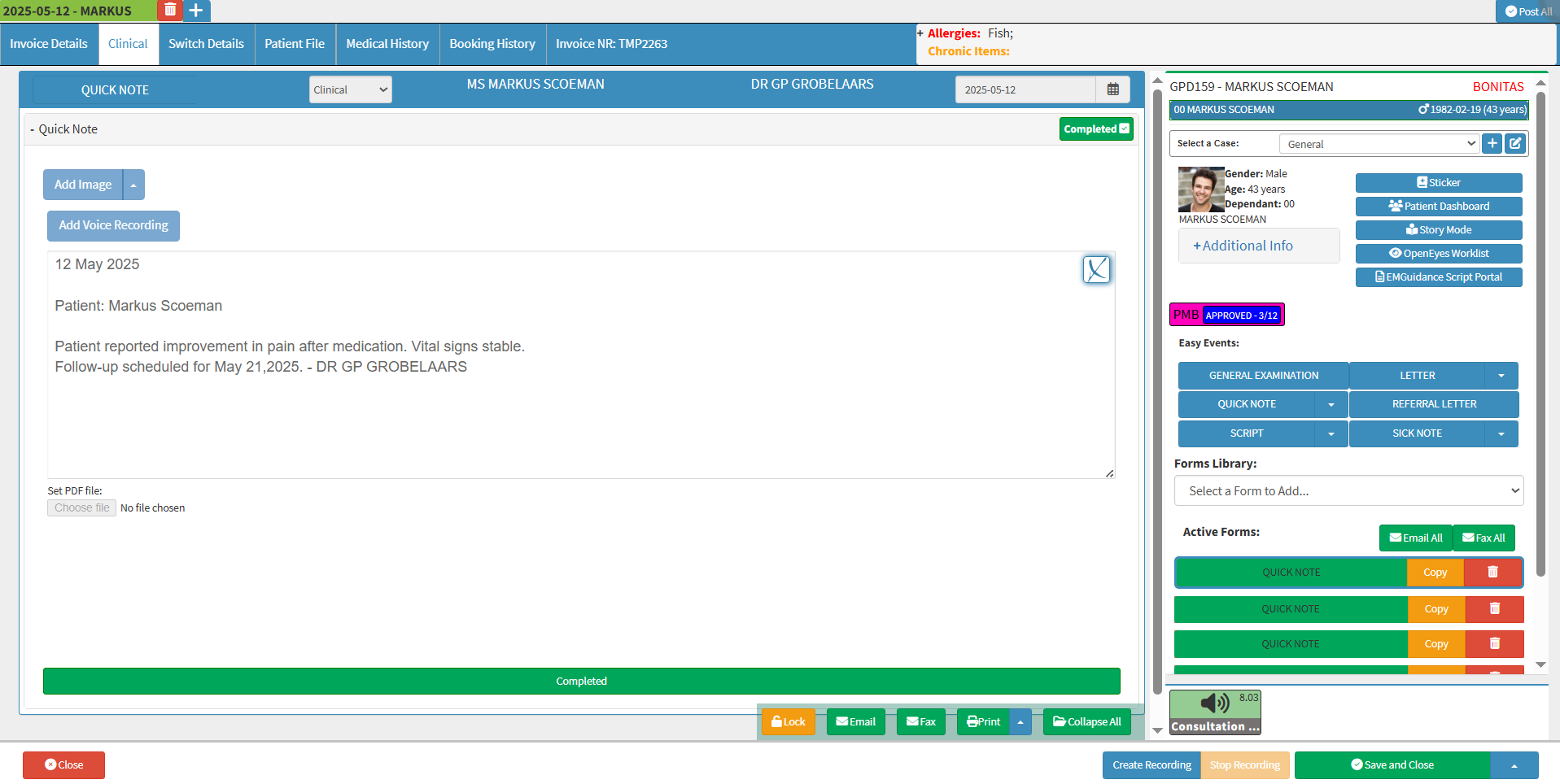
  • This user manual will start on the Clinical screen.

wedf

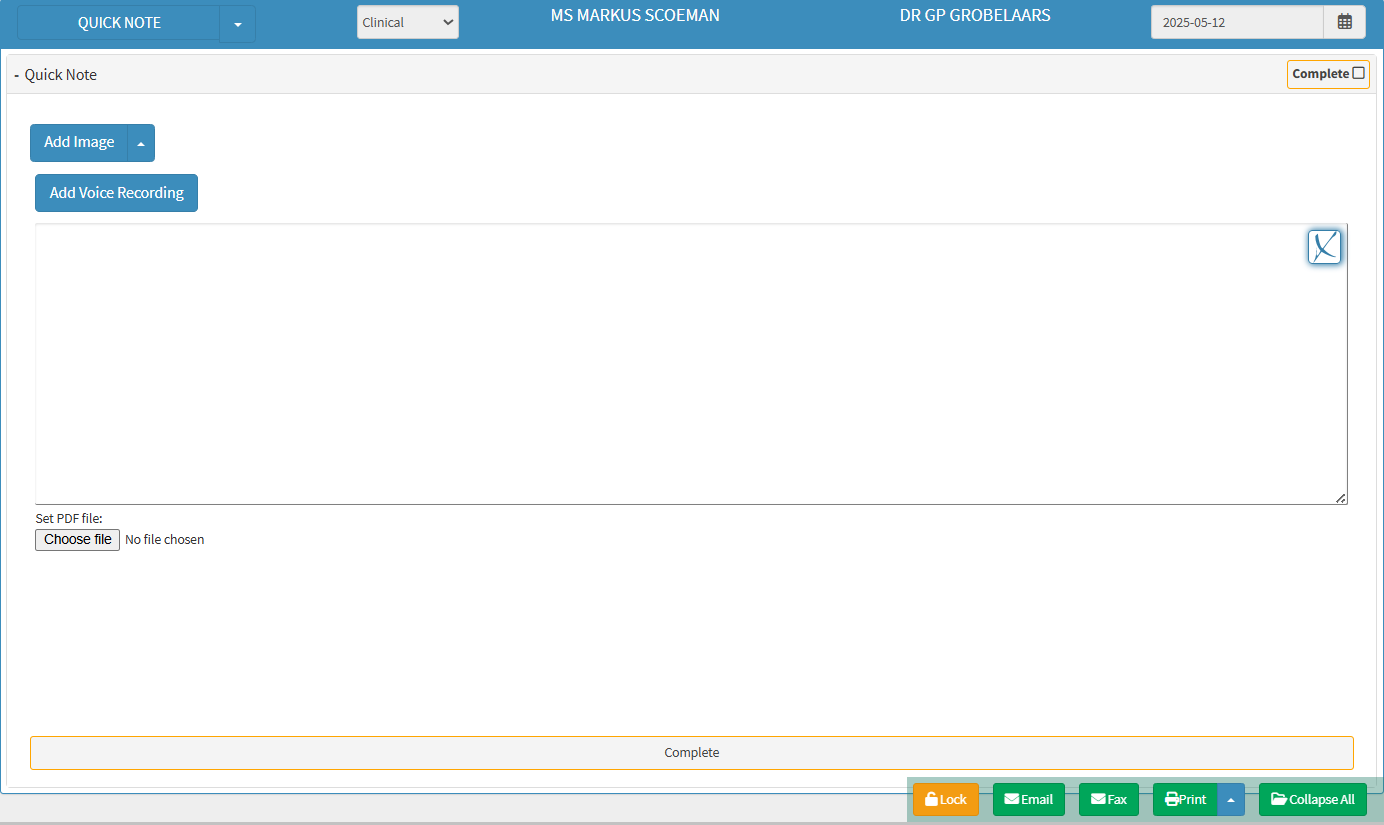
  • Click the Quick Note button in the Easy Events section (if it's been set up).

qnb

    • For more information on Easy Events, please refer to the user manual: Easy Events.

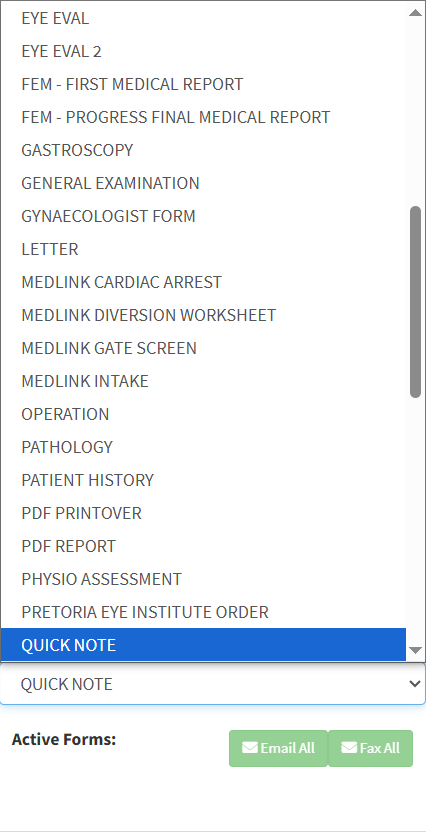
  • Alternatively, access Quick Notes by choosing it from the Forms Library drop-down menu.
    • The Quick Note screen will open.

as


Adding Images

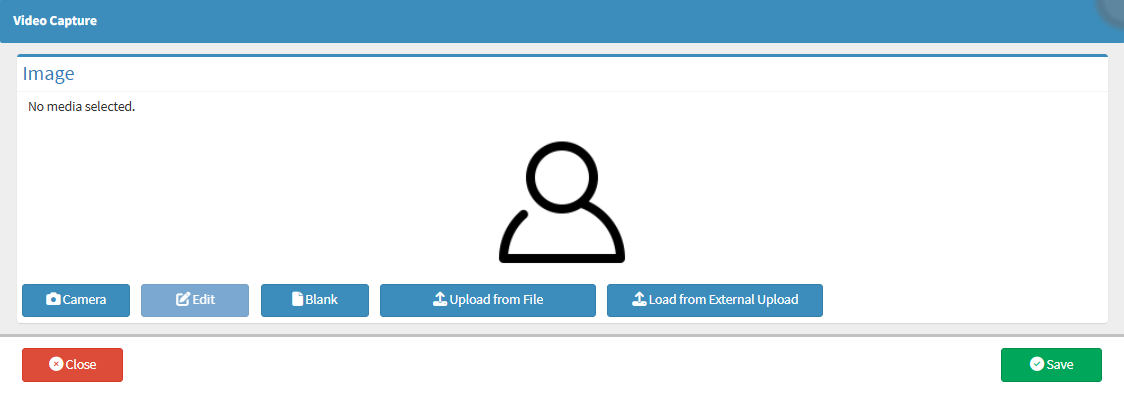
  •  Click the Add Image button.

add i

    • The Video Capture screen will open.

video


Adding a Voice Recording

  • Click on the Add Voice Recording button.

add

Integrated AI

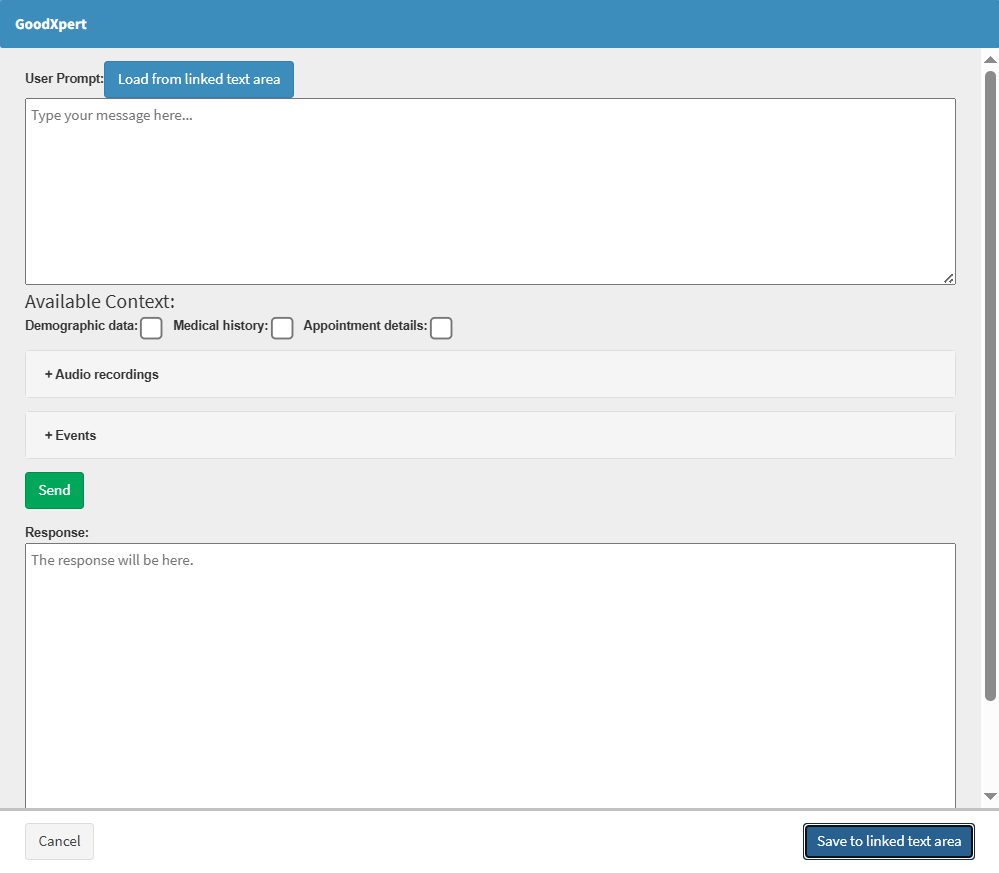
  • Click on the GoodXpert button.

gx

    • The GoodXpert screen will open.

xxxx


Uploading a PDF

  • Click on the Choose File button to upload an external PDF.

set

    • Your device's file explorer will open, allowing you to select the PDF you wish to upload.

💡Please Note: The File Explorer screen may differ between devices.


Finalising the Quick Note

  • Click the Complete button at the bottom of the screen to finalise the note.

complete

    • The button will turn green, and the note indicator in the sidebar will also appear green.

ccs

Last modified: Tuesday, 31 March 2026, 12:00 PM